Sandboxing in Virtual Machines for Malware Analysis
Last Updated : 18 May, 2026
A malware analysis sandbox is an isolated and controlled environment where suspicious files and malicious programs can be executed safely without affecting the host system. Security researchers and malware analysts use Virtual Machines (VMs) together with sandboxing tools to monitor malware behavior, including file activity, registry changes, network communication, process execution, persistence techniques and system modifications.
Isolation and Security: Virtual Machines isolate malware from the host operating system, reducing the risk of system compromise and preventing malicious code from escaping into the main environment.
Snapshot and Rollback: Snapshots allow analysts to restore the VM to a clean state instantly after malware execution.
Repeatable Testing: Researchers can repeatedly analyze malware samples under identical conditions.
Multiple Operating Systems: Analysts can create Windows, Linux or even Android environments for testing different malware families.
Cost-Effective: Virtualization eliminates the need for multiple physical machines.
Common Virtualization Software for Malware Analysis
1. VirtualBox
Ideal for beginners, students and cybersecurity learning labs.
Free and open-source virtualization software.
Lightweight and easy to configure.
Supports snapshots and isolated networking.
Suitable for malware analysis practice environments.
2. VMware Workstation
Commonly used in professional malware analysis and enterprise research labs.
High-performance virtualization platform.
Strong hardware compatibility.
Advanced networking and snapshot management.
Preferred by security professionals and malware researchers.
3. Hyper-V
Best suited for Windows-based enterprise environments.
Built into Windows 10 and Windows 11 Pro.
Enterprise-grade virtualization support.
Efficient integration with Windows security features.
Useful for corporate malware analysis environments.
Setting Up a Secure Malware Analysis Sandbox
Follow the steps below to build a safe and isolated malware analysis environment using a Virtual Machine and sandboxing tools.
Step 1: Choose a Virtualization Platform
Select a virtualization software based on your requirements:
VirtualBox: Free, lightweight and beginner-friendly.
Create a new Virtual Machine and install a fresh operating system such as Windows or Linux. After installation, update the operating system and install essential analysis tools.
Allocate sufficient RAM and storage.
Use NAT or Host-Only networking for isolation.
Disable unnecessary VM integrations.
Avoid shared clipboard and shared folders.
Step 3: Prepare the VM for Malware Analysis
Before executing malware samples, secure the environment properly.
Take an initial VM snapshot named Clean-Base
Ensure virtualization support is enabled
Disable drag-and-drop and shared clipboard
Keep the VM isolated from the host machine
Use non-persistent or temporary environments whenever possible
Installing Sandbox Tools Inside the Virtual Machine
You can install sandboxing software inside the VM for an additional layer of containment and monitoring.
1. Sandboxie-Plus (Requires Windows)
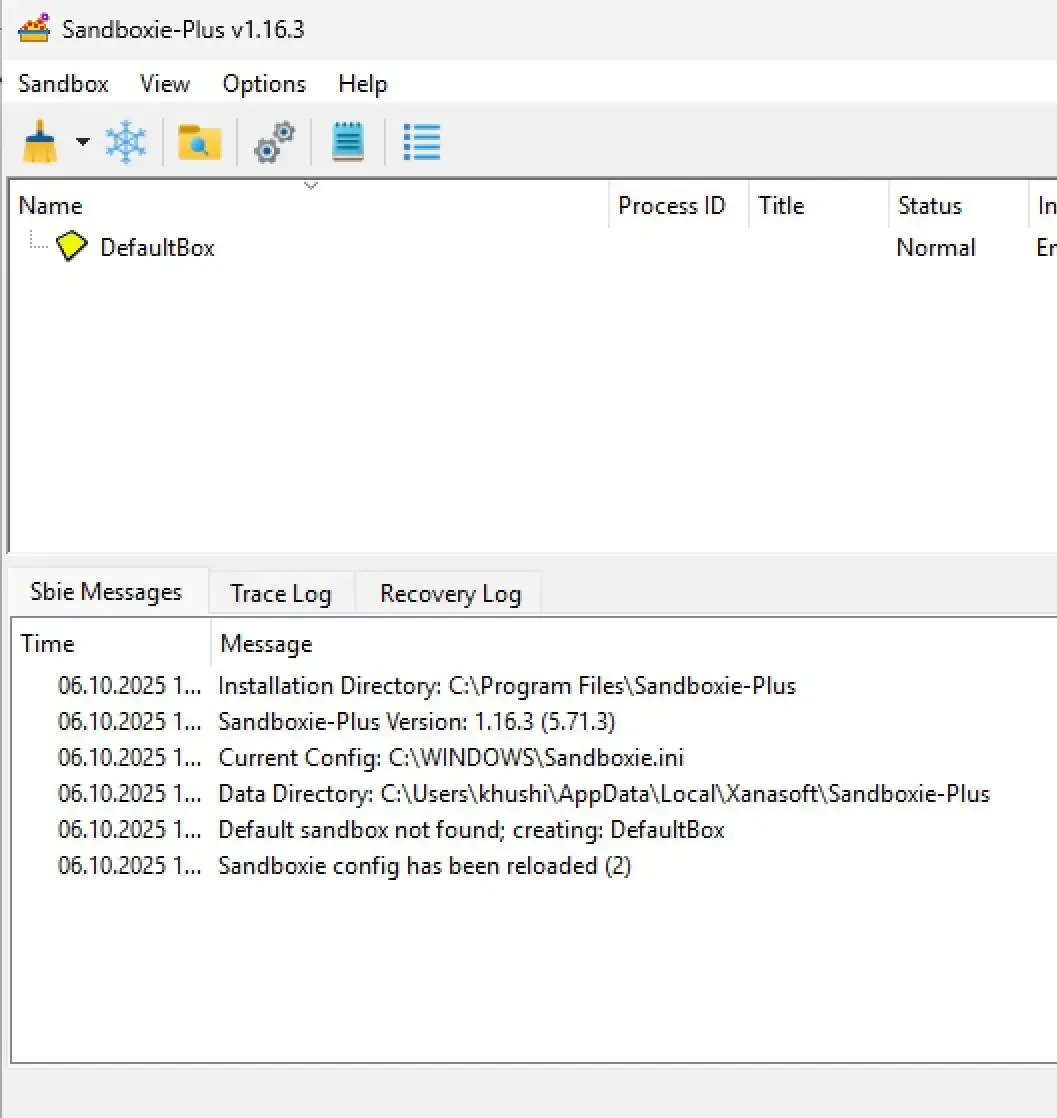
Sandboxie-Plus is a Windows sandboxing application that runs programs in isolated containers to prevent permanent system changes. It is useful for: Malware testing, Suspicious file execution, Browser isolation, Threat research.
Create a VM Snapshot: Take a snapshot named Before-Sandboxie-Install.
Download Sandboxie-Plus: Inside the VM, open a browser and download Sandboxie-Plus from the official website.
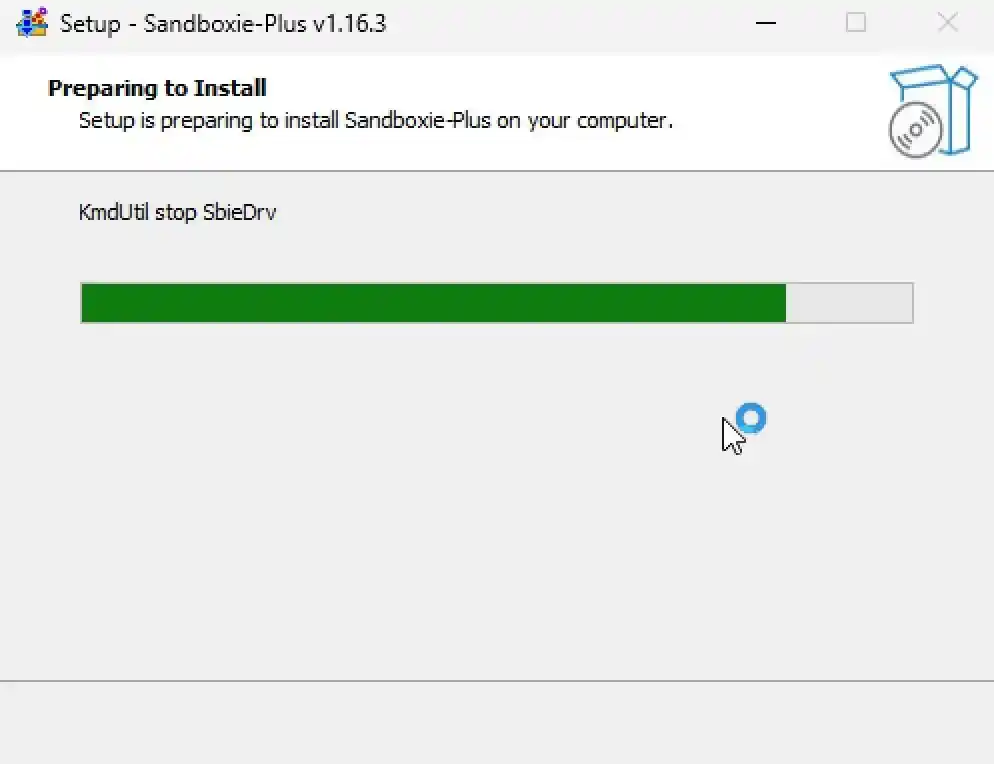
Install the Application: Run the installer and complete the setup using default options.
Create a New Sandbox: Launch Sandboxie-Plus Control and create a sandbox such as MalwareSandbox.
Clean the Environment: After analysis Delete sandbox contents, Revert the VM snapshot, Remove malware samples safely.
2. Installing Firejail on Linux
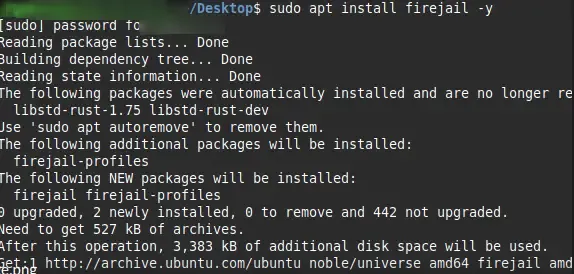
Firejail is a lightweight Linux sandboxing tool that uses Linux namespaces and seccomp-bpf for application isolation. It is commonly used for: Linux malware analysis, Browser isolation, Application hardening, Exploit testing.
Create a Snapshot: Take a snapshot of the Linux VM before installation.