|
VOOZH | about |
|
VOOZH | about |
In this article we will create simple, shareable web UIs for a Machine Learning model using Gradio. The example demonstrates an InceptionV3 image classifier (TensorFlow), and the UI will accept an image and show the top predicted labels with confidence scores.
Install required Python packages:
pip install gradio tensorflow numpy requests
If you already have TensorFlow installed, you can skip reinstalling it. Just make sure all versions are compatible.
We first import the necessary Python libraries for creating the UI, loading the model, and handling arrays and data downloads.
Explanation:
We load the InceptionV3 model that comes pre-trained on ImageNet a large dataset of images and labels.
Explanation:
Note: You do not need a separate labels file when you use decode_predictions() (it uses TF's internal mapping).
Next, we define a function that takes the uploaded image, processes it to the right format, runs the model, and returns the predicted results.
Explanation:
Now, we create the Gradio interface specifying what the input and output will look like.
Explanation:
Finally, launch the Gradio app. You can view it on your browser locally or share it online with a temporary link.
Explanation:
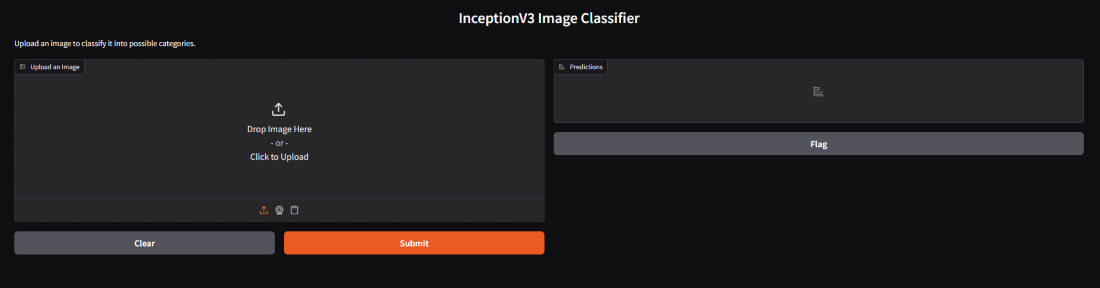
When you run the program, a simple Gradio interface will appear. It contains an image upload section on the left and a results panel on the right.
Below is how the plain interface looks when you run it:
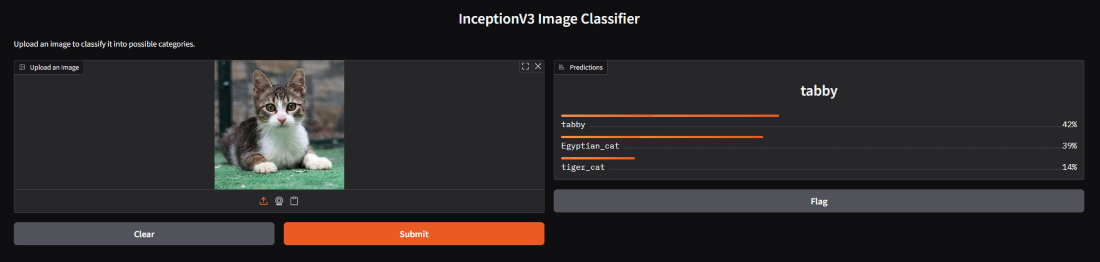
Now, once you upload an image (for example, a cat or a dog) and click Submit, the right side of the interface displays the model’s predictions showing the top class names and their confidence scores.