 |
VOOZH | about |
|
VOOZH | about |
Let's discuss the angry bird game using Pygame, I hope this article will be very interesting as it provides a holistic gaming experience at the end. We begin by describing the modules necessary to develop this game.
The objective of the game is to hit as many enemy birds as possible to score points. Your score increases by 100 points each time you hit an enemy bird. The game also features a "Level Cleared" condition if you score 500 points or more, and a "Game Over" condition if your score reaches 0 after three unsuccessful attempts. The below code was developed to achieve this gaming objective.
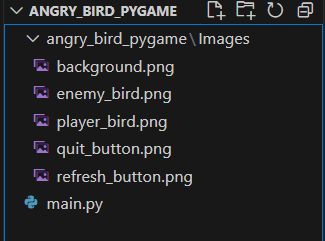
Folder Structure
The folder structure should look like this and you can download the images from the GitHub Repository given at the end of the article. Pygame should be installed
Below are the step-by-step approaches for developing an angry bird game using Python
For this interactive game, four libraries are required.
Output:
pygame 2.5.0 (SDL 2.28.0, Python 3.10.6)
Hello from the pygame community. https://www.pygame.org/wiki/Contribute
This initializes the Pygame library, allowing you to use its functionalities to build your game. Then create the game window with the specified dimensions and set its title to "Angry Birds"
Next, we load images for the player bird, enemy birds, and the background. The background image is also resized to fit the screen dimensions. You can download images from the GitHub repo given at the last of the article.
Here we define the Bird class. It inherits from pygame.sprite.Sprite, which is a base class for all sprites in Pygame. The constructor __init__ initializes various properties of the bird, including its image, position, velocity, and dragging status.
In this Bird class, we define separate methods such as update(), start_drag(), end_drag() and hit_enemy(). The update method, updates the bird's position based on its dragging status or velocity. If the bird is being dragged by the player, its position follows the mouse cursor. Otherwise, its position changes according to its velocity.
This method, start_drag, is called when the player clicks on the bird. It sets the bird's dragging status to True and stores the initial position for reference. This method, end_drag, is called when the player releases the bird. It calculates the velocity of the bird based on the direction in which it was dragged and assigns it a constant speed.
This method, hit_enemy, is called when the player's bird collides with an enemy bird. It increases the score by 100 points.
This is the definition of the Button class. Similar to the Bird class, it inherits from pygame.sprite.Sprite. The constructor initializes the button's image, position, and an action associated with the button.
Here, you create instances of the player bird and multiple enemy birds. Their positions are randomly generated within specified ranges.
These lines define variables for button positions and the player's score. The score_position variable specifies where the score will be displayed on the screen.
These lines load images for the quit and refresh buttons and create instances of the Button class for them.
Here, we set up a font for displaying messages and initialize the game loop, clock, and various game state variables.
In this part, the game loop processes events, such as quitting the game, clicking on buttons and interacting with the player bird. If the "Quit" button is clicked, the game exits. If the "Refresh" button is clicked, the player bird's position, enemy bird positions, and game state are reset. If the player bird is clicked, dragging is initiated. When the mouse button is released, the dragging ends, and the "try_again_counter" is incremented if no collisions occur.
In this part, we update enemy bird positions and handle collisions between the player bird and enemy birds. If a collision occurs, the hit enemy bird is removed and the hit_enemy method is called to update the score. The code also resets enemy bird positions that go off-screen and resets the player bird's position if it goes off-screen.
Here we provide the "Level Cleared" condition if we score 500 points or more, and a "Game Over" condition if the score is still 0 after three unsuccessful attempts. Based on this logic, the display message will be shown on the game screen.
1. Drag the Player Bird: Click and hold the left mouse button on the player bird. While holding the mouse button, move the mouse to drag the player bird around the screen.
2. Release the Player Bird: Release the left mouse button to release the player bird. The bird will be launched in the direction you dragged it, and it will move with a constant speed.
3. Quit Button: Click the "Quit" button in the top-left corner of the screen to exit the game.
4. Refresh Button: Click the "Refresh" button next to the "Quit" button to restart the game. This resets the player bird's position, resets the enemy birds, and clears the current score and game state.
Enemy birds will be randomly placed on the screen. Your goal is to launch the player bird to hit these enemy birds and score points.
If you hit an enemy bird, your score increases by 100 points. The hit enemy bird will be removed from the screen, and a new one will appear in a random position.
If the player bird goes off-screen, its position will be reset to its initial position.
If you manage to score 500 points or more, a "LEVEL CLEARED" message will appear at the center of the screen, indicating that you have completed the level.
If your score reaches 0 after three unsuccessful attempts (no hits), a "GAME OVER" message will appear at the center of the screen, indicating that the game is over.
The entire code, combining all the above steps to start playing our angry bird game using Python is ready. The below code includes defining classes for the birds and buttons, creating instances of those classes, and preparing the game loop and related state variables in order to create an interactive seamless gaming experience. Further, improve this code with additional features, and more features to make this very interesting. Let's start the game now.
Output:
pygame 2.5.0 (SDL 2.28.0, Python 3.10.6)
Hello from the pygame community. https://www.pygame.org/wiki/Contribute
Kindly check the GitHub game repository link attached, "https://github.com/automprojects/AngryBirdPygame"

_11zon.jpg)
_11zon.jpg)