|
VOOZH | about |
|
VOOZH | about |
In this article, we will see how to send a single message to any number of people. We just have to provide a list of users. We will use selenium for this task.
pip install selenium
pip install webdriver-manager
Step 1: Importing all the necessary libraries.
Step 2: Using chrome with this code will always work (no need to worry about updating chromedriver version)
Step 3: Before declaring a Class we will make a list of users( any no. of users in this code I am using three users.) in that list you have to send the username of the person you want to send a message to and the message we want to send to all the users.
Step 4: Here I am creating a class function all the code will be written inside this class so, In the end, we just have to just call this class. Let's create an __init__ function that can be called when an object is created from the class,__init__ will provide the access that is required to initialize the attributes of the class.
Step 5: Creating a Login function where all the steps will be written
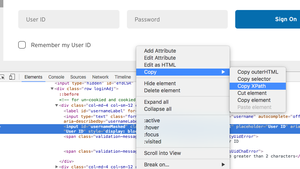
Note: for finding the XPath right-click on the element then you see the inspect option on a web browser.
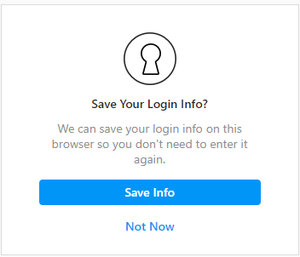
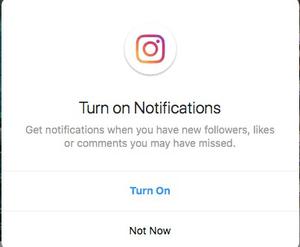
Step 6: HANDLING POP-UP BOXES - When you log in to Instagram you will come across two pop-up boxes as shown in the images. The first one will be asking about do you want to save info or not it will click on not now. The second one will be asking you to turn off the notifications or not so we will again click on not now as shown in the given code.
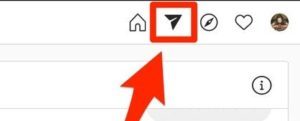
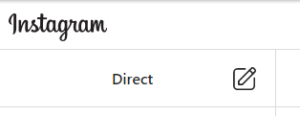
Step 7: Clicking on the message option on the right corner
Note: This will click on the message(direct) option.
Step 8: Clicking on the pencil option here we type the user's name.
Step 9: Here is the main part of the code where we take a username from the list search for it and message that person. This process is in the loop to take username.
Step 10: We have finally completed the code. It's time to create a function where we will pass the username and the password of the account in which we want to login and call our class here.
Step 11: Let's call our function
Let's put all the code together