|
VOOZH | about |
|
VOOZH | about |
In this article, we will learn how to link an Arduino to a Python script in order to operate the Arduino. This example of constructing a 4-bit binary up-counter using Python script to control Arduino helps us understand this better.
Now let us quickly summarise the steps to achieve our Goal. You can directly skip to the required parts by scrolling along:
You should have Python and pip Installed in your system. Then you can run the following command to install the PyFirmata module in your system.
pip install pyFirmata
StandardFirmata is a code that helps Python get access to the Arduino board.
First, connect your Arduino to the computer/raspberry pi/laptop using the USB cable.
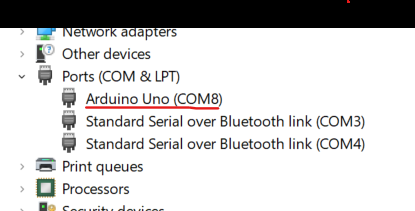
Know the port name the Arduino is connected to. In windows, the port name will be something like "COMx" (where x is an integer), while in Linux it will be a string starting with "/dev/tty". You might find this information by opening Device Manager in Windows.
If you are using Linux, please refer to the official Arduino Documentation.
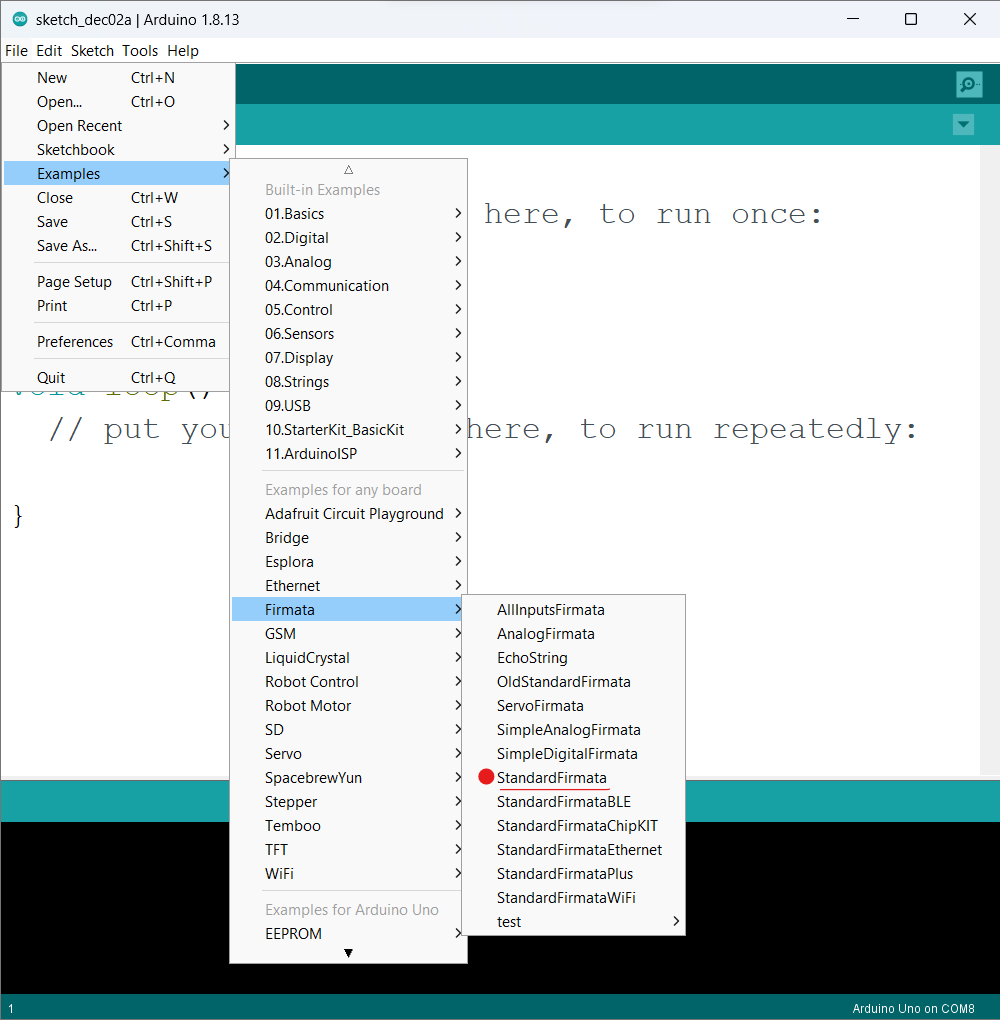
Next, you can open the Arduino IDE and follow the steps to upload the StandardFirmata to the board.
Get StandardFirmata: File -> Examples -> Firmata -> Standard Firmata
Specify Correct Board and Port: Tools -> Board -> Select Arduino UNO (or your own board) -> Tools -> Port -> Select your Port
Upload the StandardFirmata: Click on the upload button to upload the code to Arduino.
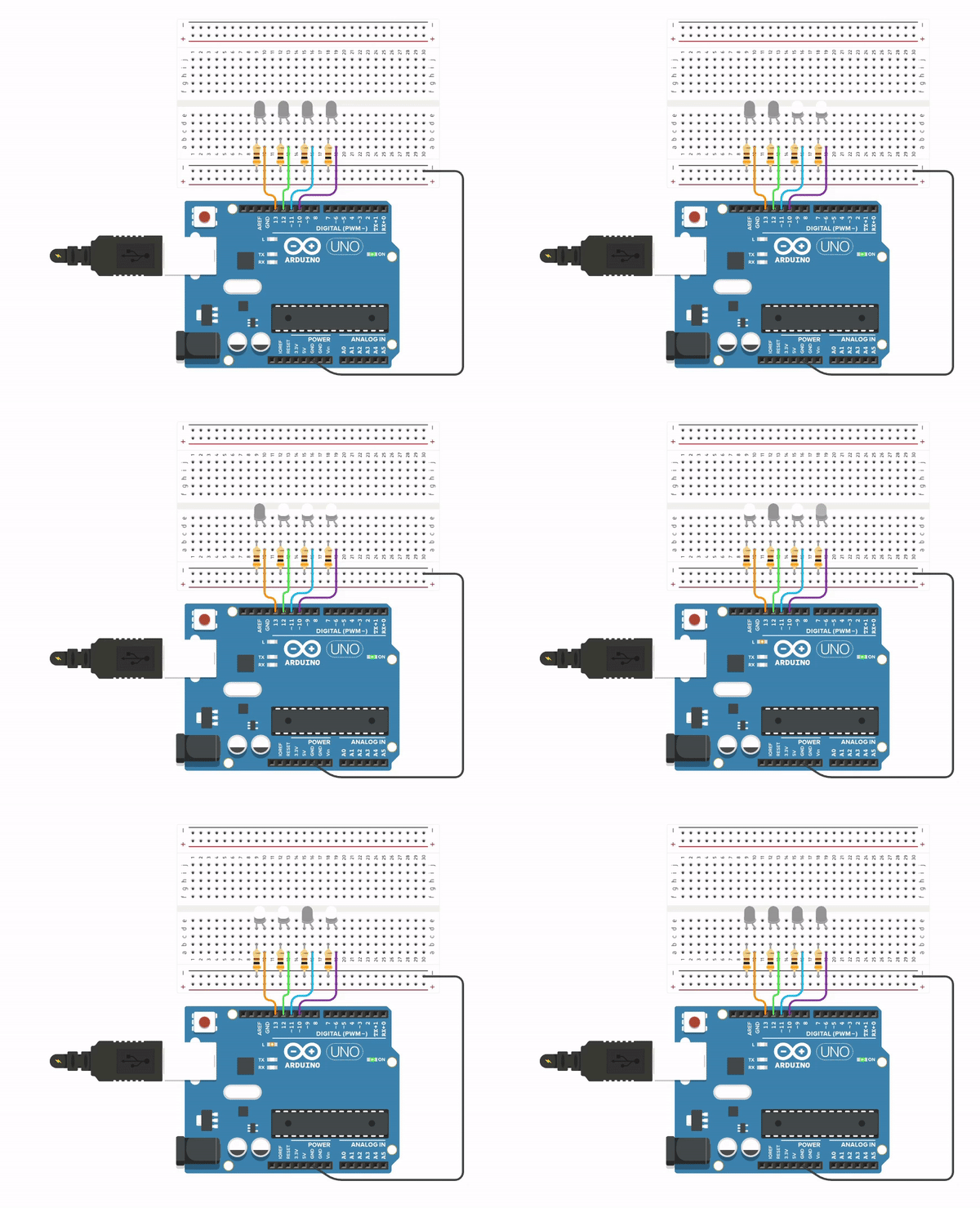
Make the connections like the image above. Here I have connected the 4 LEDs to the 13th, 12th, 11th, and 10th pins. There was no specific reason to connect them in that manner. You can use any other digital pin.
Output:
0 0 0 0
0 0 0 1
0 0 1 0
0 0 1 1
0 1 0 0
0 1 0 1
0 1 1 0
0 1 1 1
1 0 0 0
1 0 0 1
1 0 1 0
1 0 1 1
1 1 0 0
1 1 0 1
1 1 1 0
1 1 1 1


...
Here is the Simulation Output!