|
VOOZH | about |
|
VOOZH | about |
We create lots of Python programs per day and want to share them with the world. It is not that you share that Python program with everyone, and they will run this script in some IDLE shell. But you want everyone to run your executable python script without the installation of Python. So for this work, you can convert the .py file to .exe file. In this article, you will learn how you can convert .py file to .exe file. Follow the below steps for the same.
There are Several tools are available for converting executable Python script. The most popular ones include:
In this article, we'll focus on using PyInstaller due to its ease of use and powerful features.
Type below command in the command prompt to create python to executable.
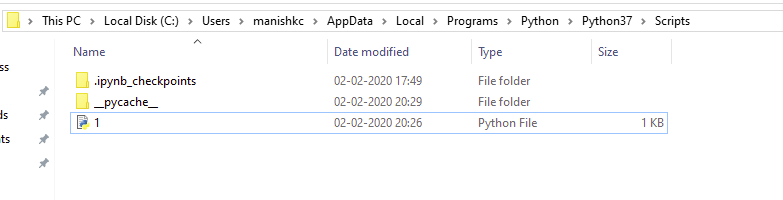
pip install pyinstallerGo into the directory where your '.py' file is located.
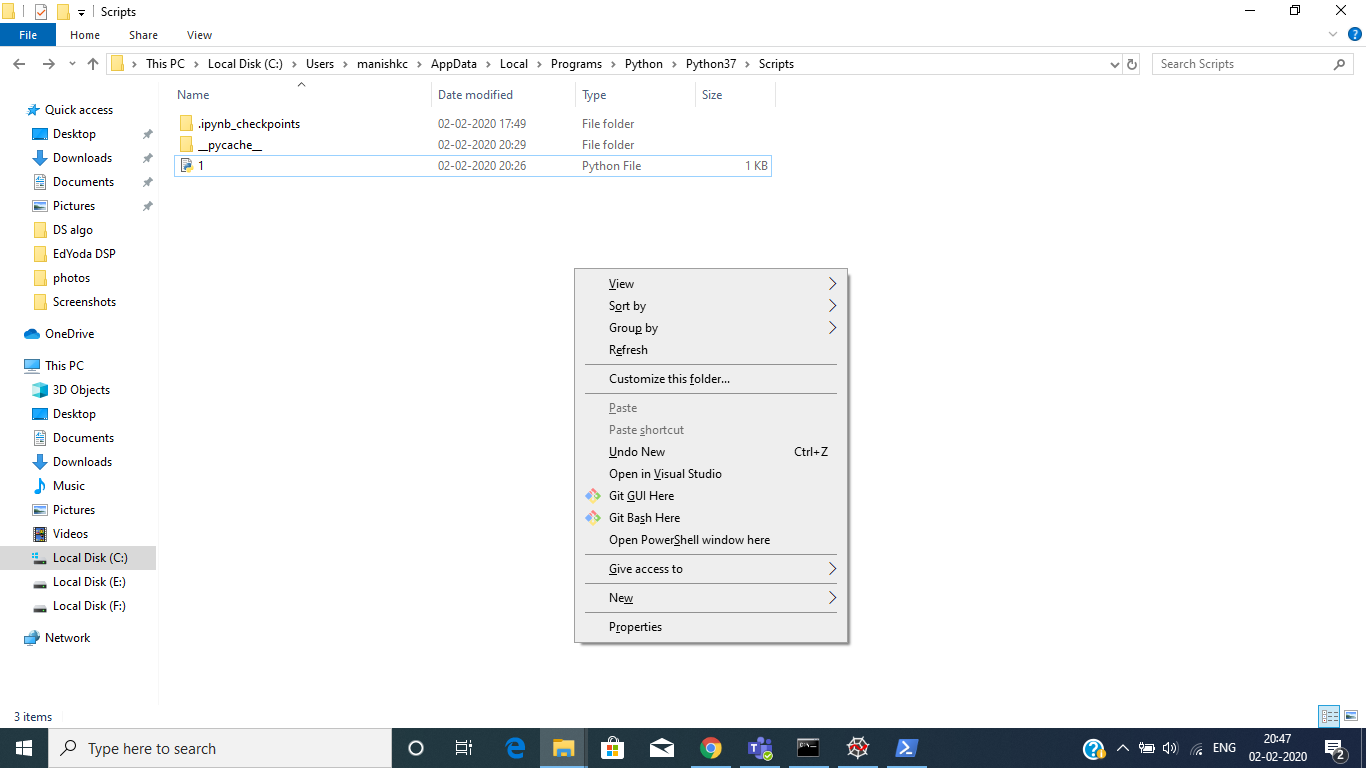
👁 Convert-.py-to.exePress the shift⇧ button and simultaneously right-click at the same location. You will get the below box.
👁 ImageClick on 'Open PowerShell window here'. You will get a window shown below.
👁 convert .py to .exeType the command given below in that PowerShell window.
The --onefile option ensures that PyInstaller creates a single executable file rather than a directory with multiple files. Here the '.py' file name is '1'.
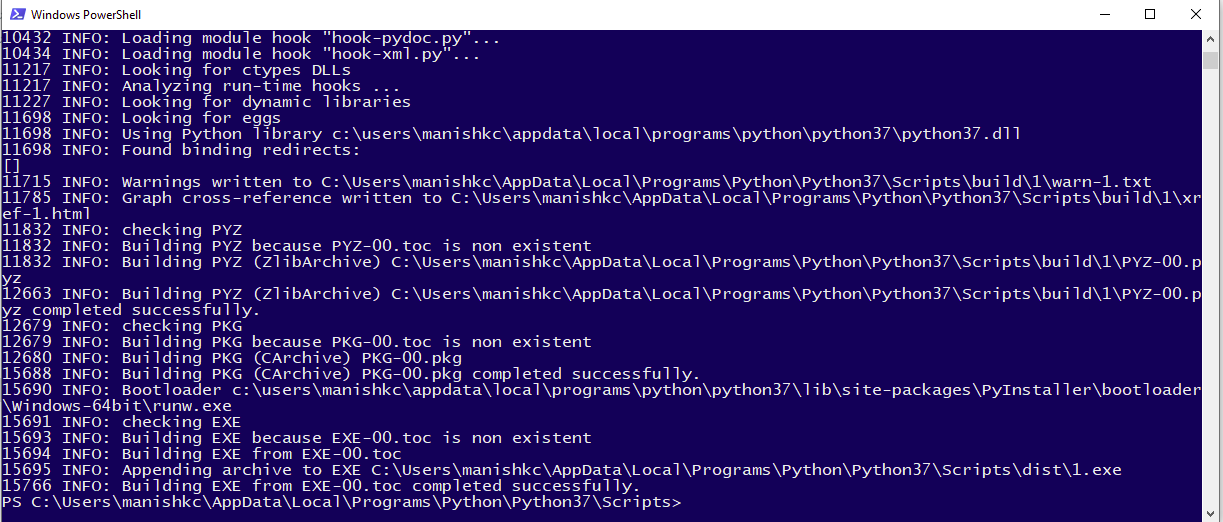
pyinstaller --onefile -w 'filename.py'👁 Convert-.py-to.exeAfter typing the command 'Hit the Enter'. It will take some time to finish the process depending on the size of the file and how big is your project. After the processing has been finished, the window will look as below:
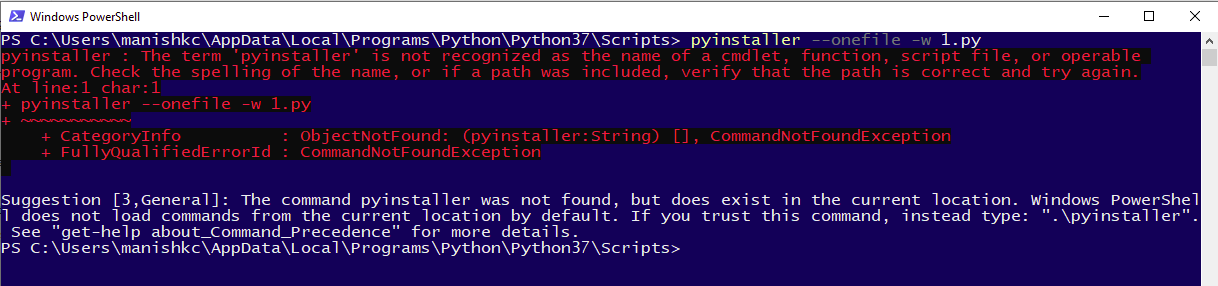
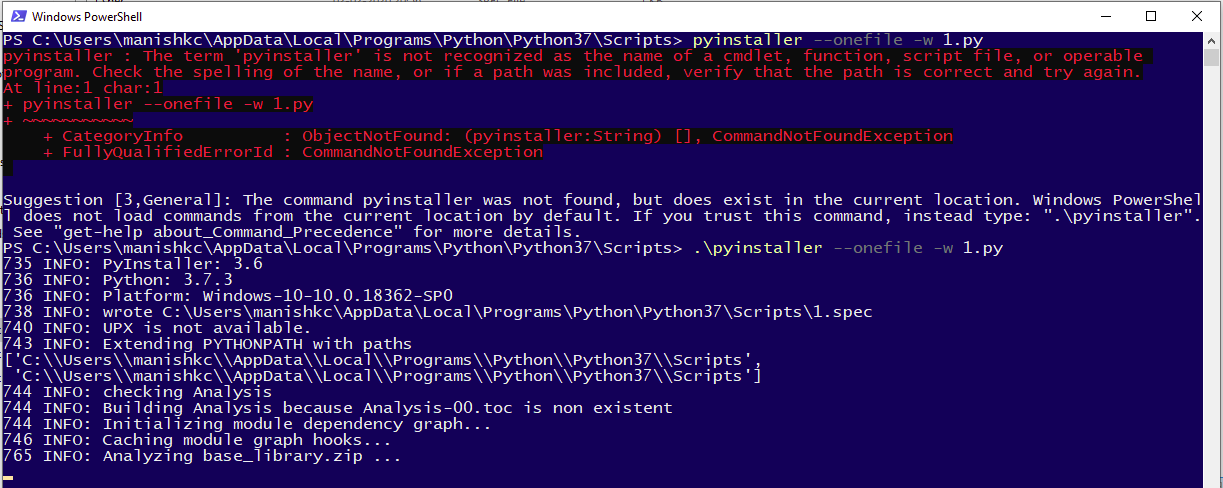
👁 Convert-.py-to.exeIn case you get an error at this point in the PowerShell window like this:
👁 convert .py to .exeThe correction while typing the above command:
.\pyinstaller --onefile -w 'filename.py'👁 Convert-.py-to.exe
For any missing package:
pyinstaller --hidden-import 'package_name' --onefile 'filename.py'
After typing the command 'Hit the Enter'. It will take some time to finish the process depending on the size of the file and how big is your project. After the processing has been finished, the window will look as above:
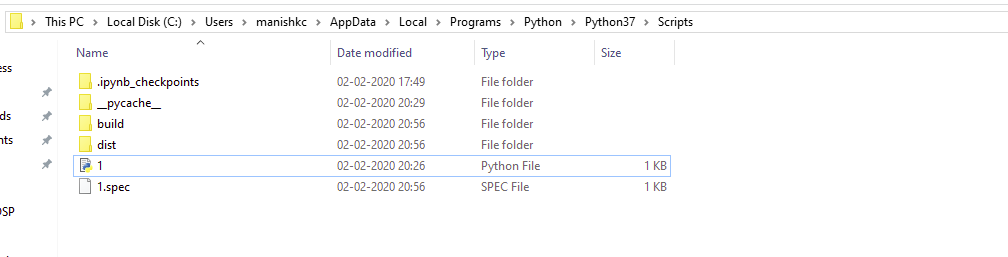
See the directory it should look like this:
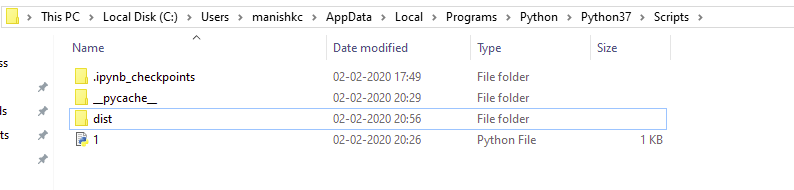
👁 Convert-.py-to.exe'build' folder and '1.spec' is of no use. You can delete these if you want, it will not affect your '.exe' file.
👁 Convert-.py-to.exeOpen 'dist' folder above. Here you will get your '.exe' file.
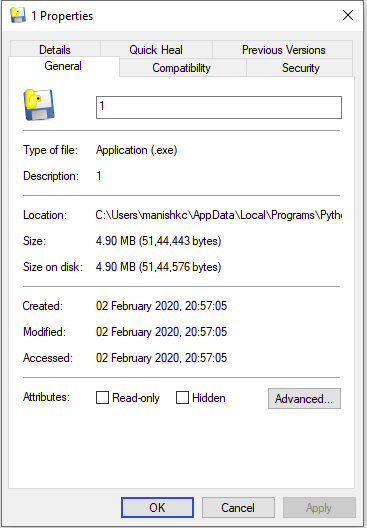
👁 Convert-.py-to.exeRight-click on the file and check the properties.
👁 Convert-.py-to.exePyInstaller provides several options to customize the build process:
Converting Python scripts to executable files can significantly simplify the distribution and execution of your programs. PyInstaller is a powerful tool that makes this process straightforward, allowing you to create executables that are easy for end-users to run.
By following the steps outlined in this article, you can convert your Python scripts to .exe files efficiently. Explore additional options and configurations provided by PyInstaller to further customize your executable files according to your needs.