|
VOOZH | about |
|
VOOZH | about |
Manipulating data in Excel often involves tasks such as copying specific rows or columns based on certain conditions. Python, with its powerful libraries like Pandas and openpyxl, provides efficient solutions for handling Excel files. In this article, we will explore how to copy rows and columns in Excel using Python, showcasing practical examples for different scenarios.
Openpyxl is a Python library for reading and writing Excel (xlsx) files. It allows developers to work with Excel files, manipulate data, formatting, and perform various operations programmatically. openpyxl provides a convenient and Pythonic way to interact with Excel files, making it easy to handle tasks like creating new workbooks, modifying existing ones, and extracting or inserting data.
Below, are examples of how to Copy Rows And Columns In Excel Using perform. First, install the openpyxllibrary, which is essential for copying rows and columns in Excel using Python, use the following command:
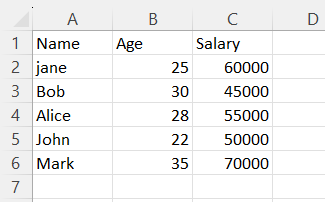
pip install openpyxlExcel1.xlsx:
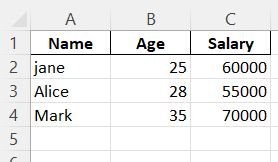
In this example, below Python code uses the Pandaslibrary to read data from an Excel file named 'excel1.xlsx' into a DataFrame. It then filters rows based on a specified condition where the 'Salary' column is greater than $50,000. The resulting DataFrame is saved as a new Excel file named 'excel2.xlsx', excluding the index column.
Output (excel2.xlsx) :
In this example, below Python code, uses Pandas library, reads data from an Excel file named 'excel1.xlsx' into a DataFrame. It then selects specific columns ('Name' and 'Age') based on a condition where the 'Age' column is less than 30. The resulting DataFrame is saved as a new Excel file named 'excel2.xlsx', excluding the index column.
Output (excel2.xlsx):
In this example, below code using the openpyxl library, the code loads data from the source Excel file 'excel1.xlsx' into a workbook and worksheet. It then attempts to create a new Excel file 'excel1.xlsx' for the destination, which might be unintentional. The script iterates through rows in the source worksheet and appends them to the destination worksheet.
Output (excel2.xlsx)