|
VOOZH | about |
|
VOOZH | about |
In this article we will build a clone of a famous game, 'Breakout'. We will build this game using one of Python's in-built libraries, Turtle.
We want to keep the programming simple. The best way to do that is to break down the problem into simpler tasks and achieve them one by one. We achieve this using Object-Oriented Programming. This will keep our components independent from each other, which makes it easy to work with them.
Here we simply import turtle and create an object from its Screen class to control what happens with the program window. We give it to size, colour, and title to get a blank black screen.
main.py
The first thing to do is import the turtle library. Decide on the distance that the paddle will move on each movement. We create the class for the paddle, inherit the Turtle class and then give our paddle required properties, which include its shape, size, and colour. We don't want it to draw, thus we use the penup method. Then we make it go to the lowest part of the screen and in middle. Our window is 600 in width. Since each turtle screen is an XY plane, with origin in the centre, the lowest point is -300. By default, the dimensions of a turtle object are 20 X 20. Since we only stretched its length, the width remains unaffected. We place our turtle 20 pixels above the lowest point so that it remains visible, Otherwise, half of it will remain hidden. We also need it to move, thus we define two methods to make it move left and right. Since by default turtle is facing the right direction, it basically will move forward and backwards.
paddle.py
Now, Import the class for the paddle and create an object from it. We use listen() method of screen object that makes our program react to key presses. Then, using onkey() method, we define which keys it needs to listen to, which are the left and right arrow keys. For which we move our turtle backwards and forward respectively. Here we are also using two methods of screen object, tracer() and update(). We control the animations inside the window of our program. By passing zero to tracer we turn it off, by using update we turn it on. Because of these methods we directly see the paddle at the bottom of the screen. If we don't use them, we see a paddle created in the centre of the window, which then moves to the bottom.
main.py
Similar to paddles, we inherit Turtle class and create a ball which is just a turtle with a circular shape. We don't want it to draw either, so again we use penup. The first method we define is to make it move. Since our ball will be moving in the XY plane, we make increase its x and y coordinates by the same amount at the same time. This move method will be called inside our main.py inside a loop because of which we see a ball that is always moving. Then we create a method to make it change its direction when it collides with a wall, brick, or paddle, which bounces it off. Sometimes only the sideways directions need to be changed, sometimes vertical, and sometimes both. Thus we have two if statements. To make the direction change, simply make the moving distance negative, for the required coordinate. At last, we have the reset method, which makes our ball go back to where it started. We want it when the ball collides with the bottom wall, which means the user missed hitting it and should lose a life.
ball.py
We create an infinite while loop inside which the first thing we do is update our screen, delay our program and make the ball move. The speed of the computer is much faster than what we humans can comprehend, thus we delay our program a little for each iteration. In each iteration, we are also making our ball move once. We also check what are the current coordinates of our ball. We already know the dimensions of the window, and what will be the x and y points of edges given that origin is at the centre of the window. Thus we check if our ball's coordinates have exceeded the edges or not, based on which we make it bounce. Similarly, we will have methods to detect collisions with paddles and collisions with bricks.
main.py
The length of the paddle is 200, and the distance method of the turtle measures the distance between the centres of two turtles. Thus the paddle has 100 on the left and right. Similarly, the ball (20 X 20) has 10 around its centre point. This ball is touching the paddle when the distance between their centres is 100+10 <= 110. At the same time, we also check if the y-coordinate of the ball has reached the y-coordinate of the upper end of the paddle. When both these conditions are met, the ball is hit by the paddle and it should bounce. In the original game, we can notice that the ball changes its horizontal direction as well when it hits the extreme edge of the paddle. We check if the paddle is to the left or right of the window, inside this, we check if the ball is to the left or right of the paddle, then make it change its horizontal direction if both are on either left or right.
main.py
We create two classes. One for an individual brick and one for a collection of those bricks that appear on the window. An individual brick is a simple turtle, which is stretched sideways to make it rectangular. It also has a 'quantity' property, which is its weight, i.e., the number of times it needs to be hit by the ball before it disappears. This number is randomly given to a brick, we don't want our game to be too difficult, thus we make 1 as the most assigned weight. To check when the ball collides with the brick, we need the coordinates of the four edges of the brick. x-coordinates for left and right and y-coordinates for top and bottom. A list of bricks is simply an array of bricks. We know that the starting x-coordinate and ending coordinate for the brick remain the same, for each layer or lane of brick, the only thing that changes is the y axis. Thus a single lane creating method is called inside another method which passes its y-coordinates for lanes.
bricks.py
Importing the bricks in our main.py makes them visible to the user. Now it is time to define the function which checks if the ball collides with a brick or not. We check the condition if the ball and brick are within touching range using the distance method. dimensions of the ball and brick are kept in mind while checking this condition, as, the touching distance is the sum beof half of each turtle's dimension. Sometimes hit and trial needs to be done to come to an appropriate number. Once we have checked if the ball and brick have touched or not, we check if its coordinates are to left, right, top, or bottom of the brick, and then make it bounce accordingly. If it collides with a brick sideways, the horizontal direction of the ball changes, other vertical direction. When a collision is confirmed, we reduce the quantity of that brick, which when becomes equal to zero, the respective brick is first moved out of visible window range and then removed from the list.
main.py
The turtle needs to only write, thus we hide it. We define a maximum number of lives that will be reduced by a value of 1 in the decrease_lives method, which will be called inside main.py, whenever the user misses hitting the ball. Every time the score is updated, the previous text needs to be cleared. We also maintain a high score, which relies on data read from a text file. If the text file does not exist, we create one with and write to it a single digit, zero. Which is a high score. Otherwise, if it exists we see if it has some data or not. If it does not, again the score is aero. If no errors were met, the score is simply read and displayed.
scoreboard.py
We only need to write something on the screen, so we hide the turtle without giving it any shape. We do give it a colour randomly chosen from a list of colours. We write whatever we need to write, using a method. which is called when the object is first created. When the game is paused we simply change the colour and delay the program so that it is not too fast and the user gets some time before the game resumes when he hits the spacebar again. Every time, we are writing something or changing colour, the previous text needs to be cleared, Here also we inherit the Turtle class from the turtle library.
ui.py
We listen to the additional key, to the Spacebar to pause the game. Pressing the key simply calls a function that reverses a boolean value which is used to run everything inside the infinite while loop if it is true. If this boolean value is false, we just keep changing the colour of our UI. Since the ball moves only when the move method is called inside the loop, which is now under the boolean check, the entire game is paused because the ball is not moving. We also decrease life whenever the ball touches the bottom wall. Similarly, we need to increase the score if the ball hits a brick. We also need to show the game over whenever we have run out of lives, and end the while loop.
main.py
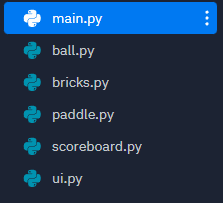
main.py
ball.py
bricks.py
paddle.py
scoreboard.py
ui.py
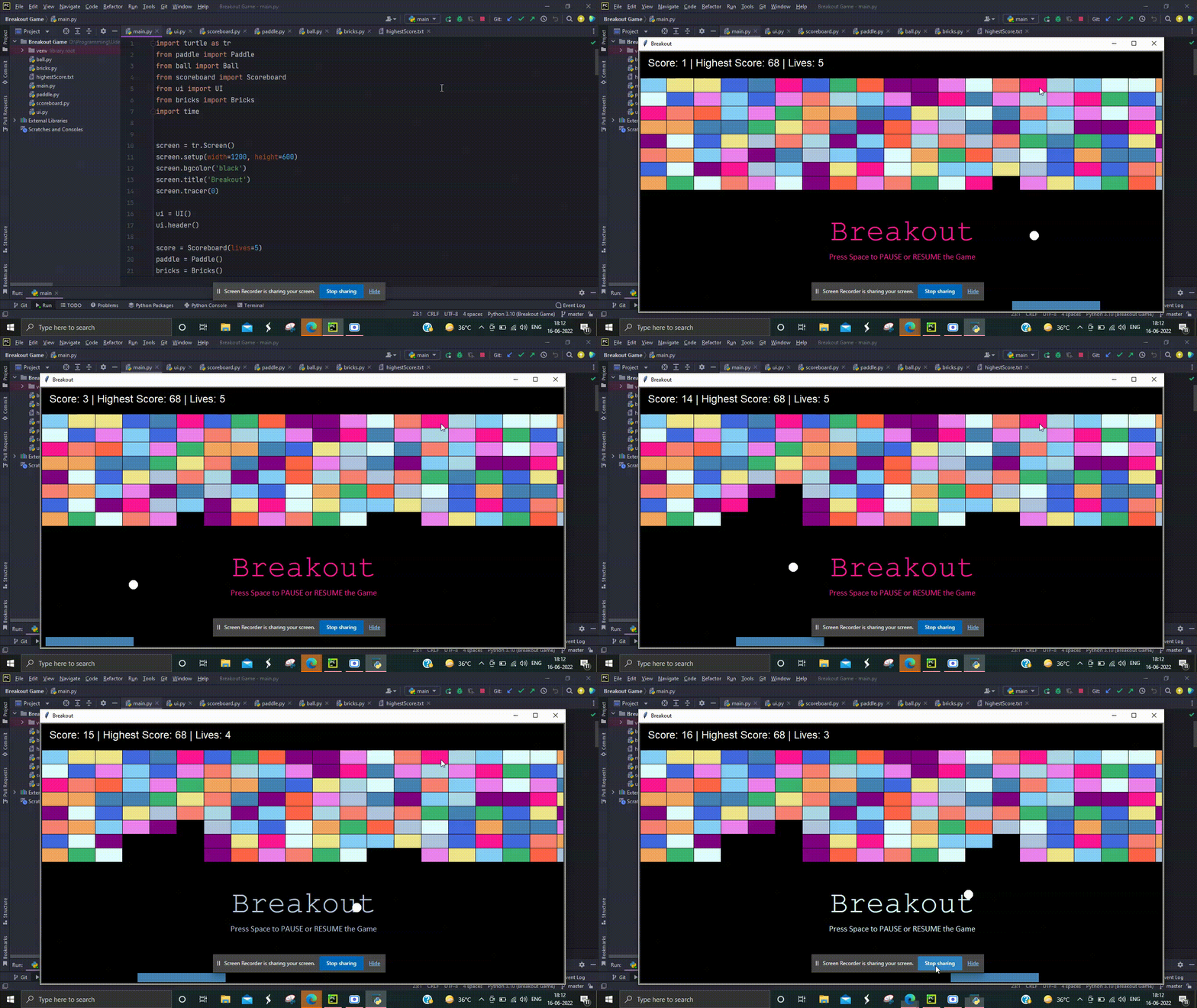
Output: