|
VOOZH | about |
|
VOOZH | about |
The first step towards learning Python is to install it on your system. Whether you're using Windows, macOS, or Linux, this guide walks you through the process of downloading and installing the latest Python 3 version.
Note: The following steps apply to both Windows 10 and Windows 11.
Once the download is complete, run the installer program. On Windows, it will typically be a .exe file.
Once the installation is complete, we can check the version of Python installed by using the following command in command prompt:
python --version
If a Python version is displayed, Python is installed successfully. If not, repeat the above installation steps.
After installing Python, we can launch the Python Shell by searching for "IDLE" in the "Start" menu and clicking on it.
Installing Python on macOS can be done via Homebrew, a popular package manager for macOS.
brew install python3
Once the installation is complete, we can check the version of Python installed by using the following command:
python3 --version
The terminal will display the installed version, confirming that Python is ready to use.
To run Python Shell on MacOs type "python3" in terminal (you can search it using Spotlight) and press enter.
For a more detailed guide on how to install Python on MacOs, visit: Stepwise guide to Install Python on Mac
Most Linux distributions come with Python pre-installed. If you're running Linux and want to check if Python is installed:
Open a terminal using Ctrl+Alt+T and type:
$ python --version
If Python 3 is installed, you'll see something like:
Python 3.x.x
If by any chance, Python is not pre-installed, we can install it by using the following steps:
Open the terminal and run the following commands:
sudo apt install software-properties-common -y
sudo add-apt-repository ppa:deadsnakes/ppa
sudo apt update
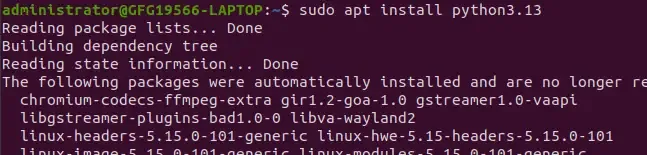
sudo apt install python3.13
This will install Python 3.13 on your Linux machine.
To verify the installation, run the following command:
python3 --version
To launch Python Shell on linux, open the terminal using "Ctrl + Alt + T" and then type "python3" and press enter.