 |
VOOZH | about |
|
VOOZH | about |
NumPy is a general-purpose array-processing Python library that provides handy methods and functions for working with n-dimensional arrays. NumPy is short for “Numerical Python” and offers various computing tools such as comprehensive mathematical functions and linear algebra routines. VSCode (Visual Studio Code) is a text editor that supports development operations and version control systems. It provides tools for users to build hassle-free code efficiently.
Let's explore the causes and solutions for the 'Can't Import Numpy' error in VSCode.
This error typically arises due to several key reasons:
Let's resolve each cause of the above-mentioned
When NumPy is not installed in your Python environment, VSCode cannot locate the necessary libraries to execute scripts that depend on NumPy's functionality.
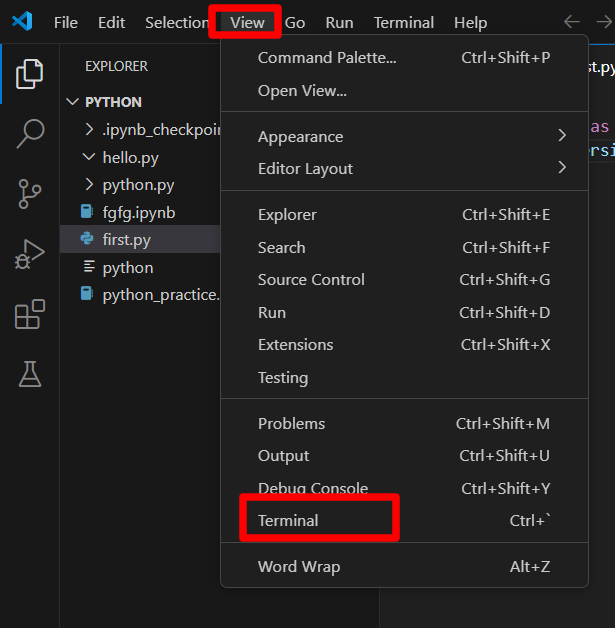
Open a terminal in VSCode.
Navigate to the top menu bar and select View > Terminal or use the shortcut Ctrl+`(backtick).
Check if NumPy is Installed
In the terminal, type the following command and press Enter:
pip show numpy
If NumPy is not installed, you will see an interface like this:
If NumPy is successfully installed, you will see an interface like this:
Install NumPy
If NumPy is not installed, run the following command in the terminal:
pip install numpy
This will download and install the NumPy package.
Verify Installation and Import:
After installation, verify that NumPy is installed correctly by running:
pip show numpy
With the virtual environment activated, try importing NumPy in a new Python file or the terminal:
import numpy as np
If there are no errors, the correct interpreter is being used.
Another common cause is VSCode being configured to use a different Python interpreter than the one where NumPy is installed.
Open VSCode and Access the Command Palette:
Use the shortcut `Ctrl+Shift+P` to open the Command Palette.
Select the Correct Interpreter:
In the Command Palette, type `Python: Select Interpreter` and choose the interpreter that has NumPy installed.
Ensure that the selected interpreter matches the environment where your project and NumPy are located.
Alternatively, you can achieve this by clicking on the Python interpreter version displayed in the bottom left corner of VSCode. This will open a list of available interpreters. Select the correct one from the list.
Restart and Verify VSCode
Close and reopen VSCode to ensure the interpreter changes take effect. Open a new Python file or the integrated terminal and try importing NumPy by running:
import numpy as np
If there are no errors, the correct interpreter is being used.
Problems with virtual environment activation or configuration can also prevent VSCode from locating NumPy.
Activate the Virtual Environment
Open a terminal in VSCode.Activate the virtual environment containing NumPy. Replace `venv` with your actual virtual environment name.
.\venv\Scripts\activate
Check if the correct virtual environment is active by verifying the terminal prompt. The prompt should indicate the name of the virtual environment, usually in parentheses.
Verify NumPy Import
With the virtual environment activated, try importing NumPy in a new Python file or the terminal:
import numpy as np
If the import is successful, the virtual environment is configured correctly.
By following these steps, you should be able to overcome the 'Can't Import Numpy' error and continue working on your projects without interruption. Always make sure to double-check your environment configurations and dependencies to avoid similar

.png)
.png)
.png)
.png)
.png)
.png)
.png)
.png)