|
VOOZH | about |
|
VOOZH | about |
In this article, we will use Scrapy, for scraping data, presenting on linked webpages, and, collecting the same. We will scrape data from the website 'https://quotes.toscrape.com/'.
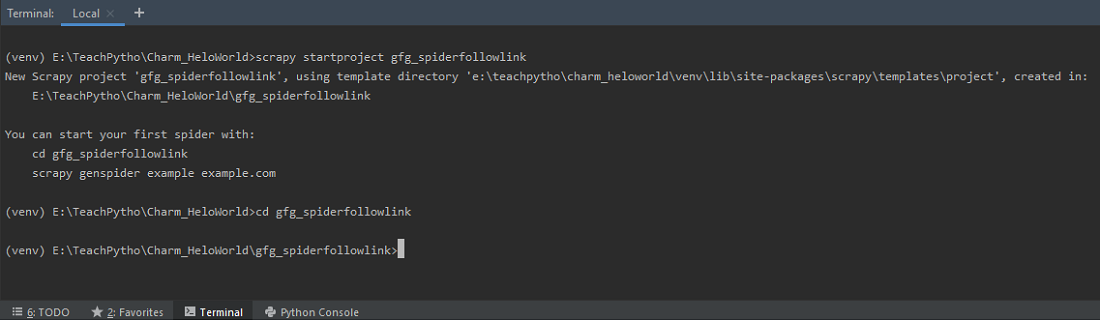
Scrapy comes with an efficient command-line tool, also called the 'Scrapy tool'. Commands are used for different purposes and, accept a different set of arguments, and options. To write the Spider code, we begin by creating, a Scrapy project, by executing the following command, at the terminal:
scrapy startproject gfg_spiderfollowlink
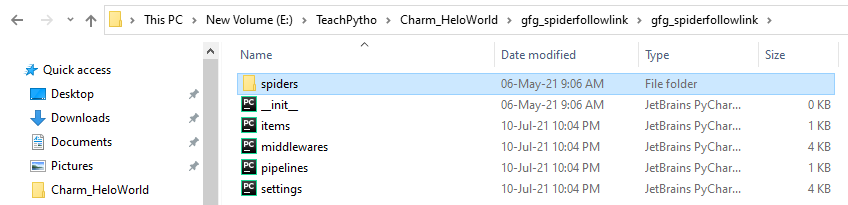
This should create a 'gfg_spiderfollowlink' folder in your current directory. It contains a 'scrapy.cfg', which is a configuration file, of the project. The folder structure is as shown below -
The folder contains items.py,middlerwares.py and other settings files, along with the 'spiders' folder.
Keep the contents of the configuration files as they are currently.
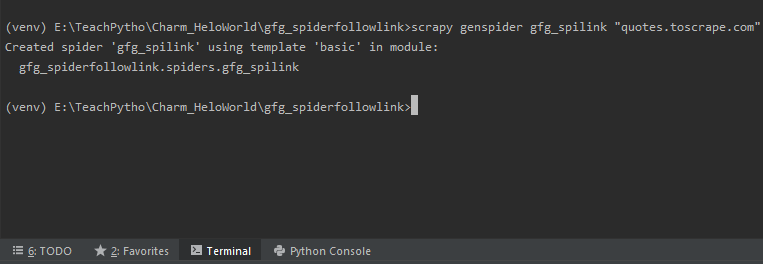
The code for web scraping is written in the spider code file. To create the spider file, we will make use of the 'genspider' command. Please note, that this command is executed at the same level where scrapy.cfg file is present.
We are scraping all quotes present, on 'http://quotes.toscrape.com/'. Hence, we will run the command as:
scrapy genspider gfg_spilink "quotes.toscrape.com"
The above command will create a spider file, "gfg_spilink.py" in the 'spiders' folder. The default code, for the same, is as follows:
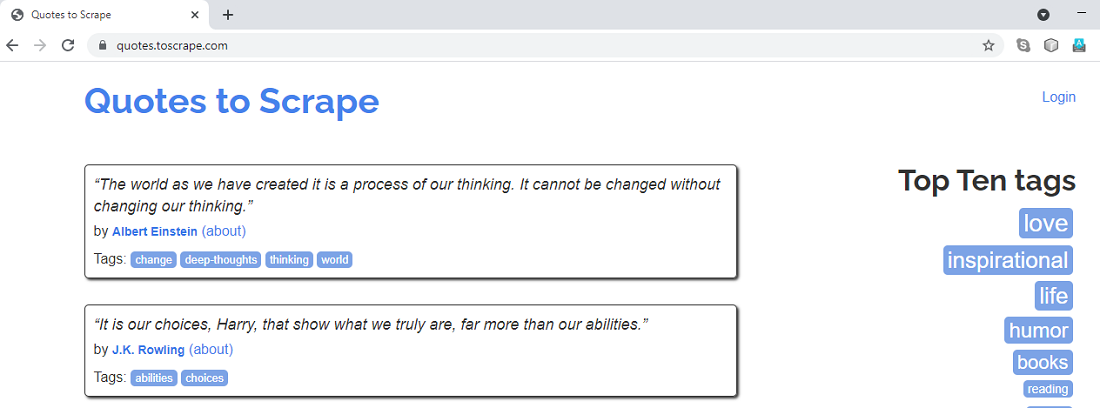
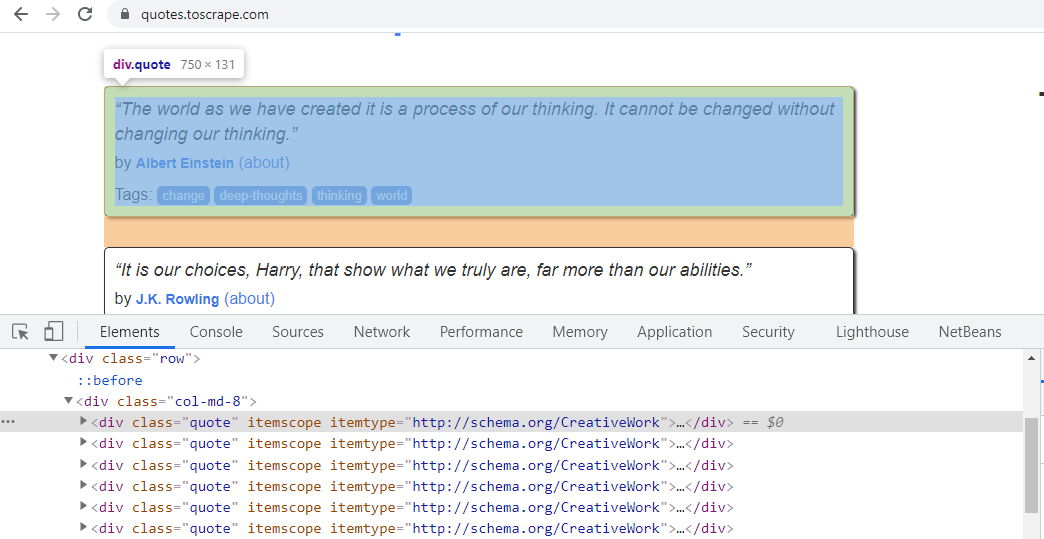
We will scrape all Quotes Title, Authors, and Tags from the website "quotes.toscrape.com". The website landing page looks as shown below:
Scrapy provides us, with Selectors, to "select" parts of the webpage, desired. Selectors are CSS or XPath expressions, written to extract data from HTML documents. In this tutorial, we will make use of XPath expressions, to select the details we need.
Let us understand the steps for writing the selector syntax in the spider code:
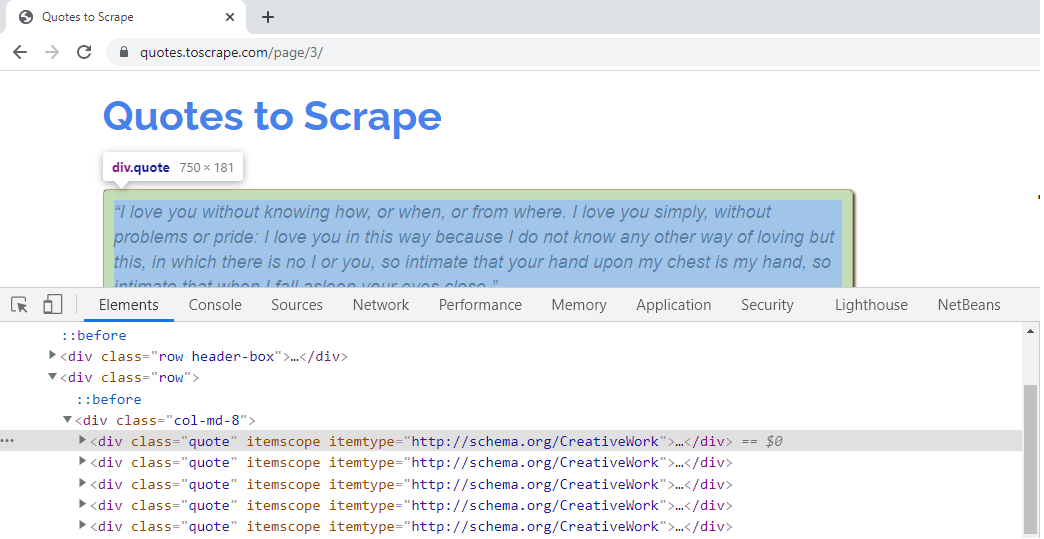
Hence, the XPath expression, for the same, can be written as - quotes = response.xpath('//*[@class="quote"]'). This syntax will fetch all elements, having "quote", as the CSS 'class' attribute. The quotes present on further pages have the same CSS attribute. For example, the quotes present on Page 3, of the website, belong to the 'class' attribute, as shown below -
We need to fetch the Quote Title, Author, and Tags of all the Quotes. Hence, we will write XPath expressions for extracting them, in a loop.
If we observe the code till here, it will crawl and extract data for one webpage. The code is as follows -
Till now, we have seen the code, to extract data, from a single webpage. Our final aim is to fetch, the Quote's related data, from all the web pages. To do so, we need to make our spider, follow links, so that it can navigate, to the subsequent pages. The hyperlinks are usually defined, by writing <a> tags. The "href" attribute, of the <a> tags, indicates the link's destination. We need to extract, the "href" attribute, to traverse, from one page to another. Let us study, how to implement the same -
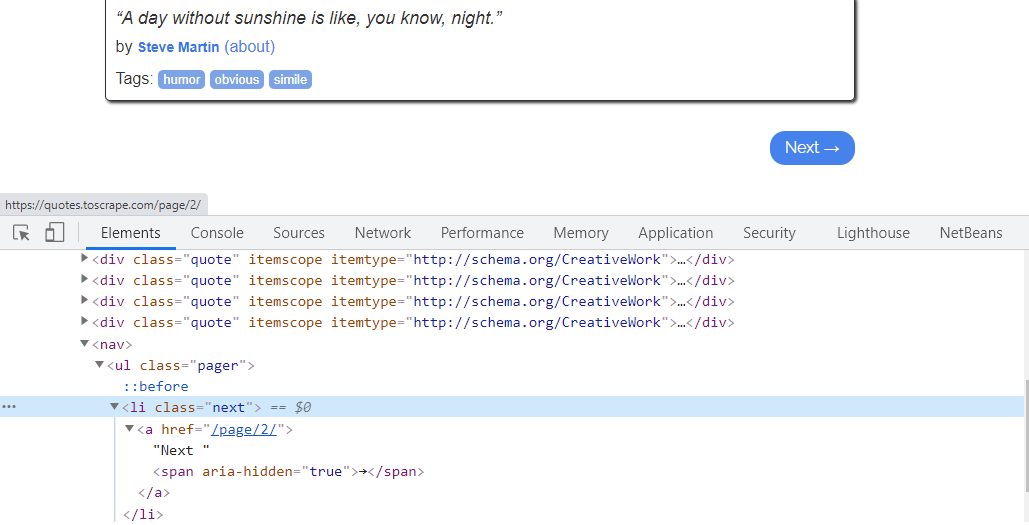
We need to extract, the "href" attribute, of the <a> tag of HTML. The "href" attribute, denotes the URL of the page, where the link goes to. Hence, we need to fetch the same, and, join to our current path, for the spider to navigate, to further pages seamlessly. For the first page, the "href" value of <a> tag is, "/page/2", which means, it links to the second page.
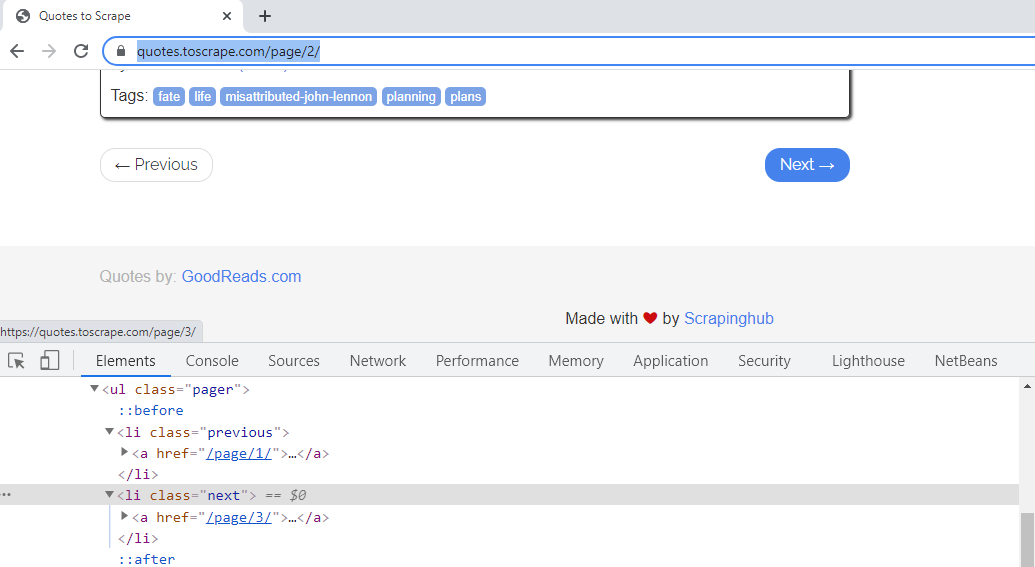
If you click, and, observe the "Next" link of the second webpage, it has a CSS attribute as "next". For this page, the "href" value of <a> tag, is "/page/3" which means, it links to the third page, and so on.
Hence, the XPath expression, for the next page link, can be fetched writing expression as - further_page_url = response.xpath('//*[@class="next"]/a/@href').extract_first(). This will give us, value of "@href" , which is "/page/2" for the first page.
The URL above, is not sufficient, to make the spider crawl, to the next page. We need to form, an absolute URL, by merging the response object URL, with the above relative URL. To do so, we will use urljoin() method.
The Response object URL is "https://quotes.toscrape.com/". To travel, to the next page, we need to join it, with the relative URL "/page/2". The syntax, for the same is - complete_url_next_page = response.urljoin(further_page_url). This syntax, will give us, the complete path as, "https://quotes.toscrape.com/page/2/". Similarly, for second page, it will modify, according to the webpage number, as "https://quotes.toscrape.com/page/3/" and so on.
The parse method, will now make a new request, using this 'complete_url_next_page ' URL.
Hence, our final Request object, for navigating to the second page, and crawling it, will be - yield scrapy.Request(complete_url_next_page). The complete code of the spider will be as follows:
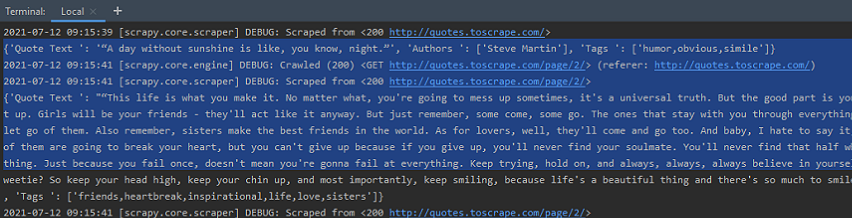
Execute the Spider, at the terminal, by using the command 'crawl'. The syntax is as follows - scrapy crawl spider_name. Hence, we can run our spider as - scrapy crawl gfg_spilink. It will crawl, the entire website, by following links, and yield the Quotes data. The output is as seen below -
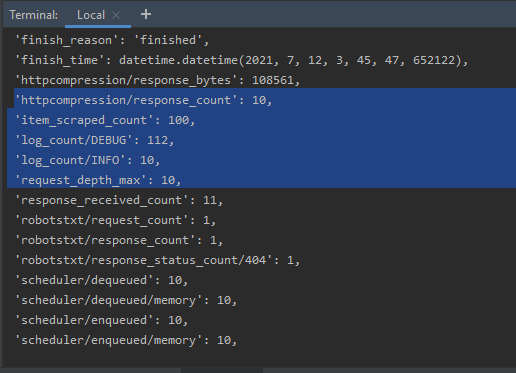
If we check, the Spider output statistics, we can see that the Spider has crawled, over ten webpages, by following the links. Also, the number of Quotes is close to 100.
We can collect data, in any file format, for storage or analysis. To collect the same, in a JSON file, we can mention the filename, in the 'crawl', syntax as follows:
scrapy crawl gfg_spilink -o spiderlinks.json
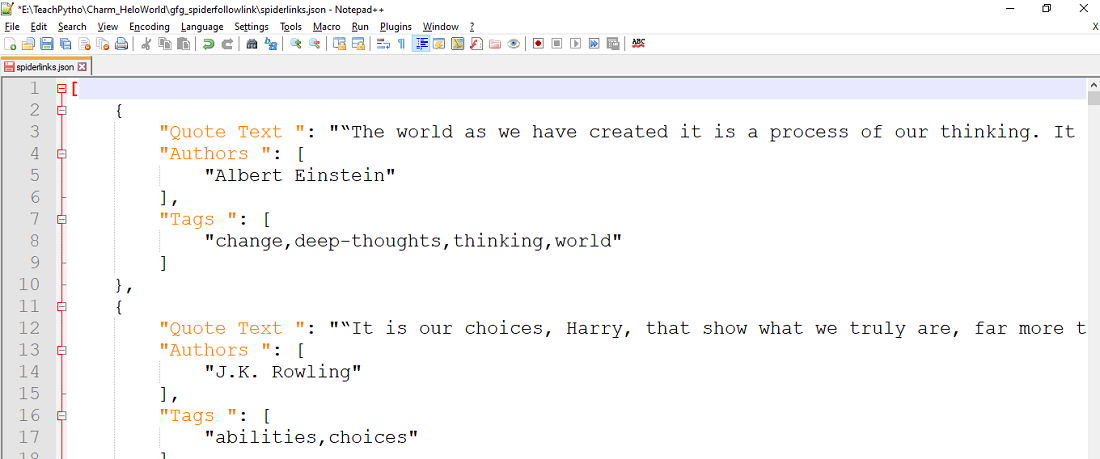
The above command will collect the entire scraped Quotes data, in a JSON file "spiderlinks.json". The file contents are as seen below: