|
VOOZH | about |
|
VOOZH | about |
SciPy is a popular open-source Python library for scientific computing, built on NumPy. It offers modules for optimization, linear algebra, integration, signal and image processing, statistics and more. If you're using macOS for Python development or data science, installing SciPy is an essential step. macOS allows multiple methods for installing Python packages. Below are the most commonly used methods:
Follow the below steps to install the Scipy package on macOS using pip:
1. Install the latest Python3 in MacOS.
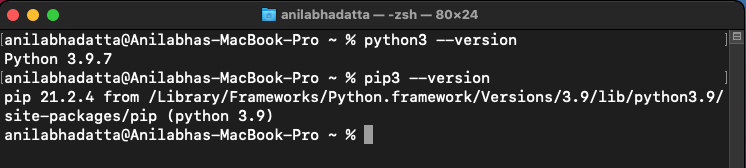
2. Check if pip3 and python3 are correctly installed.
👁 checking python and pip version in macospython3 --version
pip3 --version
3. Upgrade your pip to avoid errors during installation.
👁 upgrading pip in macospip3 install --upgrade pip
4. Enter the following command to install Scipy using pip3.
👁 installing Scipy package on macOS using pippip3 install scipy
5. Verify SciPy installation.
python3 -m pip show scipy
You can also test by importing it in Python:
import scipy
print(scipy.__version__)
Follow the below steps to install the Scipy package on macOS using the setup.py file:
1. Download the latest source package of Scipy for python3 from here.
👁 downloading the source package for scipy in macoscurl https://files.pythonhosted.org/packages/47/33/a24aec22b7be7fdb10ec117a95e1e4099890d8bbc6646902f443fc7719d1/scipy-1.7.1.tar.gz > scipy.tar.gz
2. Extract the downloaded package using the following command.
👁 extracting the scipy.tar.gz file in macostar -xzvf scipy.tar.gz
3. Go inside the folder and Enter the following command to install the package.
Note: You must have developer tools for XCode MacOS installed in your system
👁 installing Scipy on macOS using the setup.py filecd scipy-1.7.1
python3 setup.py install
Make the following import in your python terminal to verify if the installation has been done properly:
👁 Verifying Scipy installation on macOSimport scipy
If there is any error while importing the module then is not installed properly.