Pygame is a set of Python modules designed for writing video games. It adds functionality on top of the excellent SDL library, enabling you to create fully-featured games and multimedia programs in the Python language. It's key benefits include:
- Beginner-Friendly: Simple Python syntax makes it ideal for newcomers.
- Active Community: Rich with tutorials, examples and global support.
- Cross-Platform: Works on Windows, Mac and Linux.
- Versatile: Suitable for games, simulations and interactive apps.
- Free & Open Source: No cost, no restrictions.
Installing Pygame
Pygame requires Python 3.6.1 or later, as newer versions are more beginner-friendly and offer improved performance. If you don’t have Python installed, download it from python.org.
To install Pygame, use the following command:
python3 -m pip install -U pygame --user
After installation, verify if it works by running a built-in example:
python3 -m pygame.examples.aliens
If the game launches successfully, you are ready to start using Pygame!
Creating your first pygame program
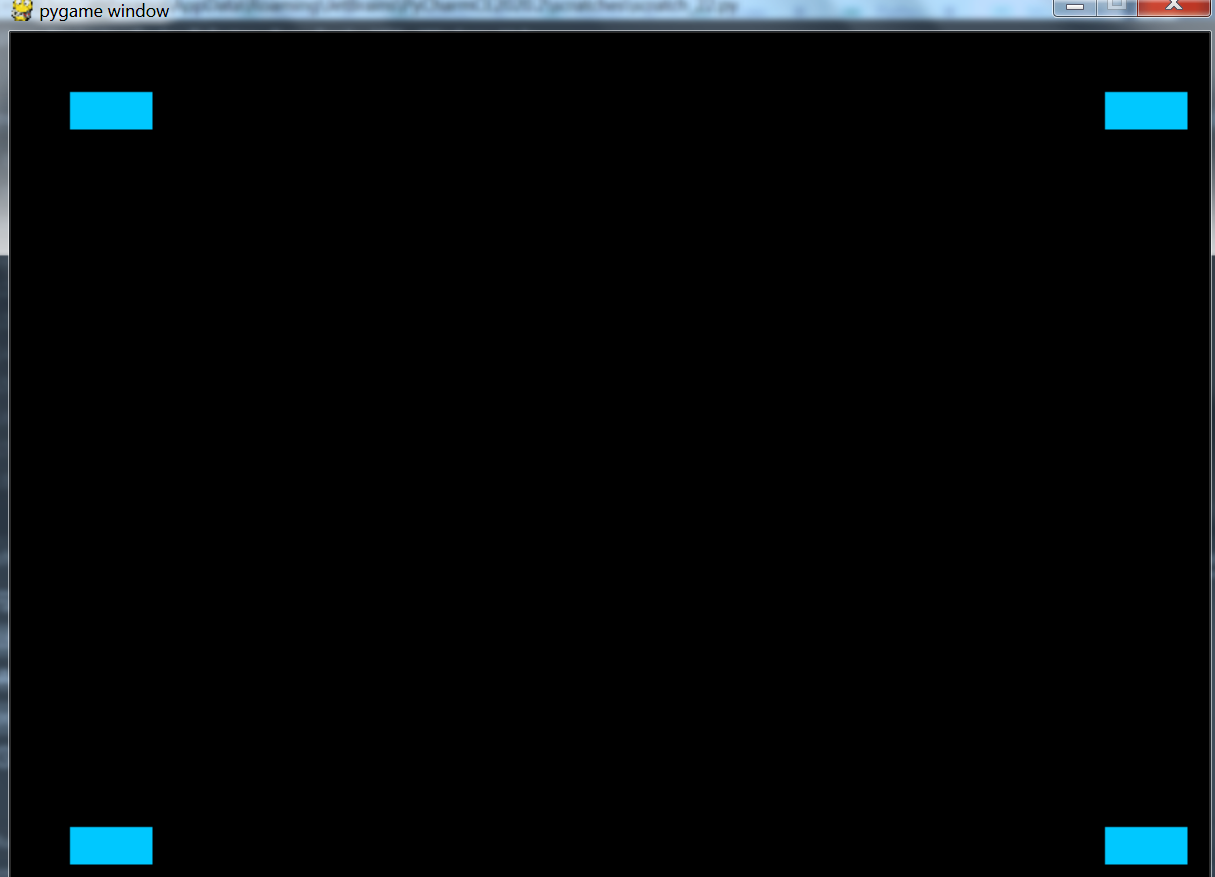
Once Pygame is installed, let’s create a simple program that displays four squares on the screen.
Importing Pygame Modules
# Import the pygame module
import pygame
# Import constants for easier access to key events
from pygame.locals import *
Before using any Pygame functionality, we need to import its modules.
Understanding key pygame concepts
- Sprite: A 2D object (like our square) displayed on the screen.
- Surface: A canvas for drawing (even the screen is a Surface).
- Rect: A rectangle object for positioning and collisions.
Implementation code:
Output
👁 ImageExplanation:
- Sq class creates a 25x25 light blue square sprite in Pygame by extending pygame.sprite.Sprite, initializing the parent class, and filling the surface with color (0, 200, 255).
- pygame.event.get() handles all incoming events. If the event type is QUIT, the game exits when the window close button is clicked. Similarly, if a KEYDOWN event occurs and the Backspace key is pressed (e.key == pygame.K_BACKSPACE), the game will exit.
- win.blit(s1.surf, (40, 40)) draws square 1 at the top-left, s2 at the bottom-left, s3 at the top-right and s4 at the bottom-right.
- pygame.display.flip() updates the screen to show the drawn squares.
Catch the falling blocks mini game
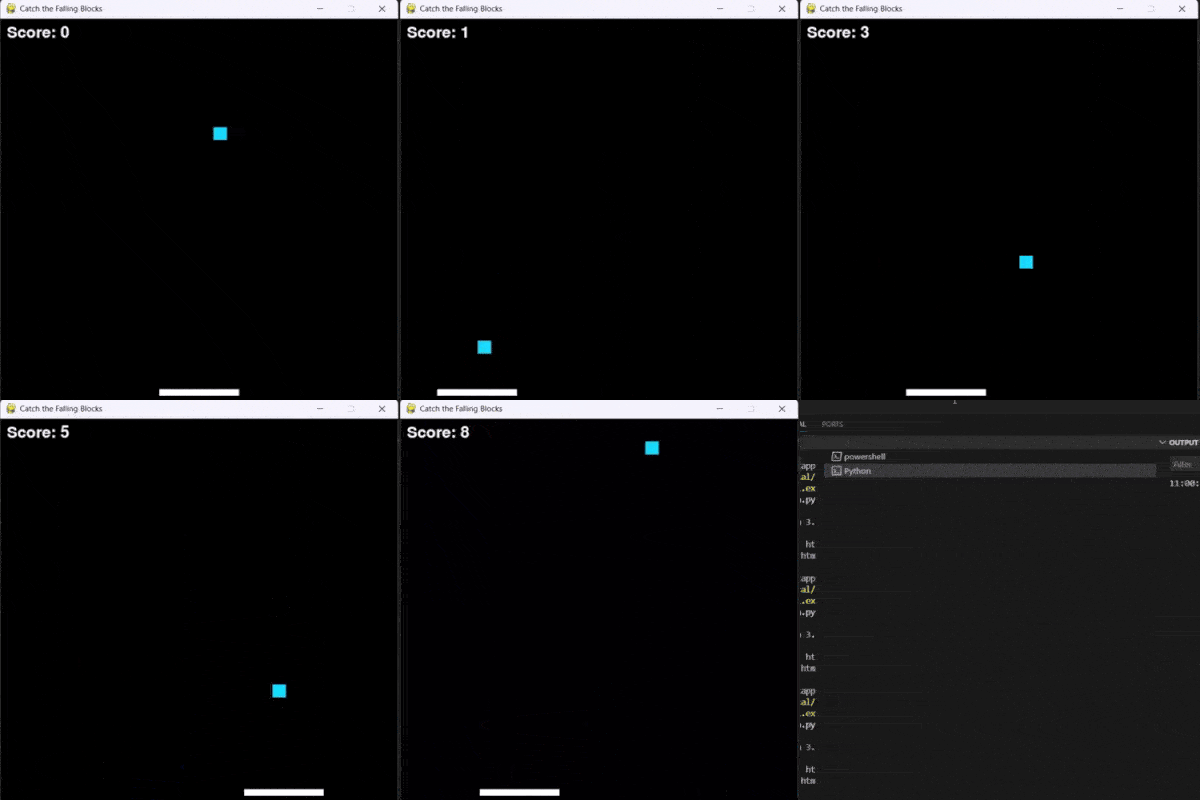
Let’s create a simple, real game where a player-controlled paddle catches falling blocks. Its features include:
- Move the paddle left/right using the arrow keys.
- Catch falling blocks to earn points.
- Game Over if a block hits the ground.