|
VOOZH | about |
|
VOOZH | about |
PyPDF2 is a Python library that helps in working and dealing with PDF files. It allows us to read, manipulate, and extract information from PDFs without the need for complex software. Using PyPDF2, we can split a single PDF into multiple files, merge multiple PDFs into one, extract text, rotate pages, and even add watermarks. In this article, we are going to learn most of the PyPDF2 library.
We use PyPDF2 when we have to deal with large documents. Suppose we have a large PDF document, and we only need to send a few pages to someone. Instead of manually extracting those pages, we can do this in just a few lines of code using PyPDF2. We use PyPDF2 to combine multiple PDF files into one file. This tool helps us do things such as reading, extracting text, merging, splitting, rotating, and even encrypting/decrypting PDF files.
We have to first install PyPDF2 before using it. We can install using pip. We open our command prompt or terminal and run the following command:
pip install PyPDF2Now, let's look at some important key concepts before understand the features of PyPDF's:
Some of key features of PyPDF2 are given below:
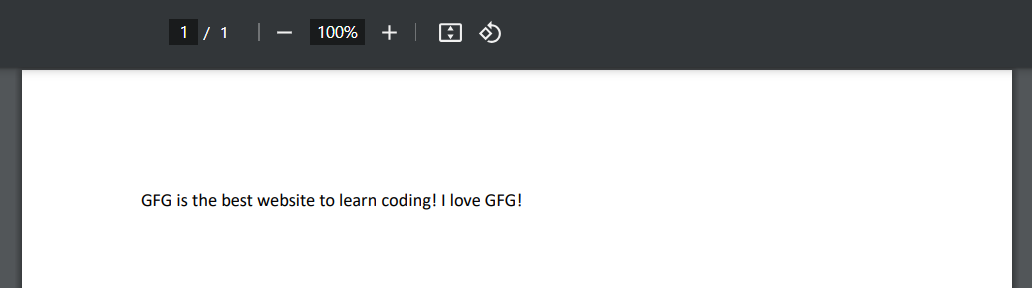
If we want to read a PDF file, we have to first open it using PyPDF2. Let's we have a pdf named example.pdf.
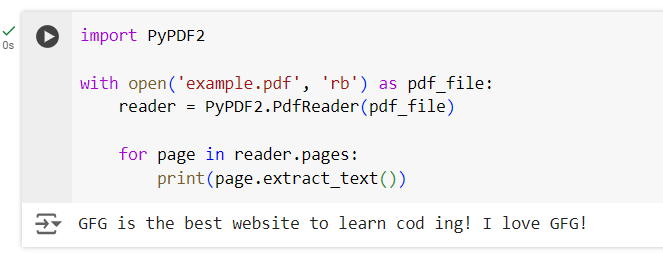
Here is how we can read a pdf using PyPDF2.
Output:
We can easily extract text from PDF files using the extract_text() function. This can be useful for parsing large documents.
Output:
PyPDF2 allows us to extract metadata such as the author, title, and creation date:
Output:
We can play around with all the pdfs we have. Let's see a few ways to manipulate pdfs.
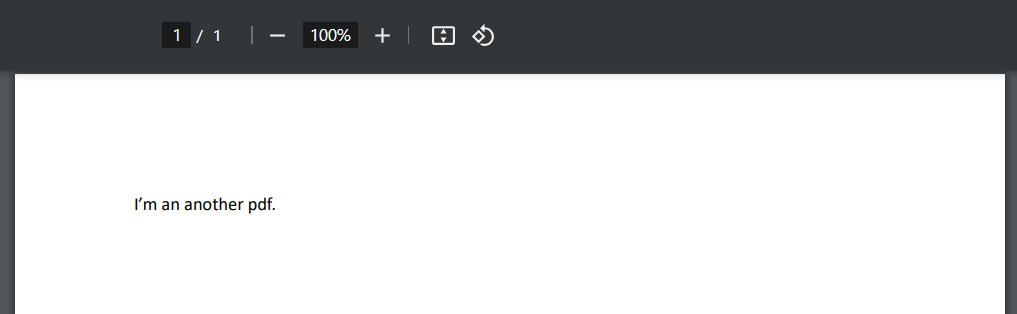
We can merge multiple PDF files into one using PyPDF2's PdfWriter(). Let's we have an another pdf file named example2.pdf.
example2.pdf
Merge example.pdf and example2.pdf:
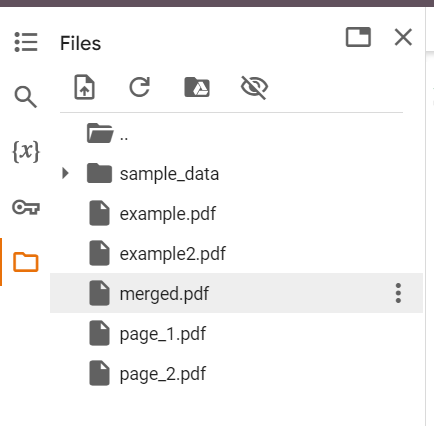
Here we get a merged.pdf file.
merged.pdf
If we want to split a PDF into separate pages, PyPDF2 makes this easy. Let's split the merged.pdf file.
Output:
The page_1.pdf and page_2.pdf will have contents of page1 and page two of merged.pdf file respectively.
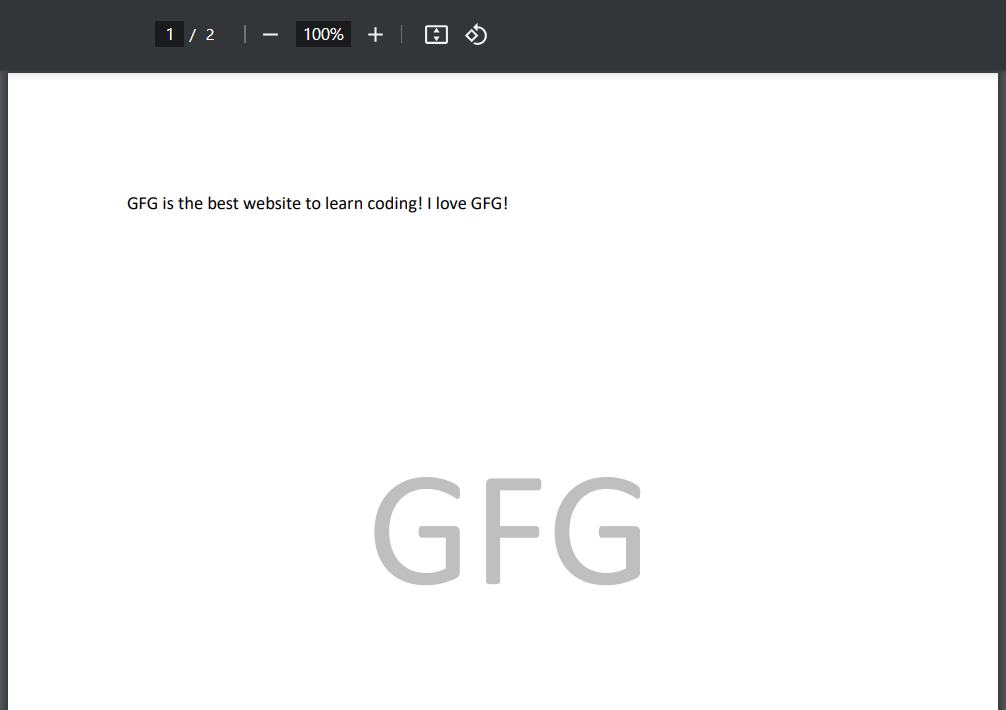
We can also add watermark in PDF file if we want. We need another PDF file containing the watermark (like a logo or text). We can overlay this on our main PDF file.
watermark.pdf
Python program to add watermark to a pdf using PyPDF2.
watermarked.pdf
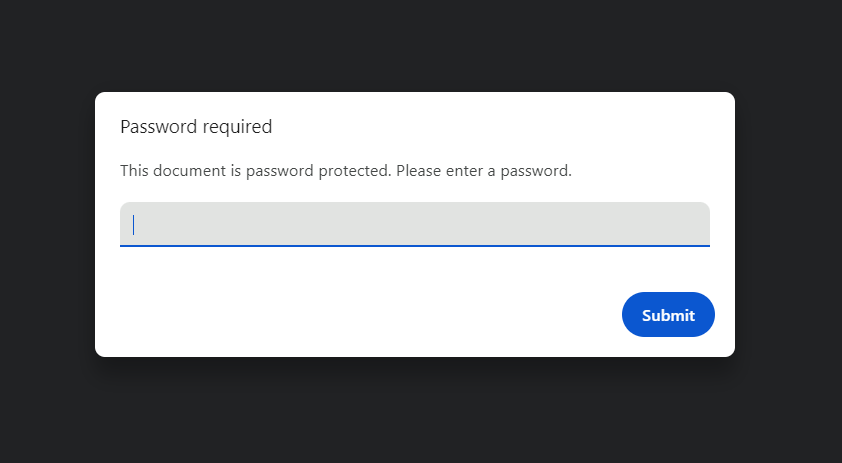
We can also password-protect our PDF files using encryption.
Below is example:
Output:
When we try to open the file, we will need to pass the password:
PyPDF2 is a useful, simple and powerful library for working with PDFs in Python. By following the steps given above, we can start extracting text from PDF files and explore further to discover all the features PyPDF2 provides.