|
VOOZH | about |
|
VOOZH | about |
In this article, we will cover How to clear the output of a cell in Jupyter Notebook we will discuss various methods to do the same. First, we look at what is Jupyter Notebook and why we use it, we discuss different methods to clear cell output in Jupyter Notebook in this article.
The Jupyter Notebook is the original web application for creating and sharing computational documents that contain live code, equations, visualizations, and narrative text. It offers a simple, streamlined, document-centric experience. Jupyter supports more than 40 programming languages, including Python.
Before moving ahead, look at why we need to clear cell output. There are multiple reasons to clear cell output:
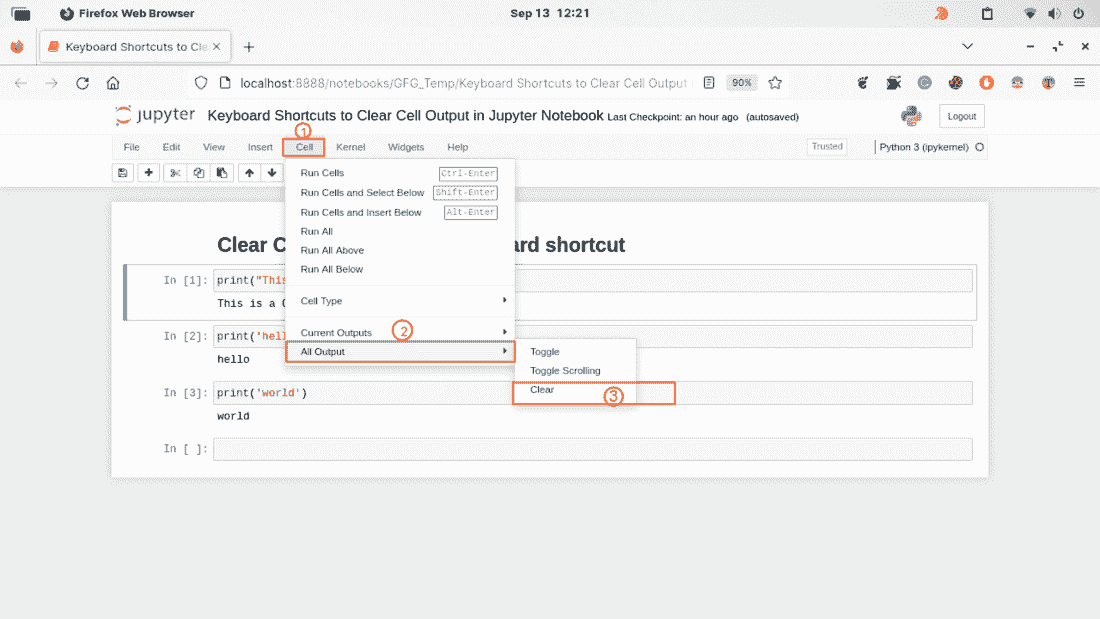
In a Jupyter Notebook we can clear cell output using various methods, including using the Jupyter Notebook toolbar, keyboard shortcuts, or code execution:
Follow the steps to clear a cell output using keyboard shortcut:
Note: In command mode, the cell border is blue or depending on your Jupyter theme and the cell content is not highlighted for editing.
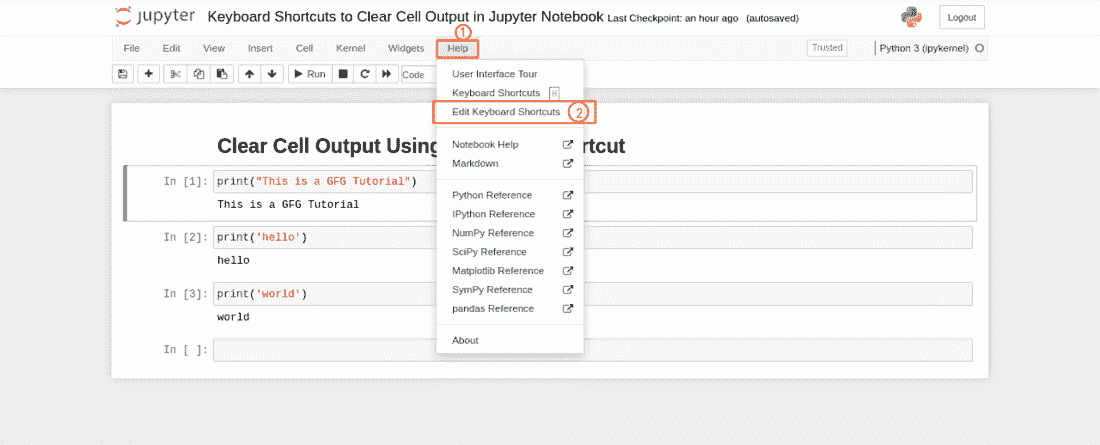
You can edit you keyboard shortcuts also by selecting Help -> Edit Keyboard Shortcuts then select clear cell output and add new shortcut key, refer to below screenshots,
Speaking of keyboard shortcuts, Jupyter Notebook offers numerous other shortcuts that can increase your productivity. Here are some of the most frequently used shortcuts:
Learn these shortcuts to save time and be more efficient in Jupyter Notebook.

.png)
.png)