|
VOOZH | about |
|
VOOZH | about |
In this article, we will discuss the Message Box Widget of the PyQT5 module. It is used to display the message boxes. PyQt5 is a library used to create GUI using the Qt GUI framework. Qt is originally written in C++ but can be used in Python. The latest version of PyQt5 can be installed using the command:
pip install PyQt5
Message Boxes are usually used for declaring a small piece of information to the user. It gives users a pop-up box, that cannot be missed, to avoid important errors and information being missed by the users and in some cases, the user cannot continue without acknowledging the message box.
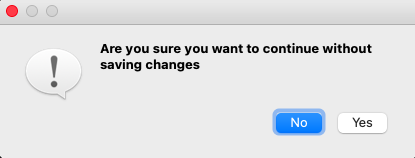
👁 ImageBased on the applications there are four types of message boxes. The following is the syntax for creating a message box. For any of the boxes, instantiation needs to be done.
Syntax:
msg_box_name = QMessageBox()
Now according to the requirement an appropriate message box is created.
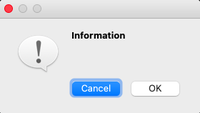
This type of message box is used when related information needs to be passed to the user.
Syntax:
👁 Imagemsg_box_name.setIcon(QMessageBox.Information)
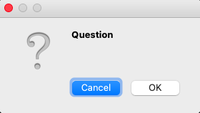
This message box is used to get an answer from a user regarding some activity or action to be performed.
Syntax:
👁 Imagemsg_box_name.setIcon(QMessageBox.Question)
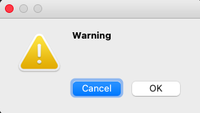
This triggers a warning regarding the action the user is about to perform.
Syntax:
👁 Imagemsg_box_name.setIcon(QMessageBox.Warning)
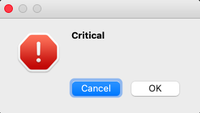
This is often used for getting the user's opinion for a critical action.
Syntax:
👁 Imagemsg_box_name.setIcon(QMessageBox.Critical)
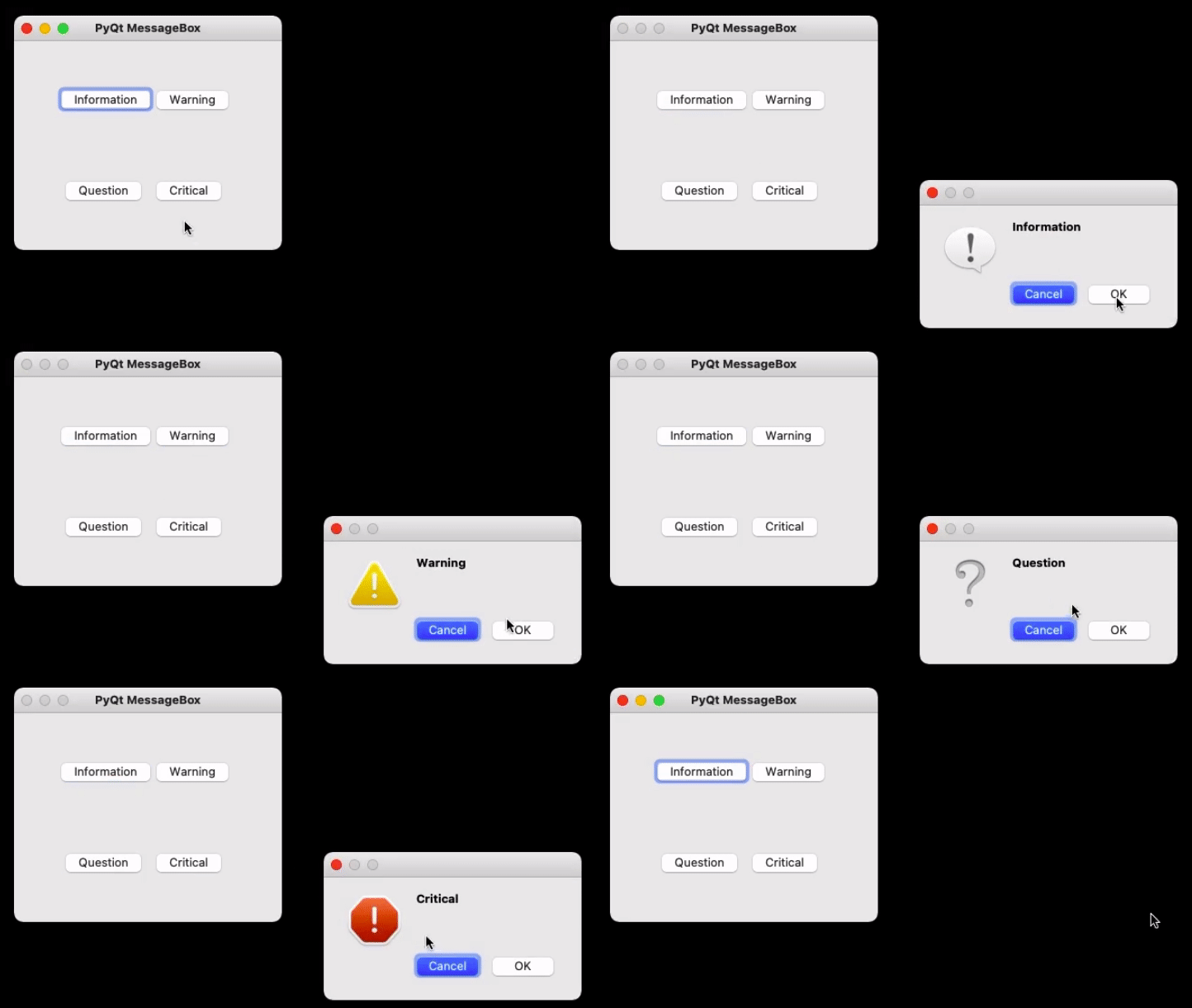
Now to create a program that produces a message box first import all the required modules, and create a widget with four buttons, on clicking any of these a message box will be generated.
Now for each button associate a message box that pops when the respective button is clicked. For this first, instantiate a message box and add a required icon. Now set appropriate attributes for the pop that will be generated. Also, add buttons to deal with standard mechanisms.
Given below is the complete implementation.
Program:
Output
👁 Image