|
VOOZH | about |
|
VOOZH | about |
In this article, we will learn How we can add cameras to arcade games in Python.
You can create a camera in arcade using the Camera() function.
Syntax: arcade.Camera( width. height)
Parameters:
- width: Width of the camera
- height: Height of the camera
So to use this camera we are going to create a new variable.
self.camera = None
Then in our setup() function, we will create our camera using the Camera() function.
self.camera= arcade.Camera(200,200)
After that, we will use the camera.use function in our on_draw() function to use the camera.
self.camera.use()
In the below example, we are going to create MainGame() class. Inside our MainGame() class first we will initialize some variables for velocity, camera, scene, player's sprite, and physics engine after that we will create 5 functions:
Below is the implementation:
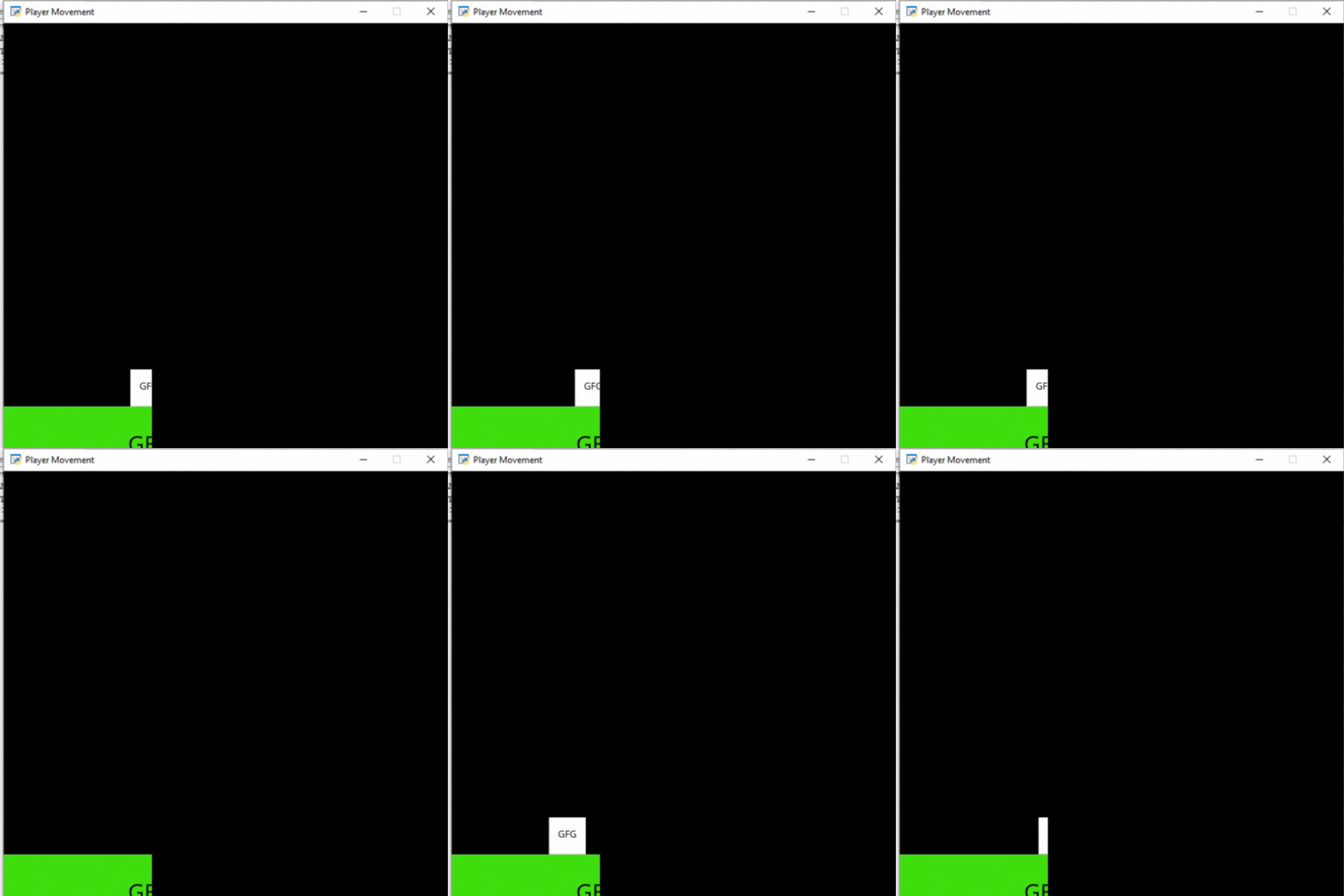
Output:
👁 ImageBut here you can see our camera is not moving with our player. So to move the Camera with our player we have to create a function.
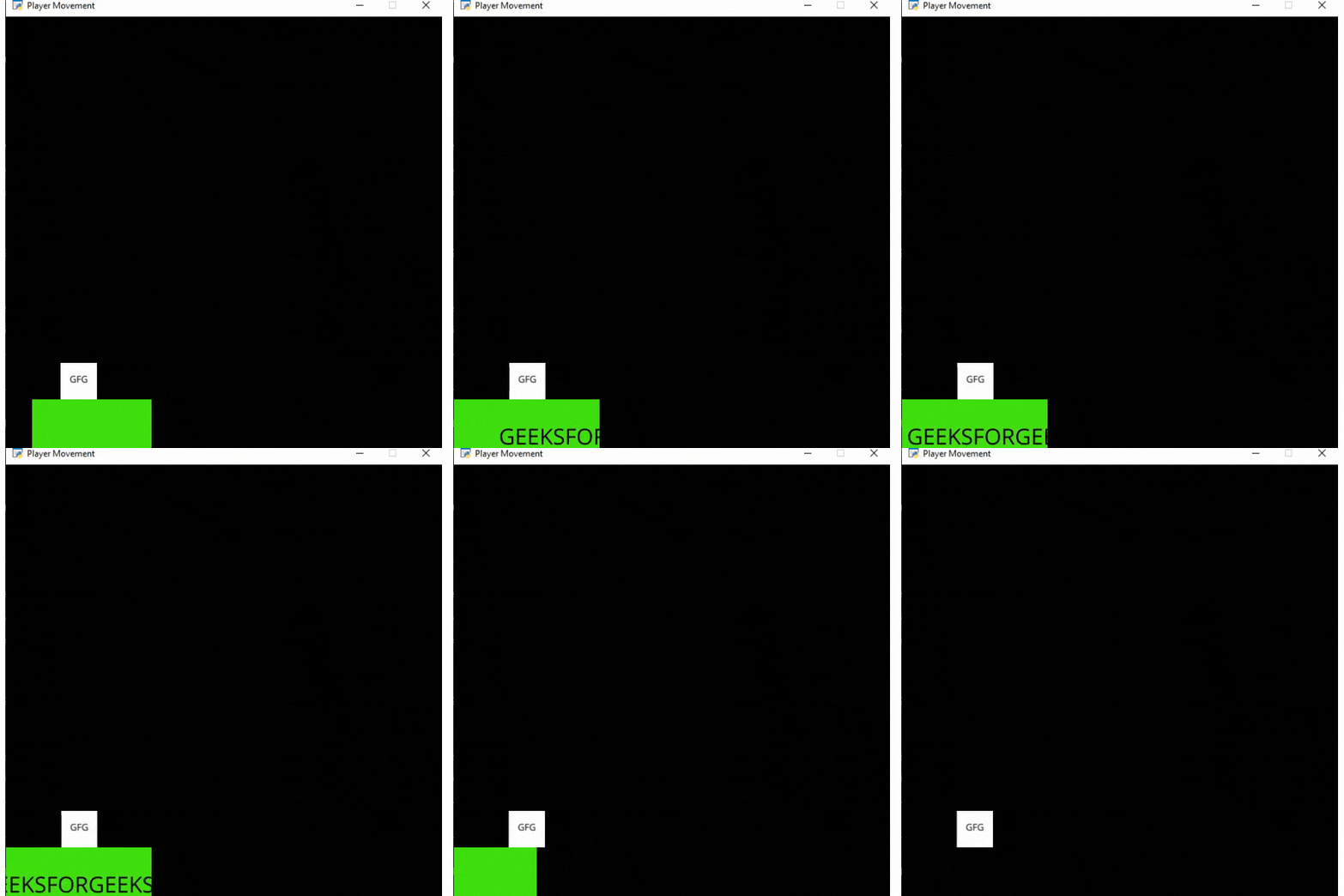
Now we are going to create a new camera_move() function to move our camera with our player. Then we will call this function in our on_update() function.
camera_move(): Inside this function, we will calculate the x and y coordinates of the center of the camera according to our player's position. Then we will move our camera with the help of the move_to() function.
Below is the implementation: