VOOZH about

URL: https://www.geeksforgeeks.org/python/python-arcade-adding-enemies/

⇱ Python Arcade - Adding Enemies - GeeksforGeeks


  • Courses
  • Tutorials
  • Interview Prep

Python Arcade - Adding Enemies

Last Updated : 17 Oct, 2021

In this article, we will learn How we can add enemies in arcade.

Adding Enemies

To add enemy to our game we are going to follow the below steps:

  • First, we will create a variable to store the enemy sprite.

Syntax:

 self.enemy = None
  • After that, we will create one more variable to store the velocity of the enemy.

Syntax:

self.enemy_move = velocity
  • Store our enemy sprite in the enemy variable.

Syntax:

self.enemy = arcade.Sprite("path",1)
  • Set the initial coordinates.

Syntax:

self.enemy.center_x = value
self.enemy.center_y = value
  • Add the enemy sprite in the scene.

Syntax:

self.scene.add_sprite("Enemy", self.enemy)
  • Move the enemy by changing the x coordinate.

Syntax:

self.enemy.center_x += self.enemy_move
  • Check for collisions between the player and enemy.

Syntax:

enemy_collide = arcade.check_for_collision_with_list(

            self.player_sprite, self.scene.get_sprite_list("Enemy")

        )

  • If they are colliding then remove the player sprite.

Syntax:

for enemy in enemy_collide:

      self.player_sprite.remove_from_sprite_lists()

Functions Used:

  • draw_text(): This function is used to draw text to the screen using Pyglet’s label.

Syntax: arcade.draw_text(text, x, y, color, size, width, align, font_name)

Parameters:

text: Text we want to display

x : x coordinate

y : y coordinate

color : color of the text

size : Size of the font

width : Width of the text

align : Alignment of the text

font_name : Name of the font

  • Camera(): The Camera class is used for controlling the visible viewport.

Syntax: arcade.Camera( width , height, window)

Parameters:

width: width of the viewport

height: height of the viewport

window: Window to associate with this camera

  • Scene(): A class that represents a scene object.

Syntax: arcade.Scene(sprite_lists , name_mapping)

Parameters:

sprite_lists: A list of SpriteList objects

name_mapping: A dictionary of SpriteList objects

  • PhysicsEnginePlatformer(): Simplistic physics engine, used for platform.

Syntax: arcade.PhysicsEnginePlatformer( player_sprite , platforms, gravity, ladders)

Parameters:

player_sprite: sprite of the player

platforms: The sprites it can’t move through

gravity: Downward acceleration per frame

ladders: Ladders the user can climb on

Sprites Used:

πŸ‘ Image
PLATFORM
πŸ‘ Image
PLAYER
πŸ‘ Image
ENEMY

In the below example, we are going to create a MainGame() class. Inside this class first, we are going to initialize some variables for velocity, camera, score, level, enemy, enemy sprite, and player's sprite then we will create 6 functions inside this class.

  • on_draw(): Inside this function, we will use our camera and draw the scene and our score text on the screen.
  • setup(): In this function, we will initialize our camera and scene object then we will load our player and platform's sprites then we will load our enemy sprite and initialize the starting x and y coordinate. After that, we will call the PhysicsEnginePlatformer() function.
  • on_update(): In this function, we will update the x coordinates of the player's sprite, camera, and physics engine. We will also add our enemy_move variable in the x coordinates of the enemy sprite. Then we will check the collision between the enemy and the player. And if the player is colliding with the enemy then we will remove the player sprite.
  • on_key_press() and on_key_release(): In this function, we will change the value of the velocity variable according to the keyboard key that is pressed or released.
  • camera_move(): In this function, we will move our camera according to our player's current position.

Example: Adding enemy

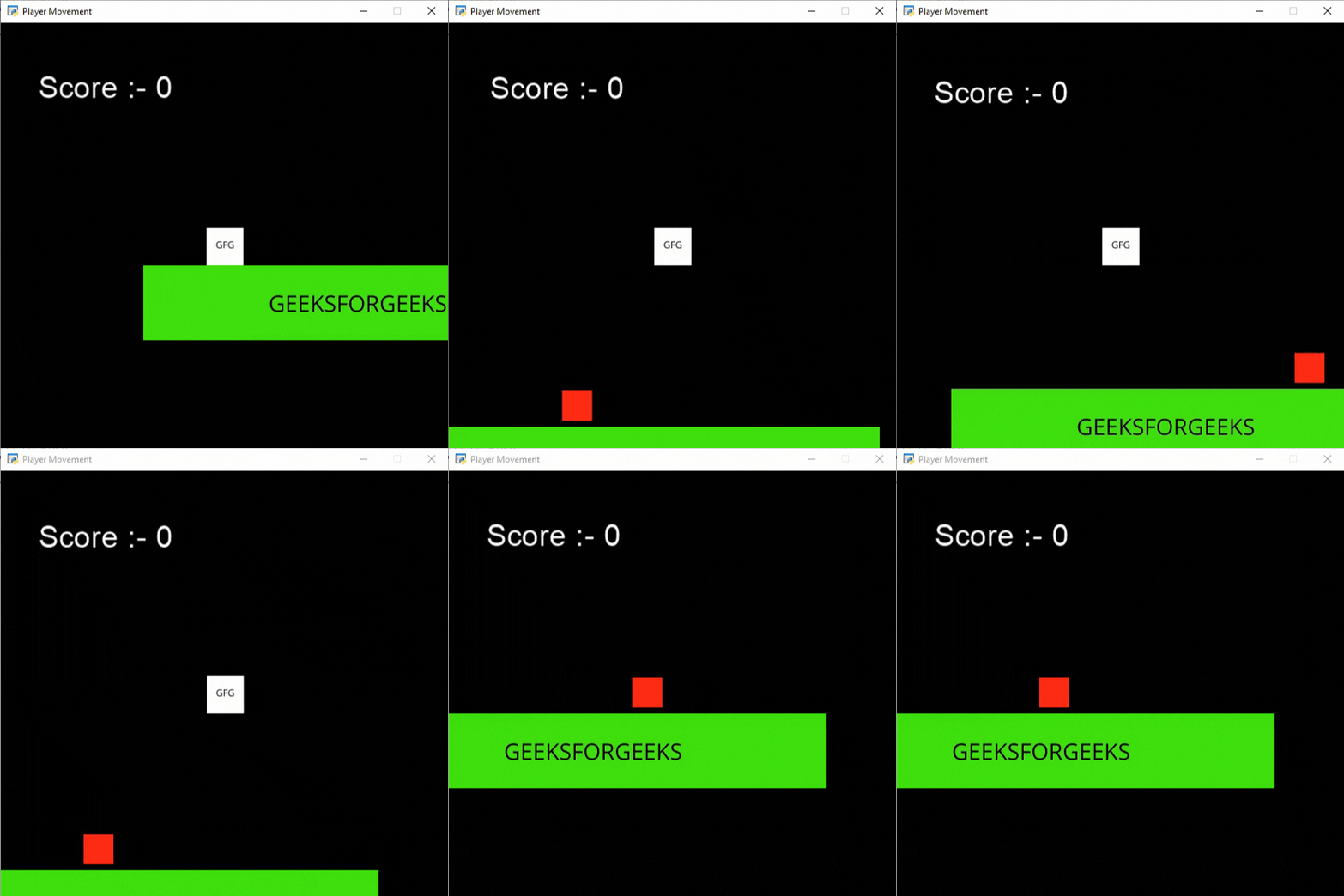
Output:

πŸ‘ Image

Killing the Enemy

Now we want to kill the enemy when the player jumps on top of it. For this, we will check if the bottom other player is equal to the top of the enemy or not. If it is equal then we will remove the layer sprite.

  • For this first, we will store the coordinate of the bottom of the player in a variable.

Syntax:

x = int(self.player_sprite.center_y - 14)

  • Similarly the coordinate of the top of the enemy in a different variable.

Syntax:

y = int(self.enemy.center_y + 25)

  • Then, if x and y are equal and the enemy and player are colliding then we will remove our enemy sprite.

Syntax:

if x == y:

  self.enemy.remove_from_sprite_lists()

Example: Killing an enemy using Arcade

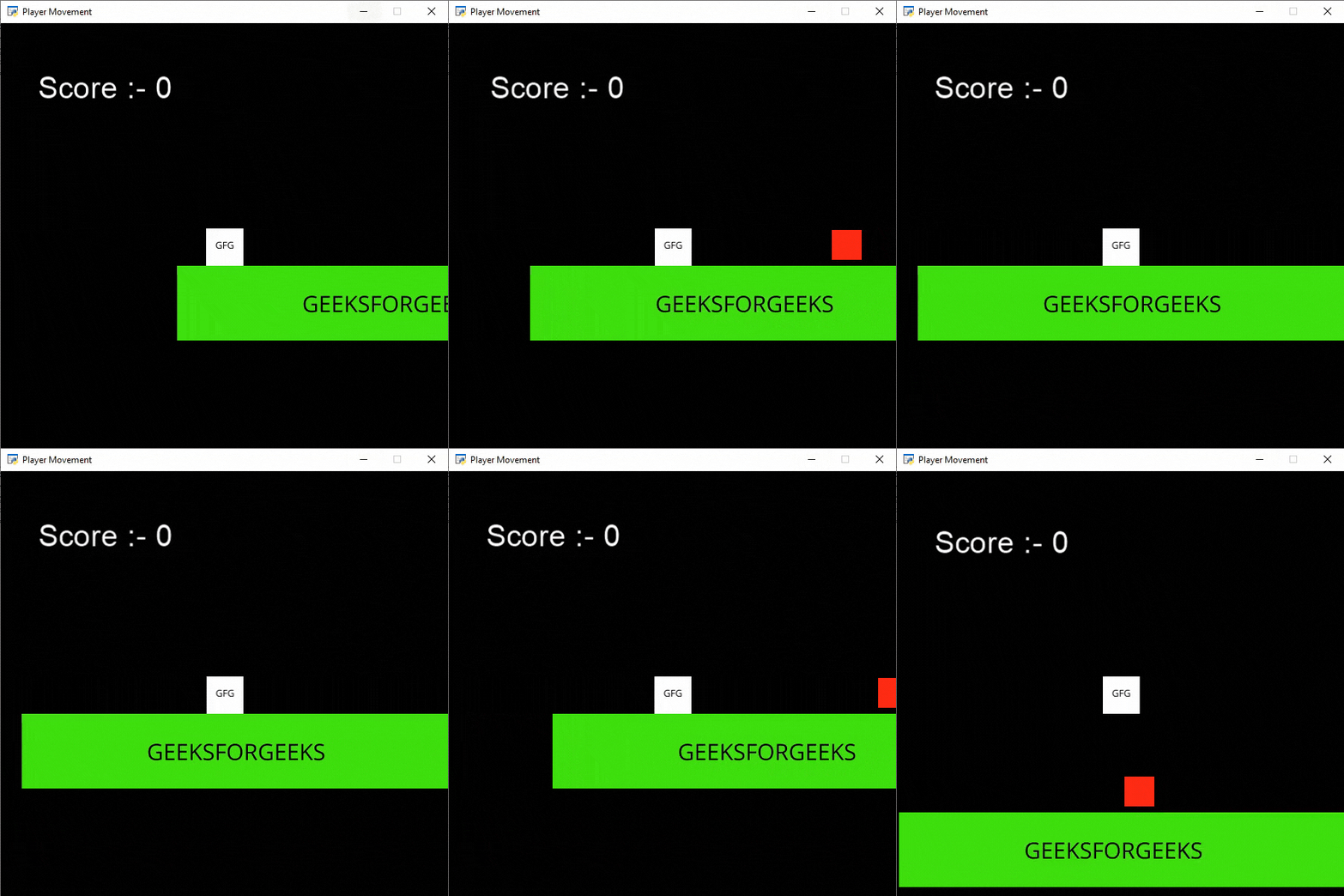
Output:

πŸ‘ Image
Comment
Article Tags:
Article Tags: