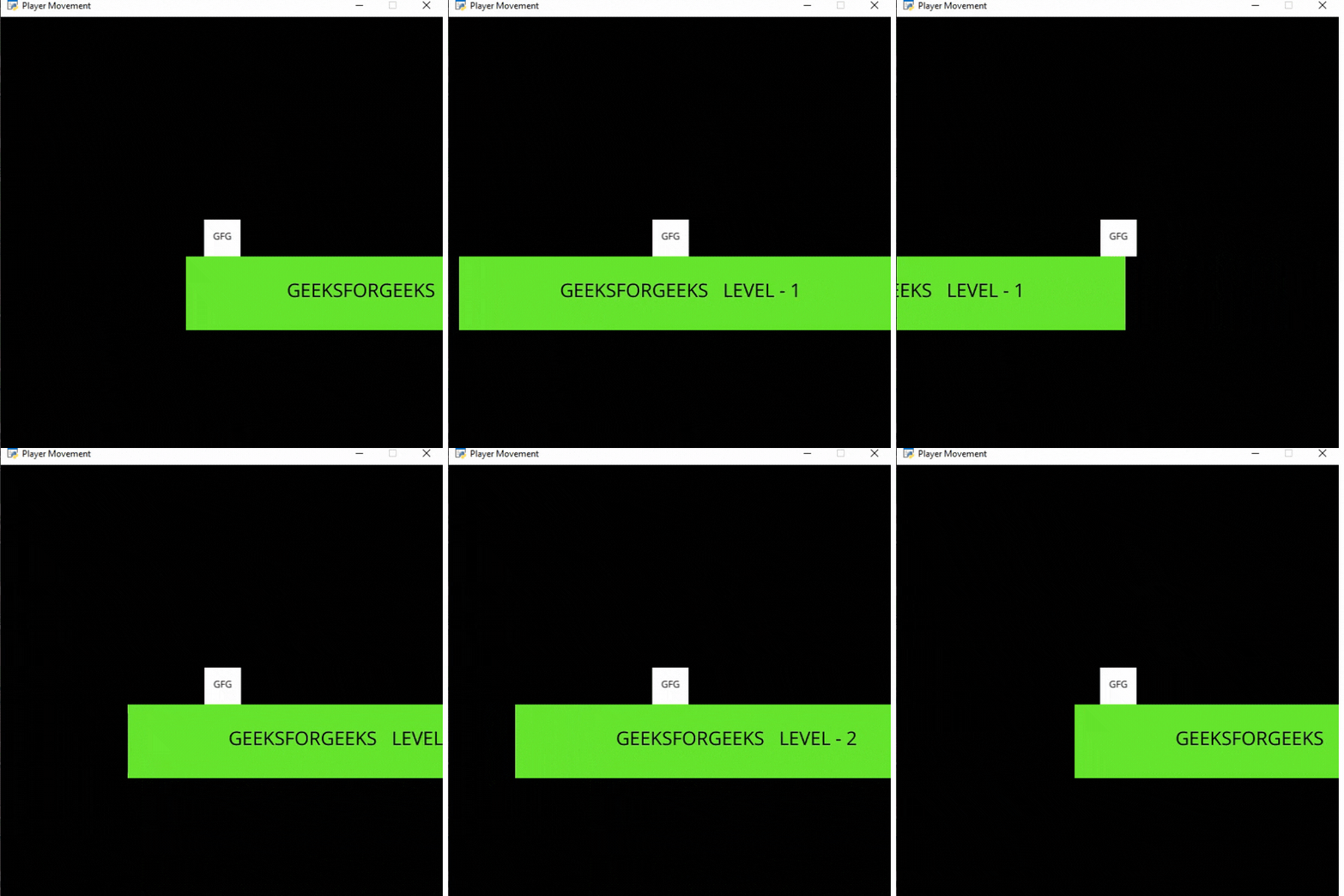
In this article, we will learn how to add different levels to our arcade games in Python.
Adding Levels
We can easily add multiple levels to our Arcade game by following the below steps:
- Create a new variable to store the current level.
self.level = 1
- Load the sprites you are going to use in the current level with the help of self.level variable. For this example, we are going to load 'Platform1' named sprites for level 1, 'Platform2' named sprite for level 2, and so on. For this, we can load the platforms using the below code.
platform = arcade.Sprite(f"Platform{self.level}.png", 1)- If the player crosses the right side of the screen then we are going to increase the value of self.level variable to go to the next level.
 if self.player_sprite.center_x>690:
 self.level += 1
Functions Used:
- Camera(): The Camera class is used for controlling the visible viewport.
Syntax: arcade.Camera( width , height, window)
Parameters:
- width: width of the viewport
- height: height of the viewport
- window: Window to associate with this camera
- Scene(): A class that represents a scene object.
Syntax: arcade.Scene(sprite_lists , name_mapping)
Parameters:
- sprite_lists: A list of SpriteList objects
- name_mapping: A dictionary of SpriteList objects
- PhysicsEnginePlatformer(): Simplistic physics engine for use in a platformer.
Syntax: arcade.PhysicsEnginePlatformer( player_sprite , platforms, gravity, ladders)
Parameters:
- player_sprite: sprite of the player
- platforms: The sprites it can’t move through
- gravity: Downward acceleration per frame
- ladders: Ladders the user can climb on
Sprites Used:
👁 Image👁 Image👁 Image
In the below example, we are going to create a MainGame() class. Inside this class first, we are going to initialize some variables for velocity, camera, level, and player's sprite then we will create 6 functions inside this class.
- on_draw(): Inside this function, we will use our camera and draw the scene.
- setup(): In this function, we will initialize our camera and scene object then we will load our player and platform's sprites. After that, we will call the PhysicsEnginePlatformer() function.
- on_update(): In this function, we will update the x coordinates of the player's sprite, camera, and physics engine. We will also change our level in this function.
- on_key_press() and on_key_release(): In this function, we will change the value of the velocity variable according to the keyboard key that is pressed or released.
- camera_move(): In this function, we will move our camera according to our player's current position.
Below is the implementation:
Output:
👁 Image