In this article, we will discuss how to handle keyboard inputs in Python arcade module.
In Arcade, you can easily check which keyboard button is pressed and perform tasks according to that.
For this, we are going to use these functions:
- on_key_press()
- on_key_release()
Syntax:
- on_key_press(symbol,modifiers)
- on_key_release (symbol, modifiers)
Parameters:
- symbol: Key that was hit
- modifiers: Bitwise ‘and’ of all modifiers (shift, ctrl, num lock) pressed during this event.
on_key_press() function will be called whenever the user presses a keyboard button. Similarly, on_key_released() will be called whenever a user releases a keyboard button.
Example 1:
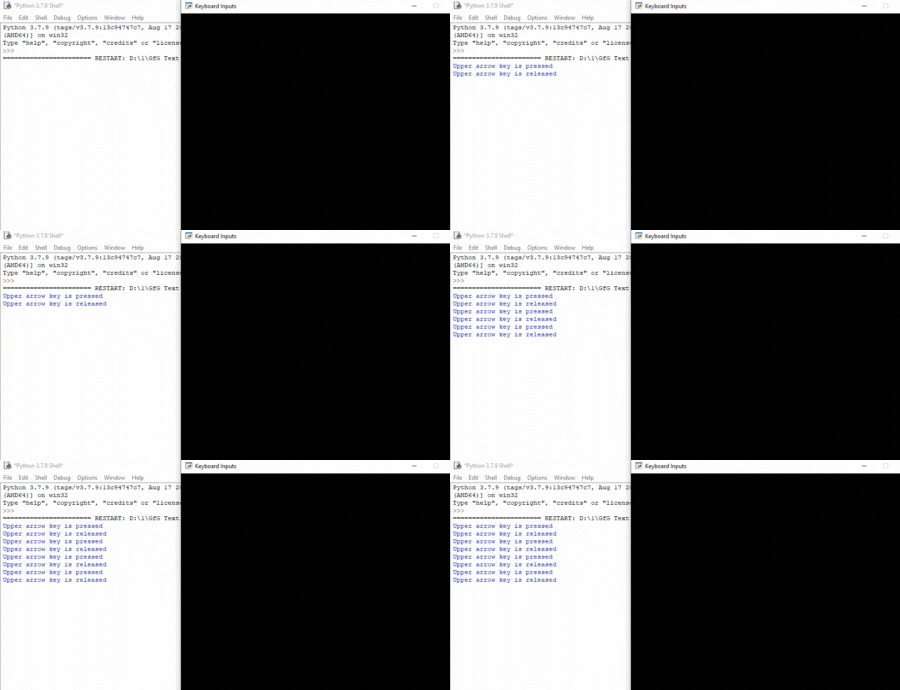
In this example, we will create a simple program using the arcade module which will check if the upper arrow key is pressed or not.
Then we will create three functions inside this class.
- on_draw(): Inside this function, we will start the rendering using arcade.start_render().
- on_key_press(): This function will be called whenever a keyboard key is pressed. Inside this function, we will check if the key pressed is the up arrow key then we will print "upper arrow key is pressed".
- on_key_release(): This function will be called whenever a keyboard key is released. Inside this function, we will check if the key released is the up arrow key then we will print "upper arrow key is released".
Below is the implementation:
Output:
👁 ImageExample 2:
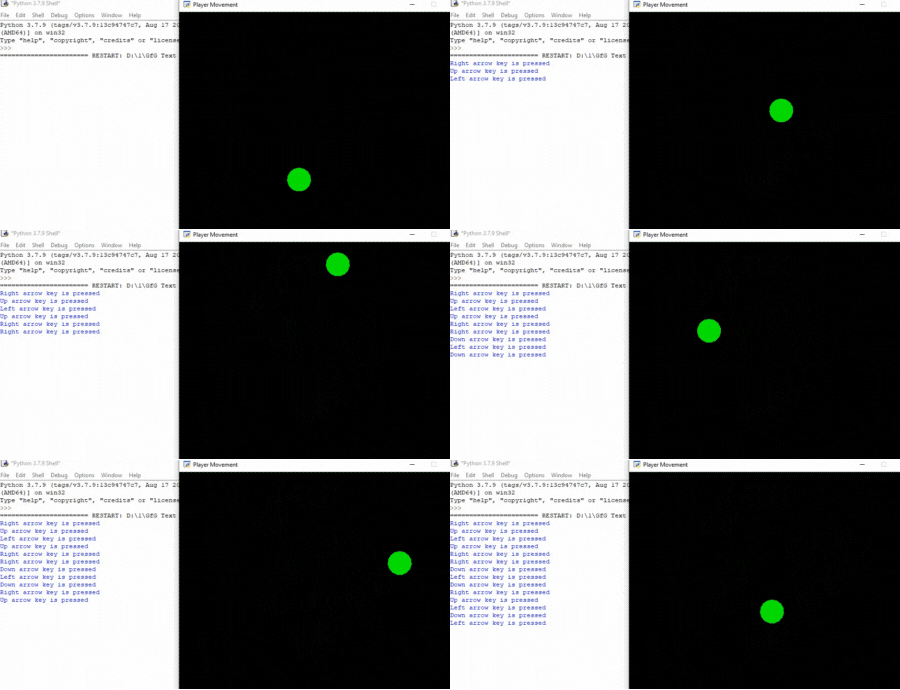
In this example, we move the player according to the keyboard inputs.
For this, we are going to create a MainGame() class. Inside this class first, we are going to initialize some variables for x and y coordinates of the player's sprite and player's x and y velocity then we will create 4 functions inside this class.
- on_draw(): Inside this function, we will draw our player and start the rendering.
- setup(): In this function, we will initialize our camera and scene object then we will load our player and platform's sprites. After that, we will call the PhysicsEnginePlatformer() function.
- on_update(): In this function, we will update the x and y coordinates of the player's sprite by adding the value of vel_x and vel_y variable,
- on_key_press(): In this function, we will change the value of the vel_x and vel_y variables according to the keyboard key that is pressed.
- on_key_release(): In this function, we will change the value of the vel_x and vel_y variables according to the keyboard key that is released.
Below is the implementation: