Python offers multiple options for developing GUI (Graphical User Interface). Out of all the GUI methods, Tkinter is the most commonly used method. It is a standard Python interface to the Tk GUI toolkit shipped with Python. Python with Tkinter outputs the fastest and easiest way to create GUI applications. Creating a GUI using Tkinter is an easy task.
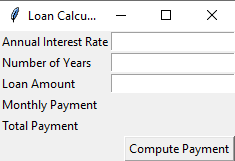
Let's see how to create a loan calculator using Python GUI library Tkinter. The calculator will be capable of calculating the total amount and monthly payment based on the loan amount, period and interest rate. Step #1: Create the main window.
Step #2: Adding functionality.
Step #3: Complete program
Output:
Code Explanation:
The Tkinter module contains theTk toolkit. Here in this example, we are importing the whole module of Tkinter in the first line. Next, We are creating a user-defined Class named LoanCalculator which holds its own data member and member functions.
def__init__(self) is a special method in Python Class. It is a constructor of a Python class, then we create a window using Tk(). The label function creates a display box to take input and use the grid method to give it a table-like structure.
Why we used sticky argument? By default, widgets are created in the center, using sticky arguments we can change it. It takes 4 values: N, S, E, W. i.e. North, East, South, West.
Then we create some object named self.annualInterestRateVar, self.numberOfYearsVar, self.loanAmountVar, self.monthlyPaymentVar, self.totalPaymentVar and for the first 3 object we take the input using entry() function.
Then we create the button namely compute payment, when you click the button it calls the compute payment function which belongs to the class loan calculator. Using mainloop function we run our application program.
Create a function computepayment() inside the class. Here we store our inputs of the object in some variables, to simplify our mathematical calculation.
In the next step, we create another function named getMonthlyPayment() inside the class. After getting the required inputs it computes the monthly payment using the simple mathematical function given in the program.
Now root=Tk() means to initialize tkinter , we have to create a widget which is a window. Note that root widget must be created before any other widget.