|
VOOZH | about |
|
VOOZH | about |
Dash, a popular Python web framework for building interactive web applications, is continuously evolving with new features, enhancements, and bug fixes. To ensure you are leveraging the latest improvements, updating Dash to the most recent version is crucial. In this article, we'll walk through the steps to update Dash in your Python environment. In this article, we will see how to update Dash to the latest version in Python.
Below, is a step-by-step explanation of How To Update Dash To the Latest Version.
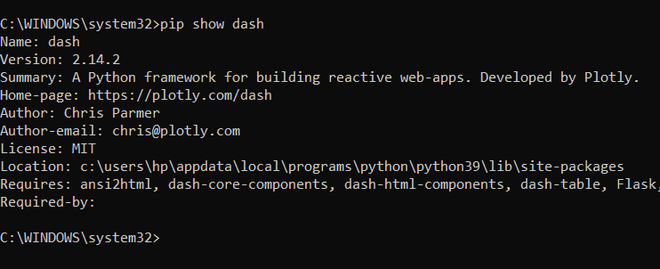
Before updating, we can first check the dash version that is currently installed on the device. Below is the command by which we can check this:
pip show dashOutput:
The primary tool for managing Python packages is pip. To update Dash to the latest version, open your terminal or command prompt and run the following command:
pip install dash --upgradeThis command tells pip to install the latest version of the Dash package, upgrading it if a previous version is installed.
Output:
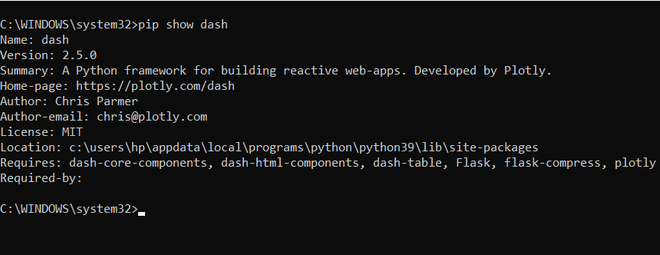
After the update, it's essential to confirm that Dash has been successfully upgraded. You can use the following command to check the installed version:
pip show dashOutput:
Below, are the code example of Dash .
Example 1: Create Basic Dash App
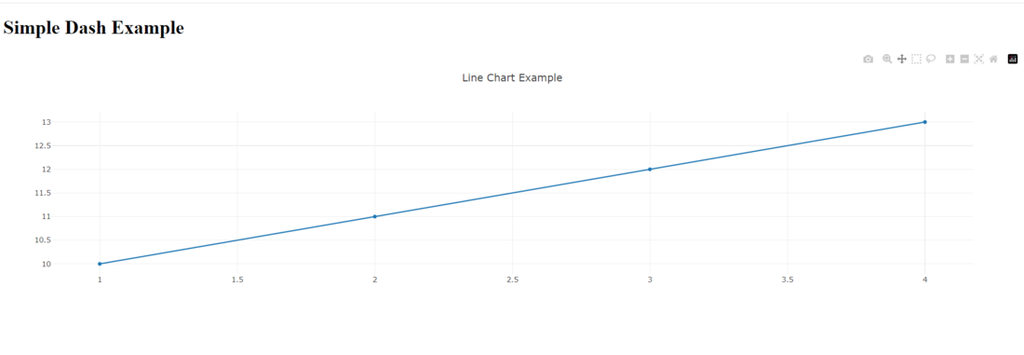
In this example, below Python code utilizes the Dash framework to create a simple web application with a line chart. It imports necessary libraries, defines a Dash app with a basic layout, and generates a line chart using sample data. When executed, the app runs in debug mode, allowing visualization of the line chart at a specified server address.
To run this example, save the code in a file (e.g., simple_dash_app.py) and execute it. Open your web browser and navigate to
http://127.0.0.1:8050/Output:
👁 Screenshot2024-01-26222740-ezgifcom-resize
Example 2: Dash App with Interactive Components
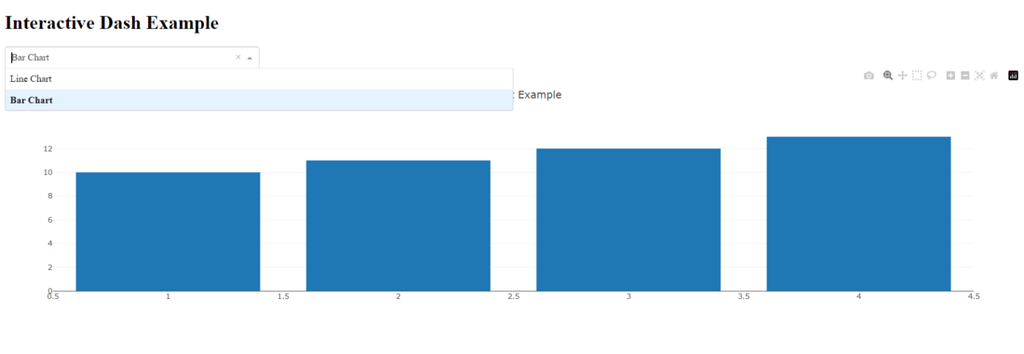
In this example , below Python code defines a Dash web application with an interactive dropdown menu to switch between a line chart and a bar chart. The app includes a callback function that dynamically updates the displayed chart based on the user's selection. The sample data is initially set for a line chart, and the app runs in debug mode when executed directly.
To run this example, save the code in a file (e.g., interactive_dash_app.py) and execute it. Open your web browser and navigate to
http://127.0.0.1:8050/You should see an interactive Dash app with a dropdown menu to switch between line and bar charts.
Output:

-660.jpg)