|
VOOZH | about |
|
VOOZH | about |
The This PC icon (formerly My Computer) gives you quick access to your drives, folders, and connected devices. While it doesn’t appear on the desktop by default in Windows 10 and Windows 11, you can easily bring it back using built-in settings. This guide shows you simple methods to add the This PC icon to your desktop, no matter which version of Windows you’re using.
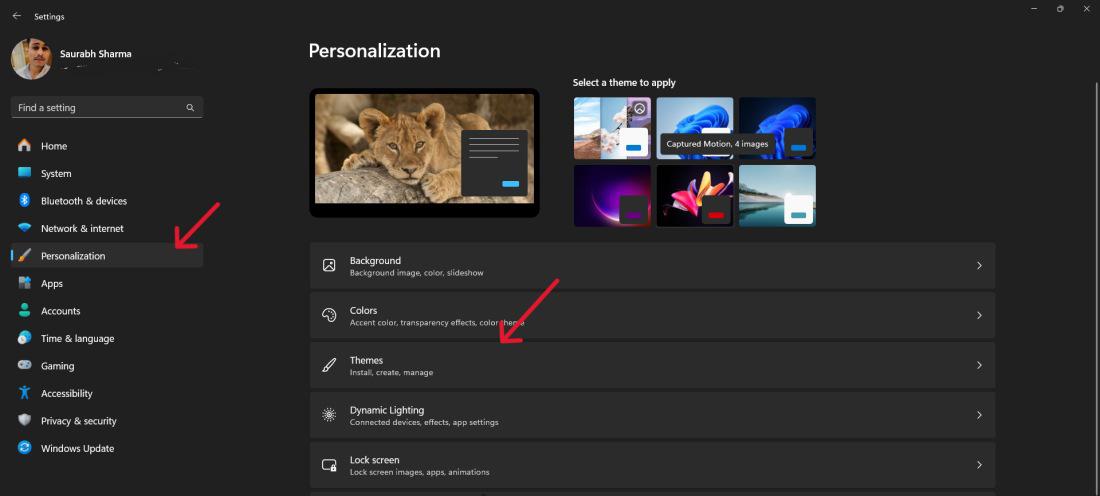
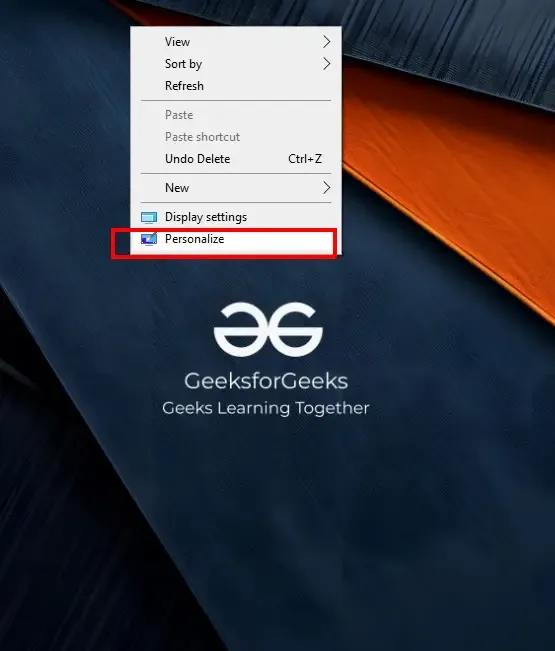
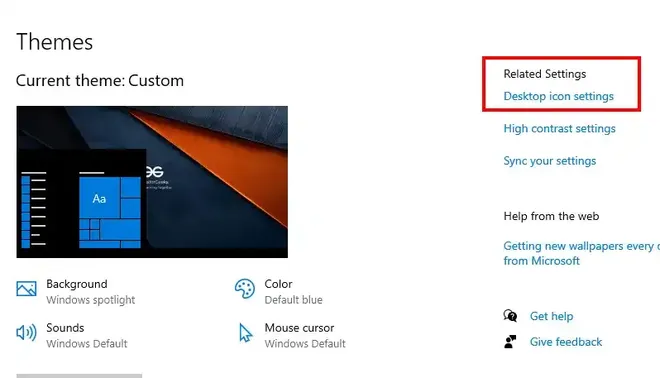
If you want to add the 'This PC' icon to your desktop in Windows 10 and 11, you can easily do so through Settings. Here's how:
Step 1:
👁 How-To-Get-'This-PC'-Icon-Via-Setting
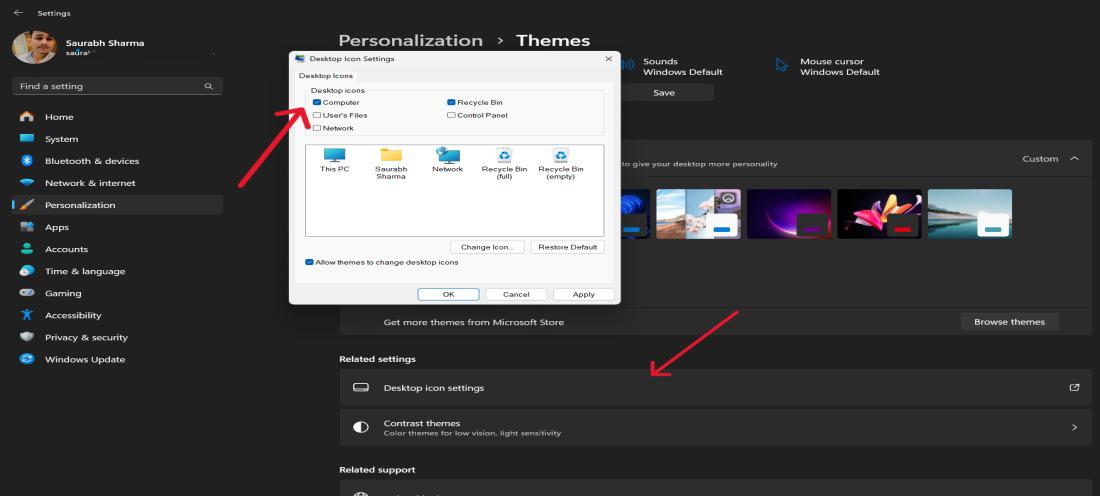
Step 2:
👁 How-To-Get-'This-PC'-Icon-Via-Setting-1
Your This PC icon will now appear on the desktop.
Step 1:
That’s it your icon is now visible.
Note: This method Works on both Windows 10 & Windows 11.
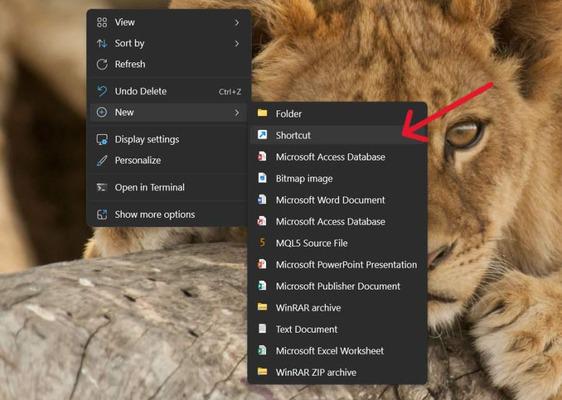
Step 1:
👁 How-To-Get-'This-PC'-IconVia-Shortcut
%windir%\explorer.exe shell:MyComputerFolder👁 How-To-Get-'This-PC'-Icon-Via-shortcut_2-(1)
Step 2:
You now have a manual shortcut on the desktop.
Note: This method is suitable for both Windows 10 and Windows 11.
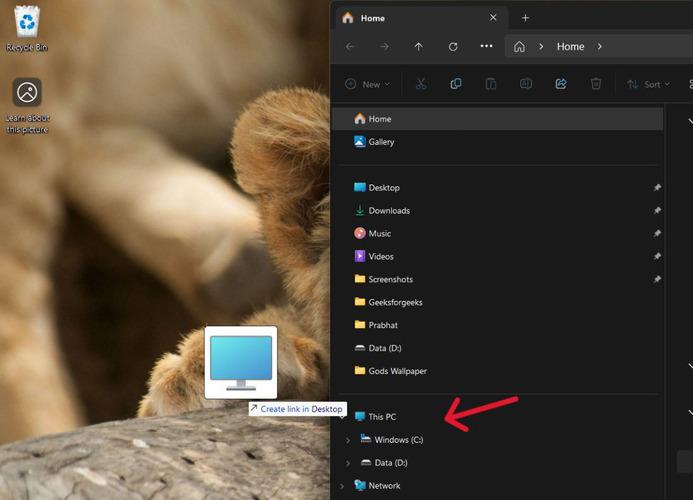
Step 1: Open File Explorer using Win + E.
Step 2: Drag This PC from the left sidebar directly onto the desktop. Windows will create a shortcut automatically.
👁 How-To-Get-'This-PC'-Icon-Via-shortcut_3
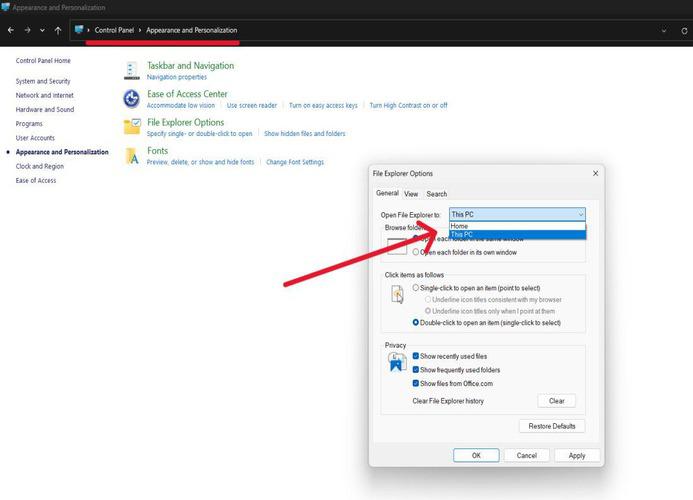
If you prefer using the Control Panel to customize your desktop icons in Windows 11, you can easily show the 'This PC' icon. Here's how:
Step 1: Open Start → type Control Panel → press Enter.
Step 2: Select Appearance and Personalization.
Step 3:
👁 How-To-Get-'This-PC'-Icon-Via-control-panel
Once the changes are being applied, you can press the “Windows + E” and the “This PC” window will open up on your screen.

.jpg)