|
VOOZH | about |
|
VOOZH | about |
Can't you use your Apple pencil for drawing anymore because it has stopped working? This is a common problem among many users who face different challenges when using their Apple Pencils. Luckily, this issue has simple solutions that anybody can use.
The article will explain what you must do whenever you are in a similar situation.
For instance, before trying out any other solution to fix your Apple pencil that suddenly stopped working, it would be necessary to identify why it could have happened. Some of the common reasons that might make it hard for you to use your Apple pencil include:
To ensure compatibility, make sure that you have an Apple pencil that can be connected to your iPad model. These pencils come in various versions and only work with select iPads. You can check this information at Apple’s website.
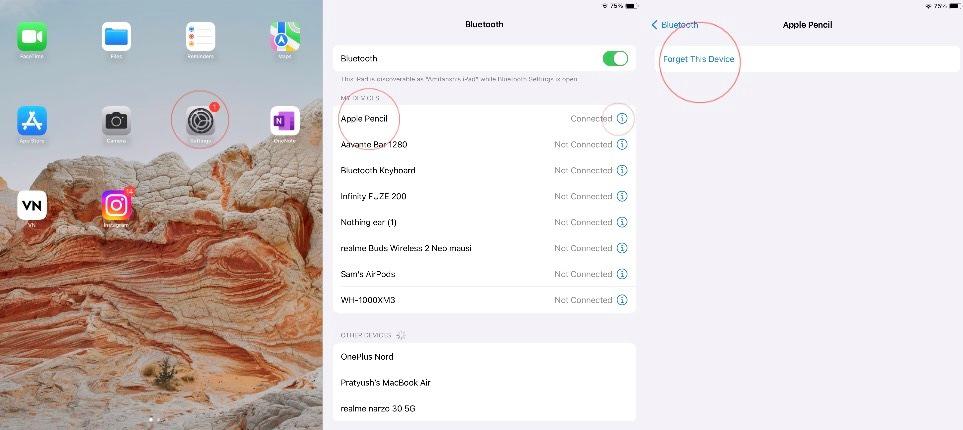
Sometimes, reconnecting your Apple Pencil to its Initial Position will solve the problem. Howto:
Ensure your Apple Pencil is full before use. You can check how much battery remains by:
Sometimes, rebooting your iPad may solve any clouding issues with connectivity and performance. Press and hold the top and volume buttons together until the power-off slider appears on the display screen. Then, switch it off before turning it back on again.
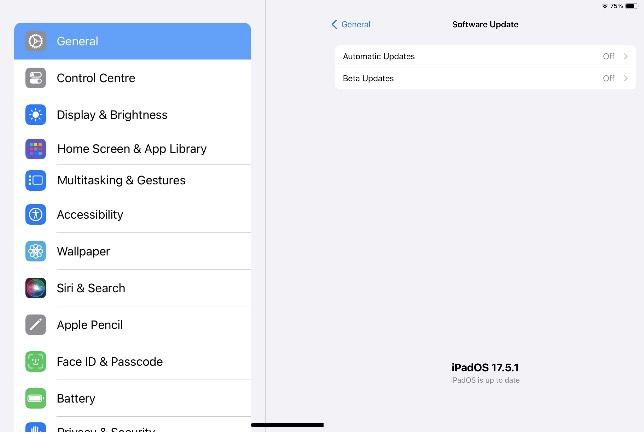
Ensure you are running on the latest iOS update on your iPad. Sometimes, software updates solve the bugs related to the Apple Pencil functionality. Please go to ‘Settings > General > Software Update’ to update the information.
Look out for any signs that may suggest damage to the Apple pencil. Replacing it could be the simplest solution, especially if the tip has been ruined. Apple provides new nibs that can easily fit into the Apple Pencil.
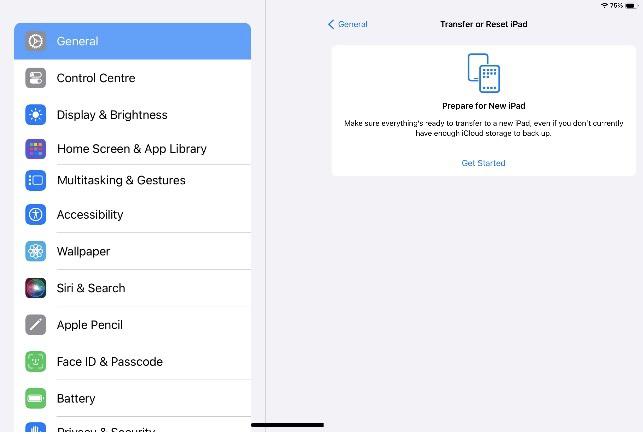
If none of the solutions above work for you, you will probably need to reset all your iPad settings. It will not erase your data; it will reset system settings, i.e., Wi-Fi passwords, w,allpapers, etc. Go to ‘Settings > General > Reset > Reset All Settings’.
An Apple Pencil is a must-have tool for drawing, note-taking, and much more. What if it’s not working? Use the above instructions to diagnose and repair the problem. Normally, your Apple pencil will begin working again after you check compatibility, charge it fully, restart, examine physical damage, and reset settings. However, when everything else fails, you just have to ask for assistance from Apple Support.