|
VOOZH | about |
|
VOOZH | about |
Productivity largely depends on an effective file management process, particularly with a specific platform or operating system Windows. However, as we learn more about digital organization and internal storage management, we find that advanced functionality and authentic customization choices are more and more appealing to implement any operation. The internal file manager, Windows Explorer, does a good job handling simple tasks and initial system management, but power users want more sophisticated functionality to identify each operation. The other substitute file managers are available for Windows that provide improved systematic features, user-friendly interfaces, and an abundance of customization choices to follow a proper path of observation.
In this article, we'll explore some of the top file managers for Windows, emphasizing their salient characteristics and essential features effectively.
Table of Content
Your unique system requirements and custom preferences will determine which file manager is ideal to use. For numerous users or developers, Windows Explorer has been their go-to file manager to process any required tasks. Now, see the below-listed file managers which are the Best File Managers for Windows.
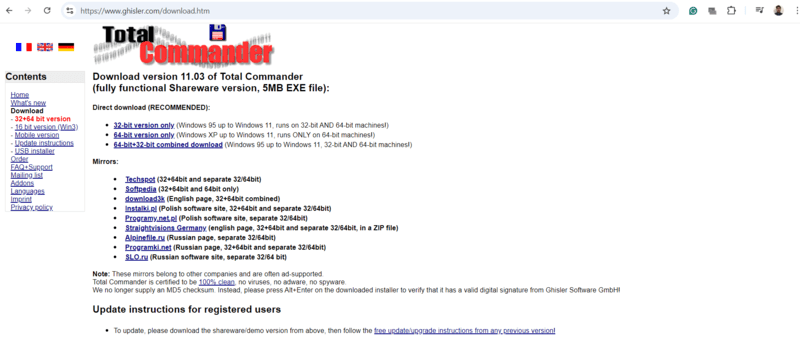
Total Commander is well-known for its dual-pane user interface, which makes it simple to compare and move all the internal data between folders. It has long been a favourite among power users to manage any settings.
Power users and developers who want sophisticated file management features and don't mind a little archaic interface can use this File manager to operate Windows effectively.
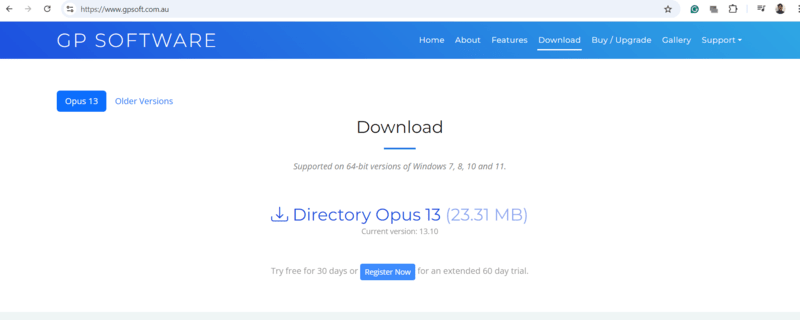
Another formidable system player in the file management market to operate the requirements is Directory Opus. It is a favourite among users who require a configurable and effective file manager system process because of its extensive capabilities and identical elegant layout.
People who value the feature of customisation above all else and want the best possible file management experience. For people who prefer to work with a large number of files and folders to manage them individually, Directory Opus is quite helpful.
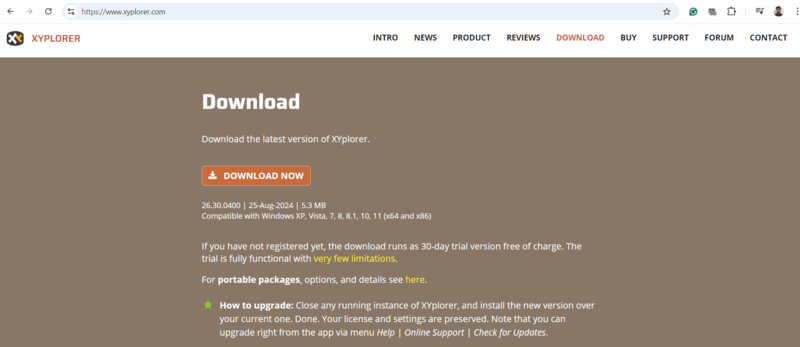
A feature-rich file manager with a proper tabbed interface for handling numerous system folders at once is XYplorer. It may be tailored to fit your overall workflow and essentially supports a large variety of file formats and protocols to implement properly. The robust search and filter features of XYplorer make it simple to locate all the essential files to manage the internal system.
Those in need of a portable file manager with powerful functions and many customisation choices to process required functions anytime. It's also a fantastic option and easy to use for people who value efficiency and speed.
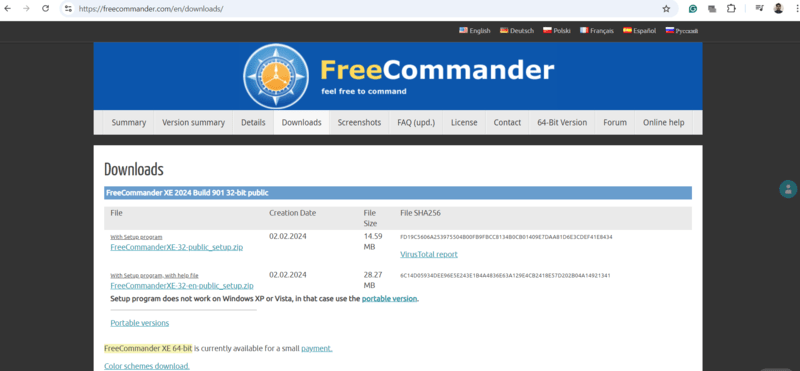
Many of the same capabilities of Total Commander are available in FreeCommander system management, an open-source, free alternative which plays a major role. It supports several file formats and system protocols and has a dual-pane interface which is essential for the users. For those in search of a free file manager with sophisticated features to operate the actual functions, FreeCommander offers a good starting point anytime, even though it may not have as many features as Total Commander in Windows.
All the individuals seeking a feature-rich, feature-free file manager that can effectively perform routine file management duties, can use this File manager to operate Windows effectively.
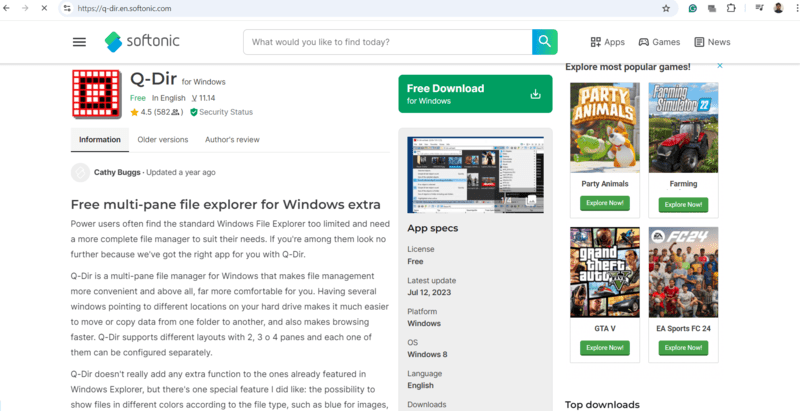
QDir is a quick and light file manager that puts simplicity and speed first when processing. It has a simple, clutter-free user interface that is easy to use and intuitive by following all the requirements. QDir may be tailored to your tastes and supports a wide range of internally configured file formats and system protocols.
Users who want a small, portable file manager need to manage several directories at once within the time. Q-Dir is an excellent choice for users or developers who have outdated hardware to process any implementation.
The ideal file manager for Windows will rely on your system as well as personal requirements and method of operation within the system. Total Commander or Directory Opus can be the ideal option if you're a power user seeking a tonne of features and customisation segmentation for any required operation. XYplorer is a great option if you need overall system speed and mobility to process any tasks. Q-Dir is distinguished by its distinctive quad-pane interface, while FreeCommander provides a systematic reliable, cost-free substitute to manage the overall process. Whichever file manager you select, these can greatly increase your experience with output and simplify your Windows file management chores in a better way.