|
VOOZH | about |
|
VOOZH | about |
Do ads seem to follow you from one site to the next? Or maybe you're noticing your browser slowing down for no clear reason? That could be the result of aggressive tracking and ad scripts running in the background. Many websites collect data about your activity—sometimes without your clear permission. That’s where blocking online tracking and ads becomes more than just a convenience—it’s a necessity.
This guide explains 7 proven methods to help you reduce or stop unwanted tracking and ads while using a web browser. You’ll learn how to use ad blockers, privacy settings, VPNs, and more, all while keeping control over your data. Whether you’re concerned about privacy or simply want a smoother, ad-free browsing experience, these methods are easy to follow and effective.
Blocking online tracking and ads can offer many benefits, including enhanced privacy, improved browsing speed, and reduction in data usage. Enhanced privacy is achieved by preventing websites from tracking your online activities. Improved browsing speed is possible because ads and tracking scripts are not loaded, reducing the amount of data transmitted. A reduction in data usage occurs because fewer ads and tracking scripts are loaded, consuming less data.
In this section, we will explore 7 effective methods to help you block online tracking and ads in your web browser. These methods will enhance your privacy and improve your browsing experience by preventing websites and advertisers from tracking your online activities.
Install an ad blocker extension in your browser.
Popular choices include uBlock Origin, Adblock Plus, and AdGuard. These extensions can block ads and also prevent some tracking scripts from running.
👁 How to Block Online Tracking and Ads in a Web Browser
Most modern browsers have an option to enable "Do Not Track.
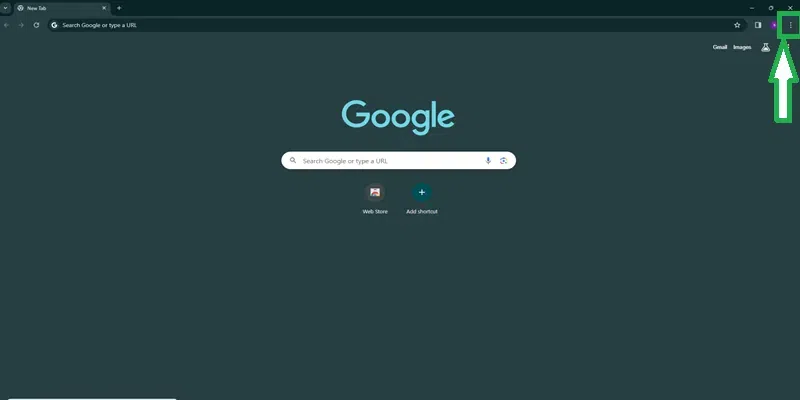
At the top-right of your browser, click More and then select Settings.
👁 How to Block Online Tracking and Ads in a Web Browser
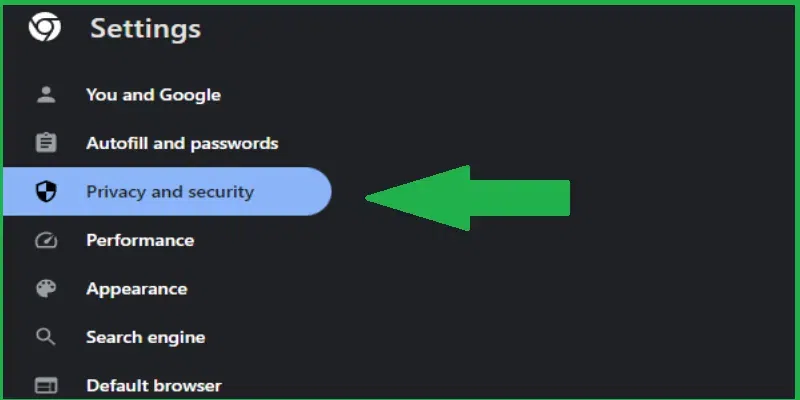
In the settings menu, click on Privacy and Security and then select Third-party cookies.
👁 How to Block Online Tracking and Ads in a Web Browser
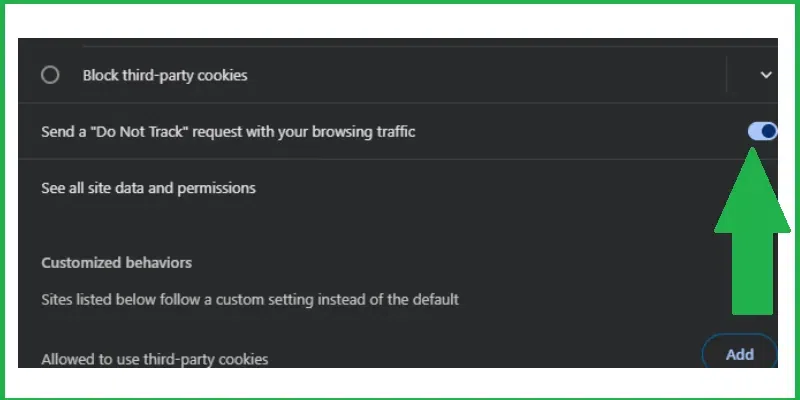
Turn the "Send a 'Do Not Track' request with your browsing traffic" option on or off based on your preference.
👁 How to Block Online Tracking and Ads in a Web Browser
Consider using a browser that prioritizes privacy, such as Brave, Firefox, or Tor Browser. These browsers often include built-in features to block ads and tracking.
👁 How to Block Online Tracking and Ads in a Web Browser
Check your browser's privacy settings and configure them to limit tracking. For Example, you can disable third-party cookies and block location tracking.
Go to your browser settings.
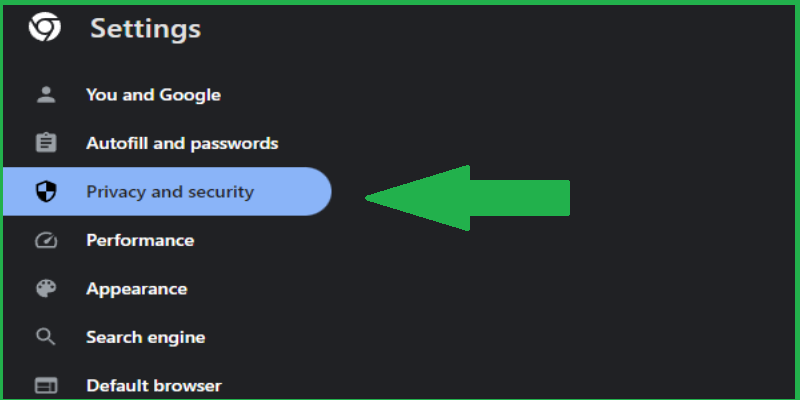
Select Privacy and Security in the settings menu.
👁 How to Block Online Tracking and Ads in a Web Browser
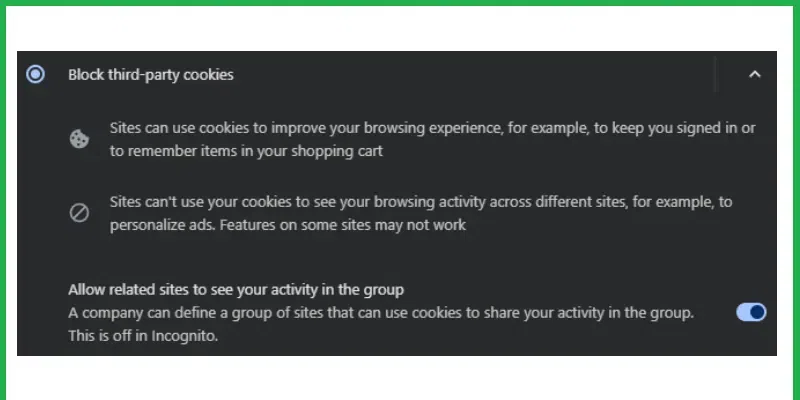
Choose the option to block third-party cookies to limit tracking and enhance privacy.
👁 How to Block Online Tracking and Ads in a Web Browser
A Virtual Private Network (VPN) can encrypt your internet traffic and hide your IP address, making it harder for websites to track you.
👁 How to Block Online Tracking and Ads in a Web Browser
Clearing your cookies and browser cache regularly can help remove tracking data stored on your device.
While ad blockers and privacy-focused extensions can be helpful, be cautious and only install extensions from trusted sources. Some extensions may track your browsing behavior themselves.
Protecting your privacy doesn’t require complicated tools or deep technical knowledge. By using trusted ad blockers, disabling third-party cookies, clearing your browser data regularly, or switching to privacy-focused settings, you can block online tracking and ads without sacrificing usability. Start with one method or combine a few—either way, you’ll be browsing more freely and privately in no time.