|
VOOZH | about |
|
VOOZH | about |
Bookmarks are an essential feature in Google Chrome, allowing you to save your favorite websites for quick access. Whether you're browsing on desktop or mobile, bookmarking pages can make navigation much easier and more efficient. Google Chrome is a web browser provided free by Google. Chrome is a cross-platform web browser which means this browser can be operated on different operating systems such as Windows, iOS, Android, MacOS, and Linux.
In this guide, we’ll walk you through the steps to bookmark pages in Google Chrome on both desktop and mobile devices, ensuring you can access your favorite websites whenever you need them.
A bookmark is a saved link to a webpage that allows you to quickly access that page in the future without having to search for it again. Bookmarks are especially useful for websites you visit frequently or for organizing resources you need for work, school, or personal projects. Google Chrome provides a convenient Bookmarks Bar and Bookmark Manager for managing these links.
Adding a bookmark in Google Chrome is simple and quick. Here’s how you can do it:
Launch the Chrome browser on your computer.
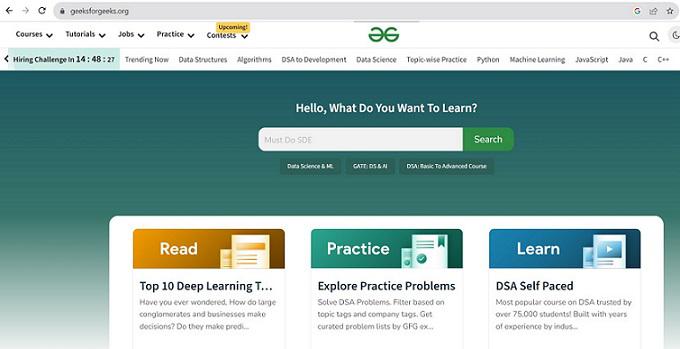
Visit the webpage that you want to save.
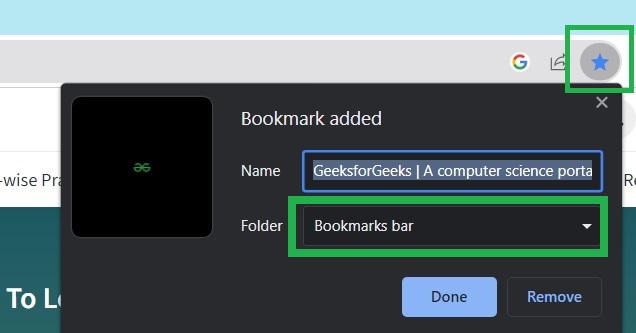
In the address bar, you’ll see a star icon on the right. Click it, and a small pop-up window will appear.
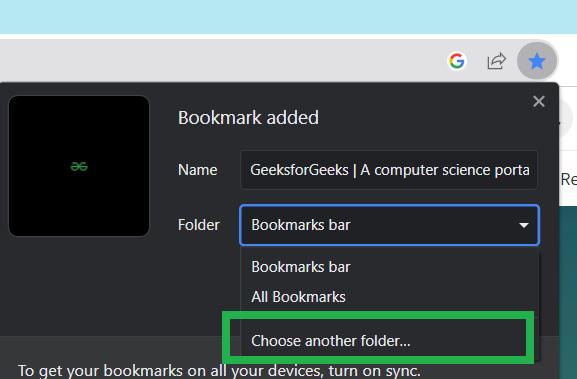
You can change the name of the bookmark if desired and choose where to save it.
By default, Chrome saves it to the Other bookmarks folder. If you want it to appear on your Bookmarks Bar, you can select that option.
Alternatively, use the shortcut Ctrl + D (Windows) or Cmd + D (Mac) to quickly add a bookmark.
If you have multiple bookmarks and want to keep them organized, Chrome allows you to create folders within your bookmarks.
Access the Bookmark Manager by clicking the three dots menu → Bookmarks → Bookmark Manager.
In the Bookmark Manager, right-click on the left panel and select Add new folder. You can name the folder according to its category, such as Work, Personal, or Research.
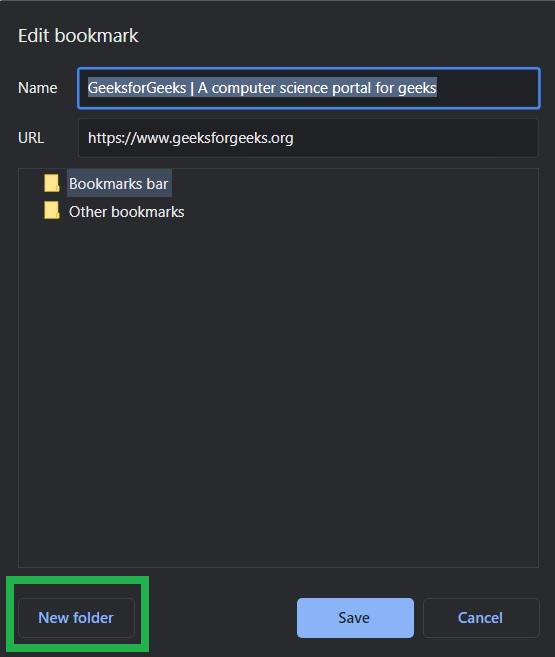
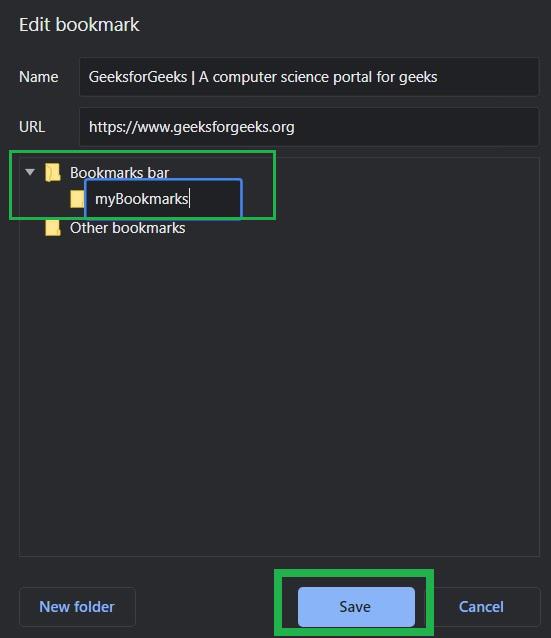
Another dialog window titled as 'Edit Bookmark' opens. Click 'New folder' to create a new folder and to save your bookmark in the new folder.
Type a name for the new folder. Here we are creating folder with name 'myBookmarks'. And click 'Save'.
Now the dialog boxes close automatically and bookmark is saved in the folder location 'myBookmarks' in your Chrome browser.
Now the webpage has a blue star in the address bar indicating that the webpage has a bookmark. Bookmark added successfully in Chrome browser. We can customize the folder location of this bookmark again anytime by clicking the blue star button.
If you have multiple tabs open in Chrome and want to save them all at once for easy access later, Chrome allows you to bookmark all open tabs in just a few clicks. Here’s how you can do it:
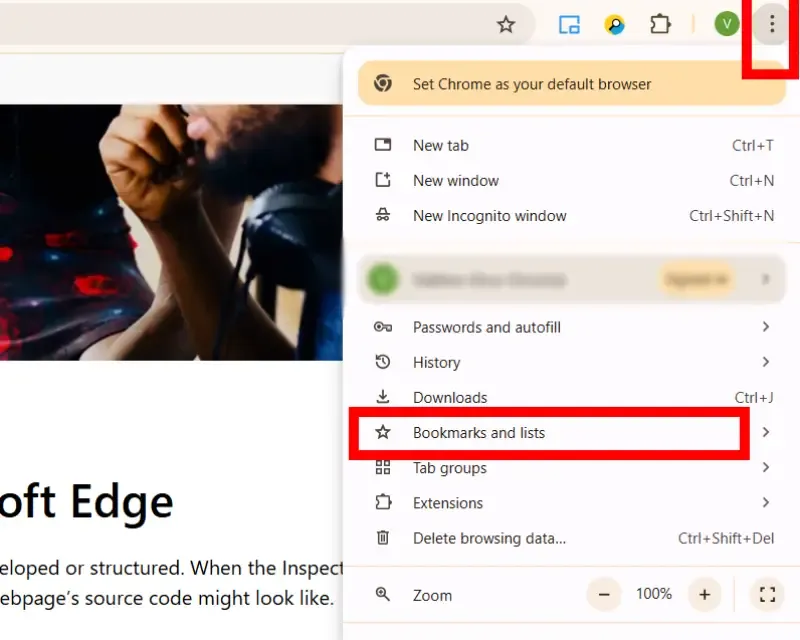
Click on the three vertical dots (also known as the More menu) in the upper-right corner of your Chrome browser.
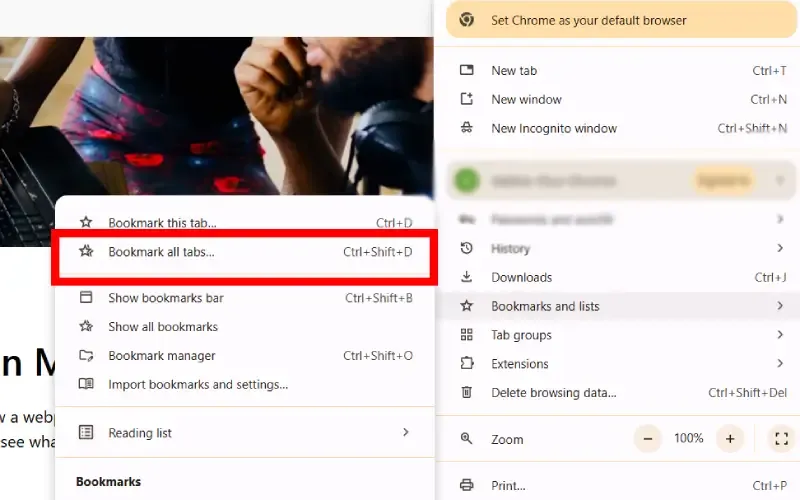
Hover your mouse over the Bookmarks option in the dropdown menu to expand it.
Click on Bookmark All Tabs from the expanded options in the menu.
A prompt will appear asking you to name the folder where all your bookmarks will be saved. You can create a new folder, such as "Work" or "Research," or use an existing one.
After naming your folder, click Save. All the open tabs will now be saved as individual bookmarks in the selected folder, making them easy to access later.
Bookmarking a page on Chrome for iPhone is quick and easy. Here’s how to do it:
Launch the Chrome app on your iPhone. If you haven’t installed it yet, you can download it from the App Store.
Browse to the page you want to save for later.
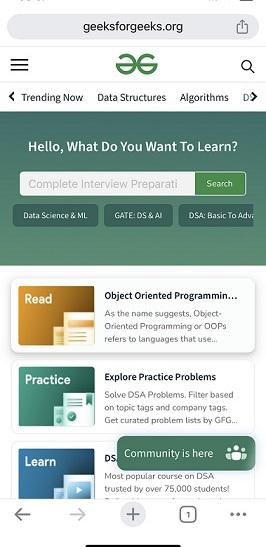
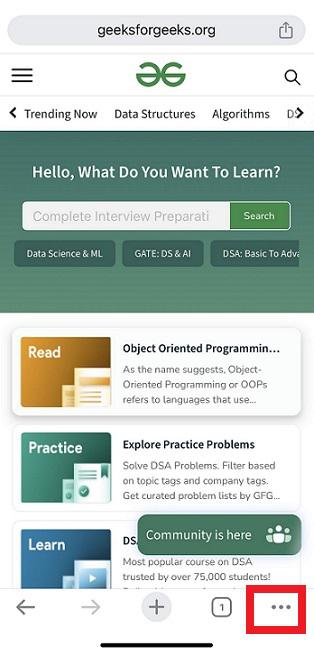
In the lower-right corner of the screen, tap on the three vertical dots to open the menu.
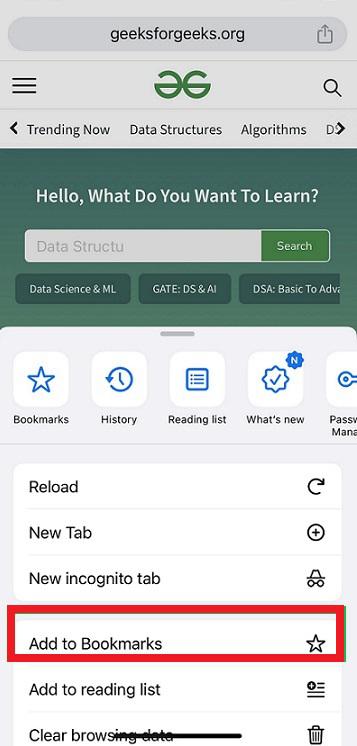
From the menu options, tap Add to bookmarks. This will save the page to your bookmarks list.
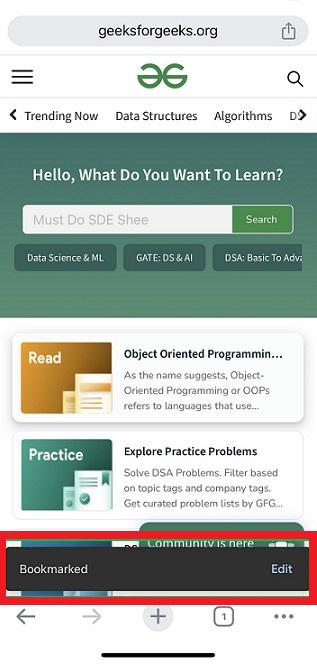
An alert pops up displaying 'Bookmarked' at the bottom of the app. Now bookmark is created and saved in the default location in this Chrome app.
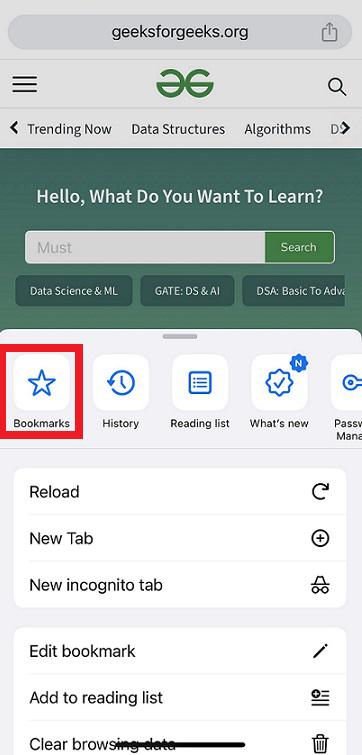
To view this webpage in bookmarked list, tap three dots icon -> Bookmarks icon
Select 'Bookmarks' icon in the panel opened.
Adding bookmarks to Google Chrome on Android is a straightforward process. Follow the steps below:
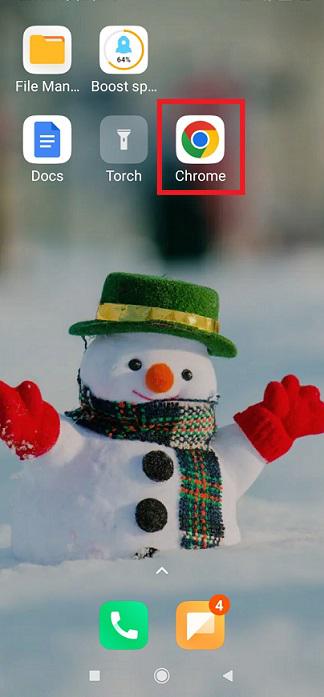
Launch the Chrome app on your Android device. You can find it in your apps list.
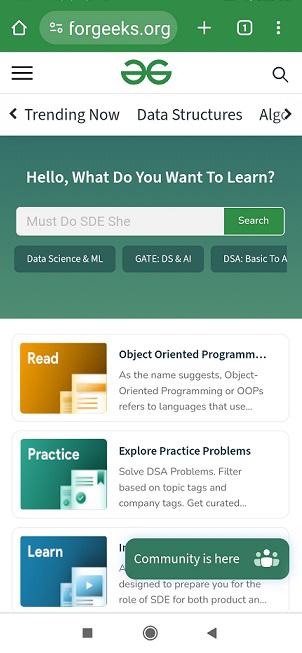
Go to the webpage that you want to bookmark. Ensure you are on the page you want to save for quick future access.
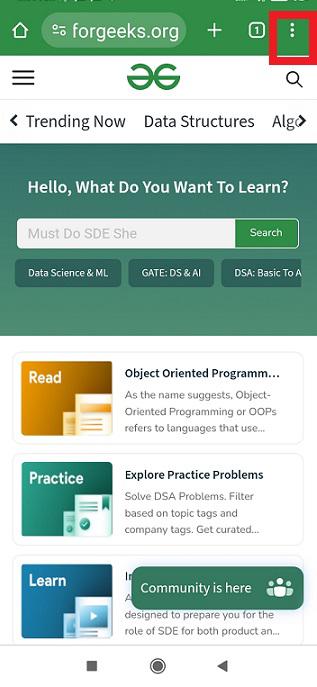
In the top-right corner of your screen, tap on the three vertical dots (menu icon) to open the options menu.
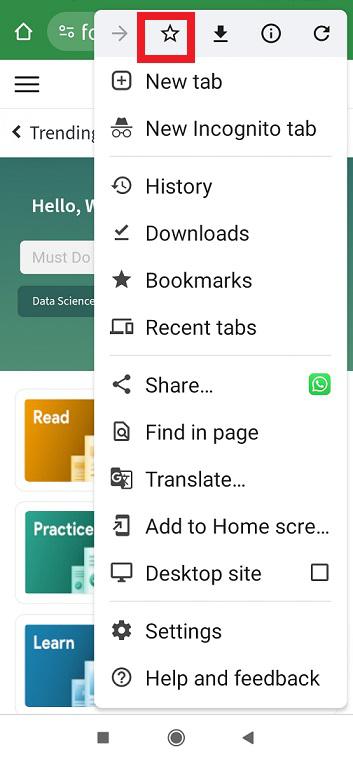
From the menu, tap Add to bookmarks. This will save the page to your bookmarks for easy access later.
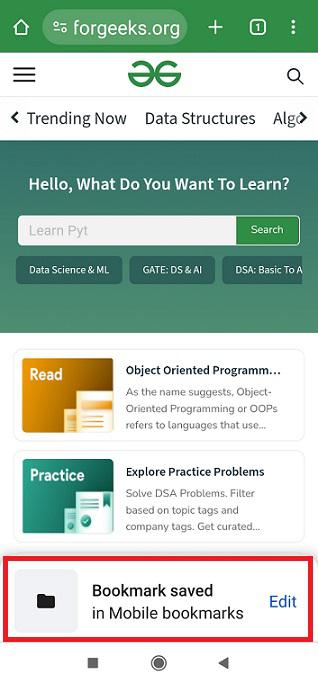
This webpage has been bookmarked now successfully in Android app. This is displayed as an alert at the bottom of the app. We can customize the folder location of the bookmark if wanted by clicking the 'Edit' in the alert displayed.
Chrome offers a Bookmark Manager for organizing, editing, or deleting your bookmarks. Here’s how you can access and use it:
Click on the three vertical dots in the top-right corner to open the menu. Then go to Bookmarks and select Bookmark Manager.
In the Bookmark Manager, you can right-click on any bookmark to edit, rename, or delete it.
You can drag and drop bookmarks to organize them into folders for better management.
If you want quick access to your most important bookmarks, you can show or hide the Bookmarks Bar in Chrome.
Click on the three dots menu and go to Settings.
Under the Appearance section, toggle on Show bookmarks bar. You can now access all your saved bookmarks directly from the bar.
Alternatively, you can use the shortcut Ctrl + Shift + B to toggle the Bookmarks Bar on and off.
Chrome allows you to sync your bookmarks across all devices linked to your Google account, ensuring that your saved pages are always within reach.
Make sure you are signed in to Chrome using your Google Account.
Go to Settings → Sync and Google services, and ensure Sync is turned on. This will automatically sync your bookmarks across devices.
Once sync is enabled, your bookmarks will be available on Chrome for desktop, Android, and iOS devices, ensuring you can access them anywhere.
To back up your Chrome bookmarks or transfer them to a new computer, you can export them as an HTML file.
Click on the three dots menu → Bookmarks → Bookmark Manager.
In the Bookmark Manager, click the three dots again in the top-right corner and select Export bookmarks. Save the file to your desired location.
Sometimes, users may encounter issues with bookmarks not appearing or syncing correctly. Here are a few common fixes:
Bookmarking pages in Google Chrome is a simple and effective way to keep your favorite websites accessible across both desktop and mobile devices. Whether you're using desktop Chrome to organize your links in the Bookmarks Bar or mobile Chrome to save on-the-go content, these easy-to-follow steps ensure that you can quickly return to the pages that matter most. Start bookmarking today and enjoy faster navigation and more efficient browsing!