|
VOOZH | about |
|
VOOZH | about |
Wondering how to change the screen timeout in Windows 11? By default, Windows turns off your display after a set period of inactivity to save power but you can easily adjust this duration. Whether you want the screen to stay on longer or turn off sooner, Windows 11 provides multiple ways to customize display timeout settings.
This guide walks you through all the effective methods to modify the screen timeout and prevent unnecessary interruptions.
To change the screen timeout in Windows 11, you’ll need to edit the registry to enable the timeout settings. Here’s a step-by-step guide:
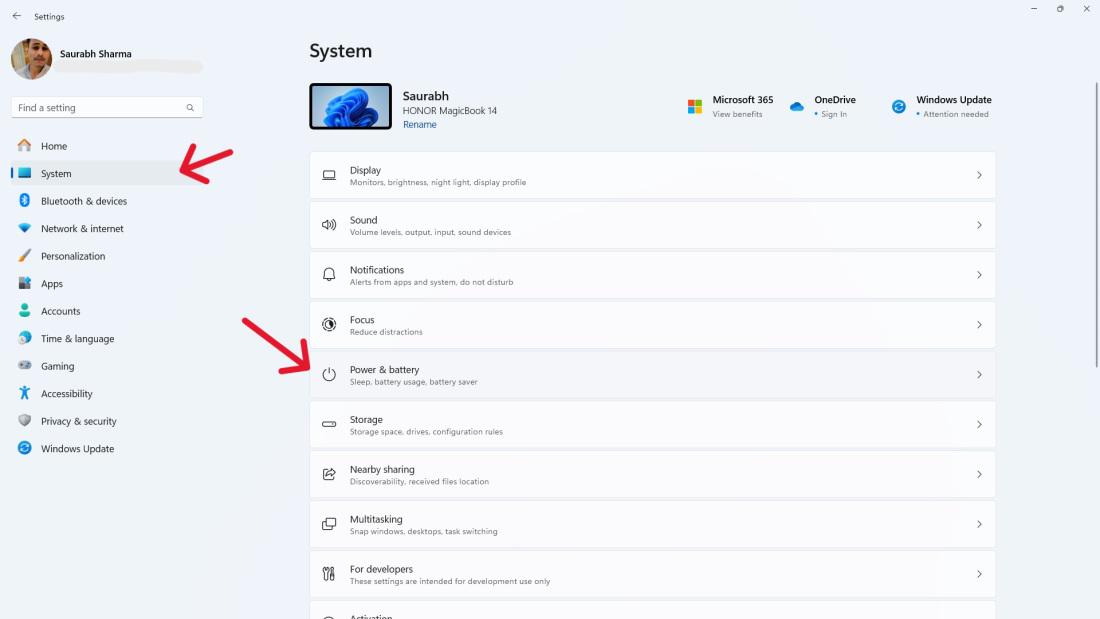
The simplest way to adjust the display timeout is through the Settings app.
Step 1:
Step 2:
👁 How to Change the Screen Timeout in Windows 11?
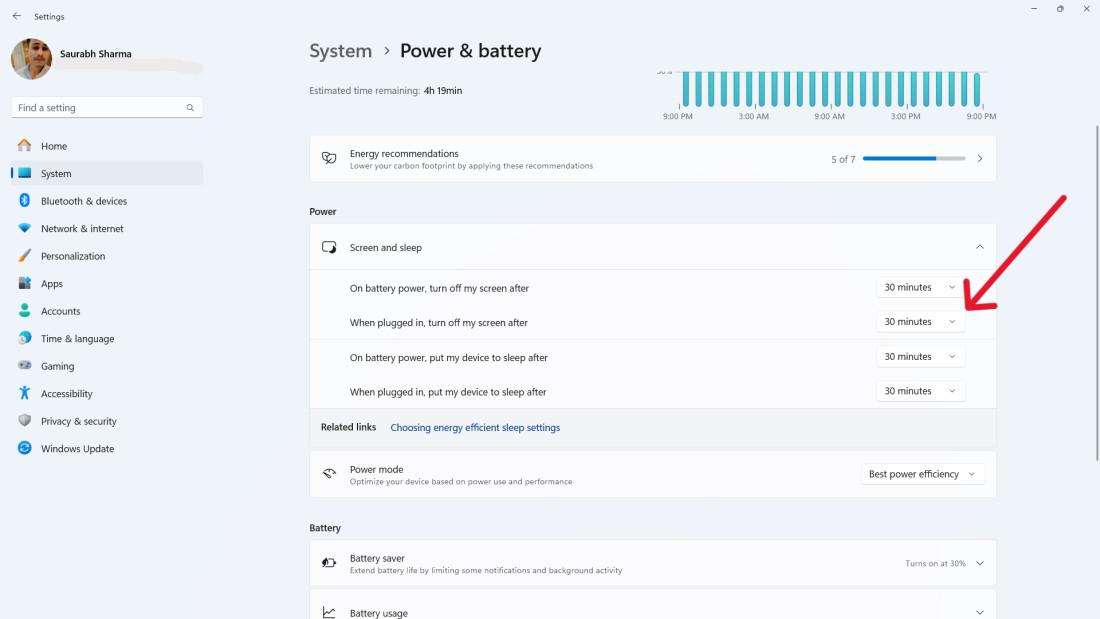
Step 3:
Under Screen and sleep, use the dropdown menus to set your preferred timeout duration for:
👁 How to Change the Screen Timeout in Windows 11?
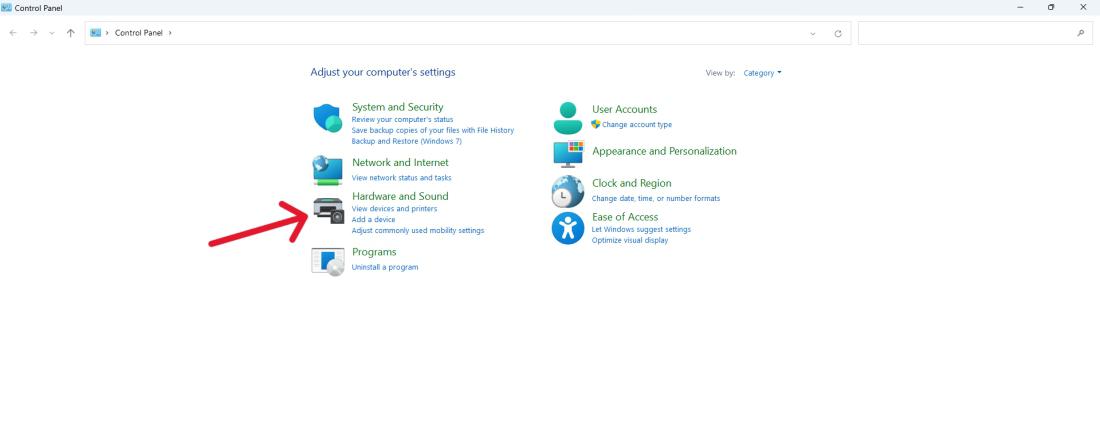
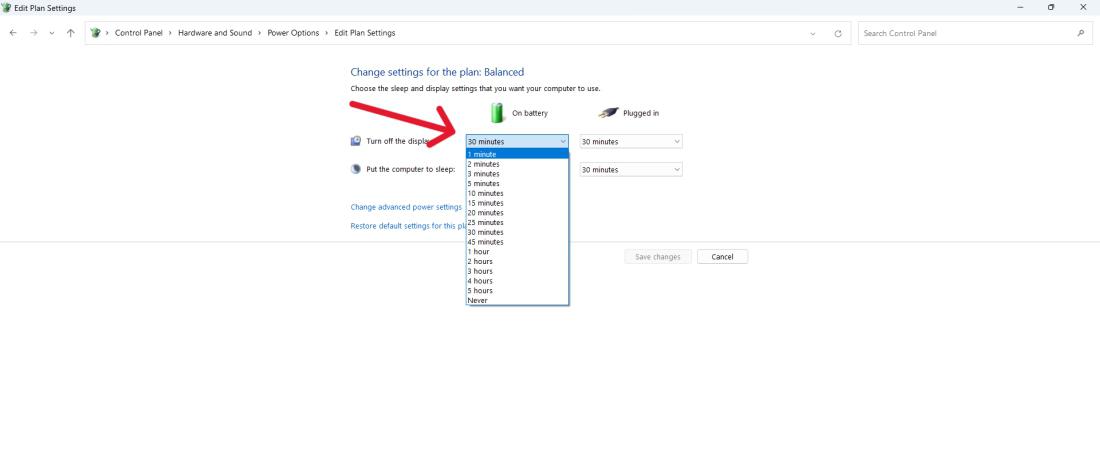
This method customizes display timeout through your active power plan.
Step 1:
Step 2:
👁 How to Change the Screen Timeout in Windows 11?
Step 3:
Step 4:
👁 How-To-Change-Screen-Timeout-in-Windows-11-Using-Control-Panel-1
This method allows you to adjust the timeout settings to your preference, allowing you to customize how long your screen remains active before turning off automatically.
Step 1:
Step 2:
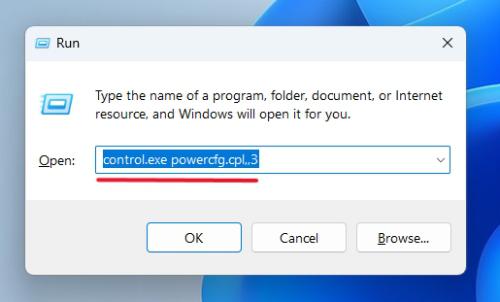
control.exe powercfg.cpl,,3
👁 How-to-Change-Screen-Timeout-Using-Advanced-Power-Options
Step 3:
This method provides a straightforward way to customize your display timeout settings in Windows 11.
Step 1:
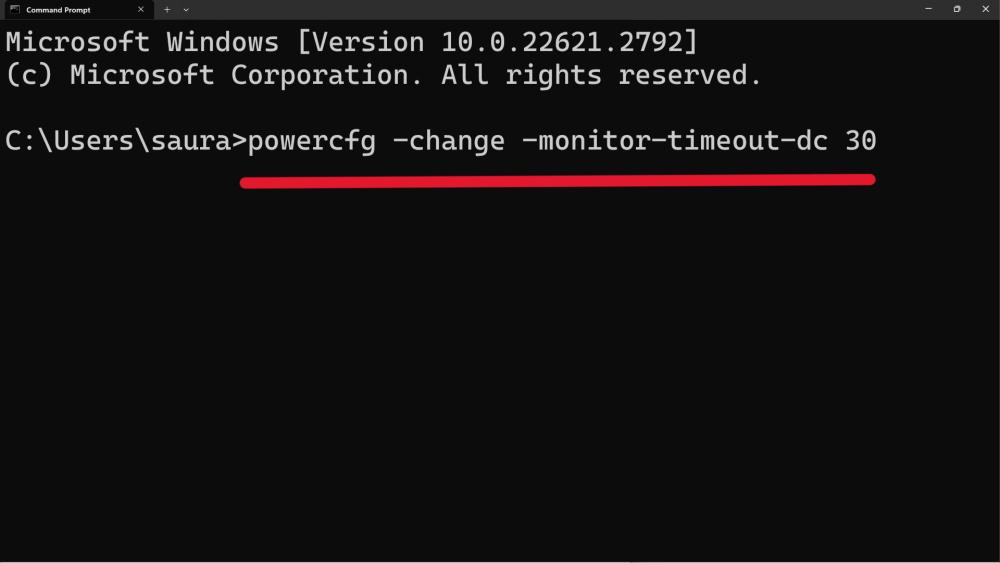
Step 2: Type this command :
powercfg -change -monitor-timeout-dc x
where X will be the time duration in minutes.
👁 How-To-Modify-Screen-Timeout-Using-Windows-11-Command-Prompt
This method gives you more control over changing the display timeout to better suit your preferences.
Step 1:
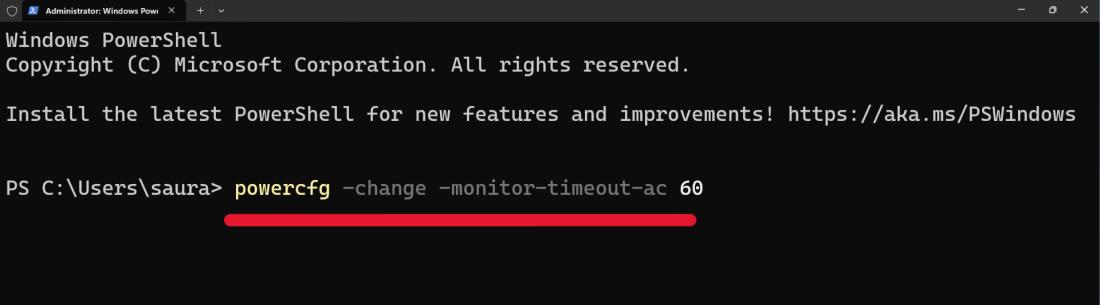
Step 2:
powercfg -change -monitor-timeout-ac 60
👁 How-to-Change-Display-Timeout-Using-Windows-PowerShell-Command
This method unlocks hidden power settings, including display timeout options.
Warning: Editing the Registry can affect system behavior. Follow the steps carefully.
Step 1:
Step 2:
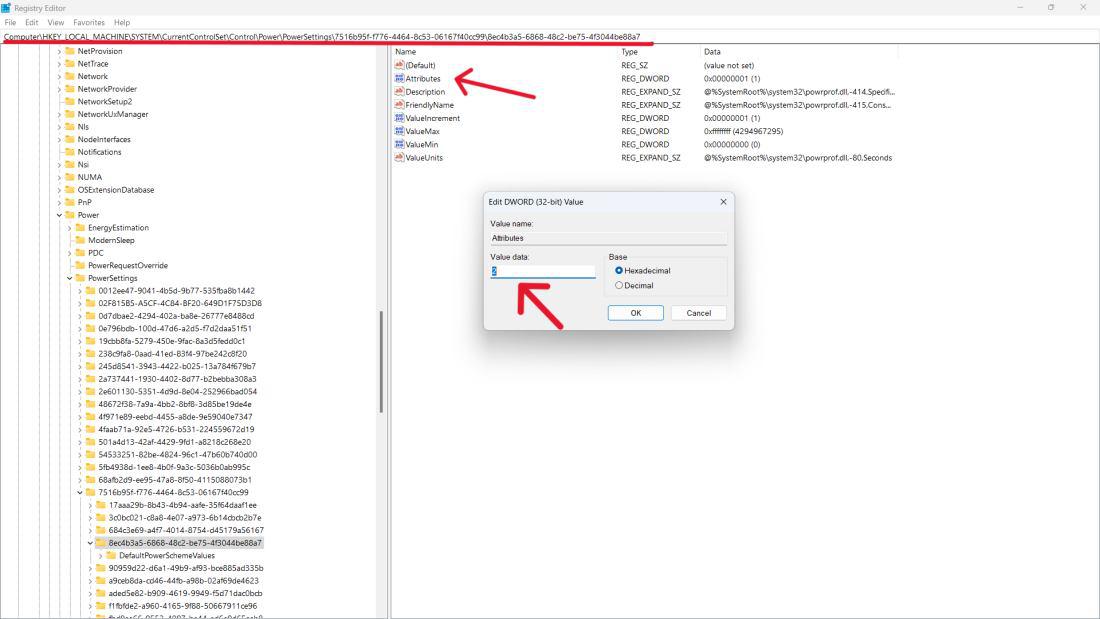
HKEY_LOCAL_MACHINE\SYSTEM\CurrentControlSet\Control\Power\PowerSettings\
7516b95f-f776-4464-8c53-06167f40cc99\8EC4B3A5-6868-48c2-BE75-4F3044BE88A7
👁 How-to-Change-Screen-Timeout-Using-Registry-Editor
Step 4:
This will unlock the display timeout option in Advanced Power Options.