|
VOOZH | about |
|
VOOZH | about |
The CPU is the brain of your computer, and keeping it cool is essential for stable performance. While Windows 10 and 11 don’t include a built-in CPU temperature monitor, you can still check your system’s thermals easily using a few reliable methods. This guide explains how to check your CPU temperature without installing any software, using tools already available on your PC.
Why Monitoring CPU Temperature Matters:
Note: CPUs operate best between 40°C to 70°C. Exceeding this range may lead to performance issues or long-term damage.
This method shows your CPU temperature before Windows boots, giving you a reliable hardware-level reading.
(Before Windows Loads): This method offers a one-time reading of the CPU temperature before your computer boots into Windows.
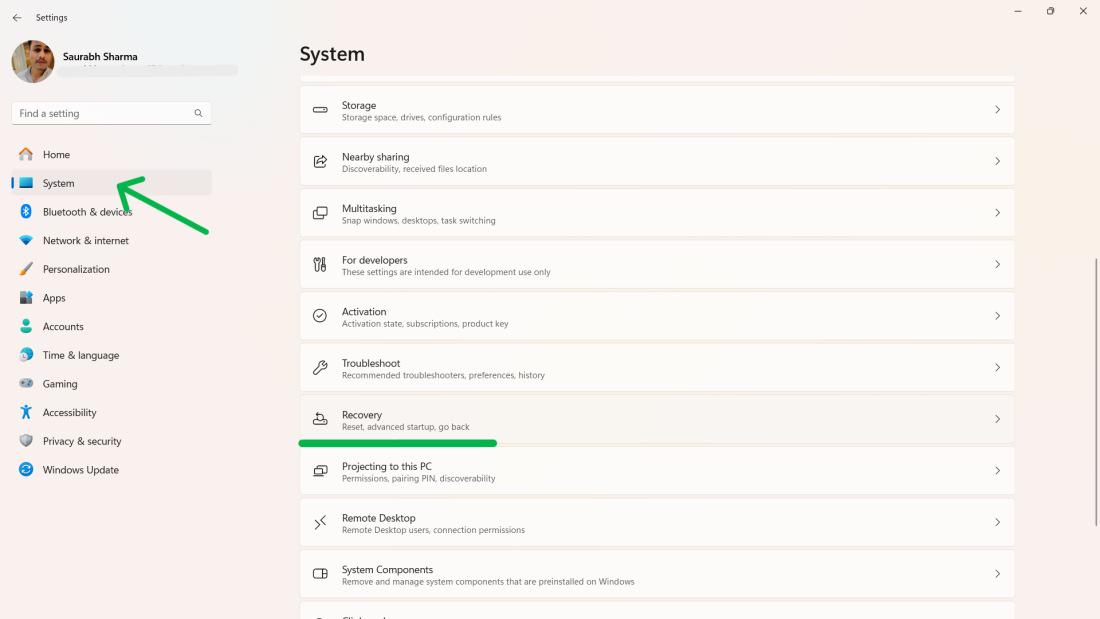
Step 1:
👁 How-to-Check-CPU-Temperature-Using-Settings
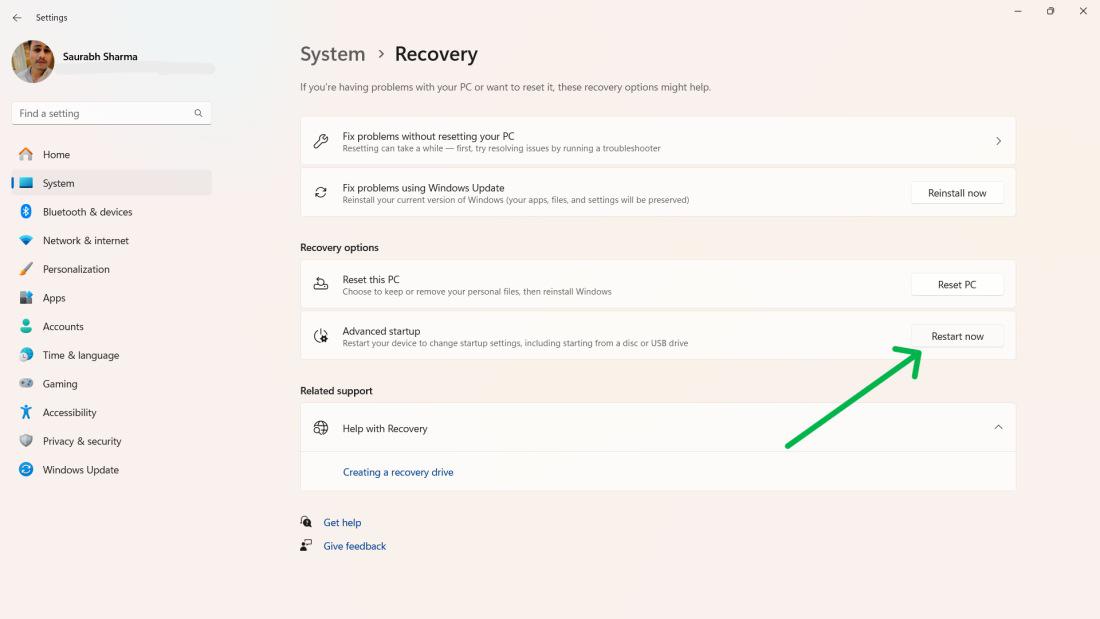
Step 2:
👁 How-to-Check-CPU-Temperature-Using-Settings-1
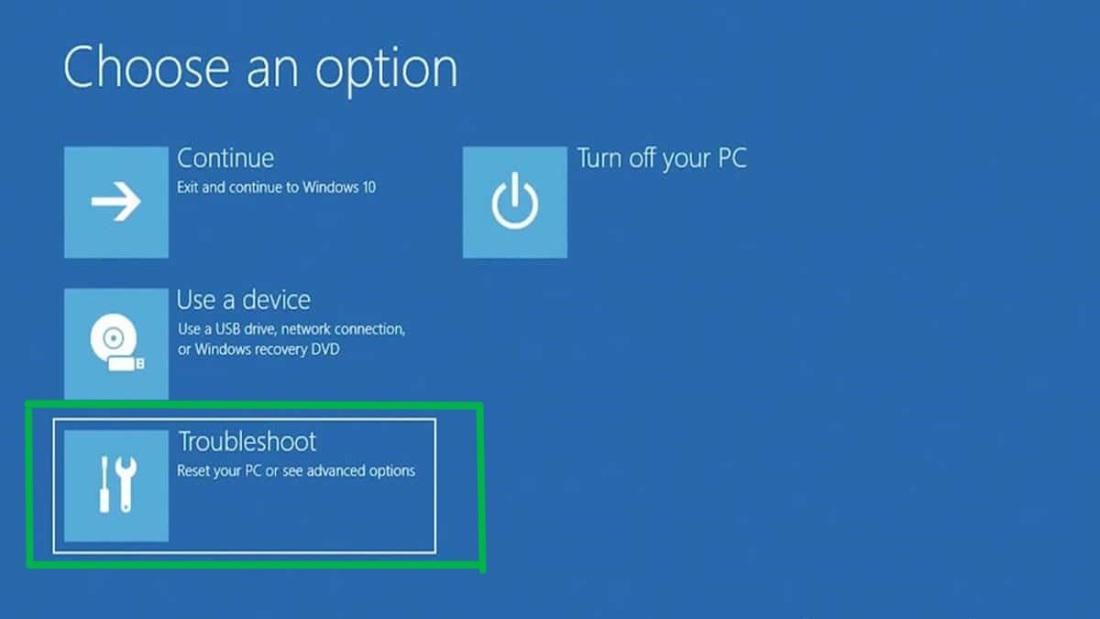
Step 3:
👁 How-to-Check-CPU-Temperature-Using-Settings-2
Step 4:
Step 5:
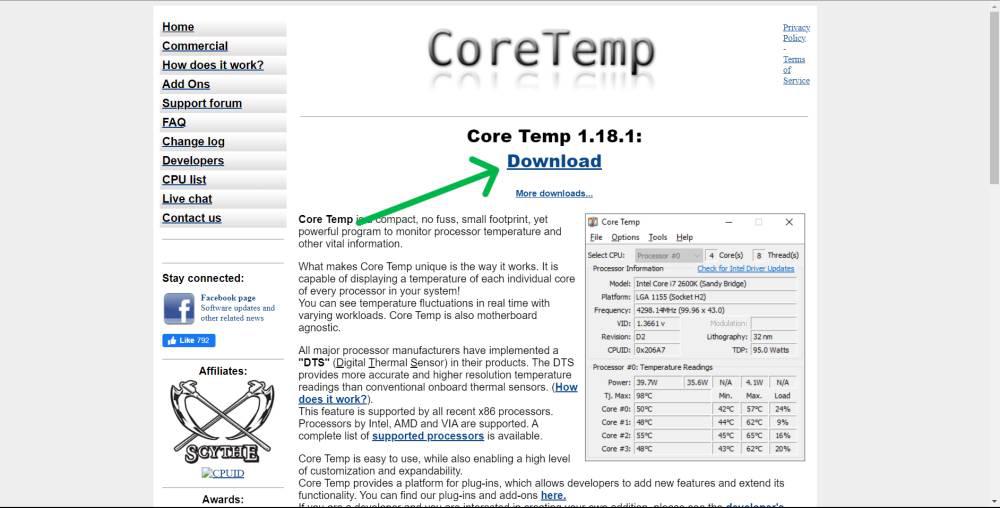
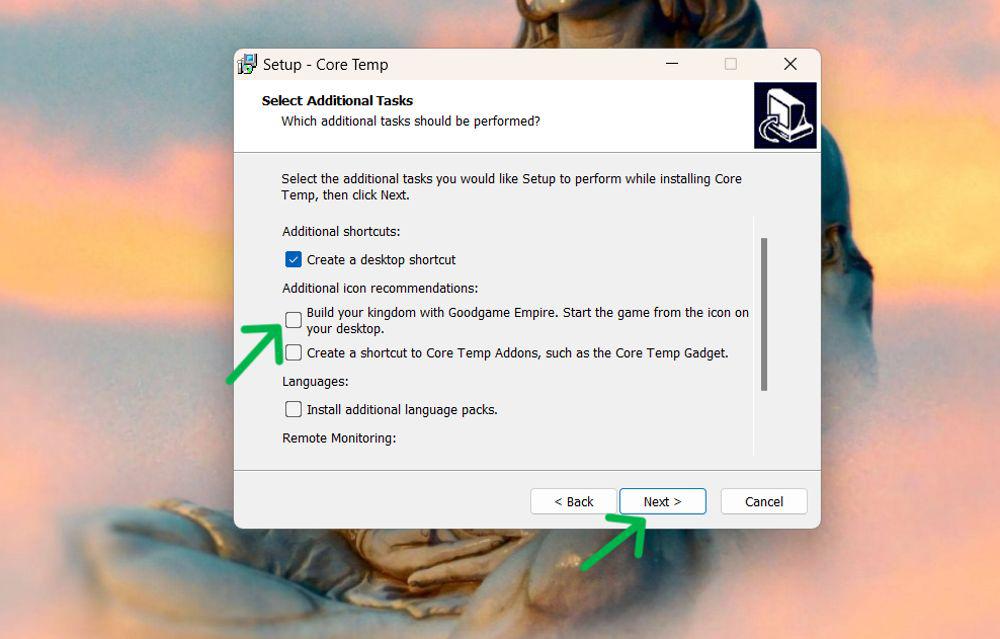
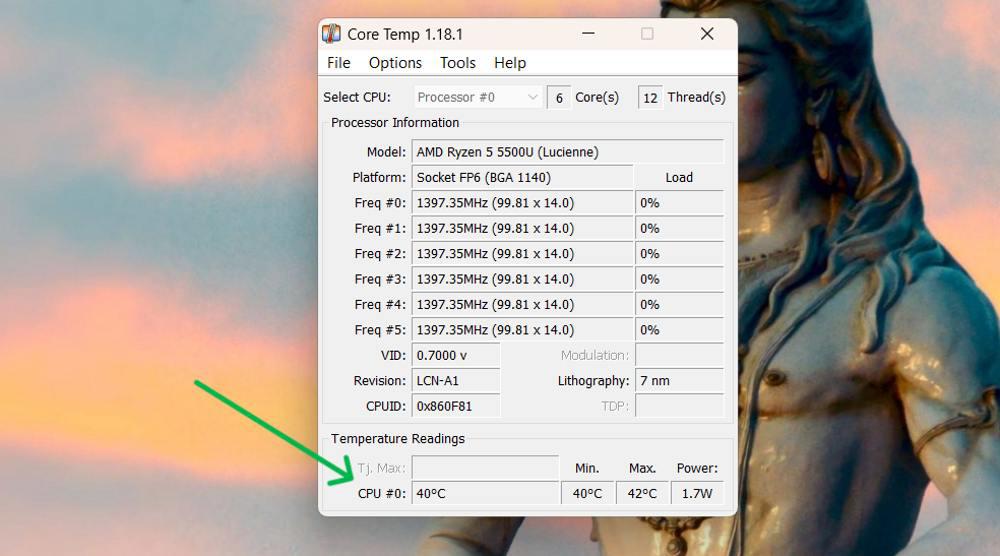
To check your CPU Temperature Using Core Temp on Windows 11, you can follow these steps:
Step 1:
👁 How-to-Check-CPU-Temperature-Using-Core-Temp
Step 2:
👁 How-to-Check-CPU-Temperature-Using-Core-Temp-1
Step 3:
👁 How-to-Check-CPU-Temperature-Using-Core-Temp-2
Step 4:
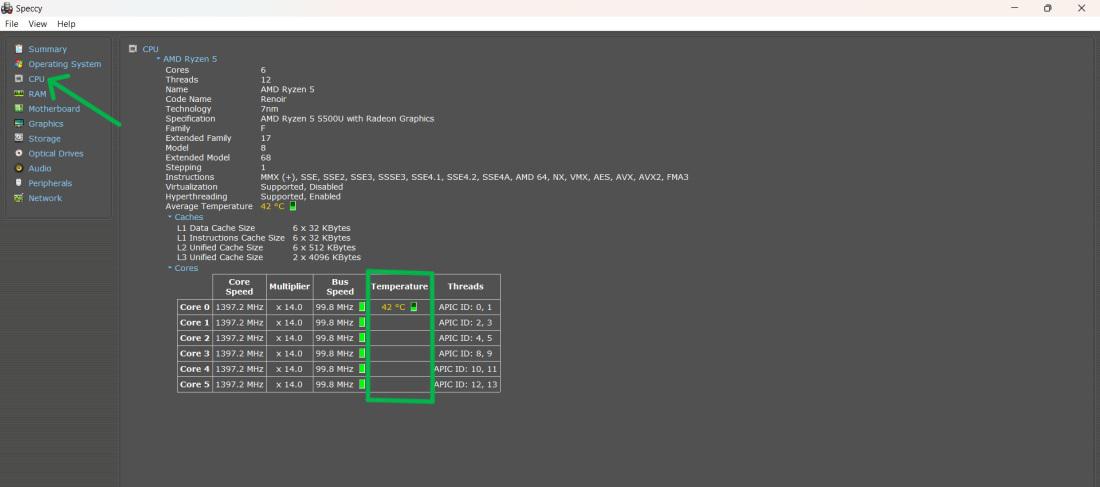
To check your CPU Temperature Using Speccy on Windows 11, you can follow these steps:
Step 1:
👁 How-to-Check-CPU-Temperature-Using-Speccy
Step 2:
Step 3:
👁 How-to-Check-CPU-Temperature-Using-Speccy-1
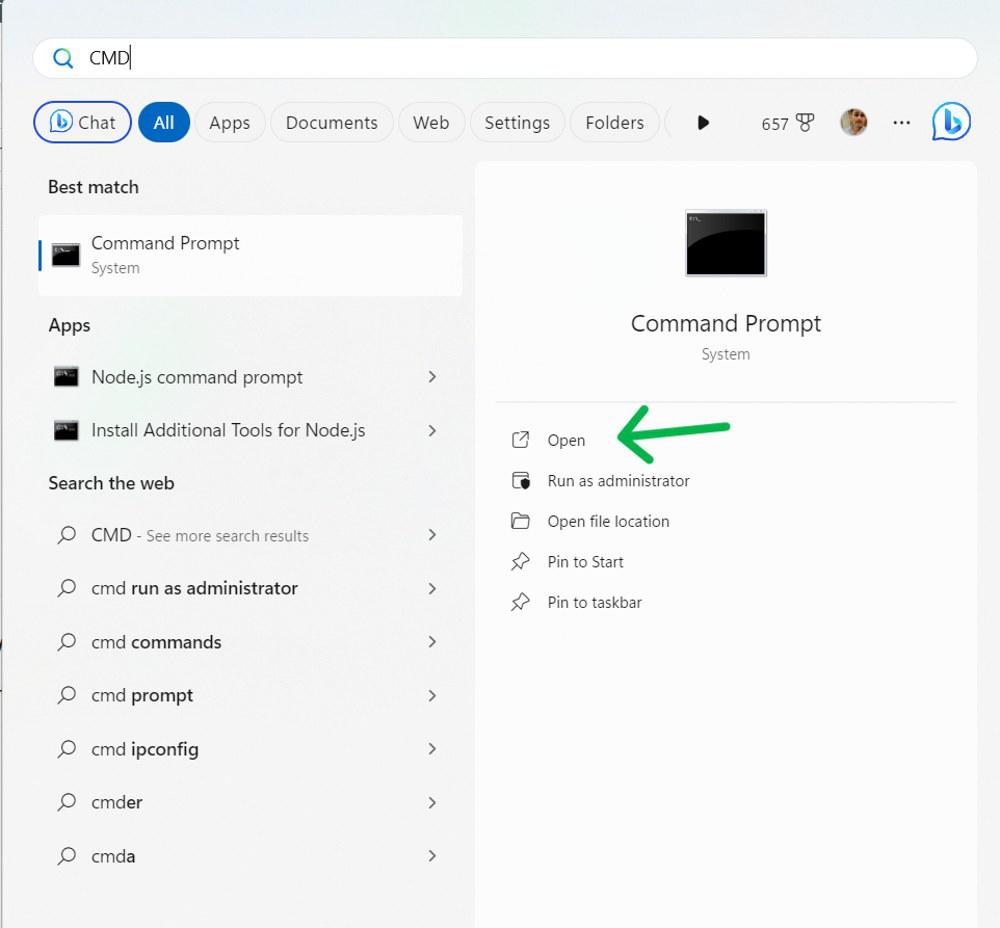
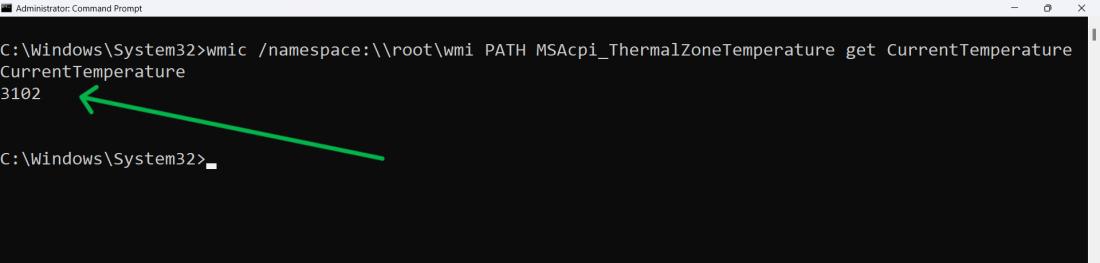
To check your CPU Temperature Using CMD on Windows 11, you can follow these steps:
Step 1:
Step 2:
Step 3:
wmic /namespace:\\root\wmi PATH MSAcpi_ThermalZoneTemperature get CurrentTemperature
👁 Check-CPU-Temperature-Using-CMD
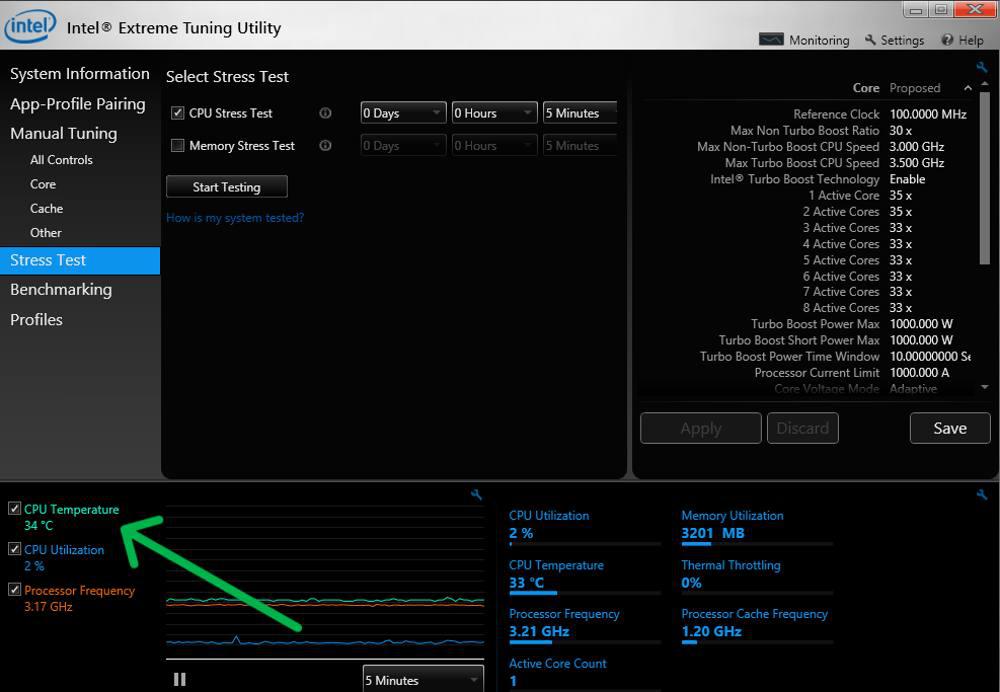
To check your CPU Temperature Using Intel Extreme Tuning Utility on Windows 11, you can follow these steps:
Step 1:
Step 2:
Step 3:
Step 4:
Step 5:
👁 How-to-Check-CPU-Temperature-Using-Intel-Extreme-Tuning-Utility