|
VOOZH | about |
|
VOOZH | about |
Connecting your smartphone to your Windows PC is now effortless with Microsoft’s Phone Link app. This built-in tool syncs your phone with your computer, allowing you to access messages, notifications, photos, and even calls without picking up your device.
Follow these steps to set up your smartphone with Windows Phone Link:
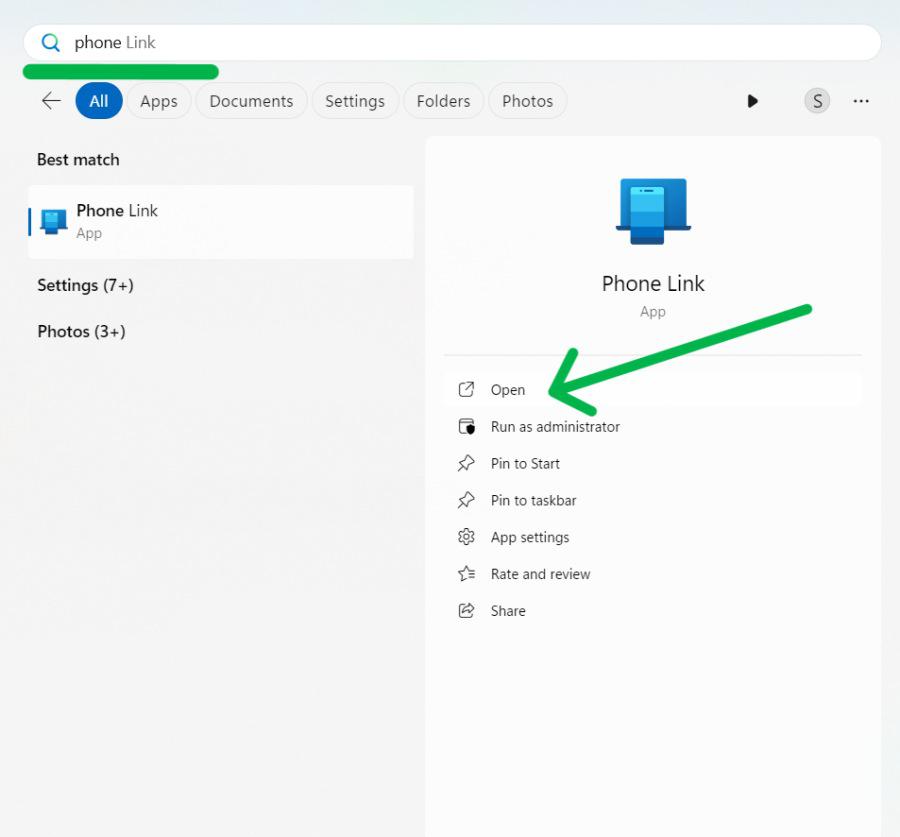
Step 1: Open the Phone link on your computer.
Step 2: To open the phone link press Windows Key + S then on the search bar type "Phone Link " to open it
👁 Connect-Your-Smartphone-to-a-Windows-PC-with-Phone-Link
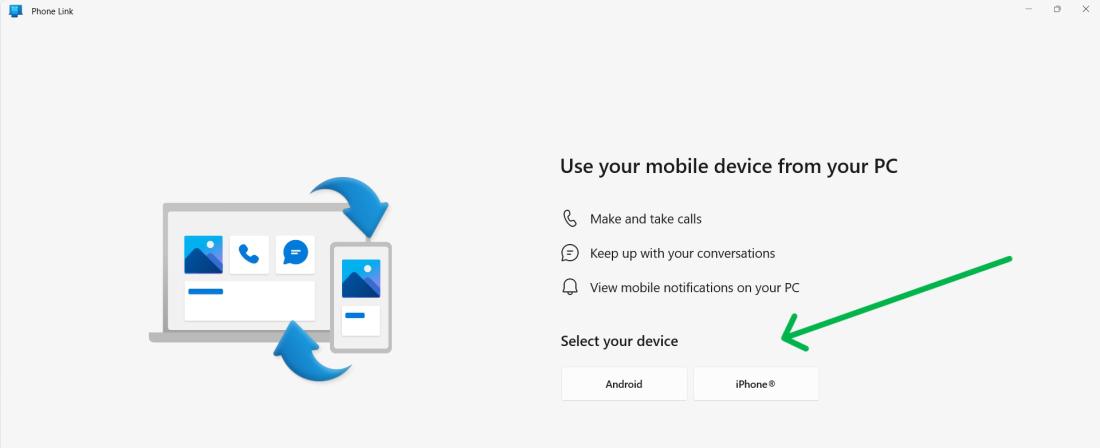
Step 3: After opening the phone link app select your device.
👁 Connect-Your-Smartphone-to-a-Windows-PC-with-Phone-Link-1
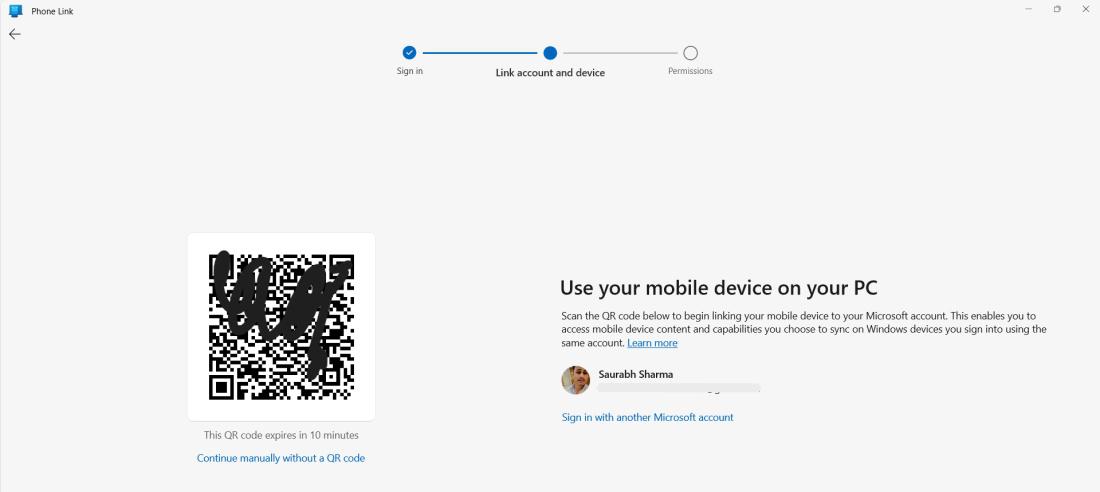
Step 4: After selecting your device, Scan that QR code with your smartphone.
👁 Connect Smartphone to Windows PC using Phone Link
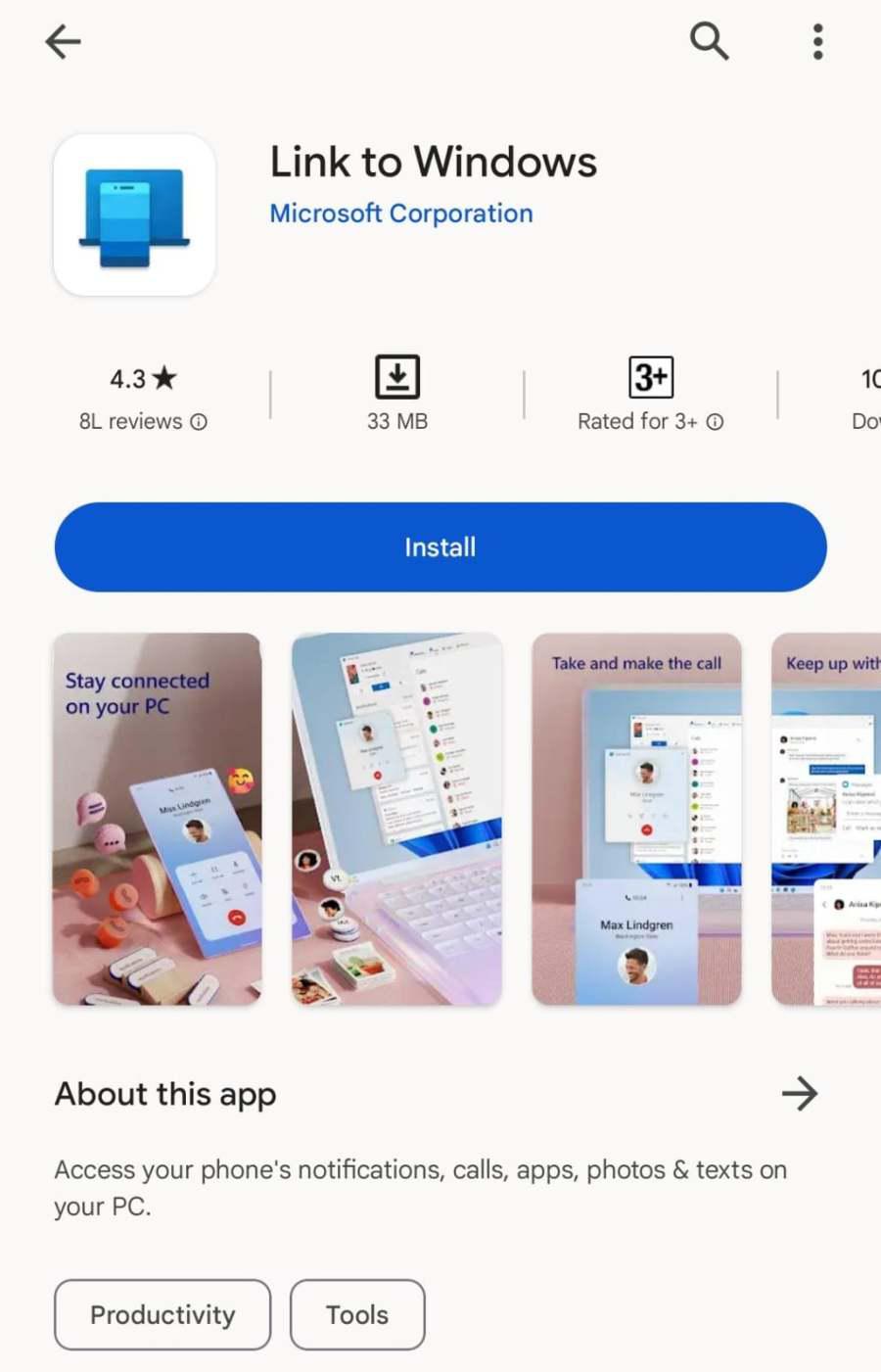
Step 5: Now download and install the "Link to Windows" application from the app store or Play store on your smartphone
👁 Connect Smartphone to Windows PC using Phone Link
Step 6: After installing the application on your smartphone open it
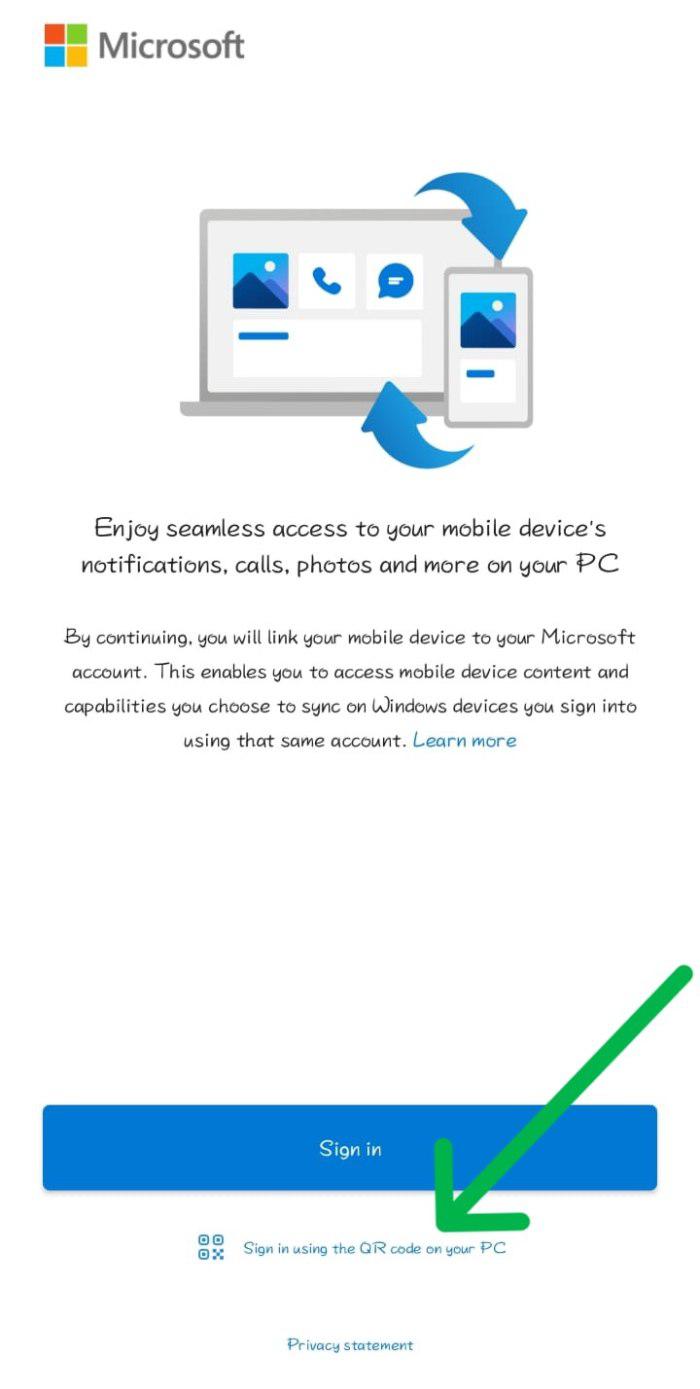
Step 7: After opening the application on your phone, Click on the "Sign in using QR code on your PC"
👁 Connect Smartphone to Windows PC using Phone Link
Step 8: Now scan the QR code with your phone.
Step 9: After scanning the QR code press on continue button on your phone.
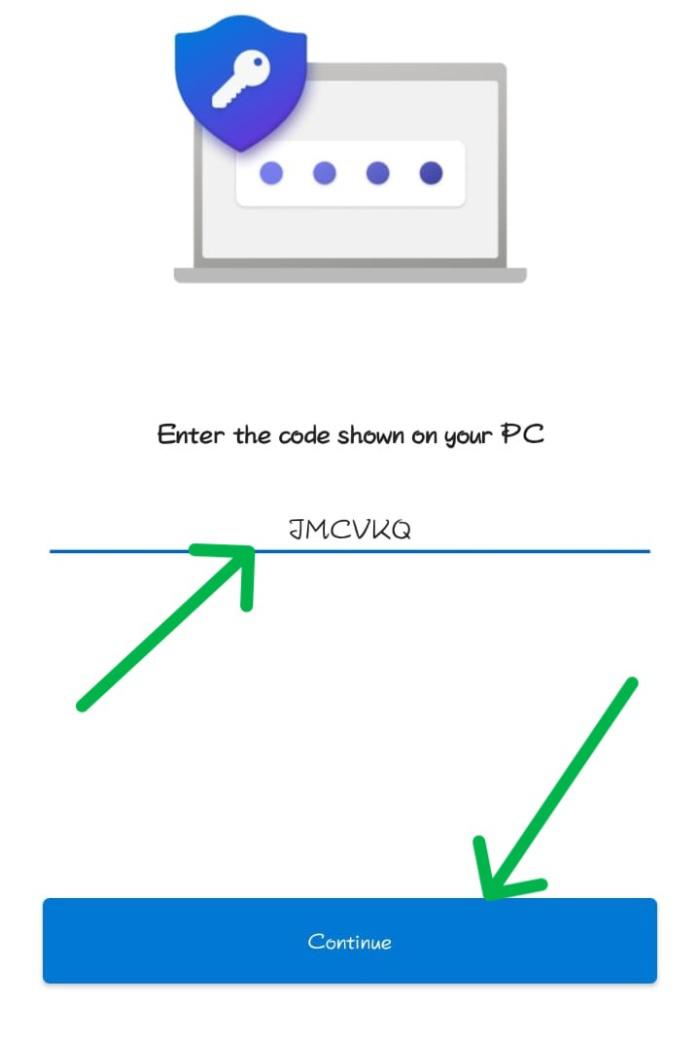
Step 10: Now enter the pin on the "enter code" field. You can find the code on your computer under the "Confirm it's your phone device".
Step 11: After entering the code click on the "Continue" button on your phone.
👁 Connect Smartphone to Windows PC using Phone Link
Step 12: Now allow permission on your phone like notifications, calls, etc.
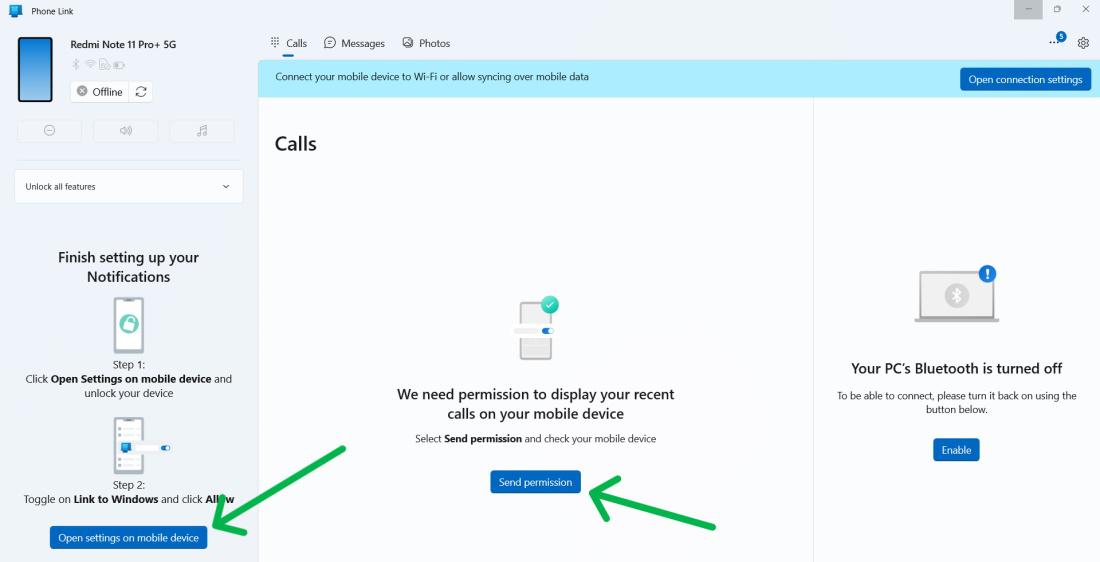
Step 13: Now again open the phone link application on your Windows laptop, Then click on "Send Permission".
Step 14: Click on "Open settings on a mobile device" to allow all notification access.
👁 Connect Smartphone to Windows PC using Phone Link
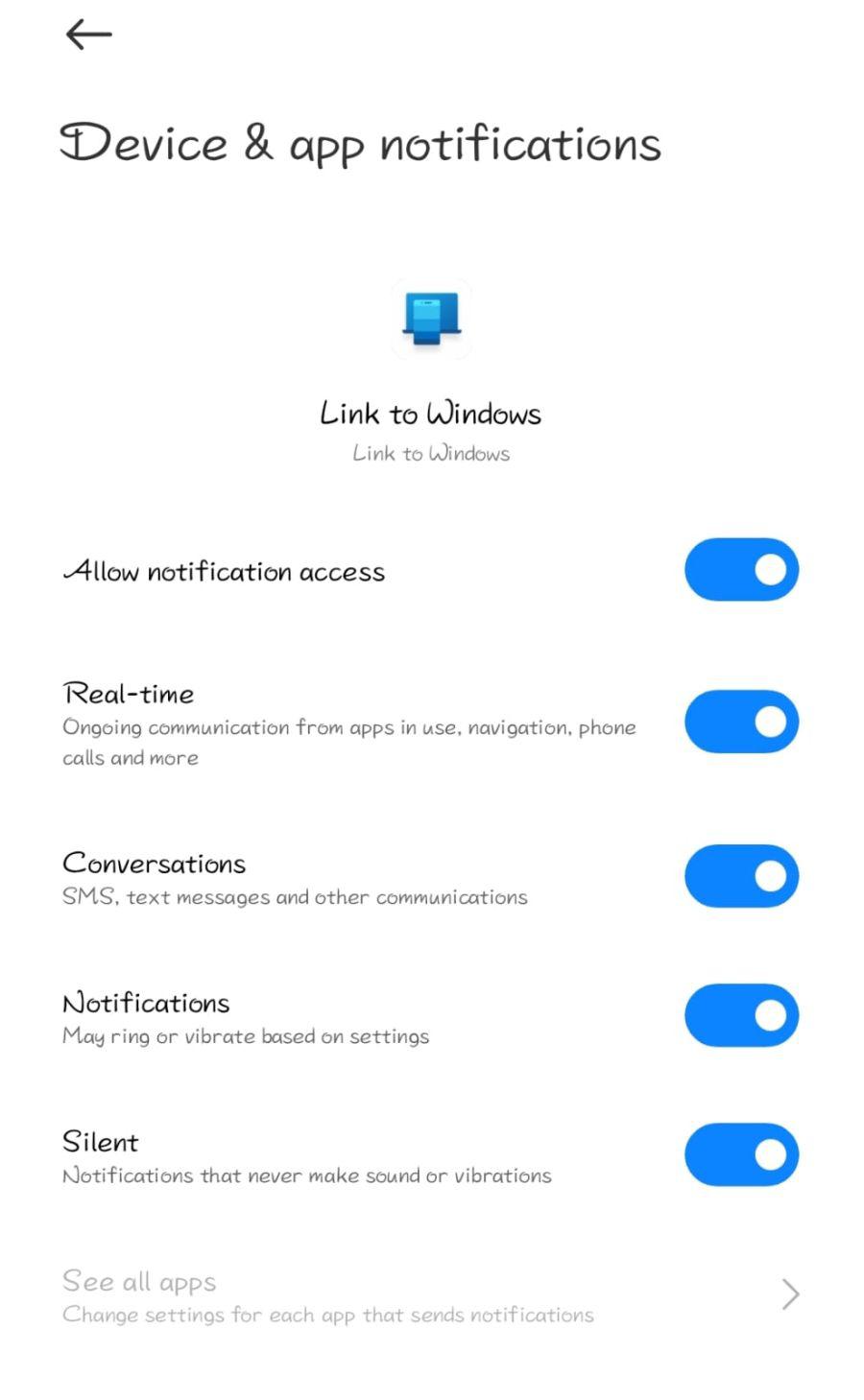
Step 15: Allow all notifications on your phone
👁 Connect Smartphone to Windows PC using Phone Link
Step 16: Your phone and Windows laptop connected successfully.
Phone Link offers multiple features that make your workflow smoother. Here’s how to use each one:
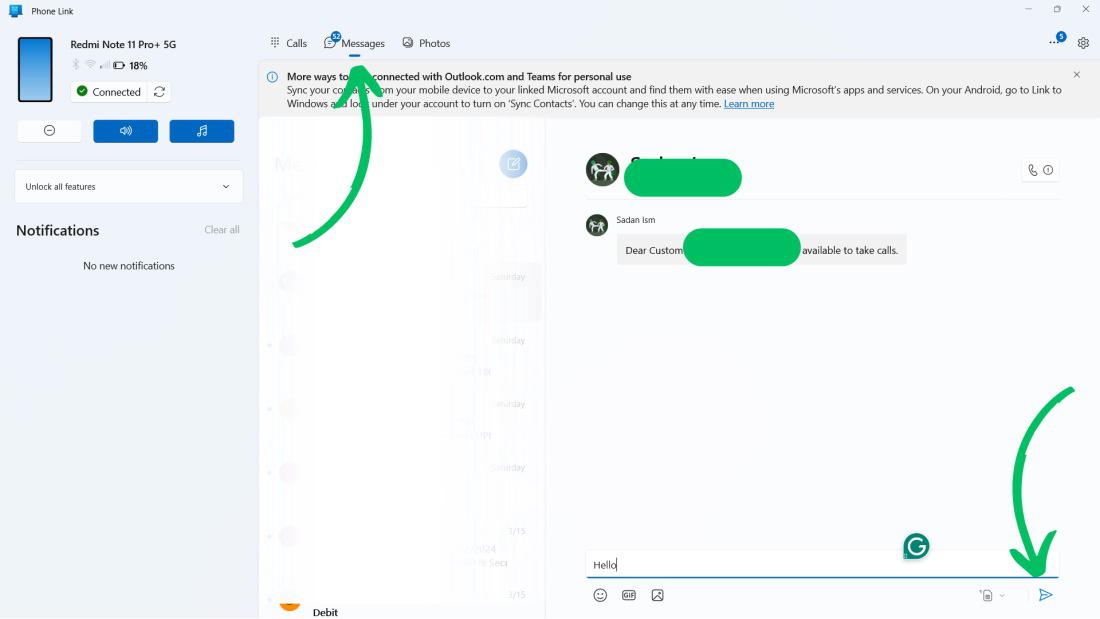
Step 1: Go to the Messages tab in the Phone Link.
Step 2: Your recent conversations are displayed here. Click the compose button or select an existing chat.
Step 3: Type your message.
Step 4: Hit the send arrow to send it.
👁 Connect Smartphone to Windows PC using Phone Link
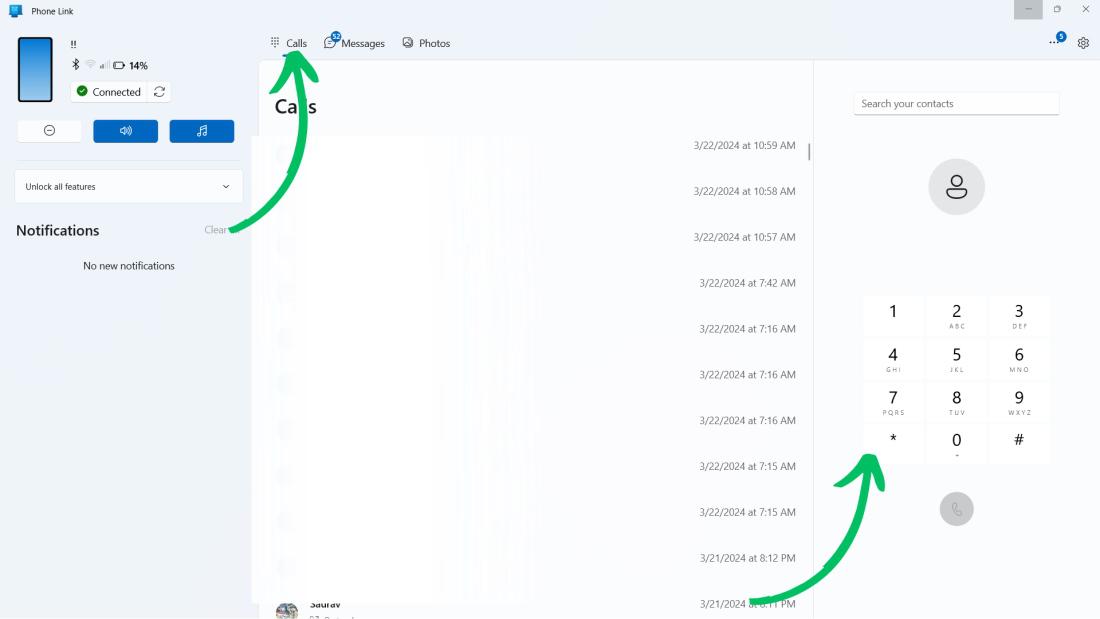
Step 1: Go to the Calls tab in the Phone Link.
Step 2: From calls, you can make calls and dial a new number
👁 Connect Smartphone to Windows PC using Phone Link
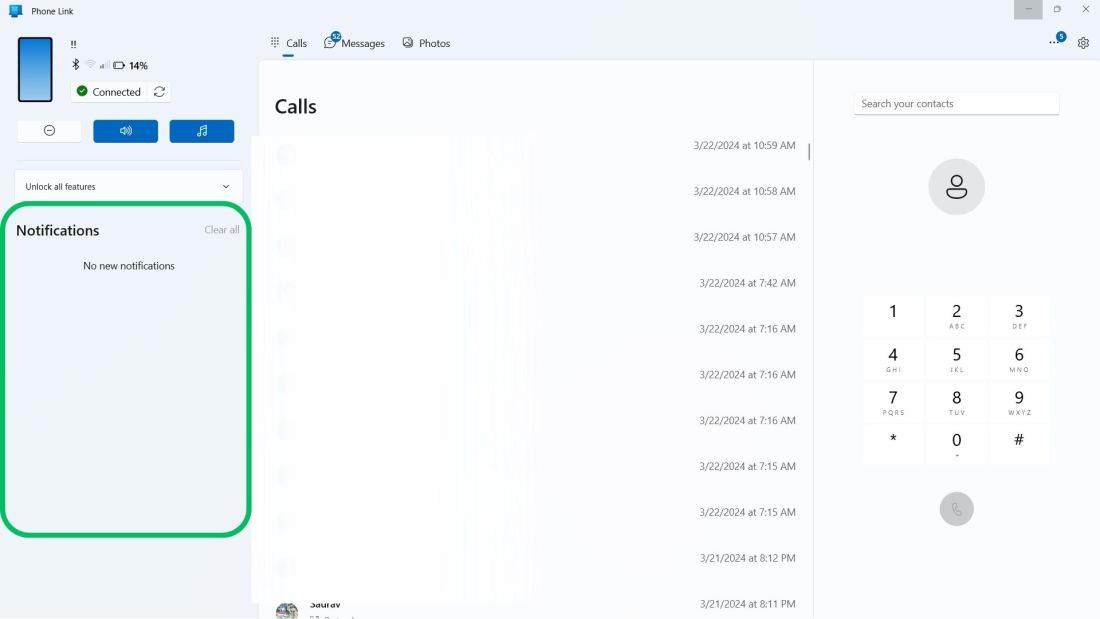
Step 1: Open the phone link application and navigate to any tab
Step 2: Then, On the left side pane you'll see all notifications.
👁 Connect Smartphone to Windows PC using Phone Link
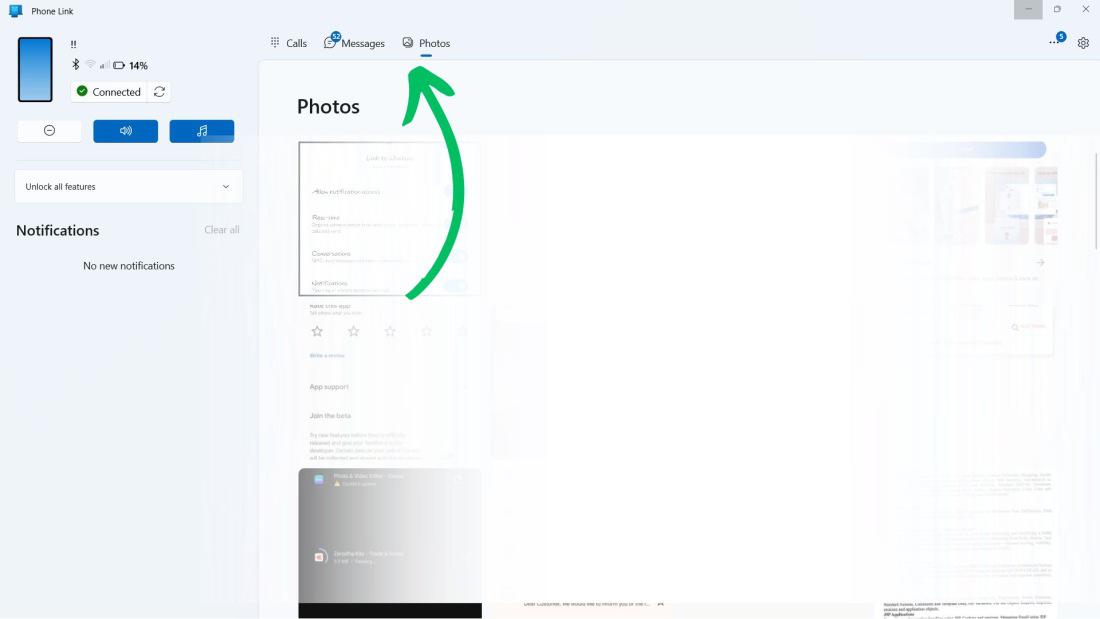
Step 1: Open the phone link application
Step 2: Go to the Photos tab in the Phone Link.
Step 3: From the photos tab you can manage the photos like viewing, deleting