|
VOOZH | about |
|
VOOZH | about |
As a new Apple Device Owner, if you want to unlock all the features, then you should Create aNew Apple ID on the device. While Making a get a New Apple ID, it asks for Credit Card Details to complete the process.
Many individuals want to get a new Apple ID without Credit Card Details. To keep in mind, this article will focus on developing a New Apple ID without aCredit Card on Both Mac & iPhone.
When you want to Create a New Apple ID, you will find a proper screen for the Payment Methods. In that Payment Method Screen, Apple asks for some Credit Card Details to complete the process. The Apple Viewpoint is developed for a better experience for the user. It reduces work while purchasing any item from the App Store or iTunes.
Suppose, you want to purchase any application from the App Store. If the Credit Card details are pre-existed, you have to enter the Credential of the Credit Card to complete the process. This helps to reduce the steps needed to purchase any item from the App Store or iTunes. But with time, there is a change in a set of user demands.
If you don't want to disclose & save the Credit Card Details on the Apple Site, you can skip the Payment Method on Apple ID Creation. Also, if you are determined not to buy anything from the App Store, then you can also opt for Apple ID Creation Without Credit Card Details.
To Start A New Apple ID without Credit Card Details, you have to execute the following steps. Here, we will discuss the steps for both Mac & iPhone or iPad devices.
Step 1: Open iTunes & you will find the Sign In Prompt. Click on the Create New Apple ID option.
Step 2: After that, provide an Email Address & a Strong Password to open the account. Click on Continue to move ahead for verification.
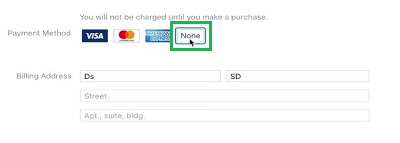
Step 3: Now, under the Payment Method, click on the None Button after the Credit Card Details. At last, put your address as the Billing Address & click continue to complete the process.
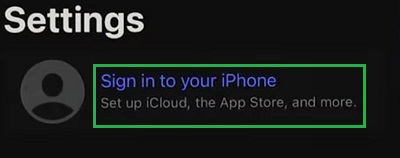
Step 1: Open Settings & click on the Sign In option.
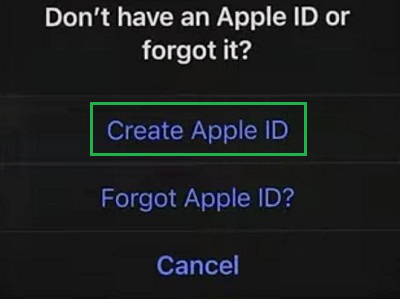
Step 2: Now, click on the option Don't Have An Apple ID or Forgot It option.
Step 3: After that, from the Prompt Window, click on the Create Apple ID option.
Step 4: Now, enter some Personal Details & verify your Mobile & Email Address.
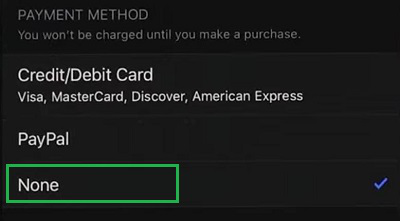
Step 5: After verification, click on the Payment & Shipping option to change the Payment Method.
Step 6: Click on None as like the previous one to save the changes in the iPhone.
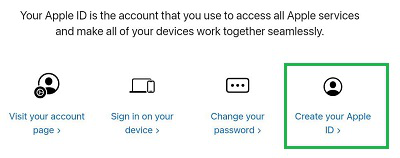
Step 1: Browse to the Official Apple ID Page & click on the Create Your Apple ID.
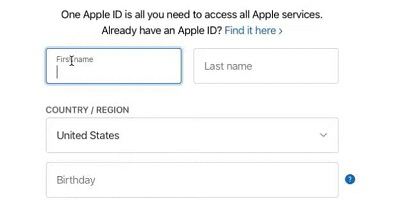
Step 2: Now, enter the necessary Personal Information there. It will verify the Email & Mobile Number before proceeding.
Step 3: Click on the Add Payment Method to select None to Skip Credit Card Information.
From the above discussion, we conclude that Generating A New Apple ID Without a Credit Card is not a complicated task. You will find the None Option in Payment Methods for all Apple devices to Skip Credit Card While Creating an Apple ID. So, be sure that your Confidential Bank Details are now more secure.