|
VOOZH | about |
|
VOOZH | about |
Creating custom keyboard shortcuts in Microsoft Edge helps boost browsing speed, streamline workflow, and enhance accessibility. You can instantly open websites, manage extensions, or perform actions without using the mouse. This process can be done through browser extensions, built-in shortcut settings, or Microsoft PowerToys for deeper customization.
Custom keyboard shortcuts can make browsing faster, more personalized, and easier to use. Here are the key benefits:
Here are three practical methods to create custom keyboard shortcuts in Microsoft Edge. These methods help you quickly access your favorite features, extensions, or websites, making your browsing experience faster and more efficient.
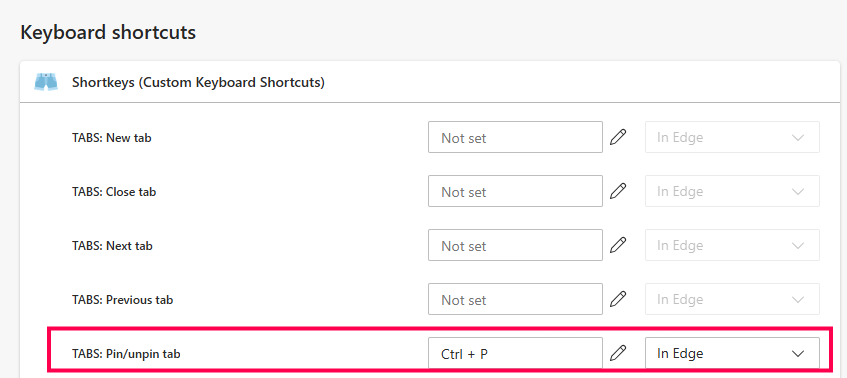
Microsoft Edge supports extensions from the Microsoft Edge Add-ons store (and Chrome Web Store compatibility). Extensions like Shortkeys allow you to define fully custom keyboard shortcuts for actions like opening tabs, searching, or running scripts directly in the browser.
Step 1: Open Microsoft Edge and go to the Microsoft Edge Add-ons store or Chrome Web Store.
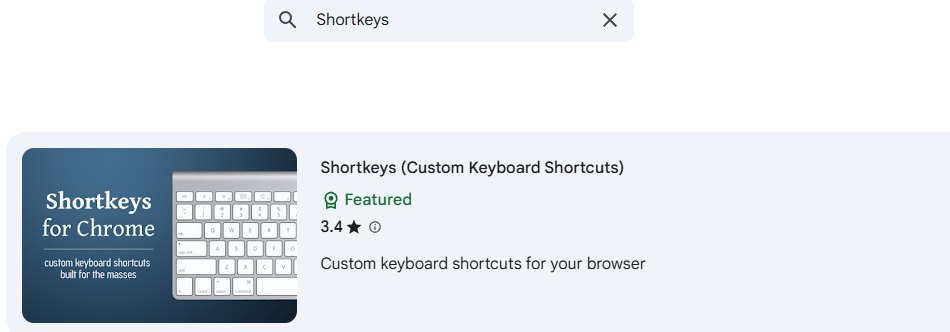
Step 2: Search for Shortkeys (or similar extensions like "Custom Keyboard Shortcuts").
Step 3: Click Get or Add to Edge to install it.
Step 4: Once installed, click the extensions icon (puzzle piece) in the toolbar and select Shortkeys to open its options.
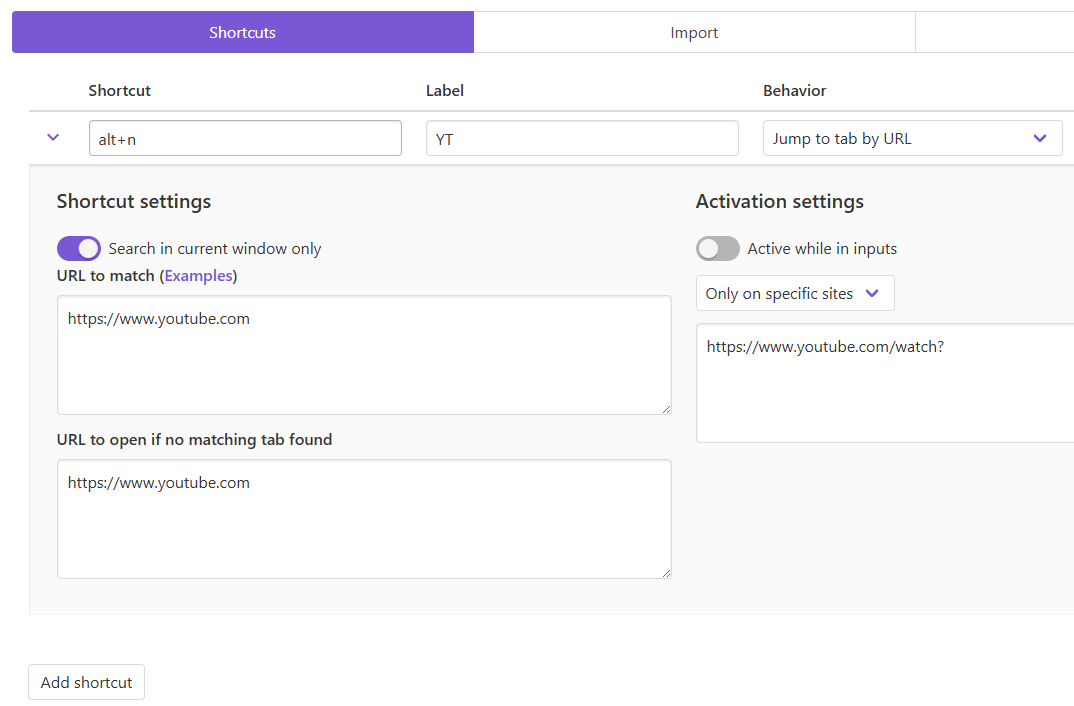
Step 5: In the extension's dashboard:
Step 6: Test the shortcut in a new tab—press your defined keys, and the action should trigger instantly.
Pro Tip: For advanced users, Shortkeys supports scripting (e.g., simulating clicks or filling forms). Start with simple URL opens and build up. This method works entirely within Edge without external tools.
If you use extensions (e.g., ad blockers or note-takers), Edge lets you assign global keyboard shortcuts to activate or toggle them directly.
Step 1: Open Microsoft Edge.
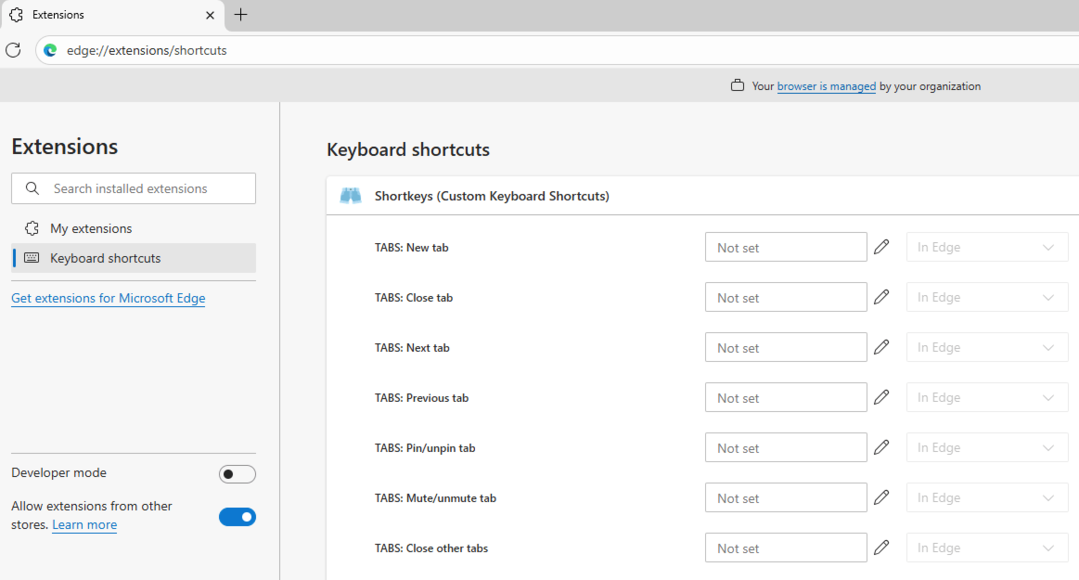
Step 2: Type edge://extensions/shortcuts in the address bar and press Enter (or go to Settings > Extensions > Manage extensions, then click Keyboard shortcuts in the sidebar).
Step 3: You'll see a list of installed extensions with fields for Action (e.g., "Activate the extension").
Step 4: For each extension:
Step 5: If an extension isn't listed, ensure it's enabled first under edge://extensions/.
Pro Tip: Use this for frequently toggled tools like dark mode extensions. Shortcuts apply browser-wide and don't conflict with built-in ones.
For deeper customization, use Microsoft's free PowerToys tool to remap keys or shortcuts specifically for Edge (or globally). This is ideal for overriding defaults or creating new mappings for Edge actions.
Step 1: Download and install PowerToys from the Microsoft Store or GitHub.
Step 2: Open PowerToys from the Start menu and go to Keyboard Manager.
Step 3: Enable Remap a shortcut and click + Remap Shortcut.
Step 4: Set the Physical Shortcut (what you press, e.g., Ctrl + Shift + T) to a Mapped Shortcut (what it does, e.g., target Edge's executable with a URL like msedge.exe https://example.com).
Step 5: Optionally, set it to apply only when Edge is active.
Step 6: Click OK and test in Edge.
Pro Tip: Combine with desktop shortcuts—create a desktop icon for a specific Edge URL (right-click desktop > New > Shortcut > Enter msedge.exe https://www.google.com), then remap a key to launch it via PowerToys.