|
VOOZH | about |
|
VOOZH | about |
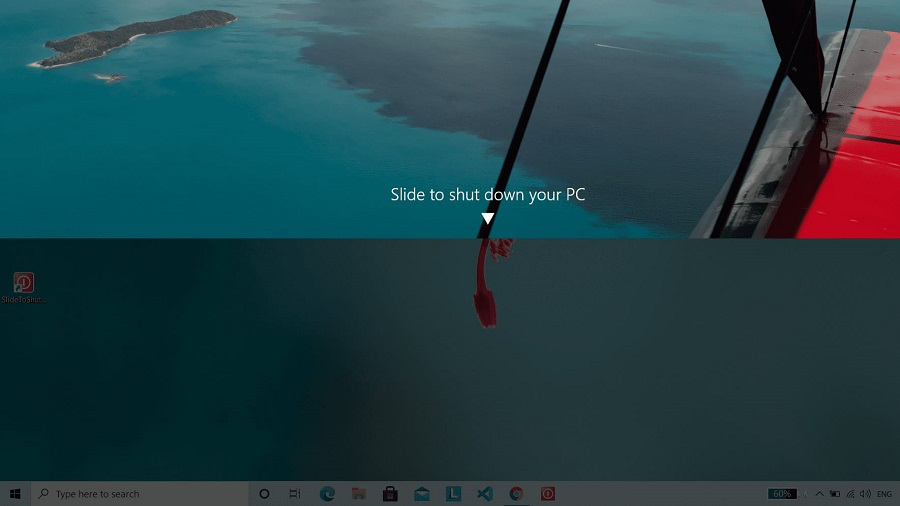
If you're looking for a smart and interactive way to Shut down your PC, then this trick is going very useful for you. Instead of that traditional long process of shutting down the PC, the 'Slide to Shut down' feature allows you to shut down your Windows 10 PC by sliding, or dragging the window down. Let's understand how we can create a 'Slide to Shut down' shortcut.
Below are the steps mentioned on how to add the shortcut for Slide To Shut Down.
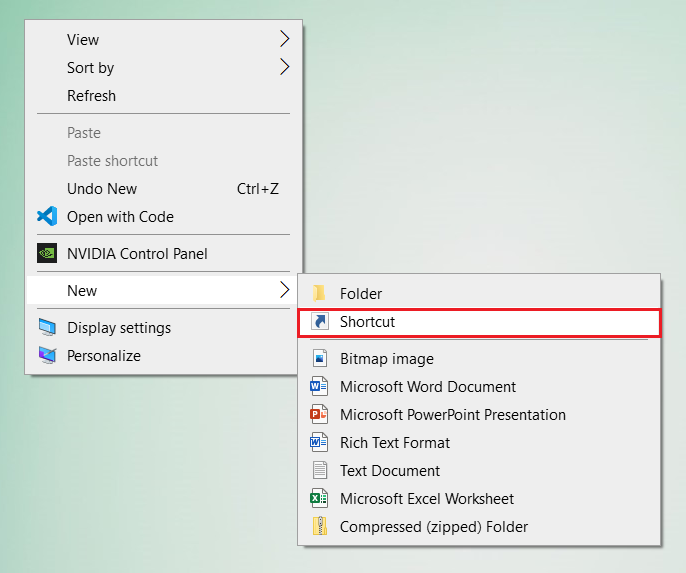
Step 1: Right-click on an empty space on the desktop, select 'New' and click the 'Shortcut'.
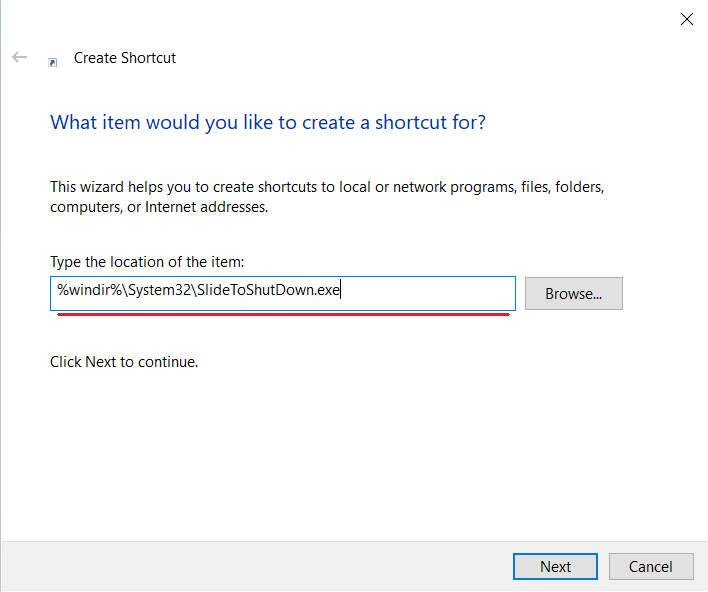
Step 2: Paste the following path in the location section.
%windir%\System32\SlideToShutDown.exe
Step 3: Click 'Next'.
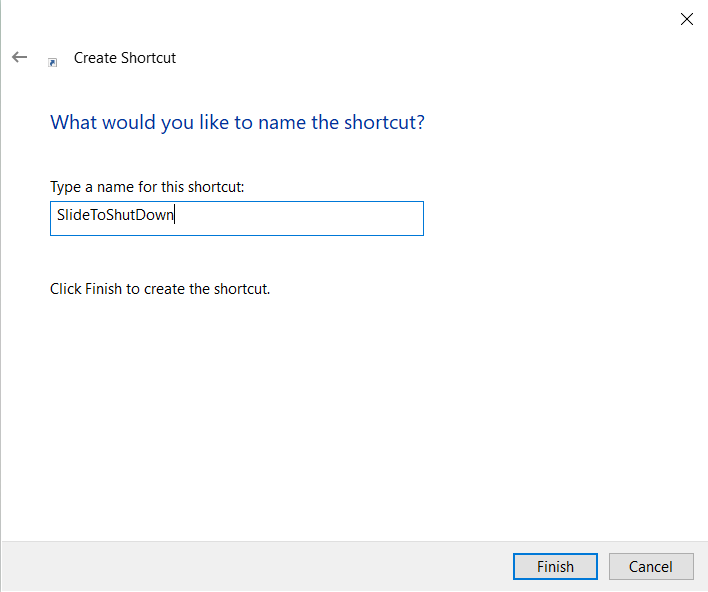
Step 4: Give the name for the shortcut (Ex. SlideToShutDown) and Click on 'Finish'.
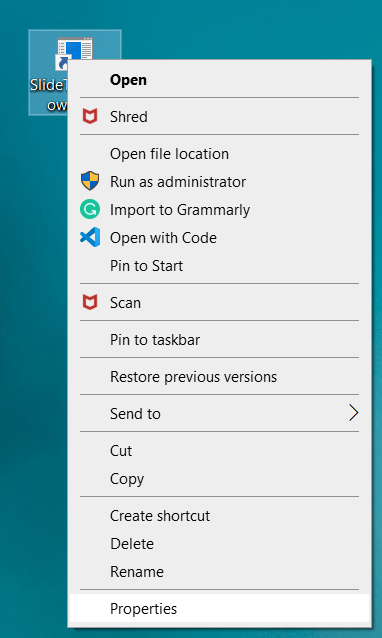
Step 5: Right-click on the newly created shortcut and select 'Properties'.
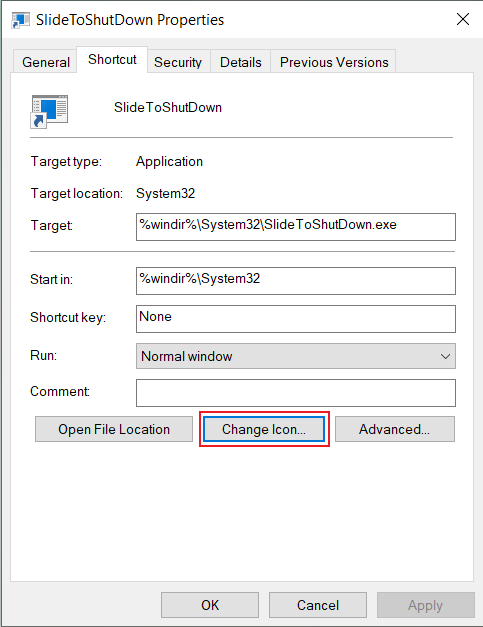
Step 6: In the Shortcut tab, select the 'Change icon' button.
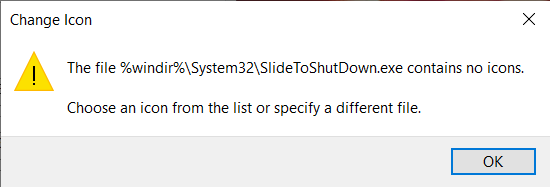
👁 ImageStep 7: After clicking 'Change Icon', one pop-up will appear on the screen. Click 'OK' to confirm that the file path you specified doesn't contain icons.
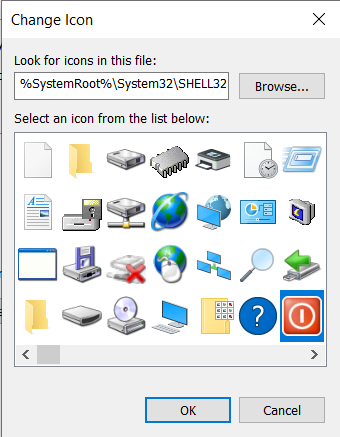
👁 ImageStep 8: You can choose the icon from the list provided by windows, Select the icon from the list which is most relevant to your shortcut and then click 'OK'.
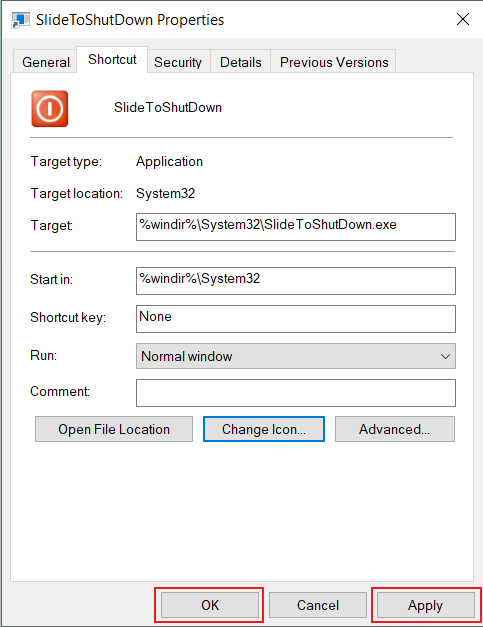
👁 ImageStep 9: To apply this icon to our shortcut, click on 'Apply' and again Click on 'OK'.
👁 ImageNow the Setup for this shortcut is completed, and the shortcut is created on your desktop. When you double-click on this icon, it will launch Slide to Shut down your PC, then you can click and drag the window down, or also you can press Enter key to shut down your PC.
Also, you can right-click on the shortcut and "Pin to the taskbar" for faster access to the Shutdown experience.