|
VOOZH | about |
|
VOOZH | about |
Quick Preview to Download Files and Folders on iPhone or iPad:
- Click on the Share button.
- Go for the Save to File option.
- Select the On My iPhone or iCloud Device.
- Click on the Save button.
While surfing the internet, we often come across many files that seem very informative to us. Hence, we want to save those files to our local machine to check them in the future as well. In such cases, we have to Download Files and Folders into the local machine. And if you are on iOS, the process to Download Files and Folders on an iPhone or iPad is a bit different.
👁 How-to-download-files-&-folders-in-iPhone-or-iPad
Downloading Mac Filesor Folders on your Macbook or iMac is a different thing where we have to right-click on the item to get downloaded on the device. However, if you want to Download Folder and Files on an iPhone, the process of downloading is a bit challenging. To Save Files on iPhoneor iPad, you have to use some tricks as there is no download option present.
In this article, we will discuss the steps required to Get Online Files and Folders on an iPhone or iPad in no time.
Downloading files and folders to your iPhone or iPad is a simple process that can enhance your device's functionality. By following these easy steps, you can quickly download files and access them on your iOS device, making it easier to manage your documents, photos, and other content.
Step 1: On your desired file, you will find a symbol that more looks like a Share Button. Click on it.
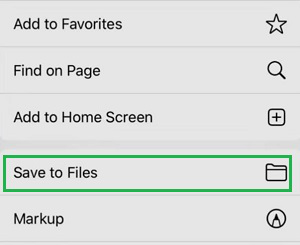
Step 2: Now, scroll down & click on the Save To Files option.
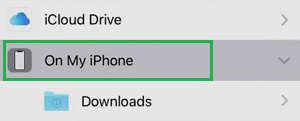
Step 3: Now, click the On My iPhone option to save the files to the local device. Select the required folder there.
Step 4: Now, click on the Save Button present on the upper-hand side to download the file or folder into the device.
So, these are the simple steps you should perform on iPhone or iPad to Download Files and Folders into your desired location. If you want to Save File to Cloud, select the iOS iCloud Option present there. So, you can Access iOS Downloaded Files from any device you want. You can find out your downloads in the Files' Downloaded Folder.