|
VOOZH | about |
|
VOOZH | about |
If you often forget your login details and reset your password frequently, consider using Mozilla Firefox's feature to save your passwords. This way, you won't need to remember them every time you log in.
This article will discuss how to save, view edit, or remove passwords using Mozilla Firefox's Password Manager. Firefox's Password Manager is like your password database that manages all your login credentials. So let's first see, how to save passwords in Firefox
On the Firefox Web Browser, when you log into any account using Username & Password, you get a popup message to save the Login Credentials. If you permit to save the Login Credentials, the details get saved into a special section known as the Password Manager in Firefox. All kinds of Passwords get saved there.
Firefox Password Manager is the suit that can be used to Manage Saved Passwords on Firefox. If you don't permit Firefox to save any certain password, it will not arrive in the Passwords Manager Section in Firefox. You can Copy, Edit, and Remove Firefox Passwords & other information like the Username.
Since you have learnt how to save passwords in Firefox, now let's see how you can manage your password. Firefox allows you to view your saved Passwords, or to change your password by creating strong password for security purpose or to remove that passwords. Let's see how to do that with proper demonstration.
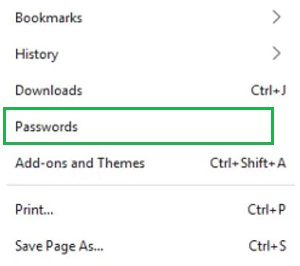
In order to manage your saved passwords, you first have to access password manager. To open password manager in Firefox, Open Firefox Browser & click on the Three Line Menu. Under that, the Password Section should be opened to access the Password Manager.
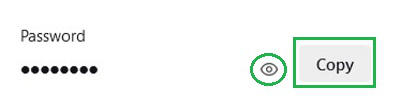
When the Password Manager is opened, you can see the Copy Button after each Password & Username. Click on it to copy the password on Clipboard. Also, click on the Eye Button to View the Saved Password.
You can Modify the Saved Password details. Click on the Edit Button over the Password Manager. Then, you can make any kind of changes & save it to Firefox again.
Just beside the Edit Button, there is the Remove Button present. Click on the Remove Button to completely Erase Password from Password Manager.
So from the above discussion, we can conclude that Modifying Passwords with Password Manager on Firefox is not a challenging task. All login credentials that are saved on the Web Browser will become available on the Password Manager. So, now you can Edit Important Firefox Passwords along with Remove Unnecessary Passwords on Firefox.