|
VOOZH | about |
|
VOOZH | about |
How to enable spotlight desktop wallpapers on Windows 11? Spotlight Desktop gives you cool wallpapers that change automatically. It's like having a fresh new look every time you start your computer. Windows 11 makes it easy to enable Windows Spotlight wallpaper and make your desktop more interesting.
In this article, we'll guide you to enable Windows Spotlight on your desktop. Windows 11, Microsoft's latest OS, is user-friendly. Follow our steps to enjoy stunning wallpapers for a constantly fresh desktop
Table of Content
Let's start by learning how to enable Windows Spotlight on a desktop.
Windows Spotlight is a feature that brings a fresh touch to your lock screen and desktop background daily. It showcases a captivating collection of images handpicked by Microsoft often focusing on nature, culture, or history. Not only do these images add aesthetic appeal to your PC but they also provide valuable information, about their origin and allow you to share your feedback.
In this article, we will show you how to enable spotlight desktop wallpapers on Windows 11.
Learn how to make your desktop look cooler using background settings. We'll show you how to turn on this feature in your background settings. It's easy!
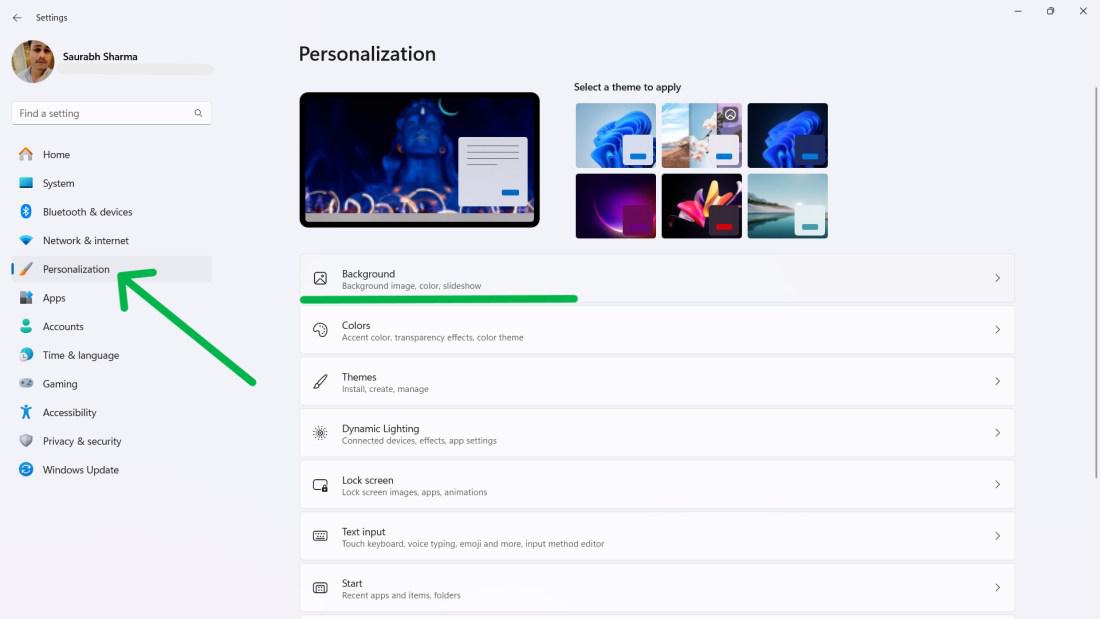
Step 1: Launch the Settings app (Win + I) and navigate to Personalization.
Step 2: On the right pane, click on the Background section.
👁 Enable-Spotlight-Desktop-from-Background-Settings
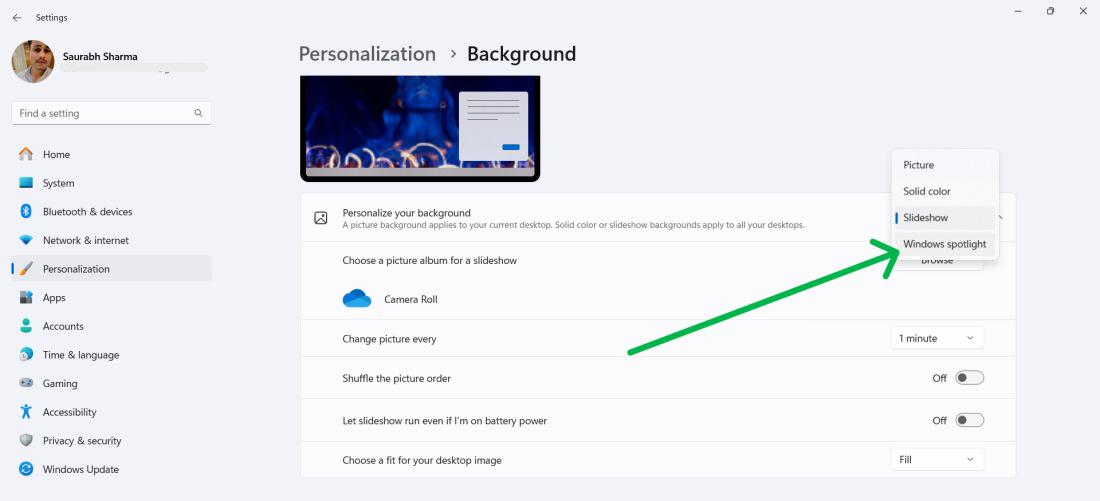
Step 3: From the "Personalize your background" dropdown, choose Windows Spotlight.
👁 Enable-Spotlight-Desktop-from-Background-Settings-1
Find out another simple way to make your desktop look awesome using themes settings. Windows 11 has cool wallpapers that change by themselves, referred as windows spotlight wallpaper.
We'll help you turn on this feature to enable windows spotlight on desktop straight from your Themes Settings.
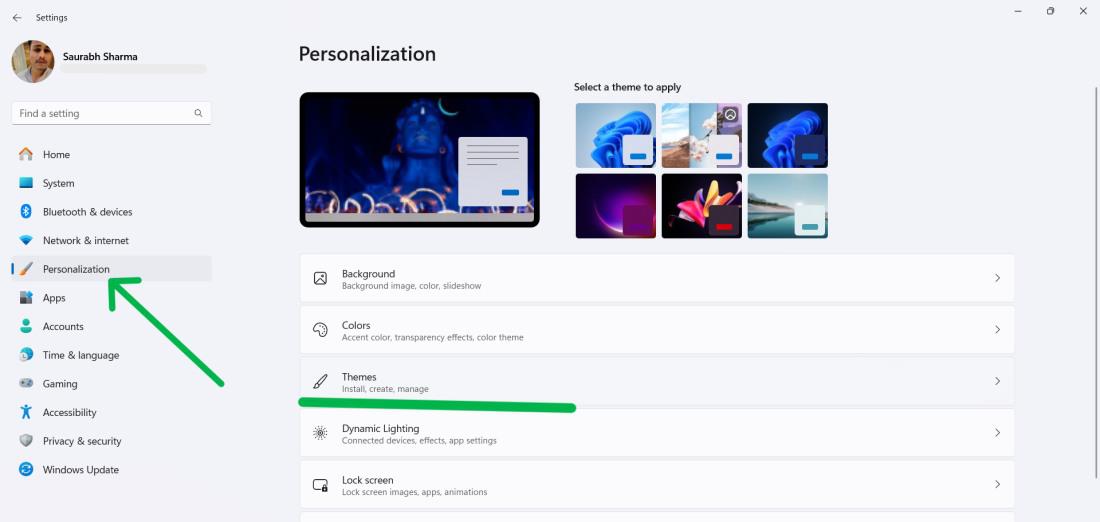
Step 1: Launch the Settings app (Win + I) and navigate to Personalization.
Step 2: Click on Themes in the right-hand pane.
👁 Enable-Spotlight-Desktop-from-Themes-Settings
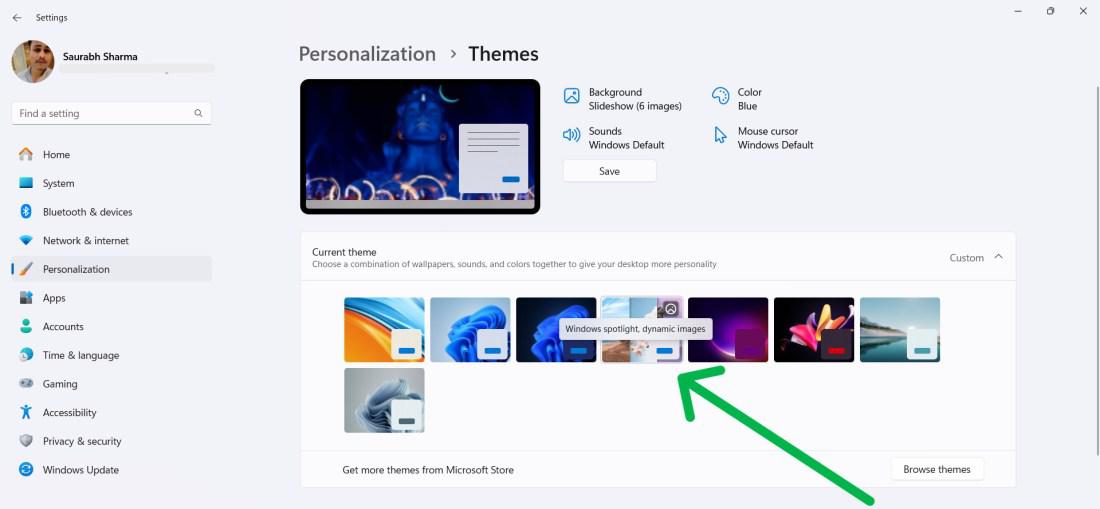
Step 3: Select the Windows Spotlight theme.
👁 Enable-Spotlight-Desktop-from-Themes-Settings-1
Discover yet another easy method to enhance your desktop with dynamic wallpapers using the Group Policy Editor. Windows 11 offers captivating wallpapers that automatically refresh, known as windows spotlight wallpaper.
We'll guide you through activating this feature to enable windows spotlight on desktop using the Group Policy Editor.
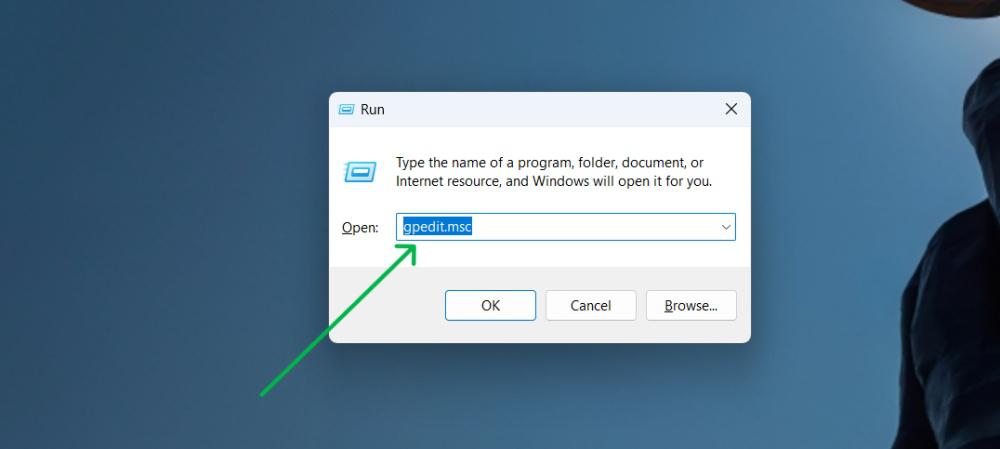
Step 1: Press Win + R and type gpedit.msc to open the Group Policy Editor.
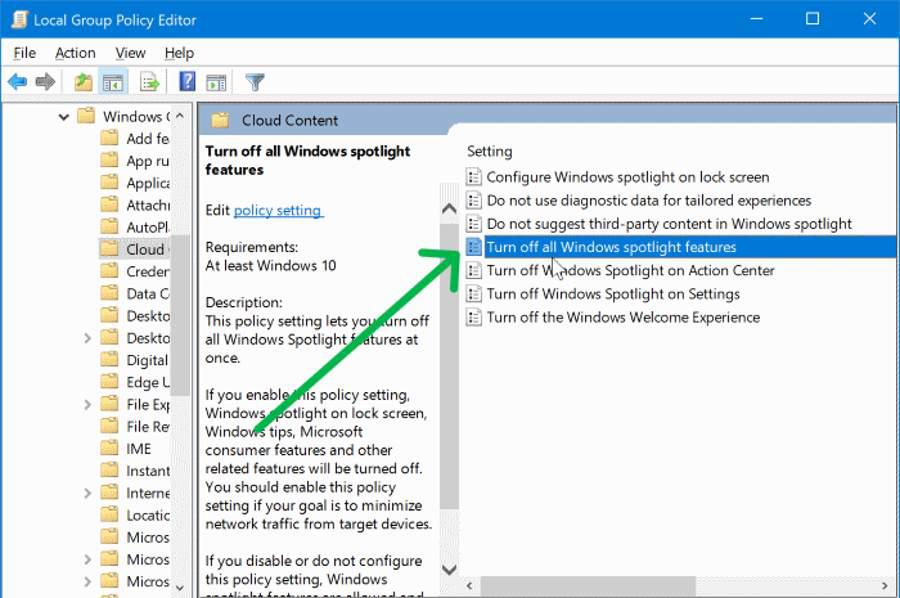
Step 2: Navigate to this path
User Configuration > Administrative Templates > Windows Components > Cloud Content.
Step 3: Double click on the Turn off all Windows spotlight features
👁 Enable-Windows-Spotlight-Images-via-the-Group-Policy-Editor
Step 4: Choose "Enabled" to enable spotlight images on the lock screen.
Step 5: Click "Apply" and then "OK" to confirm
The Windows Registry Editor allows users to enable or disable windows spotlight wallpaper on the lock screen, but it may not be suitable for everyone, particularly those who are unfamiliar with the Registry Editor.
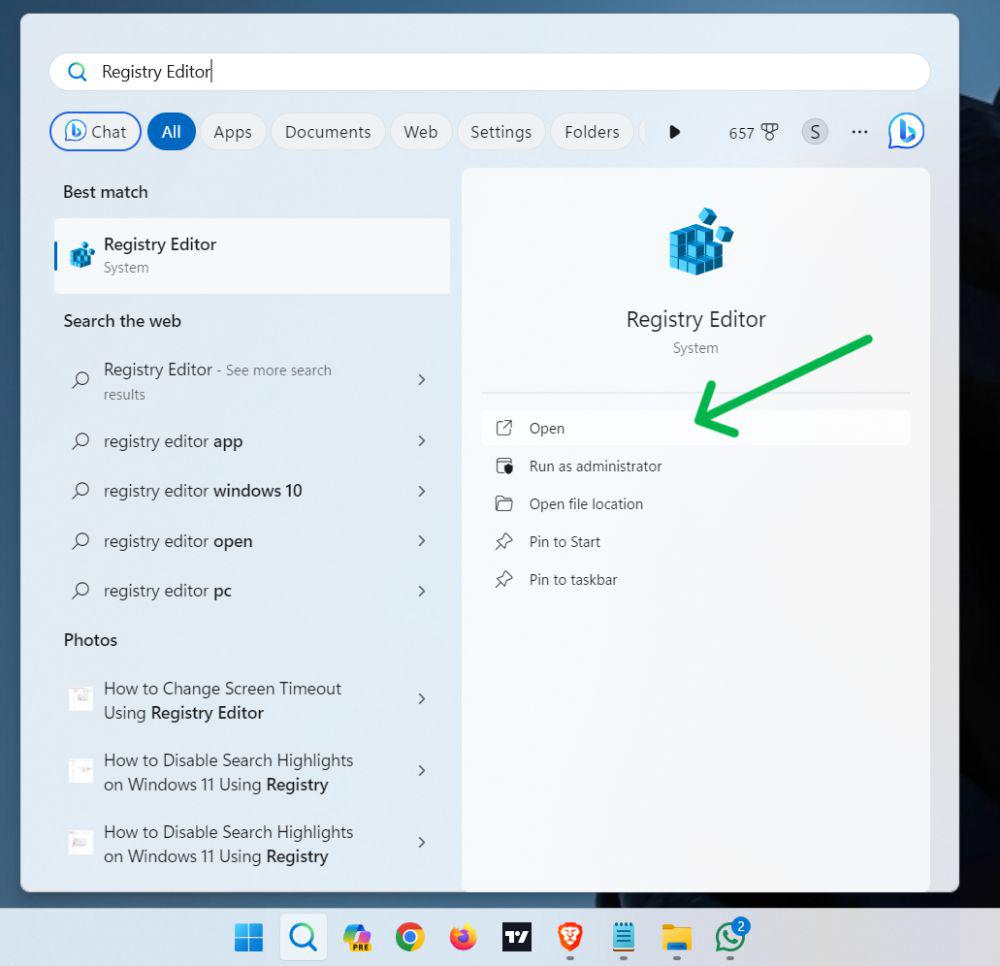
Step 1: To open registry editor, Press Win + S then on search bar type "Registry Editor"
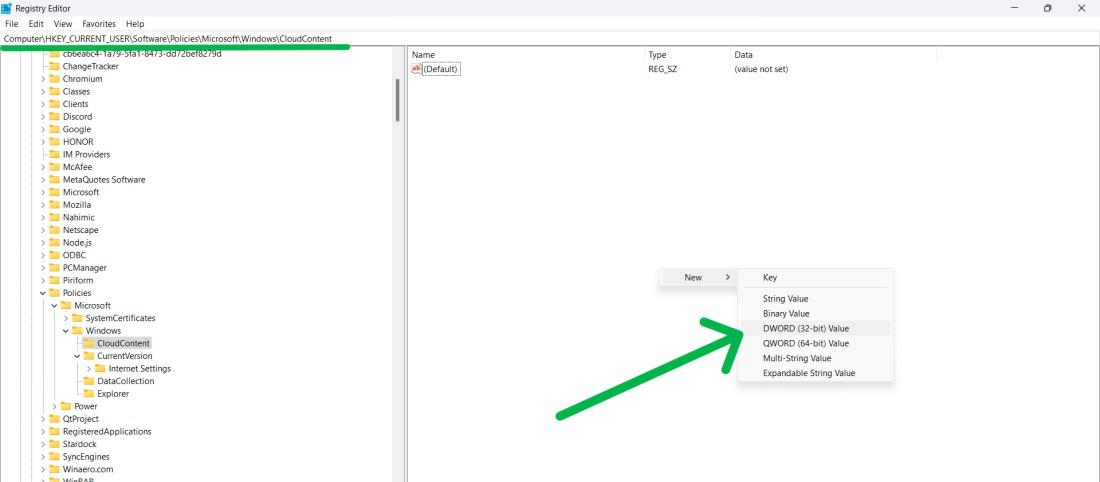
Step 2: Navigate to
Computer\HKEY_CURRENT_USER\Software\Policies\Microsoft\Windows\CloudContent
Spotlight
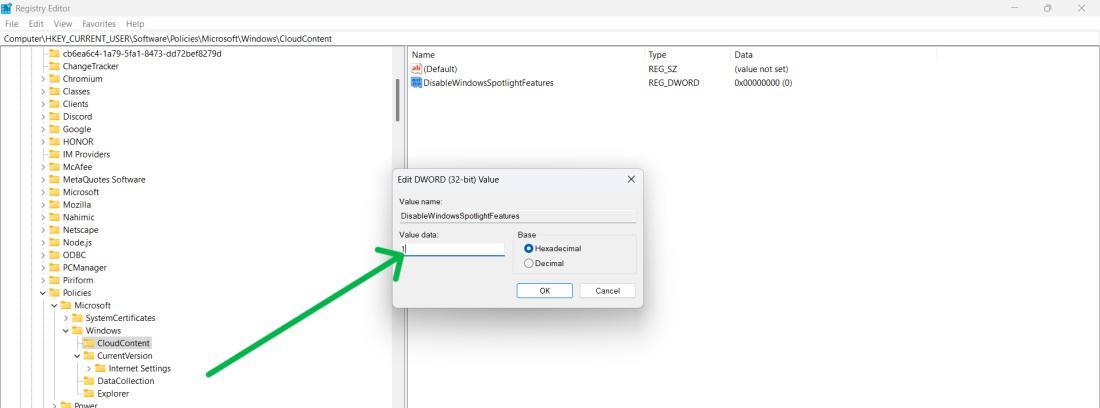
Step 3: Right-click on CloudContent key, choose New > DWORD (32-bit) Value. Rename the created DWORD to DisableWindowsSpotlightFeatures.
👁 Enable-Windows-Spotlight-Images-With-the-Registry-Editor
Step 4: Double click on "DisableWindowsSpotlightFeatures" then set it's value to 1.
👁 Enable-Windows-Spotlight-Images-With-the-Registry-Editor-2
Learn how to make your lock screen cooler with Windows Spotlight Wallpaper! Tired of the same background? Windows Spotlight brings fresh and exciting pictures to your lock screen.
Follow our easy steps to enable Windows Spotlight on desktop and enjoy a variety of stunning backgrounds.
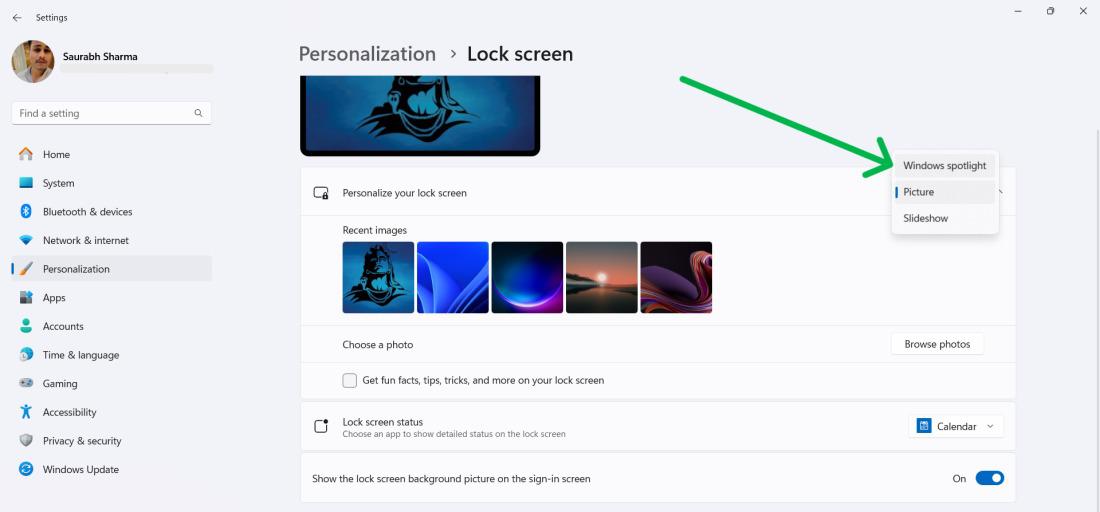
Step 1: Open Settings and go to "Personalization."
Step 2: Select "Lock screen" from the right sidebar.
Step 3: Under "Background," choose "Windows Spotlight" from the dropdown menu.
👁 How-to-Enable-Windows-Spotlight-Images-For-Lock-Screen
In Conclusion, Enabling Windows spotlight wallpaper on your Windows 11 desktop adds a touch of freshness by updating your desktop with visually appealing wallpapers. Whether you like the simplicity of the Settings menu or prefer to explore the options in the Group Policy Editor and Registry Editor, these methods let you effortlessly customize your desktop experience.