How to Fix File System Error (-1073741819) in Windows 10?
Last Updated : 23 Jul, 2025
Experiencing the file system error -1073741819 in Windows 10 can be frustrating, especially when it prevents you from running certain applications or performing essential tasks. This error typically occurs due to issues with system permissions, corrupted system files, or third-party software conflicts. In this guide, we’ll show you how to fix file system error -1073741819 using various methods. Whether you're a beginner or an advanced user, these solutions will help you resolve the Windows 10 file system error efficiently.
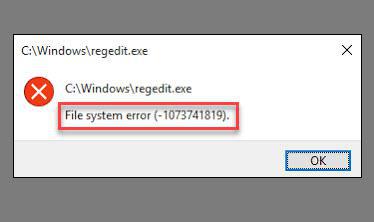
File System Error (-1073741819) is an error code that often appears on Windows systems when trying to perform certain file operations. It is typically associated with issues related to the File Explorer or system files. When this error occurs, you may encounter a pop-up message or notice it in the command prompt when running specific commands.
This error code can manifest in various situations, such as when:
Opening or accessing files and folders
Copying or moving files
Deleting files or folders
Launching certain applications or programs
Possible Causes of File System Error (-1073741819)
To effectively troubleshoot and fix this error, it's essential to understand its underlying causes. While it may not be possible to pinpoint the exact reason in every case, here are some common factors that can contribute to File System Error (-1073741819):
Corrupted System Files
Windows relies on a multitude of system files, and if any of these files become corrupted, it can lead to various errors, including File System Error (-1073741819)
Third-Party Software Interference
Some third-party applications or software may interfere with the normal functioning of your file system. This interference can result in error messages like (-1073741819)
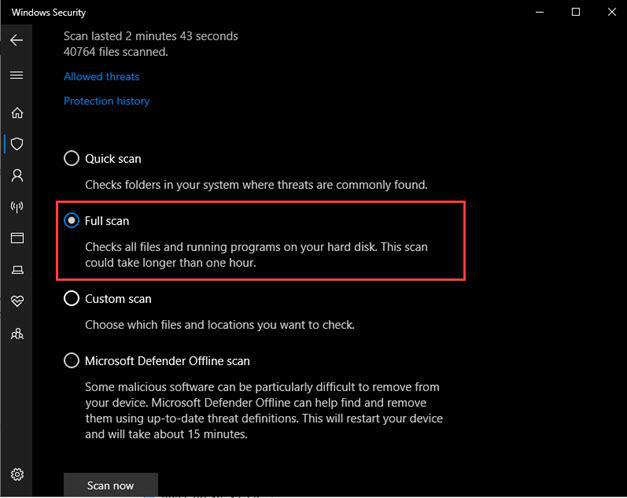
Malware or Virus Infections
Malicious software can corrupt or modify system files, leading to errors like File System Error (-1073741819)
Disk Errors
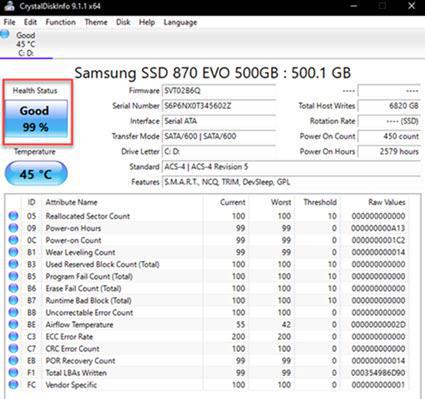
Physical or logical errors on your storage drive can also trigger this error. Bad sectors, damaged file allocation tables, or file system inconsistencies can be the culprits. It occurs commonly on hard disk drives more than SSDs.
Outdated or Incompatible Drivers
Drivers are crucial for hardware and software communication. Outdated or incompatible drivers can lead to errors in various system components
Now that we have a clearer understanding of the potential causes let's delve into the solutions for resolving File System Error (-1073741819)
Solutions to File System Error (-1073741819)
1. Run a System File Checker (SFC) Scan
Open Command Prompt as an administrator (search for "cmd," right-click, and select "Run as administrator") or you can see it on the right side.
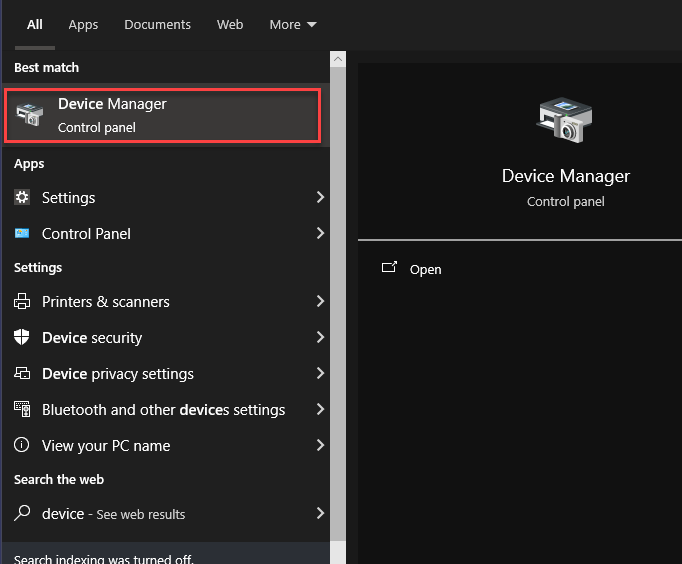
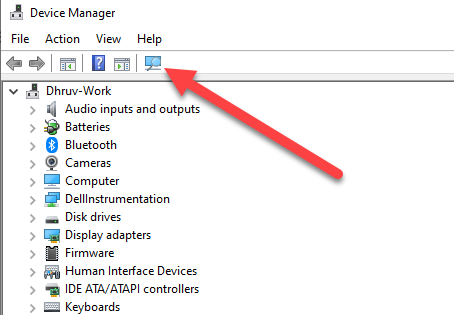
Choose "Update driver" or "Roll Back driver" if available
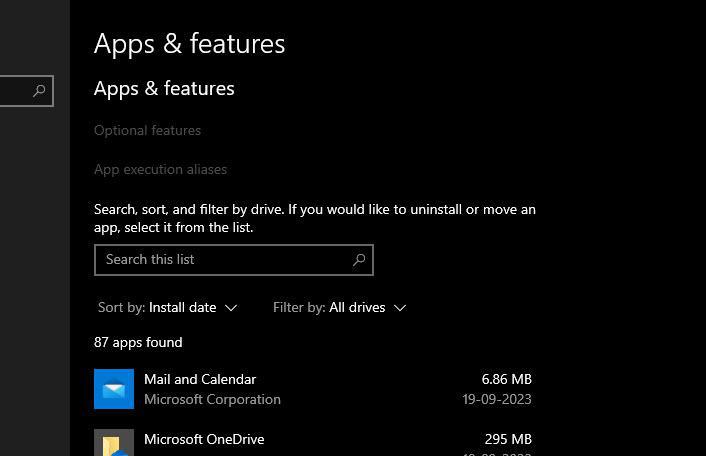
5. Uninstall Problematic Software
Identify any recently installed third-party software that might be causing conflicts. It can be done by going to ''Apps & Features'' by searching it from the Windows menu.
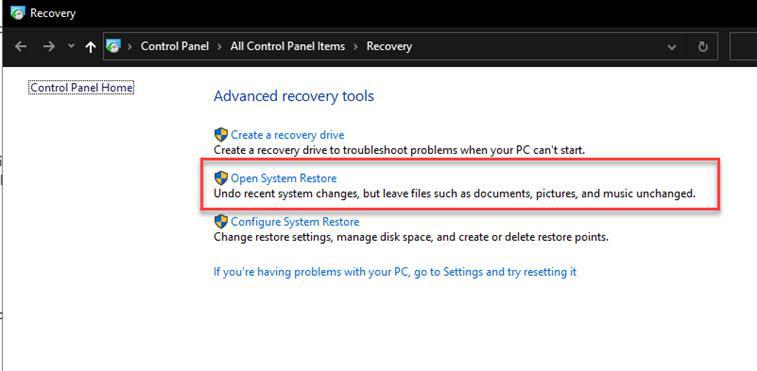
System Restore is a valuable tool to undo recent significant system changes and resolve errors. If you recently made significant changes to your system, consider using System Restore to revert to a previous state where the error did not occur.
Follow these steps:
Access System Restore: Search for it on Windows or use Time Machine on macOS.
Fixing the file system error -1073741819 in Windows 10 is essential for ensuring your system operates smoothly. By following the methods outlined here, such as running system checks or adjusting permissions, you can effectively resolve the file system error and get back to using your computer without interruptions. Regular maintenance and monitoring can also help prevent future occurrences of similar file system errors in Windows 10.


-Scan.png)
-Scan01.png)
-Scan02.png)
-Scan03.png)