Google Chrome’s built in translation tool is extremely handy when browsing foreign language pages. But sometimes it stops working due to outdated settings, corrupted cache, or conflicting browser extensions. If Chrome Translate isn’t showing up, failing to detect language, or simply not responding, you can fix it quickly with a few DIY methods.
What this guide covers:
Common reasons why Chrome Translate stops working
Eight reliable fixes to restore translation functionality
Tips to prevent translation issues in the future
Method 1: Enable Built-in Translation in Chrome
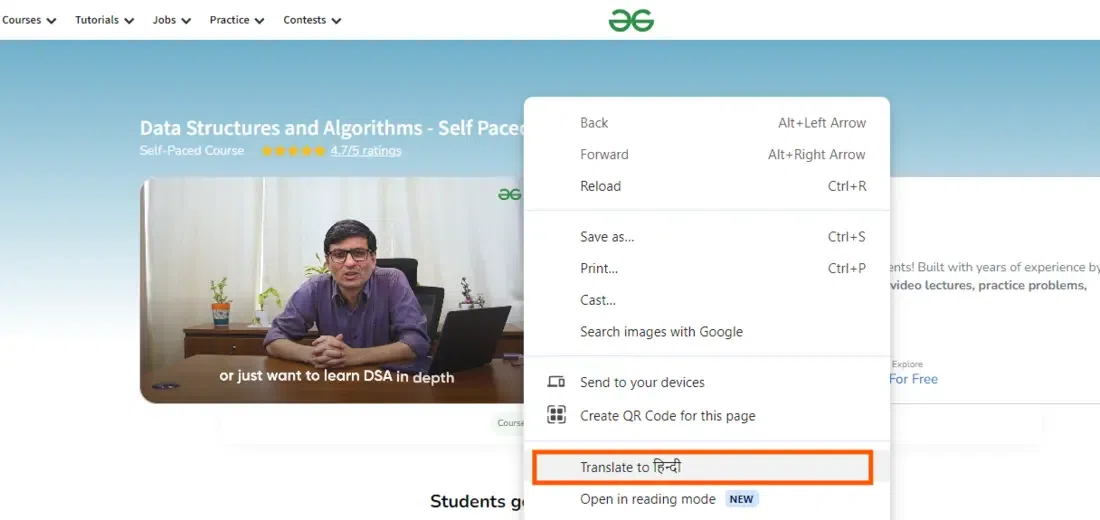
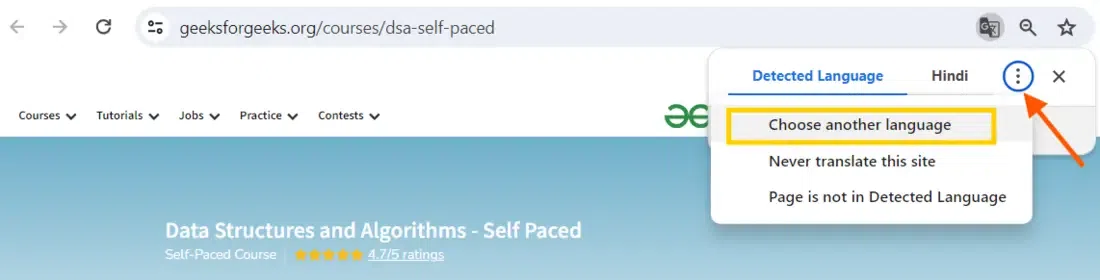
The first thing to ensure is that you have enabled the translation tool in Chrome so that it can translate the pages that aren’t in the language you read. Here’s how to do it.
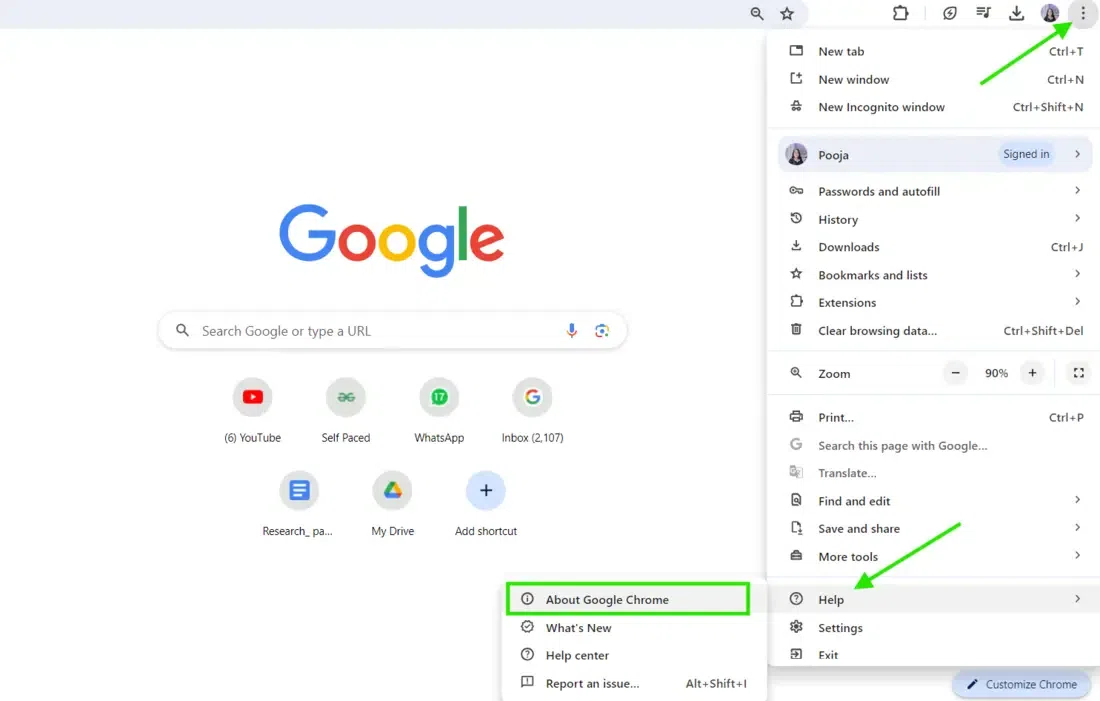
In case your Google Translate won’t work it may be due to an older version of Chrome you are using. Make sure you have the most recent version of Google Chrome. To update Google Chrome to its latest version
Method 4: Check for Conflicting Extensions (Incognito Test)
Some extensions may block translation.
Press Ctrl + Shift + N to open Incognito
Visit the page and test Translate
If it works in Incognito:
Go to Menu (⋮) → Extensions → Manage Extensions
Disable unwanted or suspicious extensions
Or remove them completely
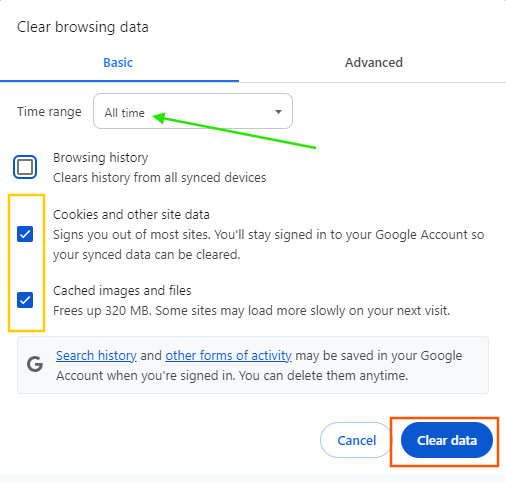
Method 5: Clear Browser Cache And Cookies
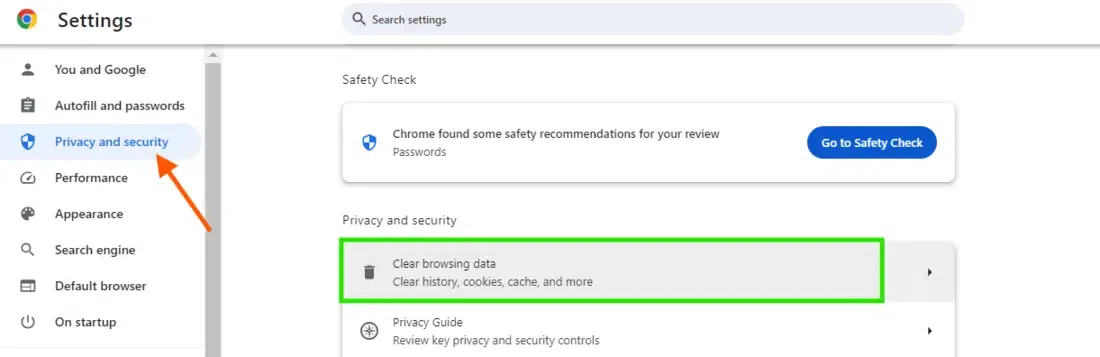
It’s important to Clear the browser cache and cookies because cached data can contain corrupted files or old translations that interfere with new translations in Google Translate so Clear your browser’s cache and cookies now! This is how to do it:


.webp)