|
VOOZH | about |
|
VOOZH | about |
The Memory Management BSOD (Blue Screen of Death) error is a common issue on Windows 10 and 11, indicating a problem with the system's memory management. This error can occur due to faulty hardware, corrupted system files, or outdated drivers, leading to system crashes and instability. If you're facing this blue screen error, it's important to troubleshoot and resolve it to prevent further system crashes.
In this guide, we'll walk you through how to fix the Memory Management BSOD error on Windows 10/11 using several troubleshooting methods.
The computer’s operating system experiences a memory management error message because of a memory management issue. This error typically arises when the system memory becomes corrupt or the drivers managing it are outdated.
Here, we’ll see some easy methods to troubleshoot the memory management BSOD error on Windows 10/11.
Whenever you see a blue screen, unplug all external devices such as USB drivers, printers, or external storage devices. This helps find if they're causing the problem.
Then Restart Your Computer to see if the error goes away, restarting your computer is crucial. This basic step resolves glitches, and conflicts in software causing the error Blue Screen of Death (BSOD).
Step 1: Close all active windows and open windows on your desktop.
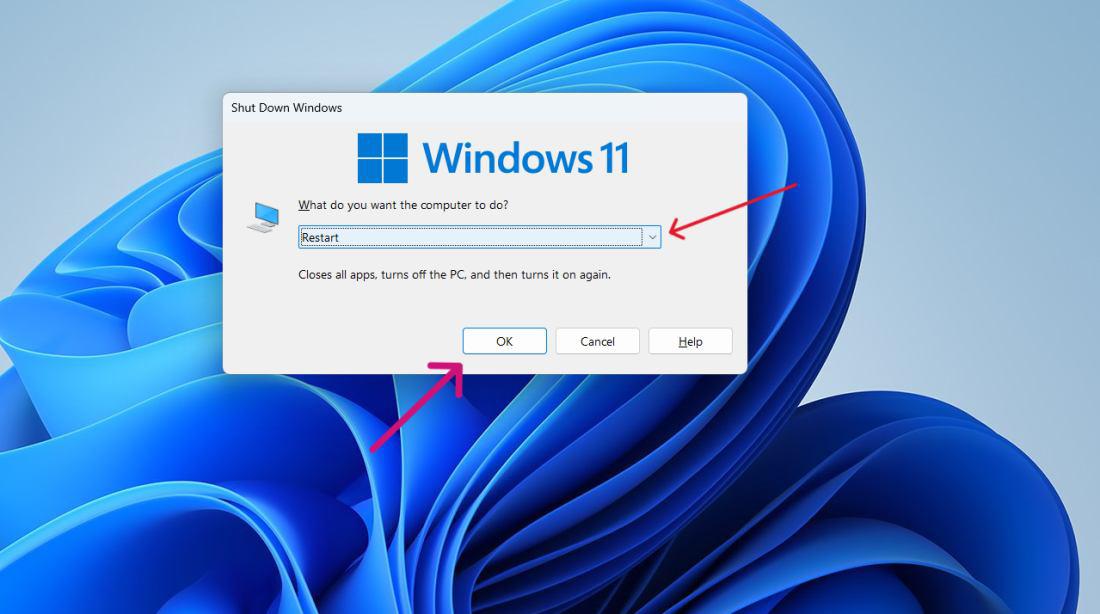
Step 2: Simultaneously press Alt and F4.
Step 3: A popup window titled "Shut Down Windows" will appear, offering several options. From the dropdown menu, select "Restart"
Step 4: Choose OK to confirm your choice
To ensure smooth operation, regularly update your Windows operating system. Updates provide essential patches for security vulnerabilities and bug fixes that may resolve the Memory Management BSOD Error.
Step 1: Press the Windows key + I to open the settings application
Step 2: Then on the left side bar click on the "Windows Update"
Step 3: Click on “Check for updates”. then download and update if any are available
Step 4:Restart Your computer
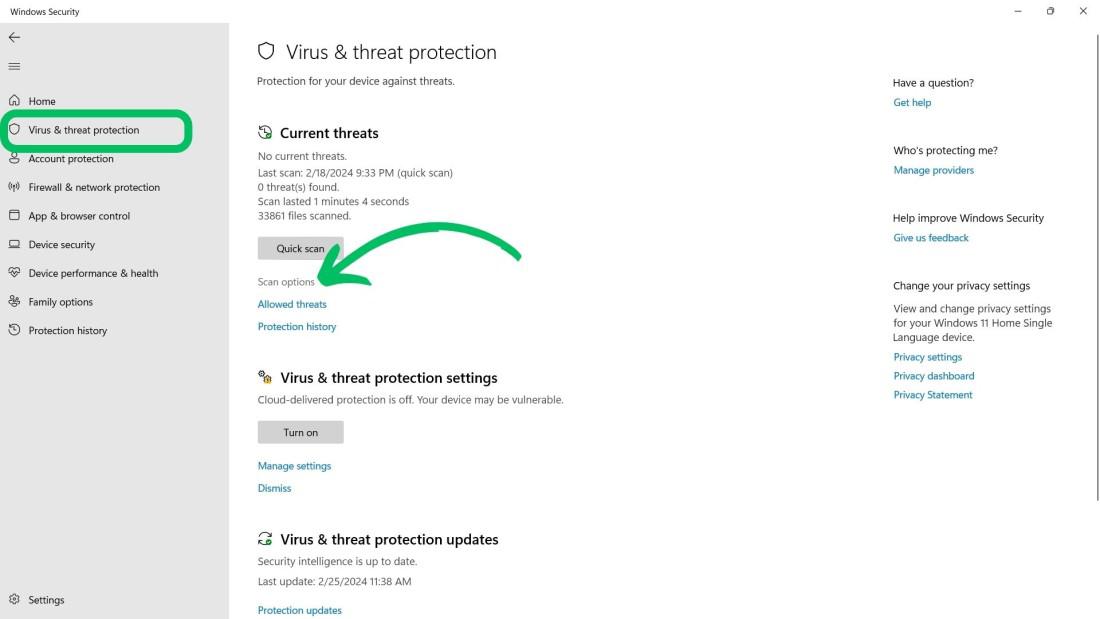
Windows Security safeguards your device from harmful software threats, like viruses, malware, and spyware. It monitors emails, apps, the cloud, and the web. A quick scan detects and removes these threats swiftly and effectively.
Step 1: Open the settings app by pressing Windows Key + I
Step 2: Then, Go to Privacy & Security > Windows Security.
Step 3: Click on “Open Windows Security"
Step 4: Click “Virus & Threat Protection”.
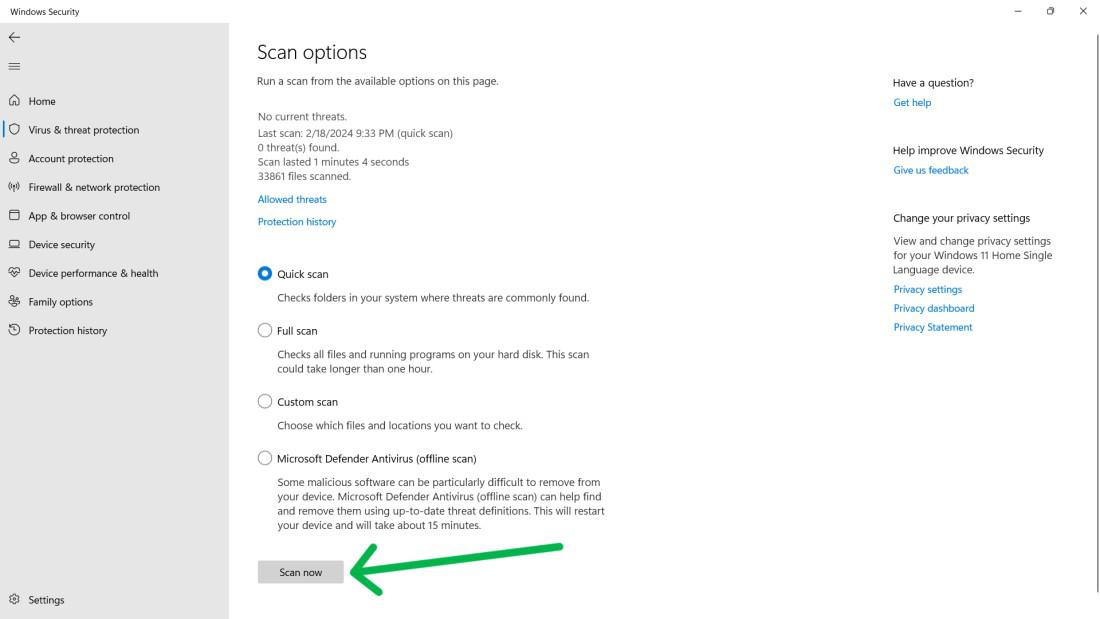
Step 5: Then Click on “Scan Options"
Step 6: Click on “Scan Now” after selecting “Full Scan"
The GPU driver handles communication between the computer's graphics hardware and OS. An outdated driver can create problems like the MEMORY MANAGEMENT error.
Step 1: Press Windows Key + S to open the search bar on the search bar type "dxdiag" and then open it
Step 2: Then navigate "Display" tab
Step 3: Your system GPU details will show here
Step 4: Visit your GPU manufacturer’s website, download the latest driver, install it on your PC, and then reboot your system.
Check the disk to spot faults on your computer. These errors may cause "MEMORY MANAGEMENT" issues. Perform a full disk check. Fix the problems found.
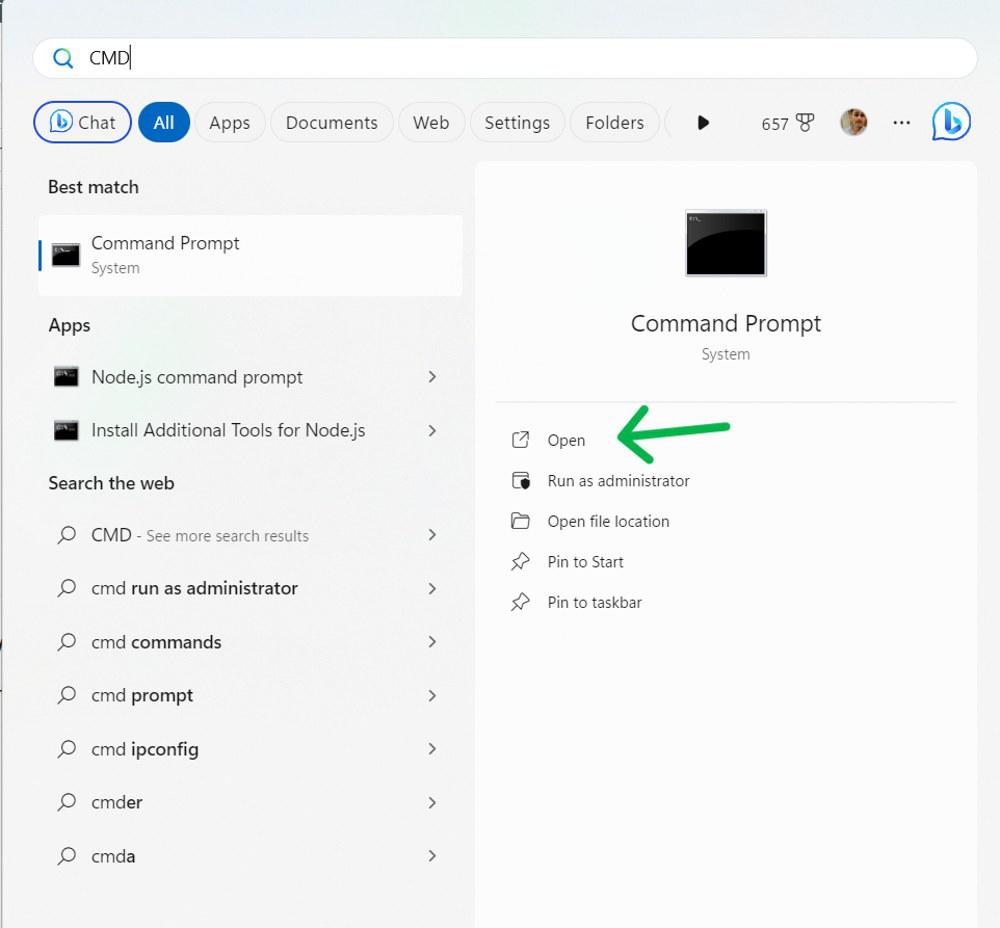
Step 1: Press Windows Key + S to open the search bar then on the search bar type "CMD" and run as administrator.
Step 2: Then, In CMD type this command and press enter button
chkdsk /f /rStep 3: Then press Y.
Step 4: Close the CMD
Run the Memory Diagnostic to scan your computer's memory. That process checks for errors that may indicate faulty RAM. This is especially useful if you think your RAM may be faulty.
Step 1: Press Windows Key + R then on run dialog type "mdsched.exe" and hit Enter
Step 2: From pop up menu select "Restart now and check for problems (recommended) "
👁 Run-Windows-memory-diagnostic-test
Step 3: During the test, you'll see the progress and passes displayed on the screen.
The System File Checker tool fixes corrupt or missing system files. These files could cause the MEMORY MANAGEMENT BSOD error. So, run the checker to repair them.
Step 1: Press Windows Key + S to open the search bar then on the search bar type "CMD" and run as administrator
Step 2: Then, In CMD type the following commands one by one
DISM /online /cleanup-image /restorehealthsfc /scannowStep 1: Press Win + I to open settings and start the reset process.
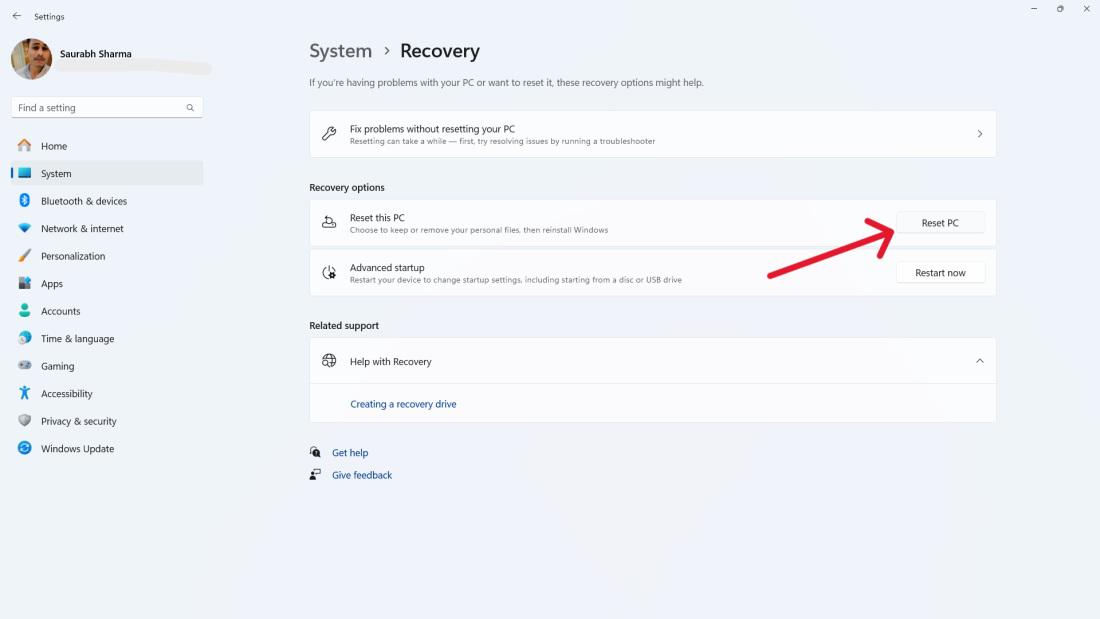
Step 2: From the right-hand menu, select "System," followed by "Recovery".
Step 3: Click on “Reset PC"
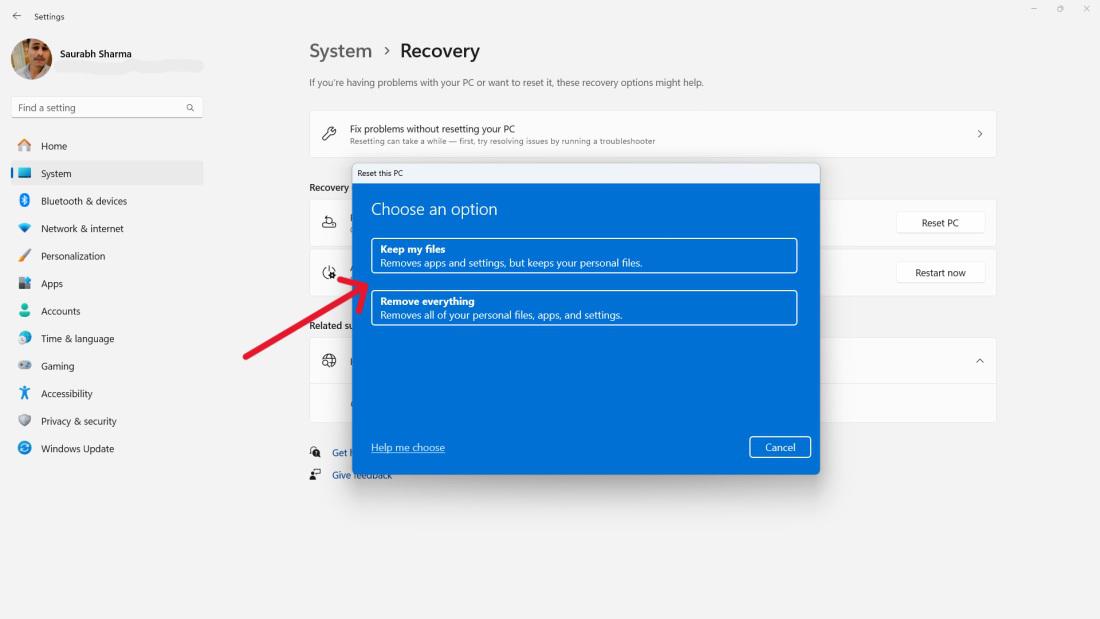
Step 4: Within the "Reset this PC" window, select:
Keep My Files: Deletes apps and settings but keeps personal files.
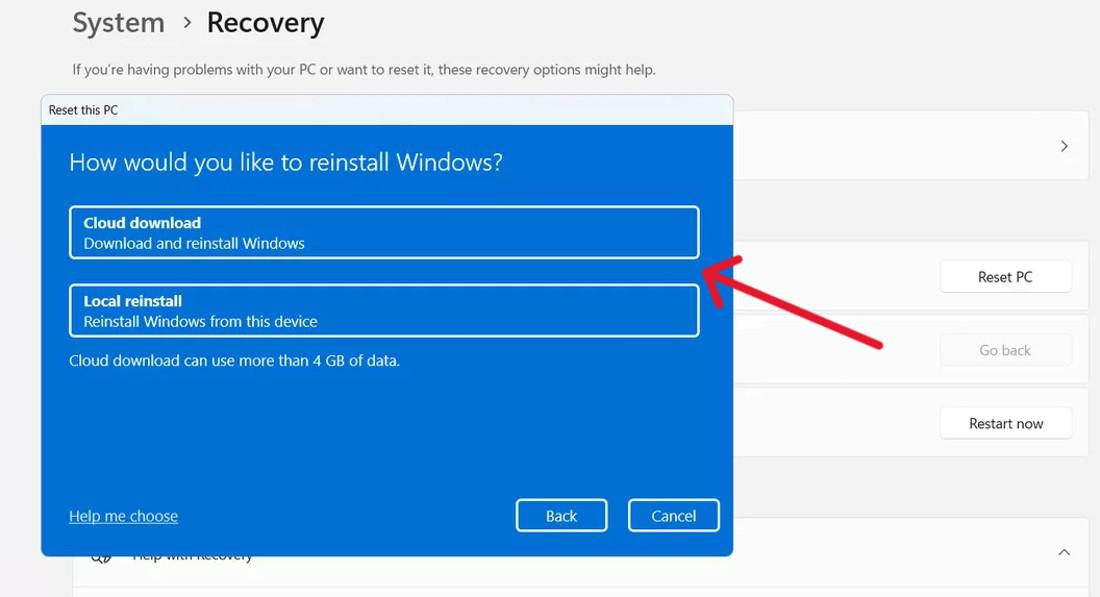
Remove everything. Deletes apps, settings, and personal files. Use it for selling or giving away your device.Step 5: At the "How Would You Like to Reinstall Windows" screen:
Cloud Downloads: This option allows you to reinstall from the cloud.
Local Reinstall: Select this option to perform a local reinstallation of Windows 11.
Viruses or malware can cause Windows crashes and blue screens. Run a full system scan using Windows Security or another antivirus to remove harmful programs. Follow these steps to perform scan for virus & malware.
Step 1: Open Windows Security App on your PC.
Step 2: Click On Virus & threat Protection
Step 3: Click on Scan Options to select type on scan.
Step 4: Choose Full scan from the available options and click Scan Now button at the bottom. It start full scan and resolve any potential threat.
Malware threats can cause various system issues such as memory management error. By performing Scan for Virus or Malware Infection, we can resolve the Memory Management BSOD Error .
Also, check if your computer is overheating, as this can cause problems too.
The "Memory Management" Blue Screen of Death (BSOD) error on Windows 10 and 11 can occur due to a variety of hardware and software issues, each capable of destabilizing your PC and triggering that infamous blue screen. Understanding the reasons behind this error is the first step to fixing it. Here are the primary reasons
Prevention is better than cure so if you don't want a memory management BSOD error on Windows, then you can follow the below tips.
By following these troubleshooting steps, you can effectively fix the Memory Management BSOD error and restore system stability on your Windows 10 or 11 device. Whether the issue is caused by faulty RAM, outdated drivers, or corrupted system files, resolving this error will help prevent further crashes and ensure your system runs smoothly.





-Tool.jpg)