|
VOOZH | about |
|
VOOZH | about |
Experiencing screen flickering on Windows can be frustrating, but it's a common issue with several solutions. Whether you're facing a screen flickering issue on a Windows PC due to outdated drivers or incorrect display settings, this guide will help you identify the cause and fix screen flickering on Windows. By adjusting your screen refresh rate or updating display drivers, you can easily resolve the flicker and get your system running smoothly again.
Table of Content
The most basic reason why your laptop screen flickers is due to the following reasons.
Let's see how to rectify laptop screen flickering reasons with proper demonstration. We have provided 6 methods to fix screen flickering issues in Windows PC.
If you're facing any sort of Screen Flickering Issues in your Windows System, The following 6 Methods will definitely help you getting out of that trouble for sure. You just need to follow suitable methods step by step without skipping.
Usually, problems with the computer's hardware can lead to a flickering screen The main reason could be the monitor cable. This cord links your screen to your computer. If it's loose or damaged, it may cause intermittent connections.
Also Check:How to Fix Screen Burn on Any Screen?
Your computer's display drivers help to render visual output on your screen. If these drivers get too old or break, problems may come up like a flickering screen. You can often resolve this issue by updating or reinstalling these drivers.
Step 1: Press the Windows key + X from menu select Device Manager.
Step 2: Expand the device category.
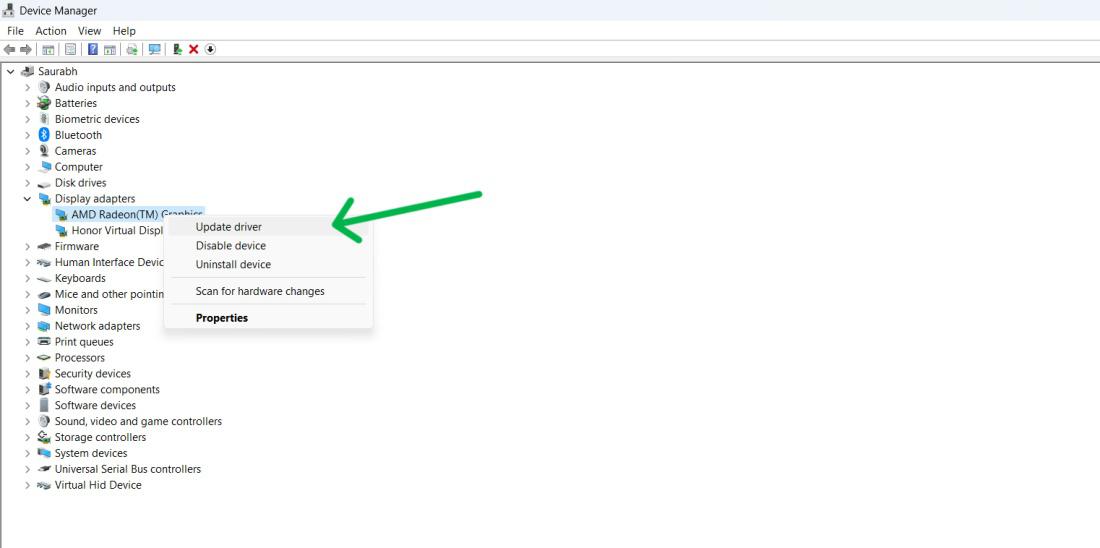
Step 3: Right-click on the display driver , and select 'Update driver.'
👁 Fix Screen Flickering Issues in Windows PC
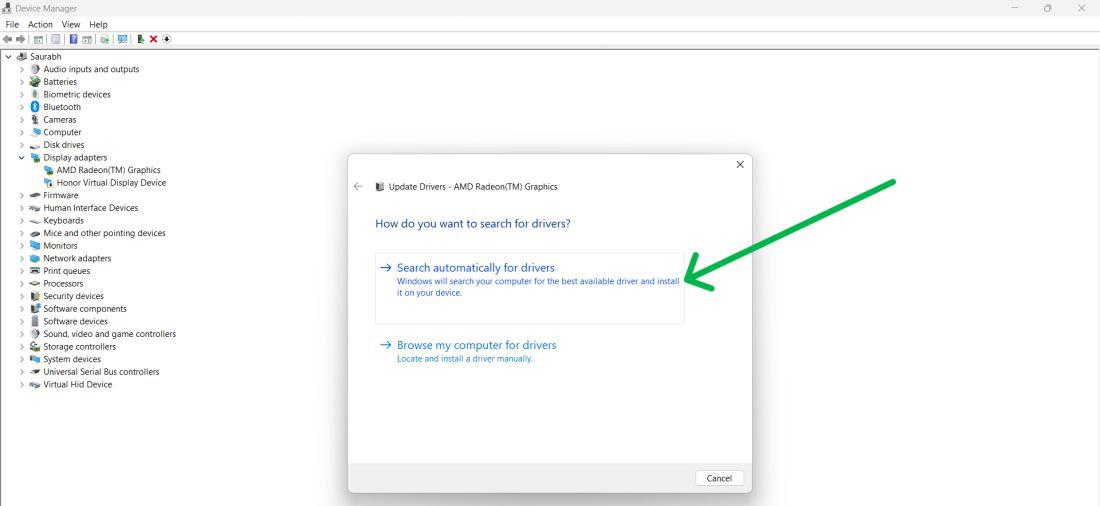
Step 4: Choose "Search automatically for driver "
👁 Fix Screen Flickering Issues in Windows PC
Step 1: Press the Windows key + X from menu select Device Manager.
Step 2: Expand the device category.
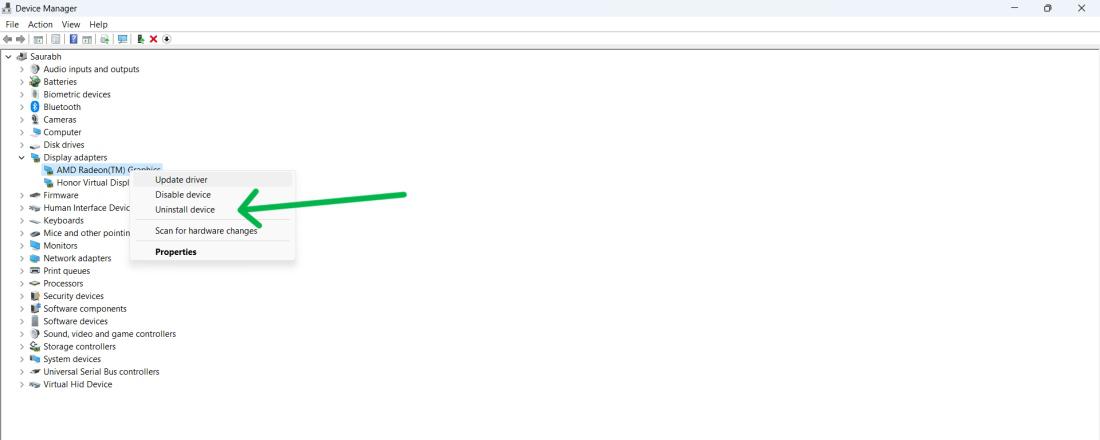
Step 3: Right-click on the display driver , and select “Uninstall Device.”
👁 Fix Screen Flickering Issues in Windows PC
Step 4: Restart your computer to reinstall driver automatically
Sometimes, a newly installed driver update might cause more issues than it fixes. If your screen begins flickering subsequent to updating your display driver recently, rolling back to the previous version of the driver might be the solution.
Step 1: Press the Windows key + X from menu select Device Manager.
Step 2: Expand the device category.
Step 3: Right-click on the display driver , and select “Properties.”
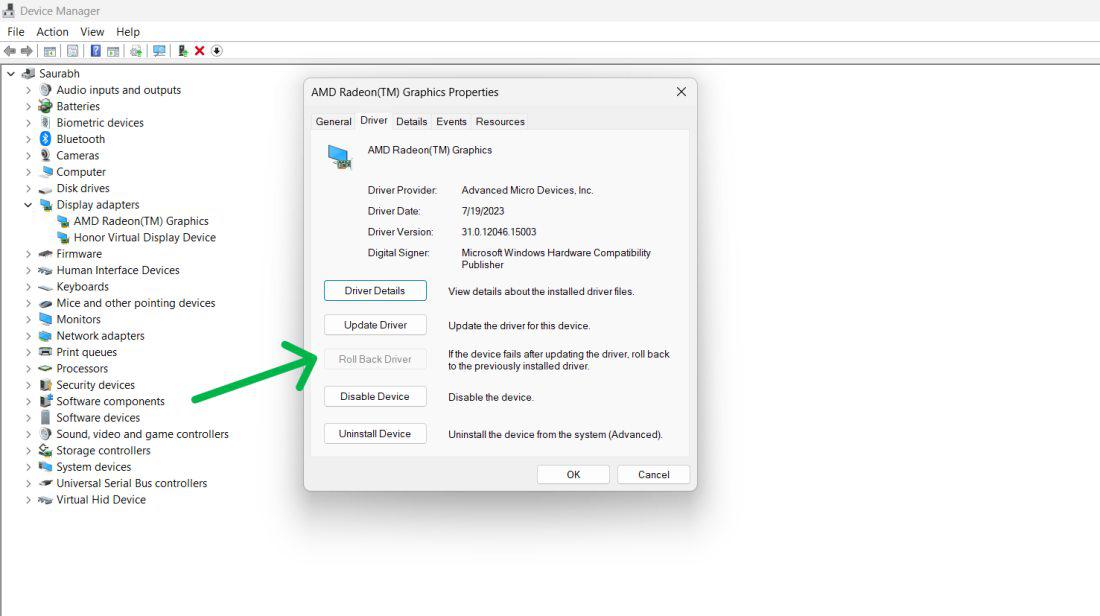
Step 4: Then, Navigate to "Driver" tab, After that click on "Roll Back Driver"
👁 Fix Screen Flickering Issues in Windows PC
Also Check: How to Fix Vertical Lines on a Computer Screen?
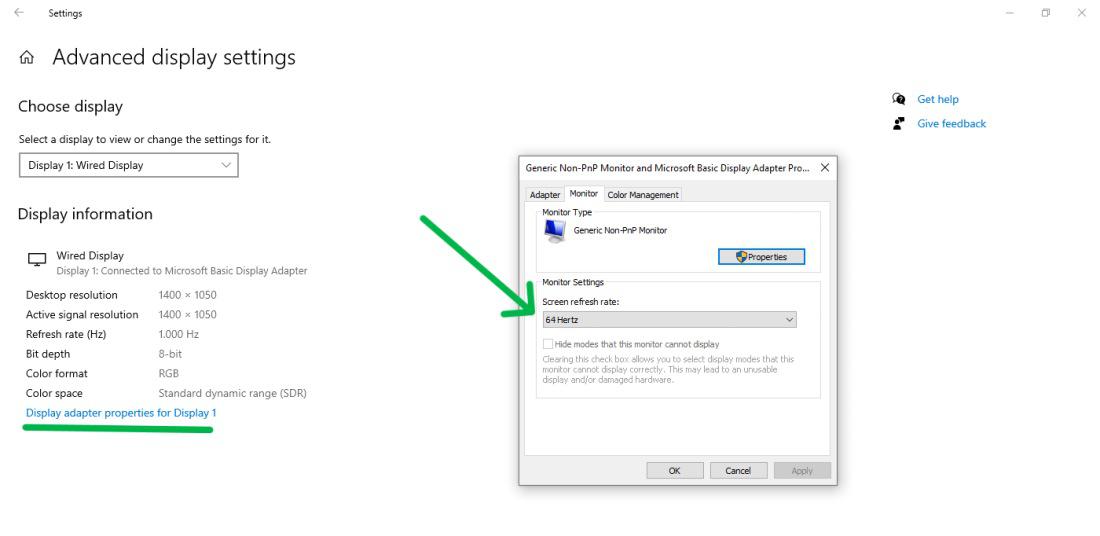
When the refresh rate isn't accurate, it can cause your screen to flicker. The problem can be fixed by aligning the refresh rate with your monitor screen's specifications
Step 1: Press Windows Key + I to open settings
Step 2: Then, In settings navigate to System > Display > Advanced display settings
Step 3: Click on "Display adapter properties for diaplay"
Step 4: Then, Navigate to "Monitor" tab after that from "Screen Refresh rate" dropdown menu Select a lower or higher refresh rate
👁 Fix Screen Flickering Issues in Windows PC
Malware might lead to numerous problems in a system, like screen flickering. Consistently checking your system for malware and removing identified threats can keep your system free from flickering.
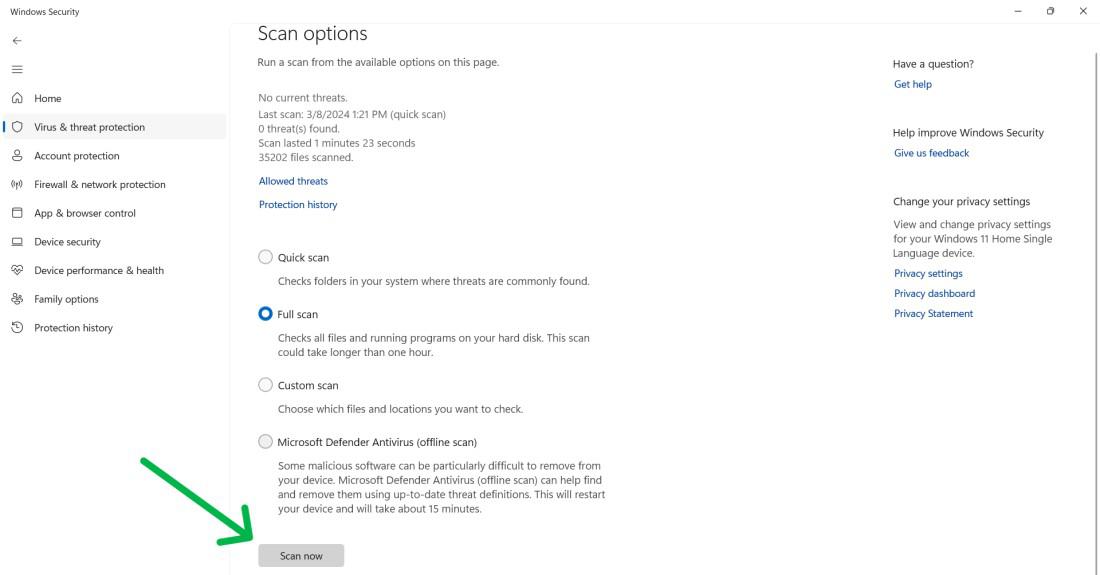
Step 1: Press Windows Key + S to open search bar then on search bar type "Windows Security" then open it.
Step 2: In Windows Security, On the left side pane click on "Virus & Treat Protection" then on the bottom click on "Scan Options"
Step 3: From the list select "Full Scan" then click on "Scan Now" button.
Occasionally, your user profile might get corrupted leading to screen flickeringand similar problems. Creating a new user profile typically resolves these issues by offering a fresh environment.
Step 1: Open settings by pressing Windows Key + I then click on "Accounts"
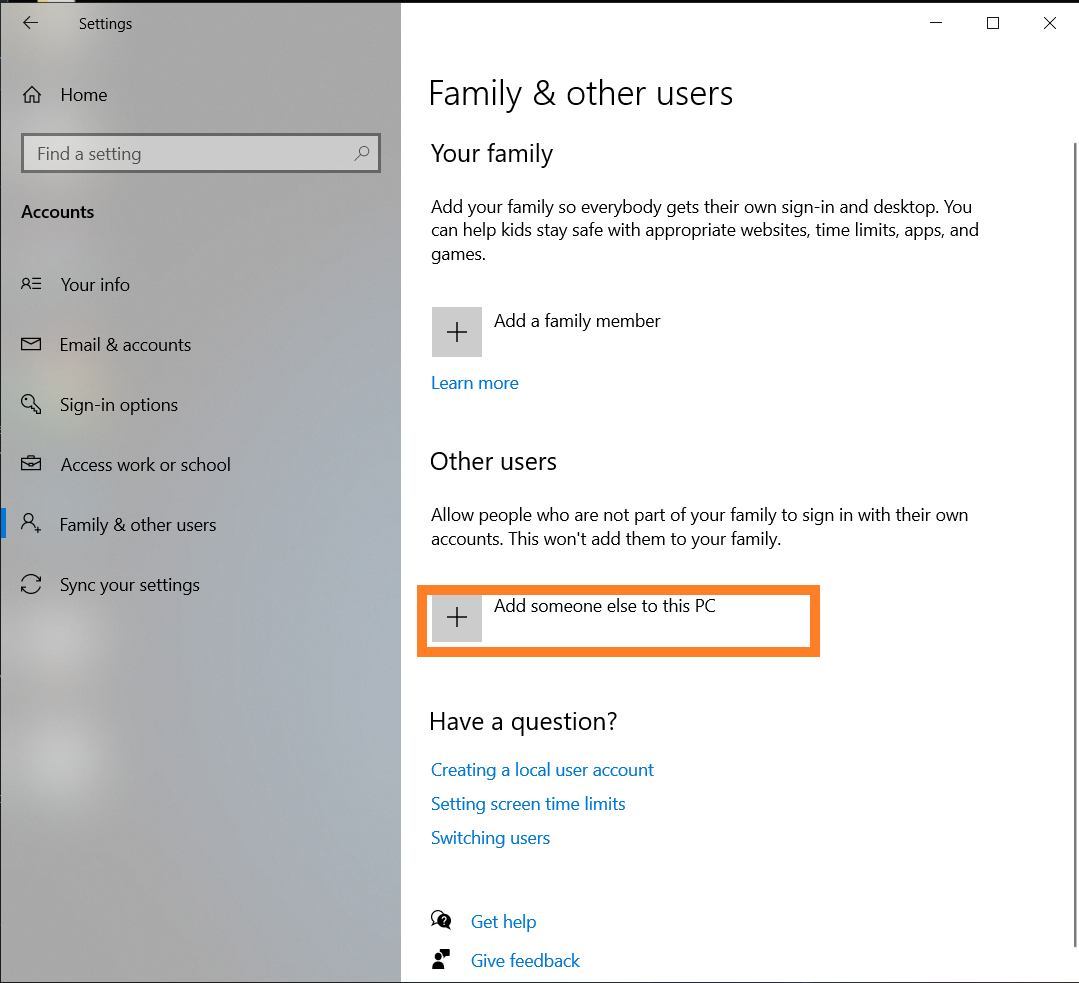
Step 2: In the right pane of the window click on the "Family & other users."
Step 3: Then, click on the "Add someone else to this PC."
👁 Fix Screen Flickering Issues in Windows PC
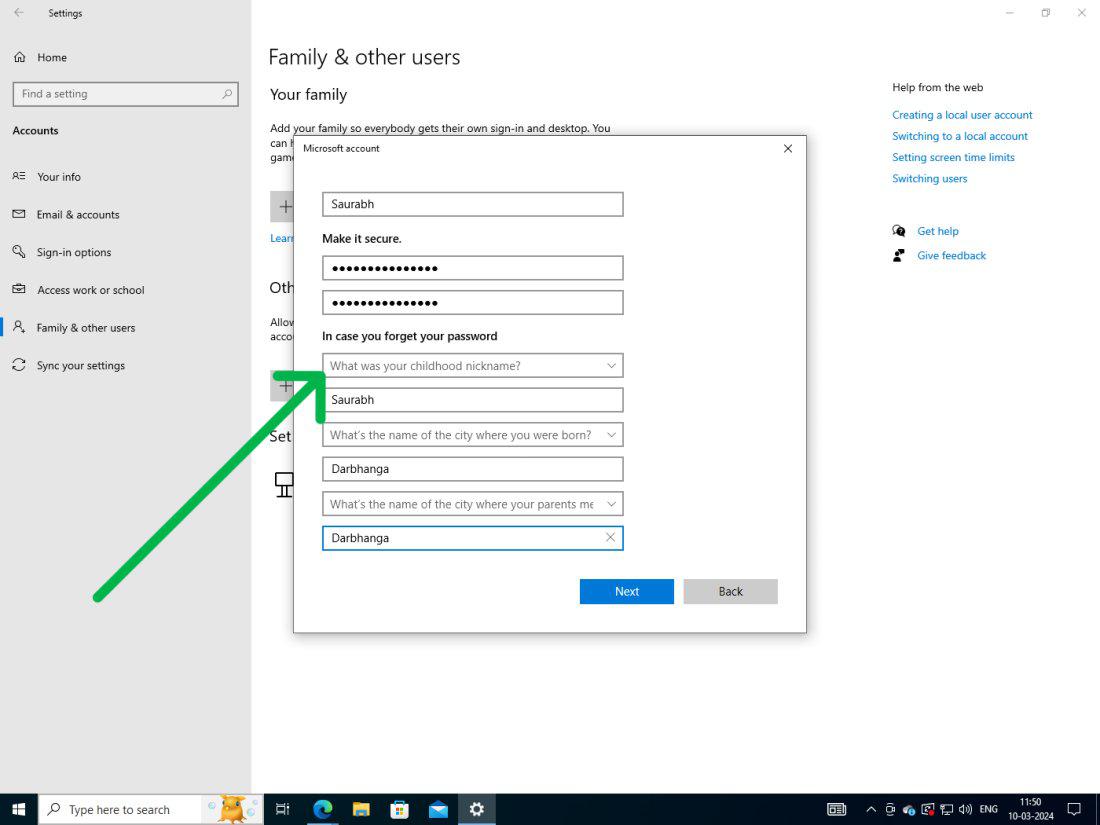
Step 4: If you do not have the sign-in information for the new user, click I don't have this person's sign-in information. Then click on Add a user without a Microsoft account.
Step 5: Enter all the info of the new user and click on Next.
👁 Fix Screen Flickering Issues in Windows PC
Fixing screen flickering issues on your Windows PC is essential for maintaining a smooth and uninterrupted user experience. By following the six methods outlined in this guide, you can identify the root cause of the problem and implement effective solutions. Regular maintenance, updating drivers, and checking display settings can help prevent future screen flickering issues, ensuring your PC runs smoothly.