 |
VOOZH | about |
|
VOOZH | about |
Navigating to your desktop in Windows 11 is something you do multiple times a day but minimizing every window manually is slow and unnecessary. Windows 11 provides several quick shortcuts, gestures, and built-in tools to instantly show the desktop.
In this article, we'll explore 6 Ways to Show the Desktop in Windows 11.
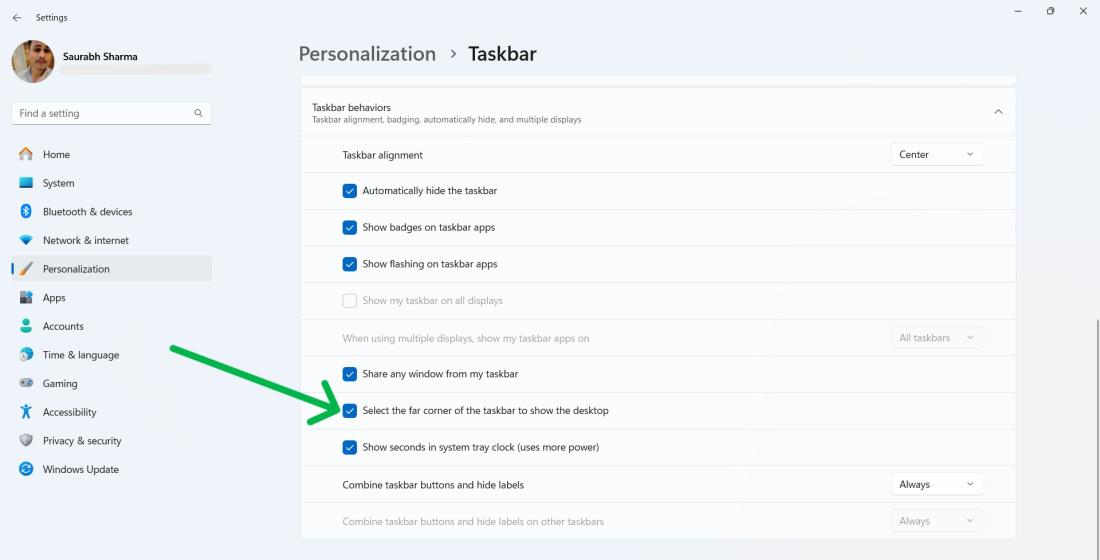
Windows 11 includes a tiny hidden button on the far-right corner of the taskbar.
Step 1:
Step 2:
Step 3:
👁 Show-the-Desktop-by-Clicking-the-Show-Desktop-Button
Step 4:
👁 Show-the-Desktop-by-Clicking-the-Show-Desktop-Button-1
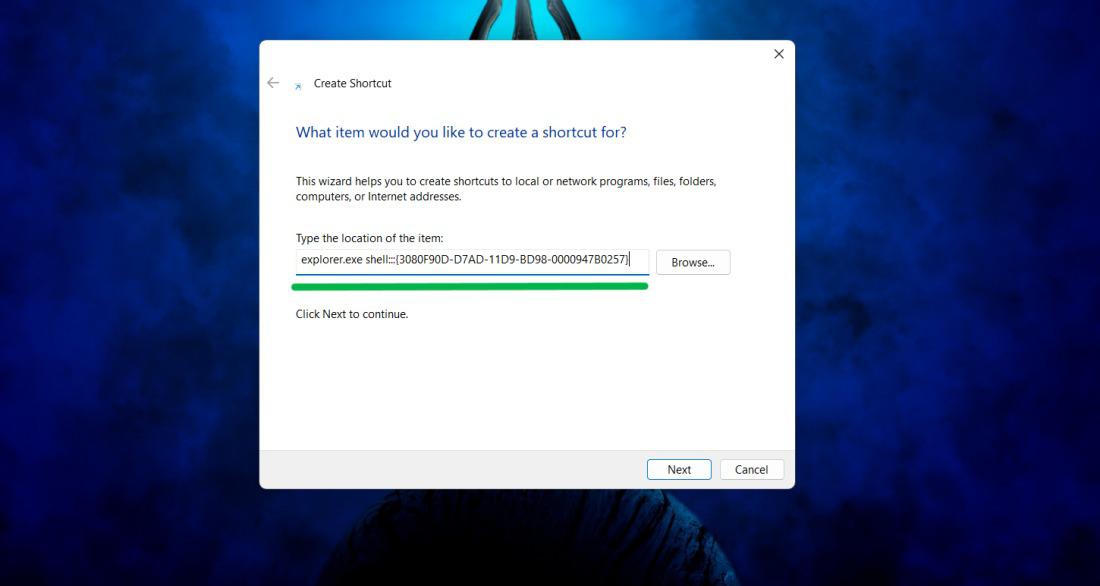
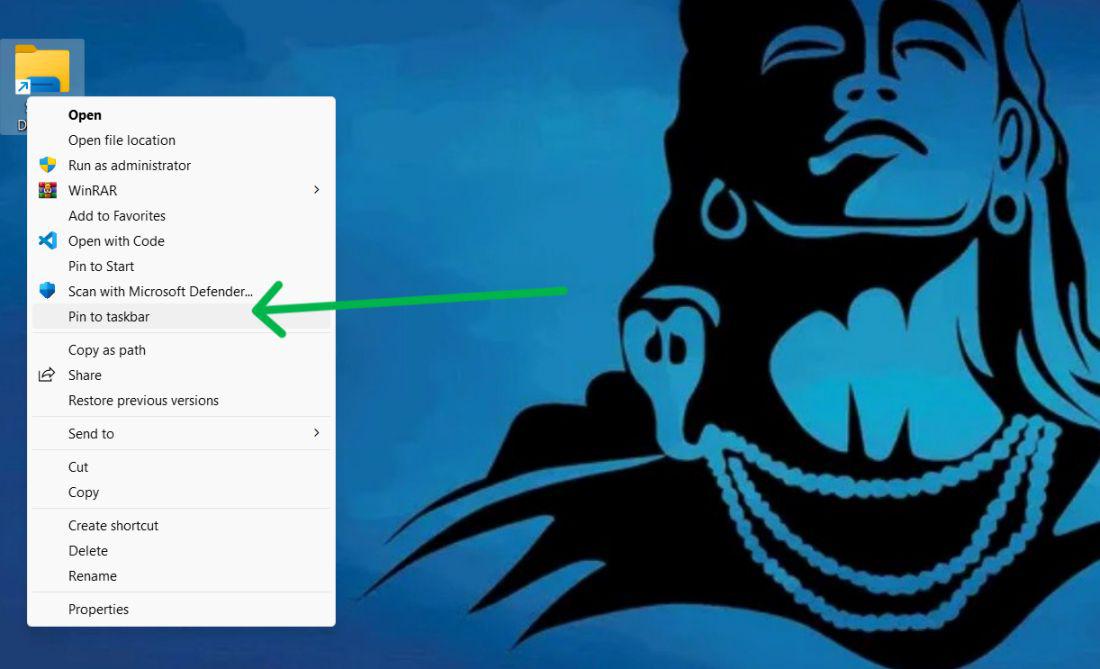
If you want a dedicated icon on your taskbar:
Step 1:
Step 2:
Step 3:
👁 Show-the-Desktop-With-a-Custom-Taskbar-Shortcut
Step 4:
Step 5:
👁 Show-the-Desktop-With-a-Custom-Taskbar-Shortcut-1
Now, click on "Show Desktop" icon it will take to Desktop
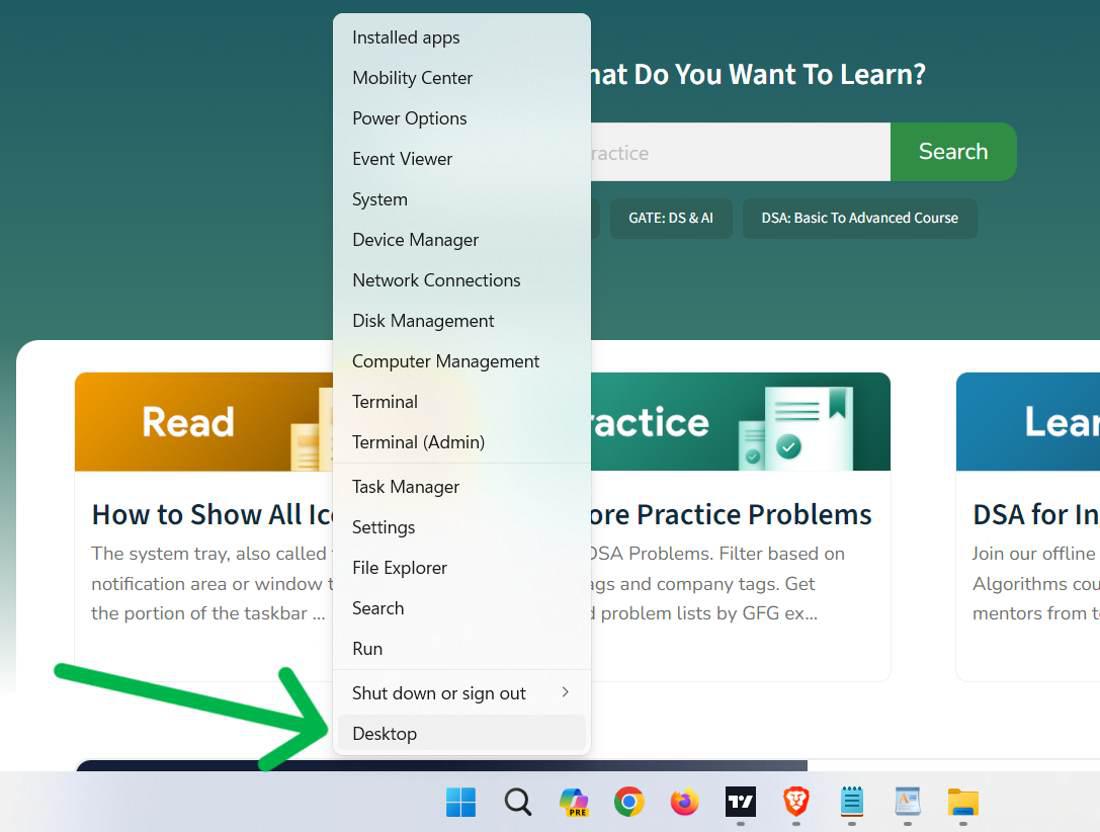
Windows 11’s Power User Menu also includes a direct path to the desktop.
Step 1:
Step 2:
👁 Show-the-Desktop-With-the-Power-User-Menu
Keyboard enthusiasts can make use of the shortcut "Win + D" on their keyboards to quickly minimize and restore all windows.
Note:- Simply press the "Win + D" keys together to toggle between the desktop and open windows.
👁 _Show-the-Desktop-With-Keyboard-Shortcuts-(Win-and-D)
Note:- Press the "Win + M" keys at the same time to make all windows go away and show only desktop.
👁 Use-Minimize-Windows-Keyboard-Shortcut-in-Windows-11-(Win-and-M)
Windows 11 helps you control your computer with a touchpad and swipes for an easier to use desktop.
Note:- Simple, drag down with three fingers on your touchpad to make all open windows disappear and show the desktop.



.jpg)
.jpg)