|
VOOZH | about |
|
VOOZH | about |
Changing your Twitter handle may help you rebrand yourself, improve how you present your identity or switch to an easier-to-remember username. Thankfully, Twitter has made the process quite simple and easy and doesn't involve anything that will hurt your followers or your tweets. I will be guiding you in detail, step by step, on how to change your Twitter handle over a variety of devices.
Table of Content
On Desktop visit Twitter.com and click on log in
Click Sign in enter your username Click Next and then provide your password. If the details are correct, you'll be redirected to the homepage.
Once you have successfully login you can see a navigation panel on the left side in that option you can choose the More option and click the option to see another option inside the More.
After clicking the More Option you can see a list of options below in that select Settings and Privacy.
After selecting the setting and privacy a pop a new pop will come up with options for Your account Tap " Your Account" in the Settings menu.
You will need to confirm your password. After that, you’ll see options like Username, phone number, and email. Select Username.
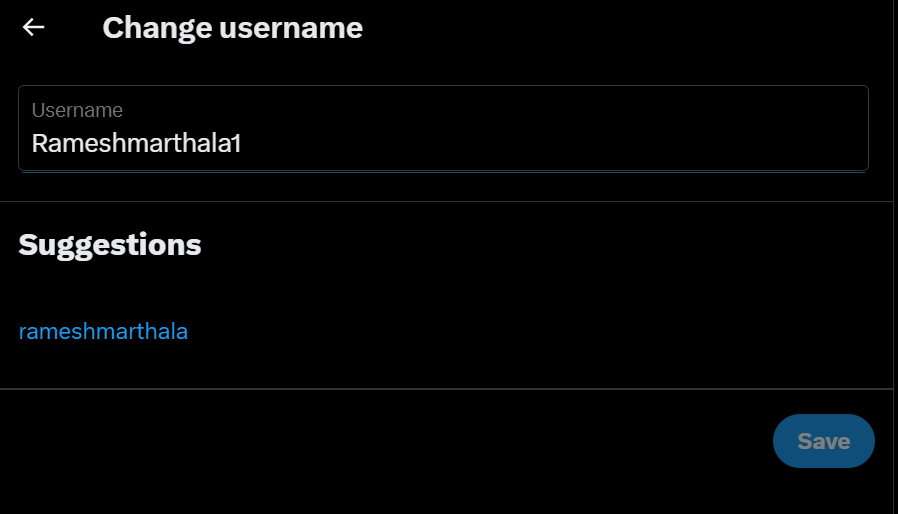
Enter your preferred new Twitter handle in the Username field. Twitter will tell you if it’s already taken, so you may need to try a few options.
Once you find an available username click save to confirm. After saving, check your profile to ensure your handle has been updated.
Changing your Twitter handle is a very easy way to renew the feel of your online presence, without losing your followers or content. Following the steps above you will be in and switched to a new username in no time continuing to engage smoothly with your audience Make sure to choose a handle that truly represents you or your brand and inform your followers of this change to avoid confusion. With this guide briefing you well, you can now confidently update your Twitter handle with efficiency.