|
VOOZH | about |
|
VOOZH | about |
Google Drive is a cloud storage offered by Google which allows users to store their data in the cloud and also users can access the data whenever they want. Adding Google Drive to your taskbar is a great way to execute your task easily, to add a Google Drive to your taskbar you just have to do the same thing you do with the other application to add in your taskbar. In this article, we will learn how we can add Google Drive to the Windows taskbar in some easy and simple steps.
Table of Content
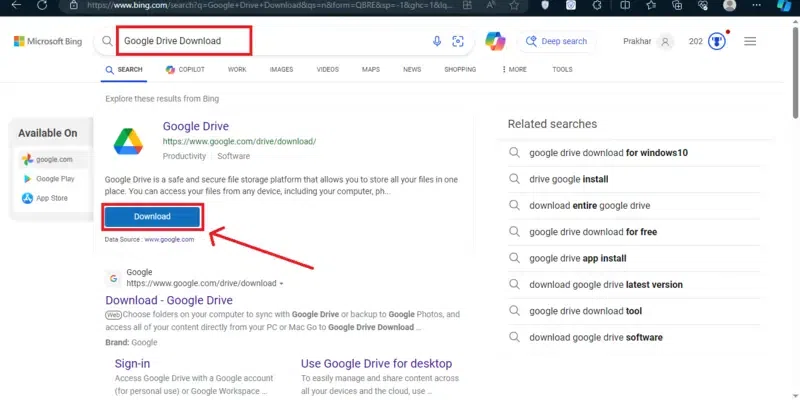
To install Google Drive on your desktop, search for Google Drive in any of your web browsers. When you search Google Drive on your desktop a download button will appear on top of the search result, just click on the "Download" button to install the Google Drive.
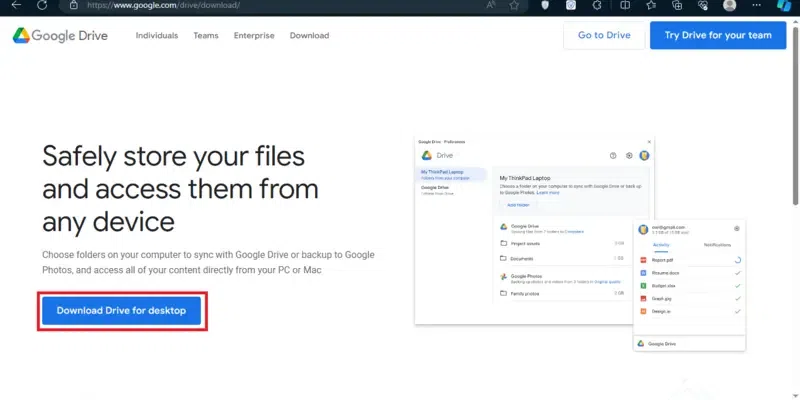
After clicking on the "Download" button you will move to the Google Drive website then click on the "Download Drive for Desktop" button that will appear on the screen in the Google Drive website.
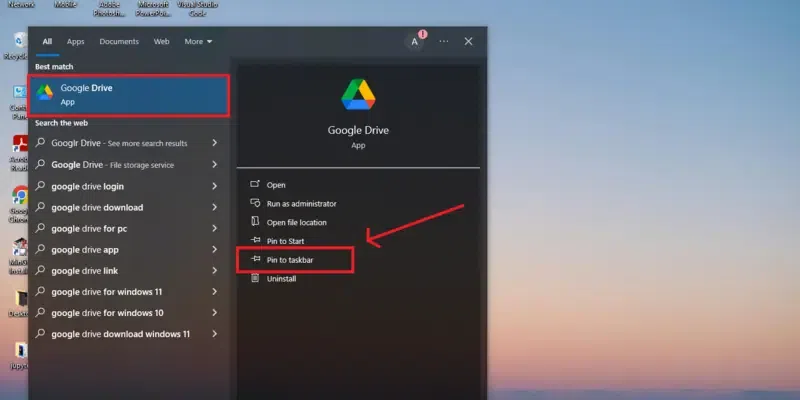
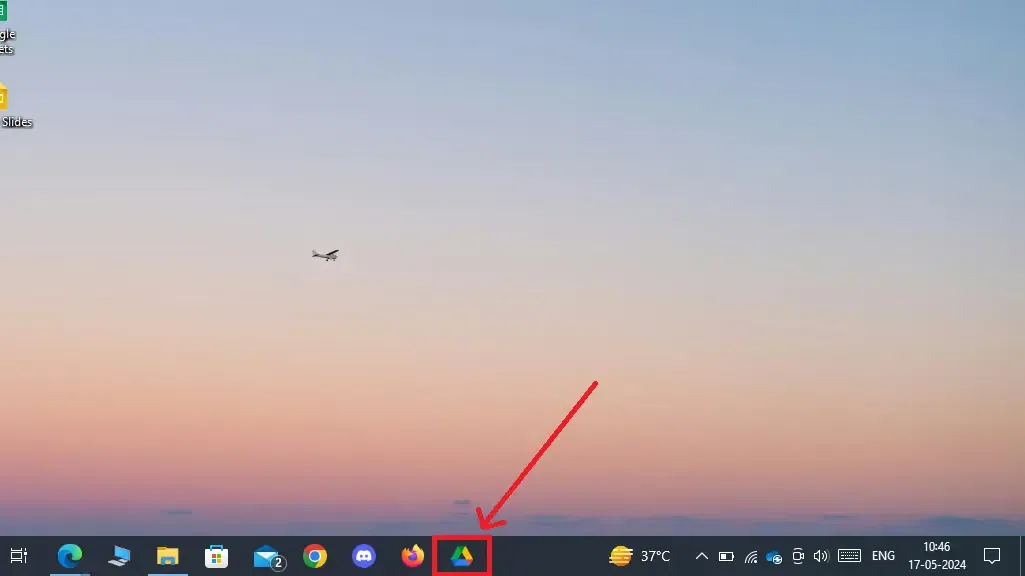
When you are done with installing the Google Drive on your desktop then search "Google Drive" in your Window's search bar and perform a right-click or search for the "Pin to Taskbar" button to click on it.
Once you will click on the "Pin to Taskbar" button then automatically the Google Drive will be pinned to the taskbar.
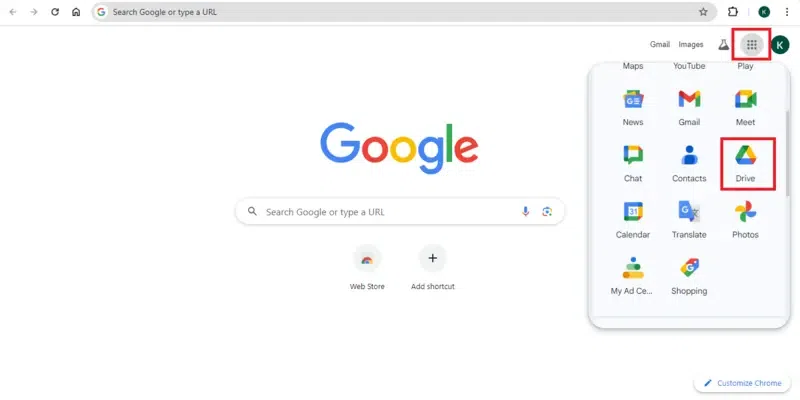
To use Chrome to pin Google Drive to your taskbar you have to open Google Drive on you Chrome browser, then click on the Google App located on the top-right side of the interface to open the Google Drive.
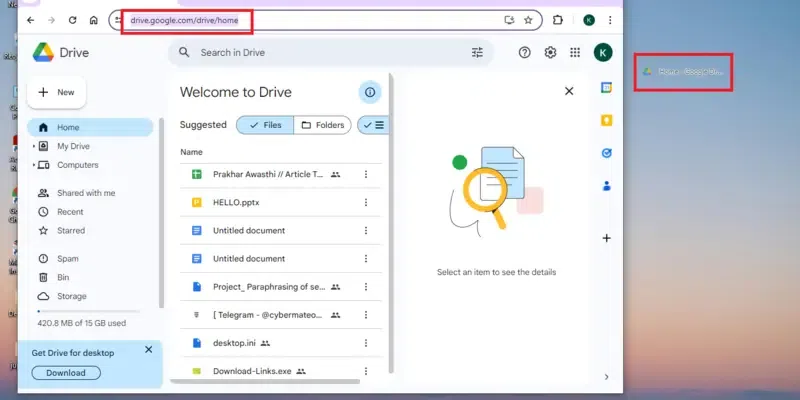
After opening Google Drive in your Chrome by the Google Apps select the web address and perform drag and drop to locate the address on the desktop.
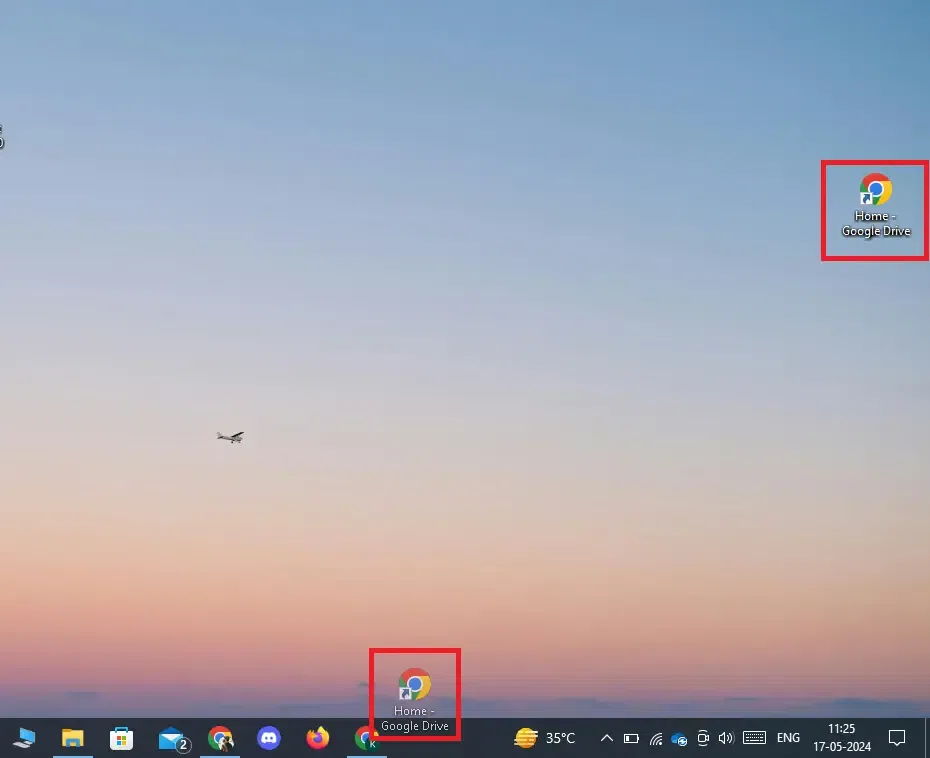
Now when you have created a shortcut on your desktop now drag the shortcut to your taskbar. It will add the Google Drive's web address to the Chrome's list.
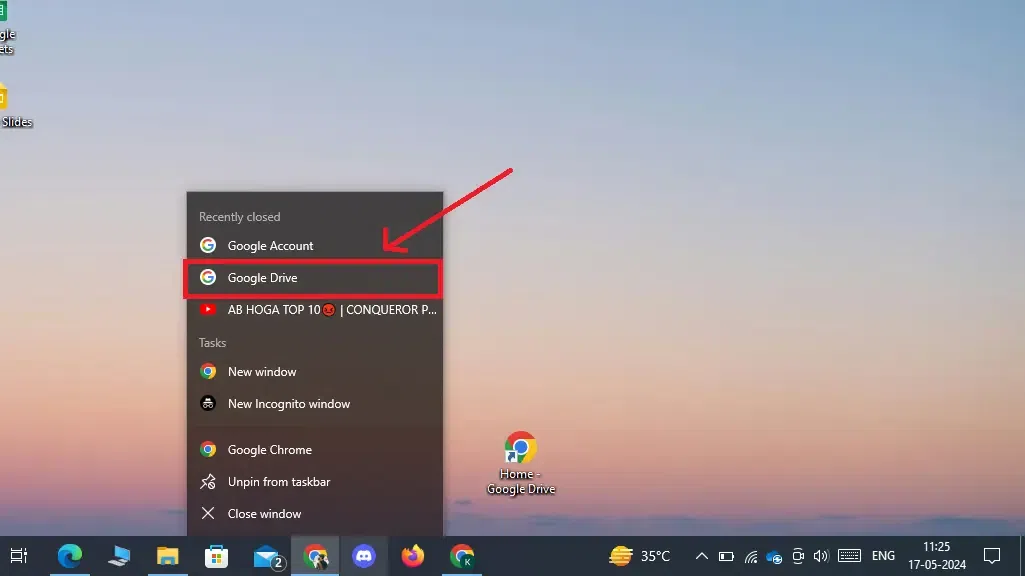
To review the changes, perform right-click on Chrome and you will see the Google Drive shortcut there.
Adding Google Drive to your Windows taskbar is a good way to save time and you can use it easily whenever you want. It basically creates a shortcut to Google Drive whether you have created it using the Google Drive App or by the web address of Google Drive and makes your work easy. In the above article, we have discussed two ways in how we can add Google Drive to your Windows taskbar, you can go through any of the methods to complete your task.
How to sync files with Google Drive?
To sync files with the Google Drive you just have to place the files into the Google Drive folder and then they will automatically sync with the Google Drive.
Can I customize the Google Drive icon on the taskbar?
No, Windows doesn't allows you to customize the Google Drive's icon according to you but still you can use the third-party applications for such practices.