|
VOOZH | about |
|
VOOZH | about |
There may be times you encounter a greeting that says, "Congratulations! You are a lucky winner to receive a gift of cash". Initially, you may feel thrilled and follow the instructions to claim the prize. However, you may later realize that it was just clickbait, and you feel disappointed. As a result, when such messages appear again, you tend to ignore them and get annoyed. However, you can choose to allow or block pop-ups in Safari to prevent such messages from appearing.
Table of Content
Pop-ups are advertisements, announcements, offers, or notifications that open in a new tab, window, or in the current browser window. They can be encountered while browsing websites. If you encounter pop-ups while visiting a website and wish to continue subscribing, we can guide you through the process. Below are simple instructions on how to allow or prevent pop-ups in Safari.
When you accidentally signed up for third-party advertisements that deceive you from subscribing. Moreover, it is a path for scammers to collect your personal and target your financial information. It is alarming and needs to be taken care of immediately.
Step 1: Open the Safari Browser on your Mac
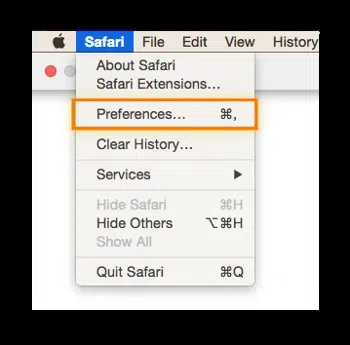
Step 2: Select the app and go to > Preferences
👁 ll
.
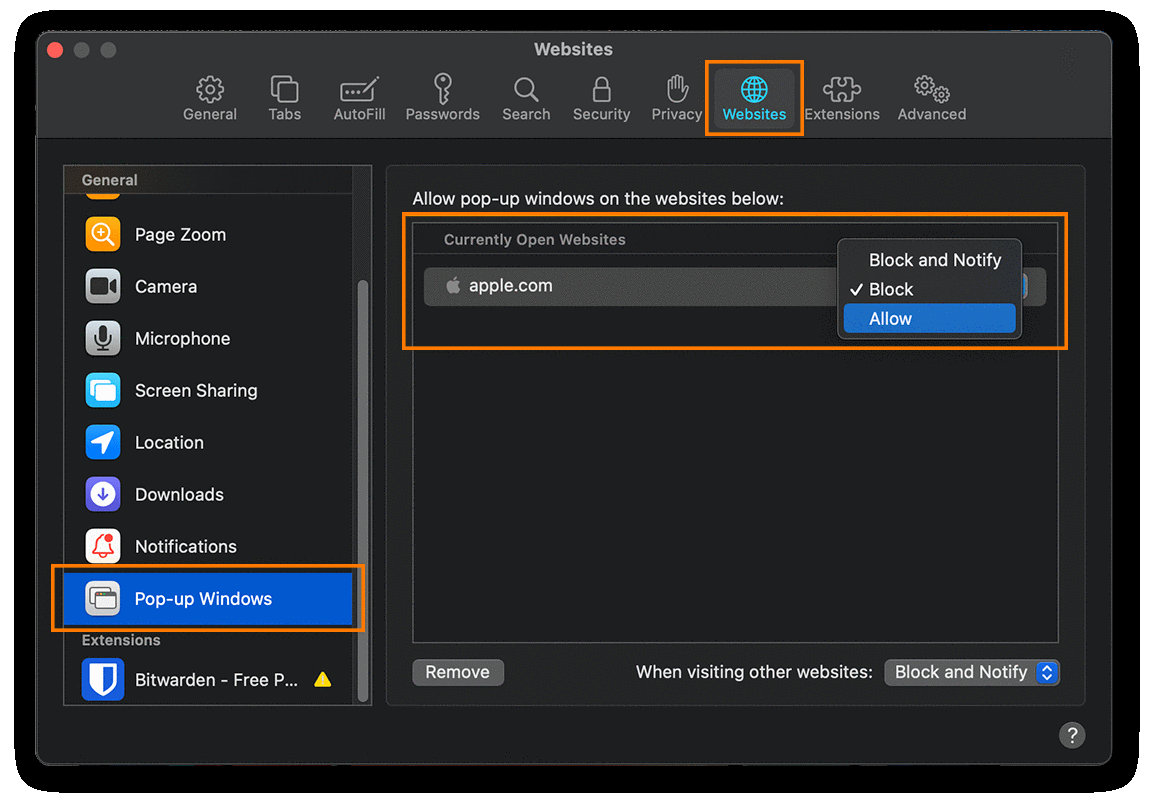
Step 3: Step 3: Select the Website option go to Block Pop-up Windows and choose the option to block or allow the popups for any specific websites.👁 428553491_958848549088000_4435191306582351299_n
Follow all the above steps to simply allow or block the popups and now that we have seen the steps for the MAC we will see the steps to allow or block the popups in iPhone devices.
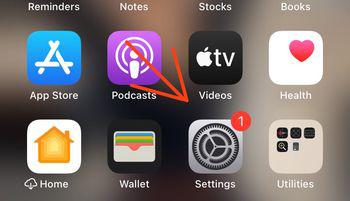
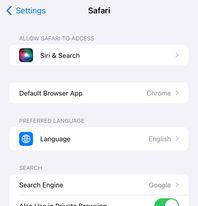
Step 1: Access Settings: Simply tap the Settings on the home screen of your iOS device.
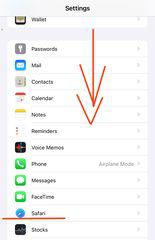
Step 2: Look for Safari by scrolling down: Once you find the Safari application, tap on it.
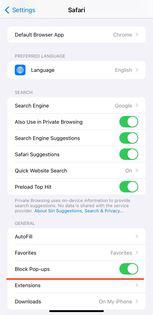
Step 3: Get Allow Safari Access: Once you get the access by going down you see "Block Pop-ups".
Toggle the "Block Pop-ups" switch to enable or disable it based on personal taste.
Step 3: Select the Website and Block Pop-up Windows.
Disclaimer: Unlike, Mac users can accept individual websites. On the contrary, the iPhone doesn't prevent specific websites, this blocks all pop-ups.
Pop-ups on websites can be disruptive and even dangerous. From annoying advertisements to potential scams, pop-ups can detract from your browsing experience and potentially compromise your online security. Luckily, Safari gives you control. Whether you're using Safari on a Mac or an iPhone, you can easily adjust your settings to block pop-ups. This will provide a less distracting web experience and improve your security.