|
VOOZH | about |
|
VOOZH | about |
Allow PopUps in Safari: Popups are small flashing messages that come in front of any user while browsing the internet & interestingly, you can't look away from them. And nobody wants to get distracted by many popups bombarding in front while working on crucial work. So, many choose to Disable the Popup messages in browsers on Mac & Windows.
👁 How-to-allow-popups-in-Safari
However, disabling Browser Popup Messages often backfired on the user itself. There can be some important popup messages like a Login Message or Sign Up Message, but all get blocked in the browser. And the Safari Popup Messages are not different from those. In such cases, you must go for the Allow PopupinSafari operation on Mac.
In this article, we will discuss the effective steps required for How to Allow & Block Pop-Ups in Safari on both Mac & iPhone.
To enable pop-ups on safari, we have to follow the below steps. We will start by discussing the steps required on the Mac devices.
If you're looking to allow pop-ups in Safari on your Mac, you'll need to enable them in your browser settings. This process involves enabling pop ups in Safari to ensure that certain websites can display pop-up windows when necessary. Here's how to do it:
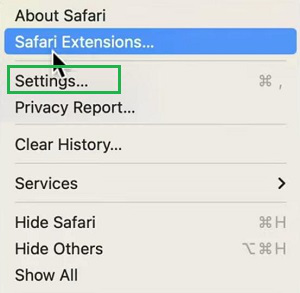
Step 1: Start the Safari & click on the Settings option.
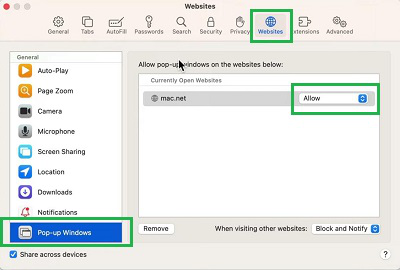
Step 2: Go to the Websites Tab. Scroll down to find out the Pop-Up Windows. And choose the Allow from the Dropdown list.
Hence, we have successfully enable the Popup messages on Safari on the Mac devices.
If you're using an iPhone or iPad and need to enable pop-ups in Safari, you can do so easily through the settings. Simply open the Settings app, scroll down and select Safari, then toggle the switch next to "Block Pop-ups" to off. This will allow pop-ups in Safari on your iOS device, giving you access to any necessary pop-up content while browsing. Here are the steps for you to follow:
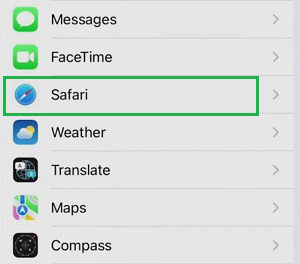
Step 1: Open Settings & scroll down to find the option Safari.
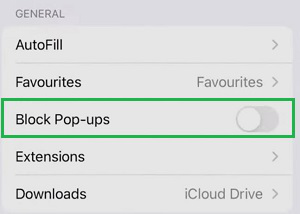
Step 2:Disable the button Block Pop-ups to enable pop-ups on Safari in the settings.
Hence, we have successfully enable popups in Safari in iPhone or iPad devices.
So, these are the simple steps you can perform to allow popups in Safari. Using the important popup, you can perform the further next tasks. However, if you find there are a lot of distracting popups arriving, allow popup in Safari again. As per your need, you can again enable the settings.