|
VOOZH | about |
|
VOOZH | about |
Looking for ways to automate repetitive tasks on Mac? Automating your workflow on macOS can save time and boost productivity by handling routine tasks like file management, app launching, and system maintenance. With tools like AppleScript, the Automator app on Mac, and Mac shortcuts, there are many ways to simplify your daily operations. This guide will walk you through some of the best methods to automate tasks on Mac, whether you're a beginner or an advanced user.
Table of Content
For executing automation on Mac, the following methods can be used. We will start with the inbuilt options present in the Automator.
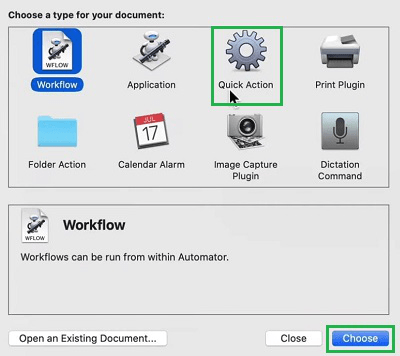
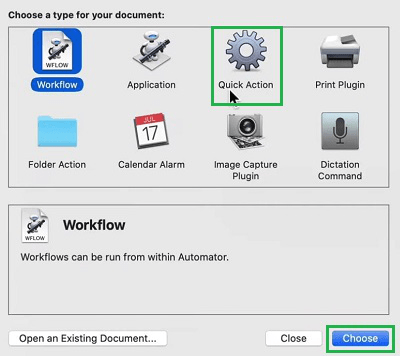
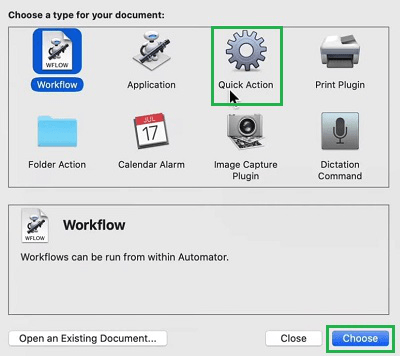
Step 1: Open the Automator App & click on the Quick Action & select Choose.
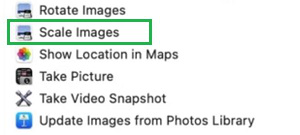
Step 2: From the Left Side Panel, click on the inbuilt option Image & click the Scale Images option from the beside panel.
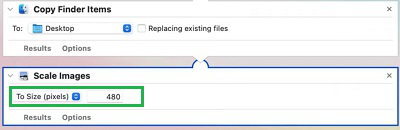
Step 3: You will see some options present there. Among them, you can make changes in the Scale Image Pixel option. It will help to resize the image to the necessary scale. Save it to the device by providing some name.
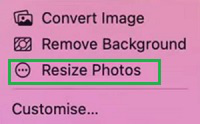
Step 4: Now, if you double-click on any image, you will get the Saved Automation Name (in this case Resize Photos) under Quick Action. Click on that, to perform automation on one or more items.
Hence, we have performed Automation using the inbuilt options present in the Automator.
Step 1: Open the Automator Application & click on the Quick Actions & select Choose.
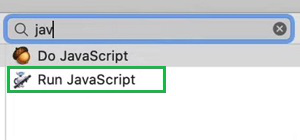
Step 2: On the left-hand side search bar, Search for the term 'Java'. You will get the option to Run JavaScript. Open it.
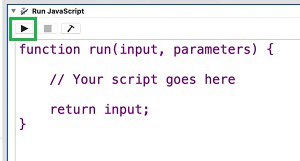
Step 3: Now, write down a JavaScript Code to execute some operation. Click on the Play Button to save it to the device.
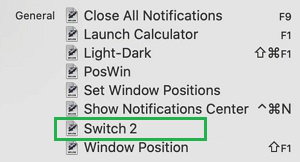
Step 4: Now, you will find the Saved Automation Name in the certain application for which the script was written. Click on that to perform the automation.
Hence, we have performed Automation using the script options in the Automator.
Step 1: Open the Automator Application & click on the Quick Action option & select Choose.
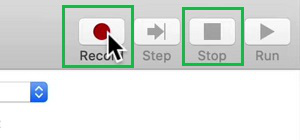
Step 2: At the right side corner, there is a Record Button present. Press it, it will record all of your operations. After operating, click on the Stop Button.
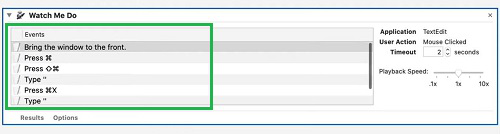
Step 3: Now, all of your actions are recorded in the Automator. Save it to the device for using it in the future.
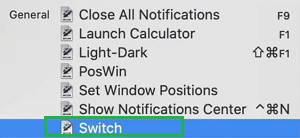
Step 4: You will get the Saved Automation Name in that very application for which the record has been done. Click on that to perform the automation.
Hence, we have performed Automation using recorded custom options in the Automator.
Mastering the art of automating tasks on Mac can transform the way you work. By leveraging tools like AppleScript and Automator, and setting up custom shortcuts for automating tasks on Mac, you can streamline your workflow and focus on more critical tasks. Whether you're automating file management or setting up a Mac task scheduler, these methods ensure that your repetitive tasks are handled efficiently, saving you time and effort.