|
VOOZH | about |
|
VOOZH | about |
Casting from a Chrome browser to a TV or any other compatible device is one of the most convenient methods to share content from your PC, laptop, or mobile device. Casting has become much easier now with Chromecast and Google Chrome seamless integration.
Whether you're looking to cast a Chrome tab, stream videos, or share a presentation, knowing how to cast from Chrome allows you to enjoy full-screen content on a seamless screen. In this guide, we will walk you through the process of casting from a Chrome browser, including the troubleshooting tips for Chrome cast Chromecast.
Follow these steps to cast from the Chrome browser on your PC or laptop to your TV using Chromecast.
Firstly, ensure that your PC and Chromecast device is connected to a similar Wi-Fi network, if you have connected to a different network then you are not able to use Chromecast and also won't be able to display your content on the TV screen.
Open Google Chrome on your PC if you do not have Google Chrome, download the latest version of Google Chrome to proceed with the chrome cast chromecast.
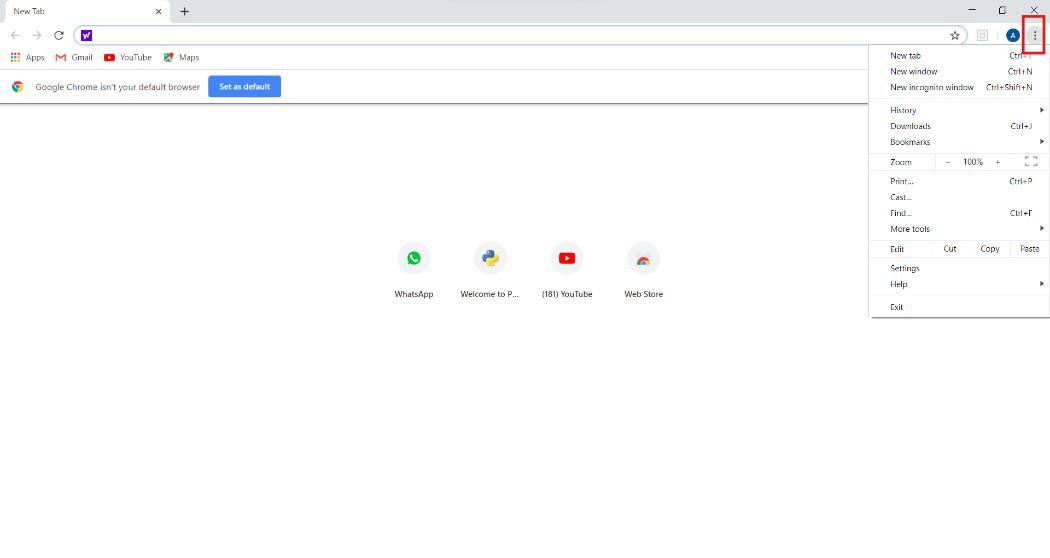
Click on the three vertical dot icon next to the address bar, it will open your browser menu for google cast browser.
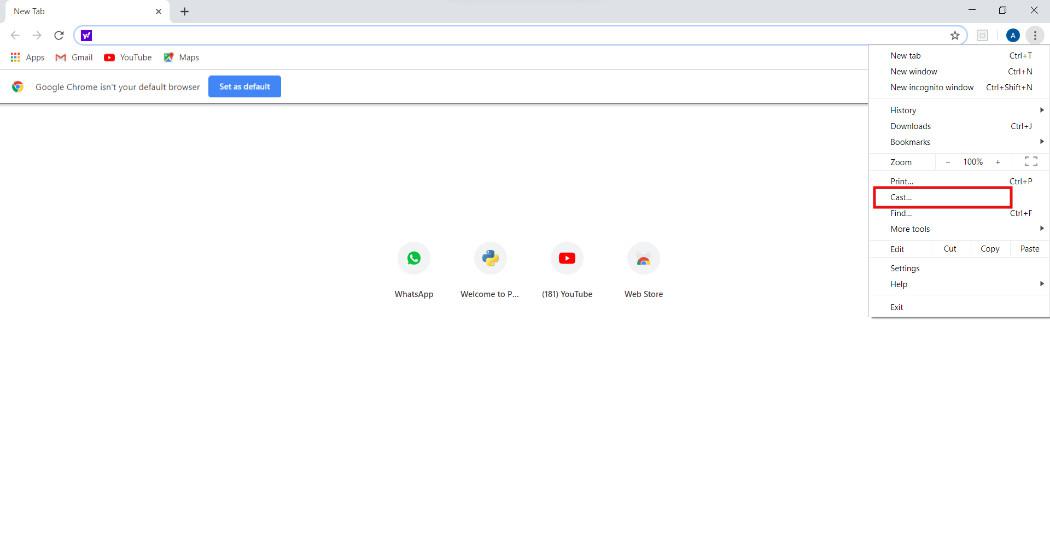
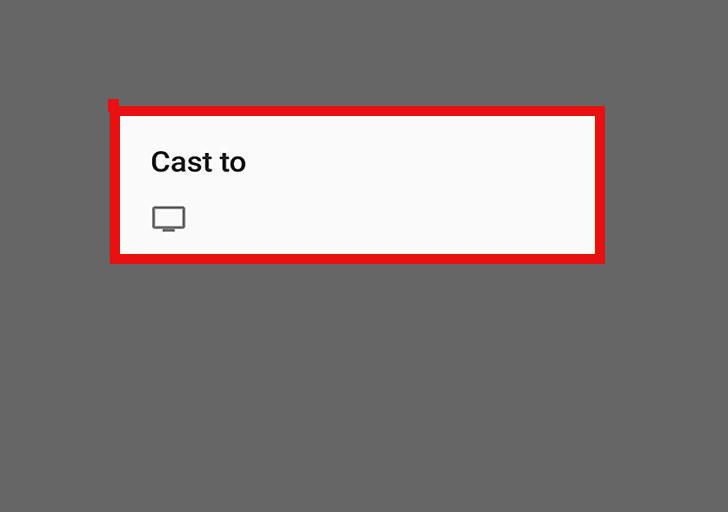
There is a list of options in which cast is one of the options among them. Click on the cast icon and scan your Wi-Fi network for available Chromecast devices.
Select your Chromecast device in the "Cast" window. You'll be given three options:
Once you select to cast desktop. Your PC content will now replace what's on your TV. You can now stream videos, webpages, etc. on your TV. Now you can manage your TV with your PC TV it will work as a mirror on your PC.
While casting, you can control the content through Google Chrome. You can pause or play videos, switch tabs, or even stop the casting process.
Alternatively, if you're looking to casrt from Chrome on your Android device, you may follow the steps below to perform chrome cast chromecast:
Ensure that both your PC or laptop and Chromecast device are connected to the same Wi-Fi network. If they’re on different networks, casting won’t work.
If not installed, you can get it from the Google Play Store at free of cost.
Tap the Three Dots in the top-right corner of the Chrome app and select Cast.
Choose whether you want to cast your tab or screen and start casting to your TV and start the google cast browser.
Note: This method works seamlessly for casting from a Chrome browser on Android devices.
If you don’t have Chromecast, there are other ways to cast from Chrome browser to your TV:
If you're using a Mac or iPhone, you can use AirPlay to stream content from Chrome to your Apple TV. Click AirPlay in the Cast menu.
If wireless options aren’t available, you can use an HDMI cable to physically connect your PC or laptop to your TV. Simply connect the cable from your PC to the TV and select the HDMI input on your TV.
While casting from Chrome browser is usually smooth, you may encounter a few issues. Here’s how to resolve some common problems:
Casting from a Chrome browser to your TV or other compatible devices is a convenient way to enjoy your favorite content on a bigger screen. Whether you’re using Chromecast, AirPlay, or an HDMI cable, the process is simple and accessible.
With this guide, you now know how to cast from Chrome browser on both PC and Android, ensuring you can easily share content with friends and family.