|
VOOZH | about |
|
VOOZH | about |
Customizing the Command Prompt colors helps improve visibility and personalize the interface. You can easily modify the text and background colors to create a more comfortable workspace.
Use the color command with two hexadecimal values to set the background and text colors for the current session.
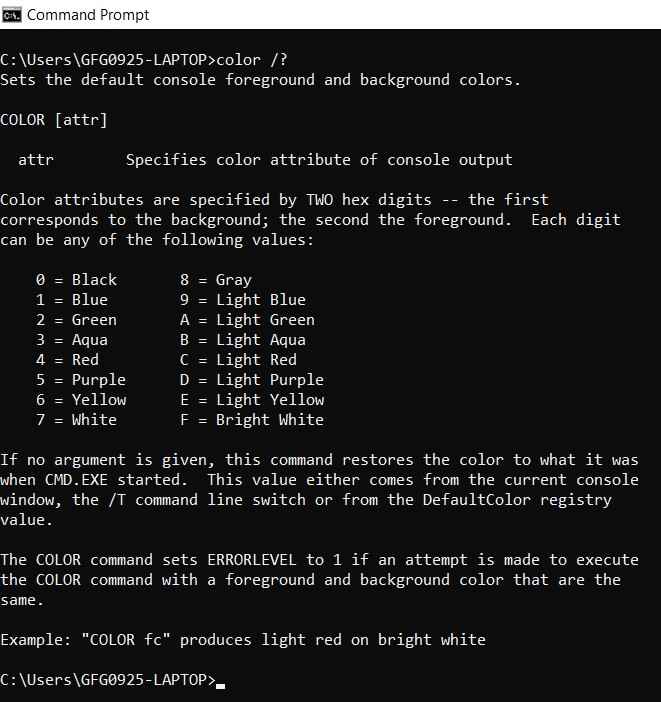
color XYTo get all the related information on using color command in Command Prompt you can use the following command
color /?To set a white background and light purple text, replace x with F and y with D in the color command according to the color table.
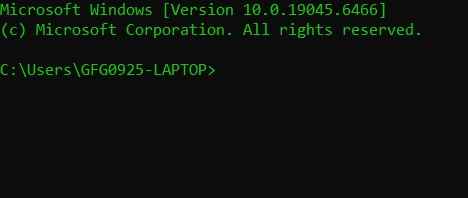
color FD‘0’ sets the black background, while ‘A’ sets the light green text color in the Command Prompt.
color 0ATo get all the related information on using color command in Command Prompt you can use the following command:
color /?You can permanently change the Command Prompt text and background colors using the Properties menu or by configuring the Windows Registry.
These settings will be saved and applied every time you open CMD.
You can configure CMD to run a color command automatically at startup.
Run the following command in Command Prompt:
reg add "HKCU\Software\Microsoft\Command Processor" /v AutoRun /t REG_SZ /d "color 0A" /fClose the current Command Prompt and open a new one to see the applied changes.