 |
VOOZH | about |
|
VOOZH | about |
There are only a few people who don't use passwords on their Computer. User password is the most basic security check that helps you restrict unauthorized access to your computer. It's a good practice to change your passwords in a short span that helps your password to be healthy. By the end of this article, you will be able to successfully change your computer password.
Step 1: Click on the start icon on your Windows computer and select the settings icon, else, check for the settings title on the start menu, otherwise search 'settings' and click on "settings".
👁 Changing Computer Password using Windows Settings
Step 2: On the settings menu, find out Accounts option and click on it.
Step 3: In the accounts section, click on "sign-in-options" option displayed on the left sidebar. Then select Password from the given options.
Step 4: Click on change button in the password section.
Step 5: Enter your current password and click on next.
Step 6: Enter your new password and add hints for the new password. (You can leave these fields empty if you don't want any password on your computer).
Click on Next, and you have successfully changed your computer password.
Step 1: Search for Control Panel in your windows search box and click on open.
Step 2: Click on user accounts and the click on change account type.
Step 3: Double click on the user account shown there.
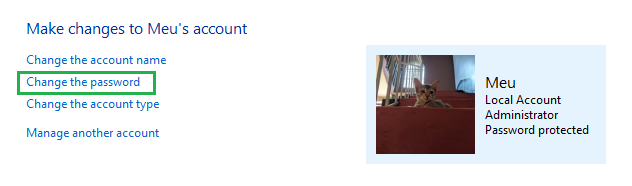
Step 4: Click on change password option shown there to change your computer password.
Step 5: Enter your old password and new password and a hint for new password in the given boxes.
Now you have successfully changed your Computer password using Control Panel.

.jpg)
.png)
.jpg)
.jpg)
.jpg)
.jpg)
.jpg)
.png)
.png)
.png)