|
VOOZH | about |
|
VOOZH | about |
Are you struggling with your mouse sensitivity on Windows 11? Don't worry, you're not alone. Many users find adjusting mouse sensitivity a bit tricky. But fear not, as we're here to guide you through the process step by step. Changing mouse sensitivity can greatly enhance your user experience, whether you're gaming, browsing, or working on your PC. If the cursor's too quick or slow, it can affect how you use your computer. In this article, we'll provide you with simple and easy-to-follow instructions on how to adjust mouse sensitivity, scroll speed, and pointer size on Windows 11. Windows 11 offers straightforward ways to change this.
👁 How-to-Change-Mouse-Sensitivity-on-Windows-11
You can change it via the Settings app or Control Panel.
How to Change Mouse Sensitivity
Changing your mouse speed through the settings menu in Windows 11 is a straightforward process. This method allows you to customize your mouse sensitivity according to your preferences. By following these simple steps, you can quickly adjust your mouse speed and improve your overall user experience on Windows 11.
Step 1: Use Win + I shortcut key to open settings or click the start button with gear symbol for opening settings.
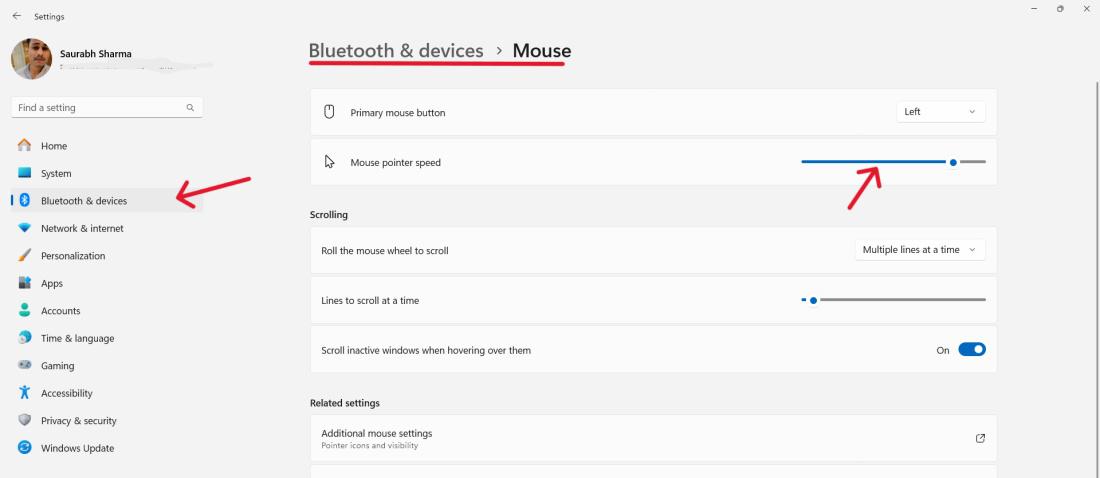
Step 2: Select “Bluetooth & devices” and click on “mouse” on your left sidebar.
Step 3: Go to “Mouse pointer speed” section and move slider to change the sensitivity level. By shifting it to the left the cursor slows down, and to the right makes it faster.
👁 How-to-Change-Mouse-Sensitivity-on-Windows-11-via-Settings
If you prefer a more traditional approach to changing the sensitivity of your mouse, you can use the Control Panel in Windows 11. This method offers a straightforward way to adjust your mouse settings to suit your preferences. Here's how you can do it:
Step 1: Go to start, find control panel. The shortcut is Win+R and type “control” enter.
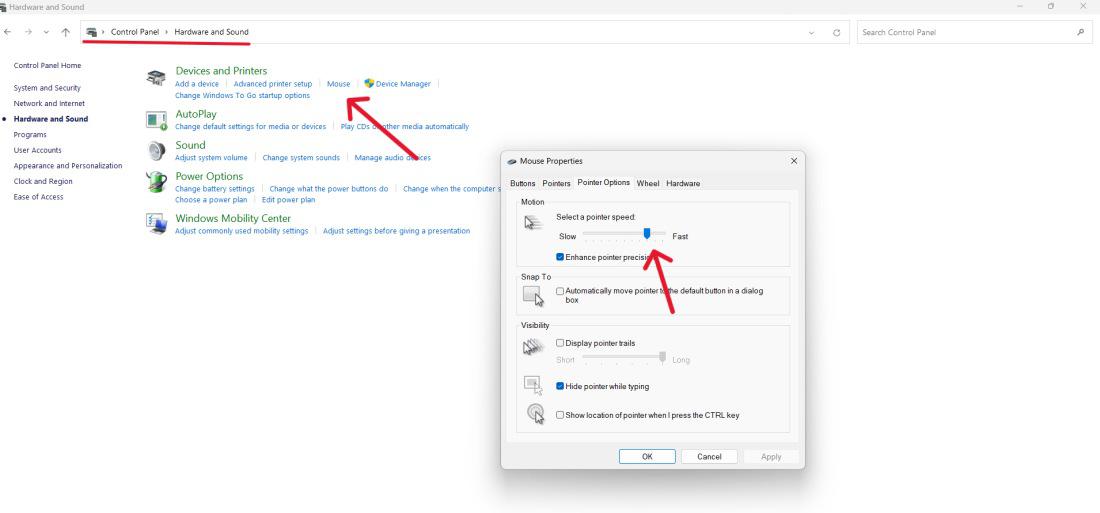
Step 2: Under “Devices and Printers,” select “Hardware and Sound” followed by “Mouse.”
Step 3: Navigate to "Mouse Properties" > "Pointer Options".
Step 4: Adjust the "Motion" slider to change the mouse sensitivity.
👁 How-to-Change-Mouse-Sensitivity-via-Control-Panel
Step 5: Click "Apply" and then "OK" to confirm your changes.
If you're looking to change the sensitivity of your mouse with more precision, you can change settings via the Registry. This method offers advanced customization options beyond what's available in the standard settings. However, it's important to proceed with caution as altering registry settings can affect your system if done incorrectly. Follow these steps carefully to adjust the mouse sensitivity through the Registry:
Step 1: Open the Run dialog by Pressing Win + R.
Step 2: Now, Type regedit and press Enter, Registry Editor will be opened.
Step 3: If prompted by User Account Control (UAC), click "Yes" to grant administrative privileges.
Step 4: Navigate to
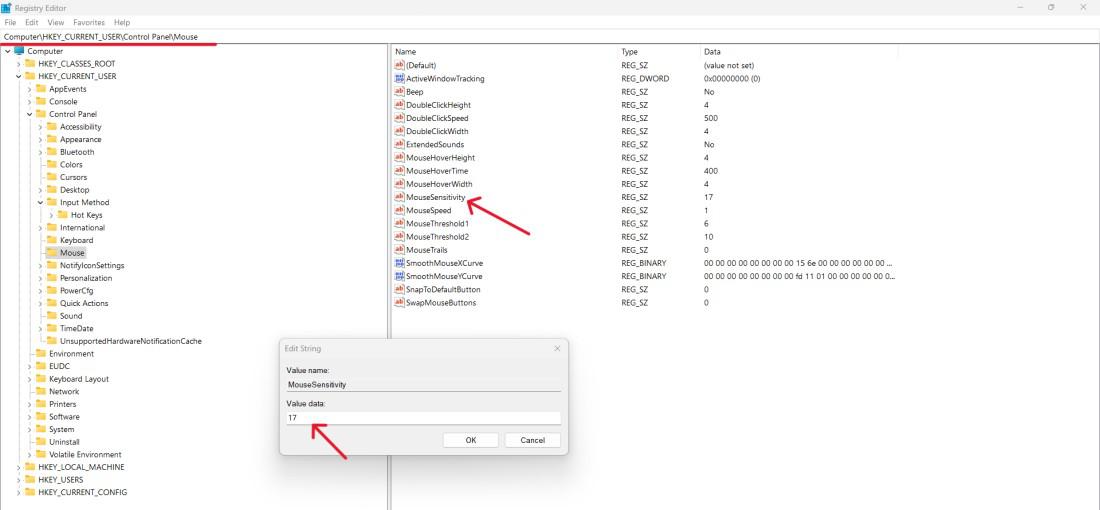
HKEY_CURRENT_USER\Control Panel\Mouse.
Step 5: Double-click the MouseSensitivity then on input change the value from 1 to 20.
👁 How-To-Change-Mouse-Speed-Using-Registry-on-Windows-11
Step 6: Click on OK button
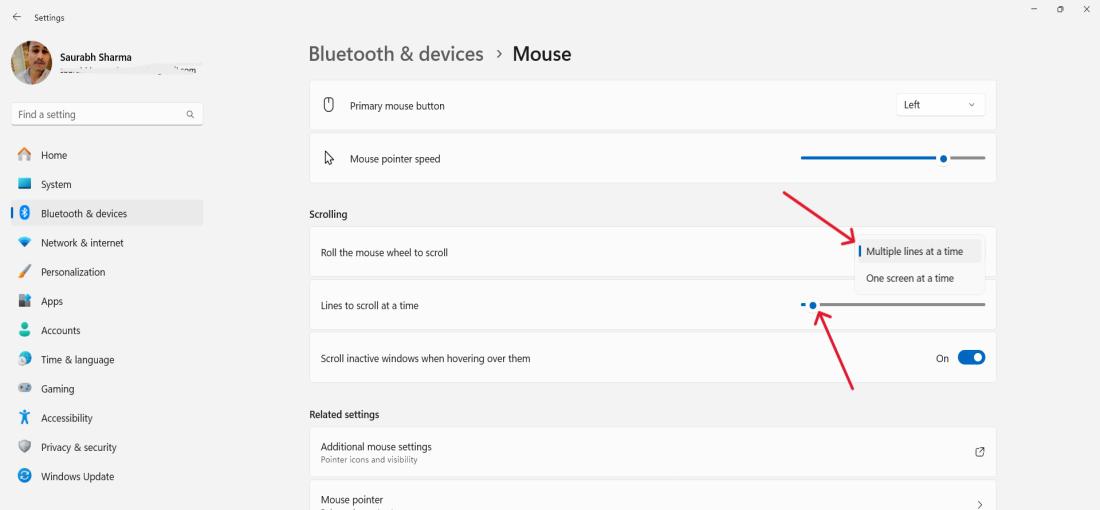
If you're finding your mouse scrolling too fast or too slow on Windows 11, adjusting the scroll speed can make a big difference. Here's a quick guide on how to change the scroll speed to match your preferences:
Step 1: Open the Settings app and navigate to "Bluetooth & Devices" > "Mouse."
Step 2: Under “Scrolling” select the number of lines which is under “Roll the mouse wheel to scroll”.
👁 How-to-Change-the-Scroll-Speed-in-Windows-11
Step 3: Click "Apply" to save your scroll speed changes
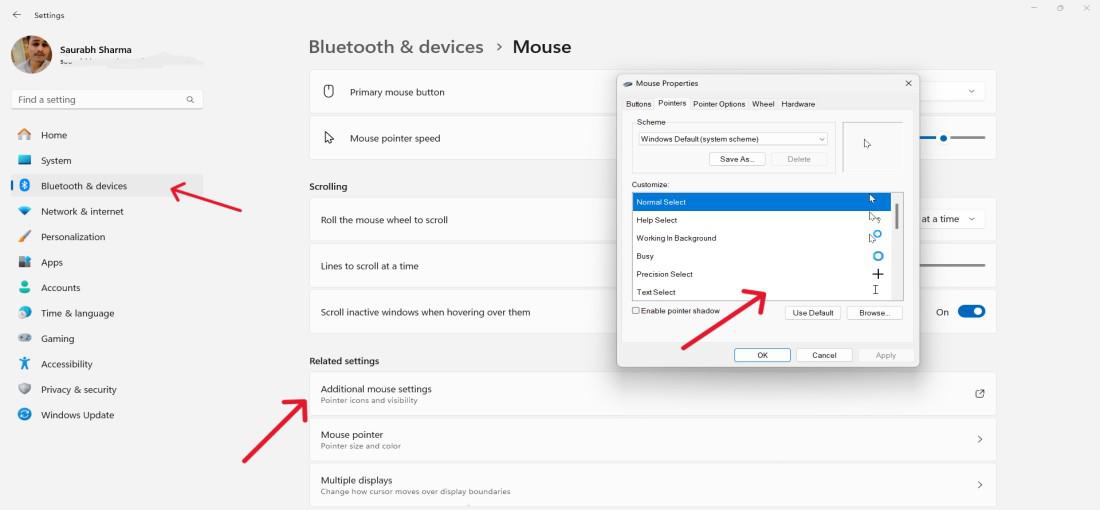
Customize your mouse pointer to suit your preferences using the Settings app on Windows 11. This feature allows you to personalize the appearance and behavior of your mouse pointer, enhancing your overall user experience. Follow these simple steps to adjust settings such as pointer size to make your pointer feel just right for you.
Step 1: On Settings, select “Devices” then “Mouse”.
Step 2: Open the Mouse Properties by clicking “Additional mouse options”.
Step 3: Click on the “pointers” tab to select other pointer schemes or adjust specific pointers.
👁 How-to-Personalize-the-Mouse-Pointer-on-Windows-11-Using-the-Settings-App
Step 4: Click "Apply" and then "OK" to apply your changes.
In conclusion, adjusting mouse sensitivity on Windows 11 is a simple yet crucial step in optimizing your computing experience. By fine-tuning your mouse settings, you can achieve precise control, whether you're gaming, working, or simply browsing the web. With the easy-to-follow steps outlined in this guide, you can effortlessly customize your mouse sensitivity to suit your preferences. In the Settings app or Control panel, check various options to modify your mouse settings; and do not forget about scroll speed and your pointer customization. So, take control of your cursor and enjoy a smoother, more responsive user experience on Windows 11.